
1. Product Overview
The UMUTOO MG002 is a versatile retro-style portable radio offering multiple audio playback options. It combines classic aesthetics with modern functionality, including AM/FM/SW radio reception, Bluetooth connectivity, and support for USB drives and Micro-SD/TF cards. Its compact design and dual power options make it suitable for both indoor and outdoor use.
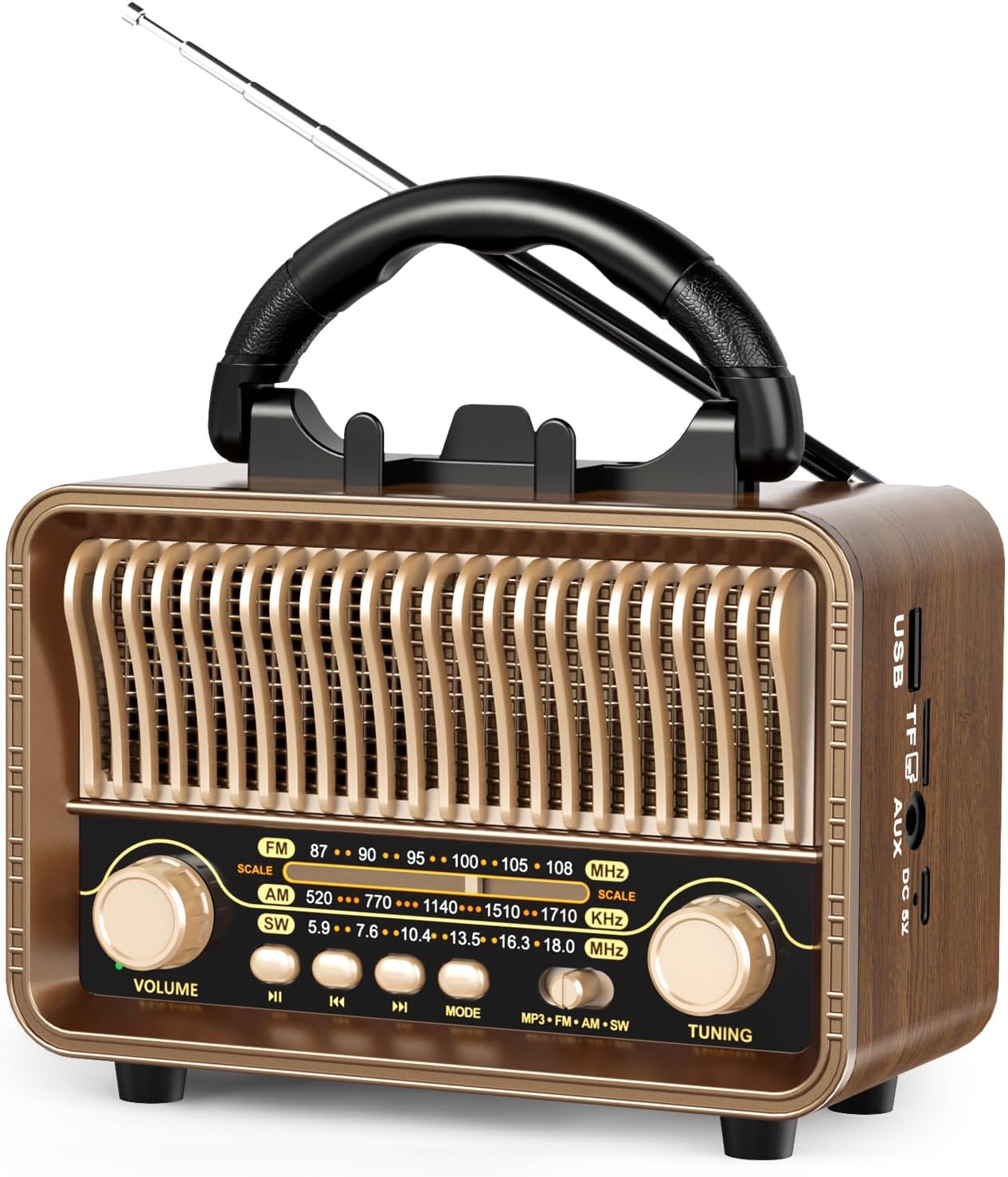
Image 1.1: Front view of the UMUTOO MG002 Retro Vintage Portable Radio, showcasing its wood grain finish, gold-colored grille, tuning dials, and retractable antenna.
Key Features:
- Multi-Band Radio: Supports AM, FM, and Shortwave (SW) frequencies with excellent reception via an advanced DSP chip and 50cm retractable antenna.
- 5-in-1 Audio Playback: Functions as an AM/FM/SW radio, Bluetooth 5.4 speaker, USB player, Micro-SD/TF card player, and AUX input device.
- Stereo Sound: Built-in stereo speakers deliver crisp sound and rich bass.
- Dual Power Options: Features a built-in 1200mAh rechargeable battery (Type-C charging) and supports 2 x D-cell batteries (not included) for extended use.
- Portable Design: Compact size with a convenient handle that also functions as a cell phone stand.
2. What's in the Box
Upon unboxing your UMUTOO MG002 radio, please ensure all the following components are present:
- UMUTOO MG002 Retro Vintage Portable Radio
- Owner's Manual (this document)
- USB Type-C Charging Cable
3. Setup
3.1 Powering the Radio
Your MG002 radio offers two power options:
- Built-in Rechargeable Battery: The radio comes with a built-in 1200mAh lithium-ion battery. For initial use, it is recommended to fully charge the radio. Connect the provided USB Type-C charging cable to the DC 5V port on the side of the radio and the other end to a compatible USB power adapter (not included). The charging indicator light will illuminate.
- D-Cell Batteries: For portable or emergency use, you can insert two (2) D-cell batteries (not included) into the battery compartment located on the back of the radio. Ensure correct polarity (+/-) when inserting batteries.
WARNING: When charging the radio using the Type-C cable, please remove any D-cell batteries from the compartment to prevent potential damage to the radio or batteries.

Image 3.1: Illustration of the two power options: USB Type-C charging and the D-cell battery compartment.
3.2 Antenna Setup
For optimal radio reception, extend the telescopic antenna fully. The antenna can be rotated 360 degrees to fine-tune signal strength.
4. Operating Instructions
4.1 Power On/Off and Mode Selection
To power on the radio, rotate the VOLUME knob clockwise. To power off, rotate it counter-clockwise until it clicks. Press the MODE button to cycle through the available modes: MP3 (USB/TF Card), FM, AM, and SW (Shortwave).
4.2 Radio Mode (AM/FM/SW)
After selecting FM, AM, or SW mode using the MODE button:
- Extend the telescopic antenna fully.
- Rotate the TUNING knob to scan for radio stations. The frequency scale on the front panel will indicate the current frequency.
- Adjust the antenna position for the clearest reception.

Image 4.1: The radio's frequency display, showing ranges for FM (87-108MHz), AM (520-1710KHz), and SW (5.9-18.0MHz).
4.3 Bluetooth Mode
To connect a Bluetooth device:
- Press the MODE button until you hear an audible prompt indicating Bluetooth mode. The Bluetooth indicator light will flash.
- Enable Bluetooth on your mobile device or computer and search for available devices.
- Select "MG002" from the list of devices to pair. Once connected, you will hear a confirmation sound, and the indicator light will stop flashing.
- You can now stream audio from your device to the radio.
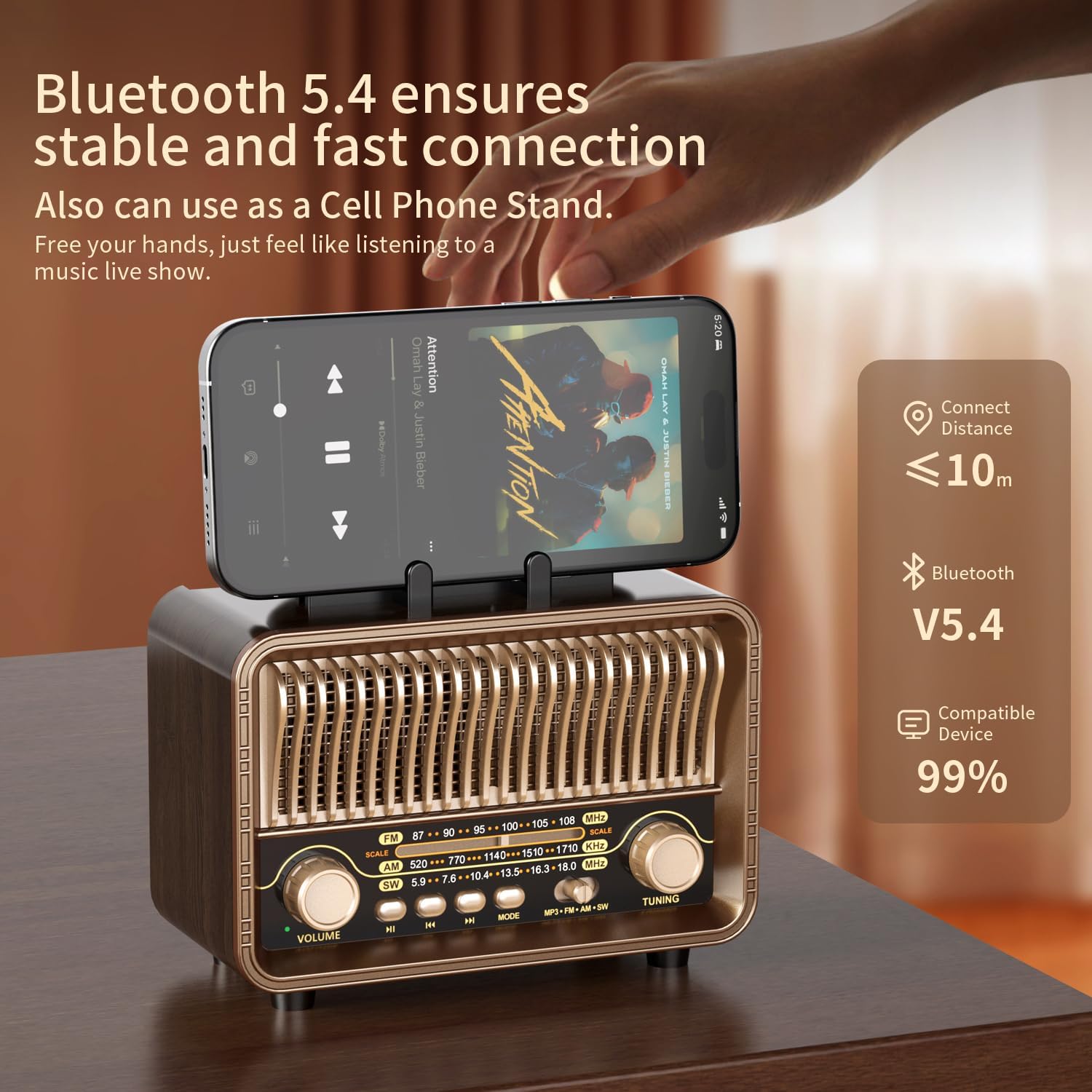
Image 4.2: The radio's Bluetooth connectivity in action, demonstrating its use as a phone stand.
4.4 USB/TF Card Playback
The radio supports playback from USB flash drives and Micro-SD/TF cards. Insert your media into the corresponding port on the side of the radio. The radio will automatically switch to MP3 mode and begin playing audio files. Use the playback control buttons (Previous, Play/Pause, Next) located below the frequency scale to manage your music.

Image 4.3: Close-up of the radio's side panel, highlighting the USB, TF card, AUX, and DC 5V charging ports.
4.5 AUX Input
To play audio from an external device (e.g., smartphone, MP3 player) that does not support Bluetooth, connect a 3.5mm audio cable (not included) from your device's headphone jack to the AUX input port on the side of the radio. The radio will automatically switch to AUX mode.
4.6 Volume Control
Adjust the audio output level by rotating the VOLUME knob on the left side of the front panel.
4.7 Phone Stand Functionality
The integrated handle on top of the radio is designed to double as a convenient stand for your smartphone, allowing for hands-free viewing while listening to audio.
5. Maintenance
5.1 Cleaning
To clean the radio, use a soft, dry cloth. Do not use abrasive cleaners, waxes, or solvents as they may damage the finish. Avoid exposing the radio to excessive moisture.
5.2 Battery Care
If using D-cell batteries, remove them if the radio will not be used for an extended period to prevent leakage and corrosion. Always ensure D-cell batteries are removed when charging the internal battery via the Type-C port.
5.3 Storage
Store the radio in a cool, dry place away from direct sunlight and extreme temperatures.
6. Troubleshooting
| Problem | Possible Cause | Solution |
|---|---|---|
| No power | Battery depleted or D-cells incorrectly inserted/depleted. | Charge the internal battery using the Type-C cable. If using D-cells, check polarity and replace if necessary. |
| Poor radio reception | Antenna not extended or positioned incorrectly; weak signal area. | Fully extend and rotate the telescopic antenna. Try moving the radio to a different location. |
| Bluetooth not connecting | Radio not in Bluetooth mode; device too far; device already connected to another Bluetooth speaker. | Ensure radio is in Bluetooth mode. Move device closer to the radio (within 10m). Disconnect from other Bluetooth devices. |
| No sound from USB/TF card | Card/drive not inserted correctly; unsupported file format; corrupted files. | Reinsert the USB drive/TF card. Ensure audio files are in a supported format (e.g., MP3). Try a different USB drive/TF card. |
| Sound distortion | Volume too high; weak radio signal. | Lower the volume. For radio, adjust antenna or move to a stronger signal area. |
7. Specifications

Image 7.1: Dimensions of the UMUTOO MG002 radio: 16.5cm (6.5in) width, 8.2cm (3.23in) depth, 13.2cm (5.2in) height.
| Feature | Detail |
|---|---|
| Model Number | MG002 |
| Product Dimensions | 6.5 x 3.15 x 5.12 inches (16.5 x 8.0 x 13.0 cm) |
| Item Weight | 1.34 pounds (0.61 kg) |
| Connectivity Technology | Auxiliary, Bluetooth, USB |
| Tuner Technology | AM/FM/Shortwave |
| Radio Bands Supported | AM/FM/Shortwave |
| Power Source | Battery Powered (Built-in 1200mAh Lithium Ion, 2*D battery option) |
| Color | Wood Grain |
| Special Feature | Rechargeable |
| Manufacturer | Moliao |
| Date First Available | November 21, 2024 |
8. Warranty and Support
This product is covered by a standard manufacturer's warranty. For specific warranty terms and conditions, please refer to the documentation provided at the time of purchase or contact your retailer.
Should you encounter any issues or require technical assistance, please contact the seller or manufacturer directly through the platform where the product was purchased. Please have your model number (MG002) and purchase details ready when seeking support.