
1. Product Overview
This manual provides detailed instructions for the installation, operation, and maintenance of your Toeeklsa Qualcomm Car Radio. This advanced infotainment system is designed specifically for Chevrolet Silverado and GMC Sierra models from 2019 to 2023, offering a significant upgrade to your vehicle's multimedia capabilities.
Key features include an UPGRADED Android 13 system, 8-core CPU, 8GB RAM, 128GB ROM, a 15.6-inch 2K IPS touch screen (1920*1440 resolution), built-in wireless CarPlay and Android Auto, GPS navigation, Bluetooth 5.0, and support for OEM camera and steering wheel controls.
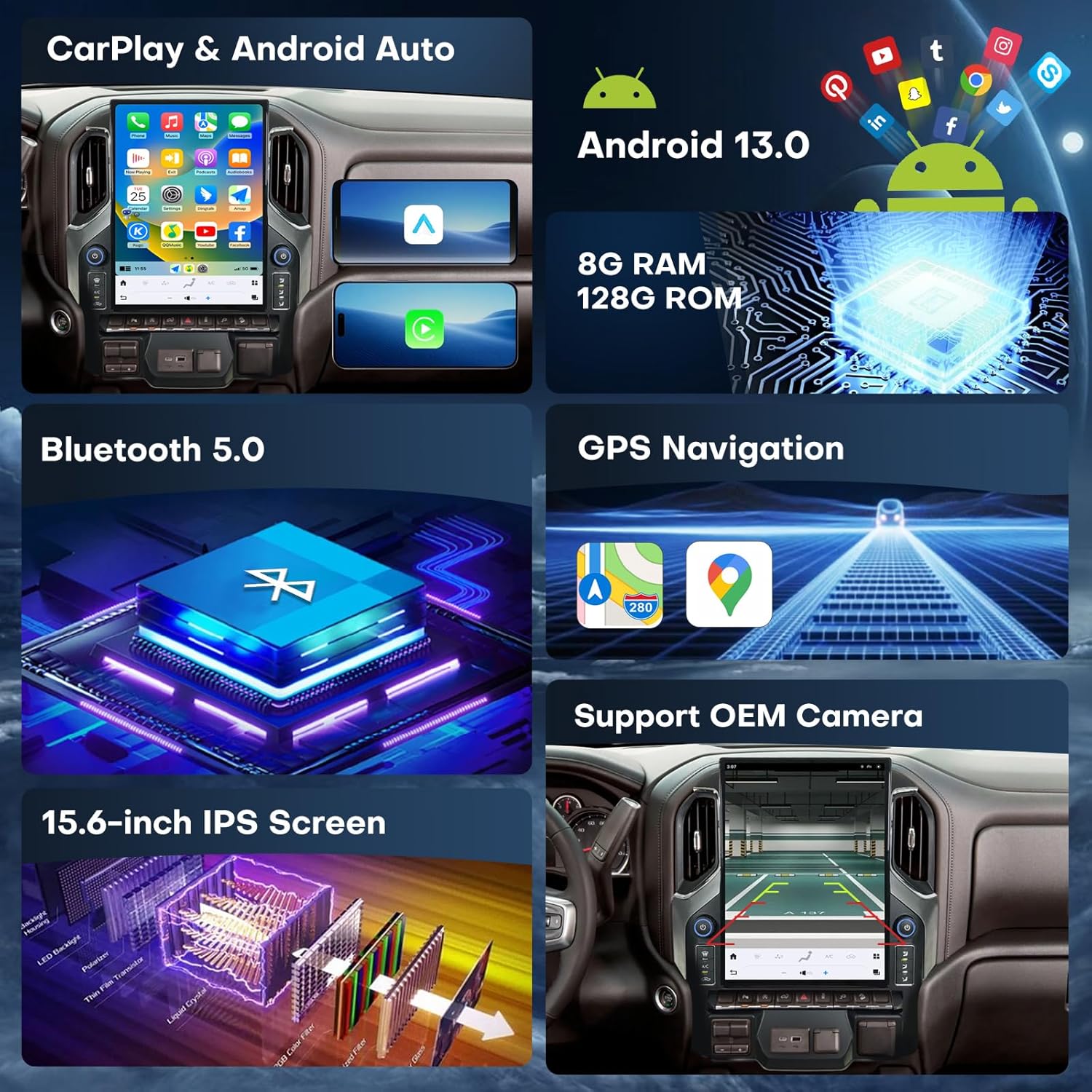
Figure 1.1: Key Features of the Toeeklsa Qualcomm Car Radio
2. Setup and Installation
This car radio is designed for a true plug-and-play installation, ensuring compatibility without complications. Free self-installation tools and comprehensive instructions are provided to assist you. No additional accessories are typically required.
Important: Before beginning installation, confirm that your original car radio is functioning properly.
2.1 Installation Overview

Figure 2.1: Before and After Installation
The installation process replaces your existing car radio with the new 15.6-inch display, integrating seamlessly into your vehicle's dashboard. The system retains all OEM features, including steering wheel controls, rear camera, and radar functions.
2.2 Included Components

Figure 2.2: Included Installation Components
Refer to the detailed installation guide provided in the packaging for step-by-step instructions on connecting each component.
2.3 Initial System Boot-up
Upon first power-up, the system will boot into the Android 13 operating system. You may need to calibrate the screen size to match your truck's display settings for optimal viewing. This can typically be found within the system settings under 'Display' or 'Calibration'.
Video 2.1: Overview of the Toeeklsa Car Radio for GMC Sierra and Chevrolet Silverado (2019-2021) installation and features.
3. Operating Instructions
The Toeeklsa car radio operates on an Android 13 system, providing a familiar and intuitive interface. All original OEM features are retained and accessible through the touch screen.
3.1 Wireless CarPlay & Android Auto
Enjoy seamless integration with your smartphone using built-in wireless CarPlay and Android Auto. This allows for hands-free calls, access to navigation, music, and other applications via Siri or Google voice assistant.

Figure 3.1: Wireless CarPlay and Android Auto Interface
Video 3.1: Instructions on how to connect CarPlay to the car radio system.
3.2 GPS Navigation & Connectivity
The system supports both Wi-Fi and 4G connectivity, allowing access to online navigation apps, real-time traffic updates, and advanced route planning. You can also download offline maps for navigation without an internet connection.
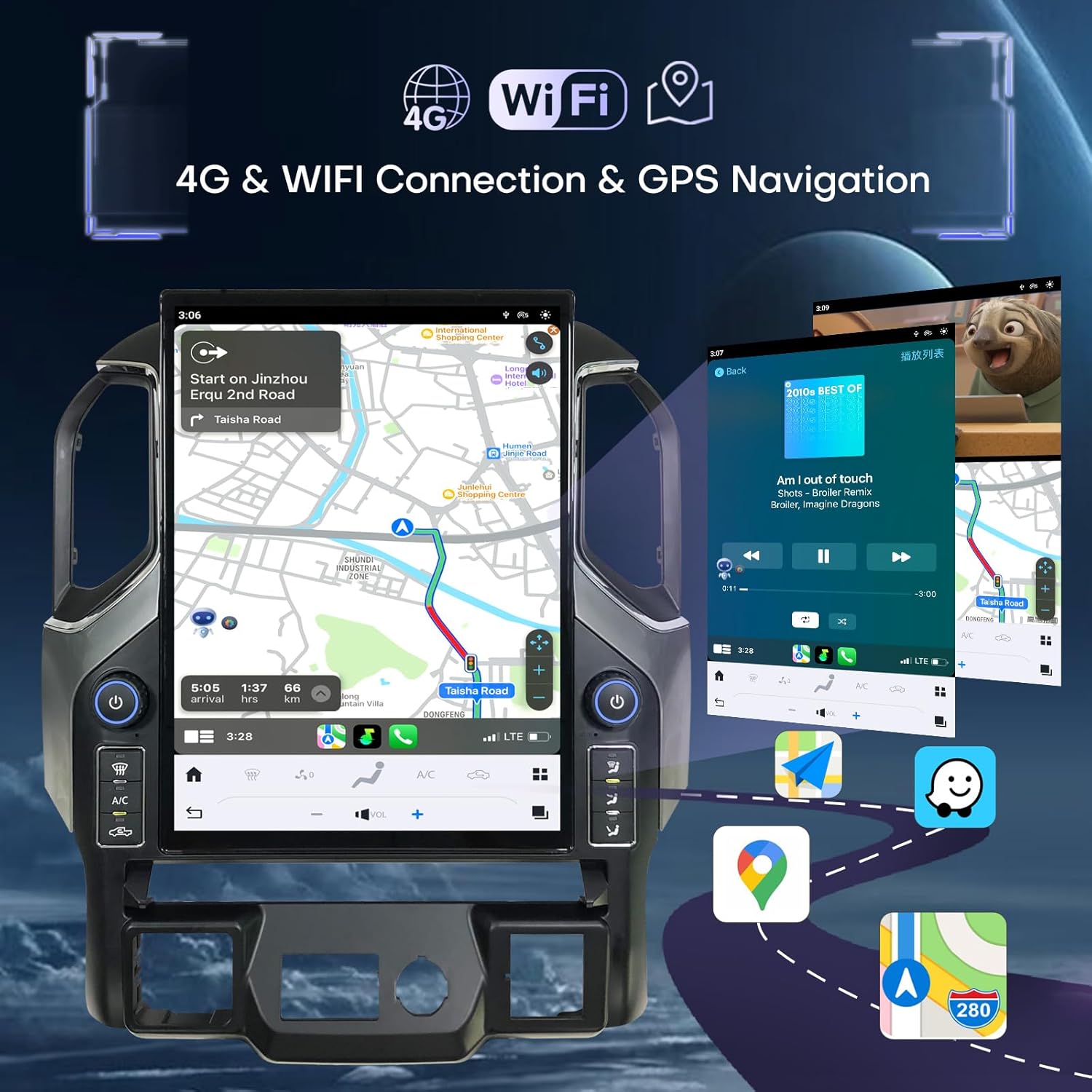
Figure 3.2: GPS Navigation and Connectivity Features
3.3 Bluetooth 5.0
Built-in Bluetooth 5.0 provides stable and fast connections for hands-free calling and audio streaming. Pair your smartphone to make and receive calls, and play music directly through the car's speakers.

Figure 3.3: Bluetooth 5.0 Functionality
3.4 AM/FM/RDS Radio
The radio supports both manual and automatic search for AM/FM/RDS stations, allowing you to store your favorite channels. The built-in HiFi and 16-band equalizer enable precise audio tuning for optimal listening pleasure.

Figure 3.4: AM/FM/RDS Radio Interface
3.5 Steering Wheel Control
The system fully supports your vehicle's existing steering wheel controls, allowing you to manage audio, calls, and other functions without taking your hands off the wheel.

Figure 3.5: Steering Wheel Control Integration
3.6 OEM Camera Support
When connected to your vehicle's reversing camera, the radio automatically displays the reversing image when you shift into reverse gear, enhancing parking safety. The system supports original OEM cameras.

Figure 3.6: OEM Camera Display
3.7 Split Screen Display
The large 15.6-inch screen supports split-screen functionality, allowing you to run two applications simultaneously, such as navigation and music playback, or a video and another app.

Figure 3.7: Split Screen Functionality
4. Maintenance
To ensure the longevity and optimal performance of your Toeeklsa car radio, follow these maintenance guidelines:
- Screen Cleaning: Use a soft, lint-free cloth specifically designed for electronics to clean the touch screen. Avoid abrasive materials or harsh chemical cleaners. Lightly dampen the cloth with water if necessary, but never spray liquid directly onto the screen.
- Software Updates: Periodically check for system software updates. These updates can improve performance, add new features, and enhance security. Connect the unit to Wi-Fi and navigate to System Settings > About Device > Software Update.
- Environmental Conditions: Avoid exposing the unit to extreme temperatures, direct sunlight for prolonged periods, or excessive moisture.
- Cable Connections: Ensure all cables are securely connected. Loose connections can lead to intermittent issues with audio, video, or other functions.
5. Troubleshooting
If you encounter issues with your car radio, refer to the following common troubleshooting steps:
- No Power: Check all power connections. Ensure the vehicle's ignition is on. If the issue persists, verify the vehicle's fuse box for any blown fuses related to the radio.
- No Sound/Distorted Audio:
- Check volume levels on both the car radio and your connected device (if using Bluetooth/CarPlay/Android Auto).
- Ensure all speaker wires are correctly connected.
- If using Bluetooth, ensure the device is properly paired and selected as the audio output. Some users have resolved sound issues after Bluetooth connection by performing a specific calibration or adjustment within the system settings. If this occurs, contact technical support for guidance.
- Verify the audio output settings in the system menu.
- Touch Screen Unresponsive: Try restarting the unit by turning off the vehicle's ignition and restarting it after a few minutes. If the problem continues, perform a system reset (refer to the detailed manual for reset procedures).
- GPS Not Working/Inaccurate: Ensure the GPS antenna is properly installed and has a clear view of the sky. Check GPS settings within the navigation application.
- CarPlay/Android Auto Connection Issues:
- Ensure Bluetooth and Wi-Fi are enabled on your smartphone and the car radio.
- Restart both your smartphone and the car radio.
- Forget the device from your phone's Bluetooth settings and re-pair.
- Ensure the 'Car Auto' app is running on the car stereo.
- Display Issues (e.g., incorrect size): Access the system settings and look for display calibration or screen size adjustment options.
For persistent issues or problems not covered here, please contact our technical support team.
6. Specifications
| Feature | Description |
|---|---|
| Brand | Toeeklsa |
| Compatible Vehicle Models | Chevrolet Silverado, GMC Sierra (2019, 2020, 2021, 2022, 2023) |
| Operating System | Android 13 |
| CPU | 8 Core Qualcomm |
| RAM | 8GB |
| ROM | 128GB |
| Screen Size | 15.6 Inches |
| Display Type | 2K IPS Touch Screen (Capacitive) |
| Resolution | 1920*1440P |
| Connectivity | Bluetooth 5.0, USB, Wi-Fi, 4G |
| Navigation | GPS (Worldwide Map Type), Online/Offline Maps |
| Special Features | Wireless CarPlay, Android Auto, AM/FM/RDS Radio, 16-band Equalizer, Subwoofer Support, Hi-Fi Audio, Steering Wheel Control Support, OEM Camera Support, Split Screen Display |
| Control Method | Touch, Voice |
| Mounting Type | Dashboard Mount |
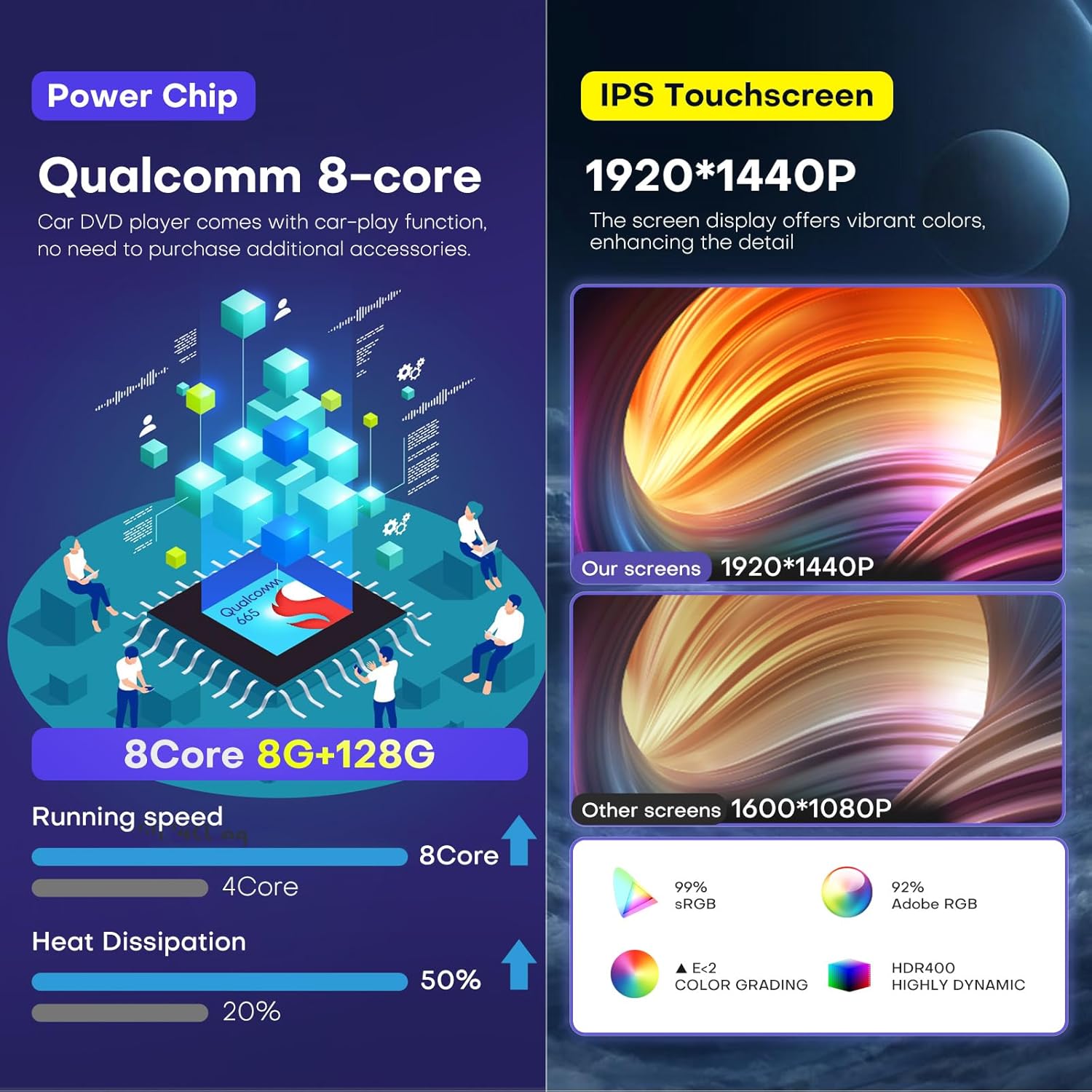
Figure 6.1: Performance and Display Specifications
7. Warranty and Support
Your Toeeklsa Qualcomm Car Radio comes with comprehensive after-sales support to ensure your satisfaction.
- Warranty Policy: A 12-month warranty policy covers manufacturing defects and malfunctions under normal use.
- Refund Guarantee: Enjoy a 30-day refund guarantee from the date of purchase.
- Technical Support: Lifelong technical support is provided for any challenges you may encounter during assembly, operation, or general use.
7.1 How to Contact Support
If you require assistance, please contact our professional technical team. You can typically reach support through the seller's contact information on the platform where you purchased the product.

Figure 7.1: Contacting Technical Support