1. Introduction
This manual provides essential instructions for the safe and effective use of your Philips PSE0401 Portable Speakerphone. Designed for conferences, remote work, and online meetings, this device offers high-quality audio capture and playback with versatile connectivity options. Please read this manual thoroughly before using the product and retain it for future reference.
2. Product Features
- 360-degree Omnidirectional Sound Pickup: Captures voices from all directions using a 4-microphone array, suitable for small to medium-sized meeting rooms.
- Intelligent Noise Reduction & Echo Cancellation: DSP technology filters background noise and eliminates echo for clear audio.
- Dual Speaker System: Two built-in 40mm speakers provide powerful and clear stereo sound.
- Versatile Connectivity: Supports both Bluetooth 5.0 and USB plug-and-play connections.
- Universal Compatibility: Works with various online meeting applications across Android, Apple, and Windows systems.
- Portable Design: Compact and lightweight with a non-slip base and built-in USB cable.
- Long-lasting Power: Equipped with a 2500mAh battery for extended use.
3. Package Contents
Ensure all items are present in the package:
- Philips PSE0401 Smart Speakerphone
- USB 2.0 Type-C Cable (built-in)
- Quick Start Guide
4. Device Layout and Controls

This image displays the Philips PSE0401 Portable Speakerphone from a top-down perspective, highlighting its compact, circular design and the intuitive control buttons arranged around the central speaker grille.
The PSE0401 features a circular design with control buttons located around the edge of the top panel. These typically include:
- Power Button: To turn the device on or off.
- Bluetooth Button: To activate Bluetooth pairing mode.
- Volume Up/Down Buttons: To adjust the speaker volume.
- Mute Button: To mute or unmute the microphone.
- Battery Indicator: LED lights indicating battery status.
5. Setup and Connection
5.1 Powering On/Off
- To power on, press and hold the Power button until the indicator lights illuminate.
- To power off, press and hold the Power button again until the indicator lights turn off.
5.2 USB Connection (Plug-and-Play)
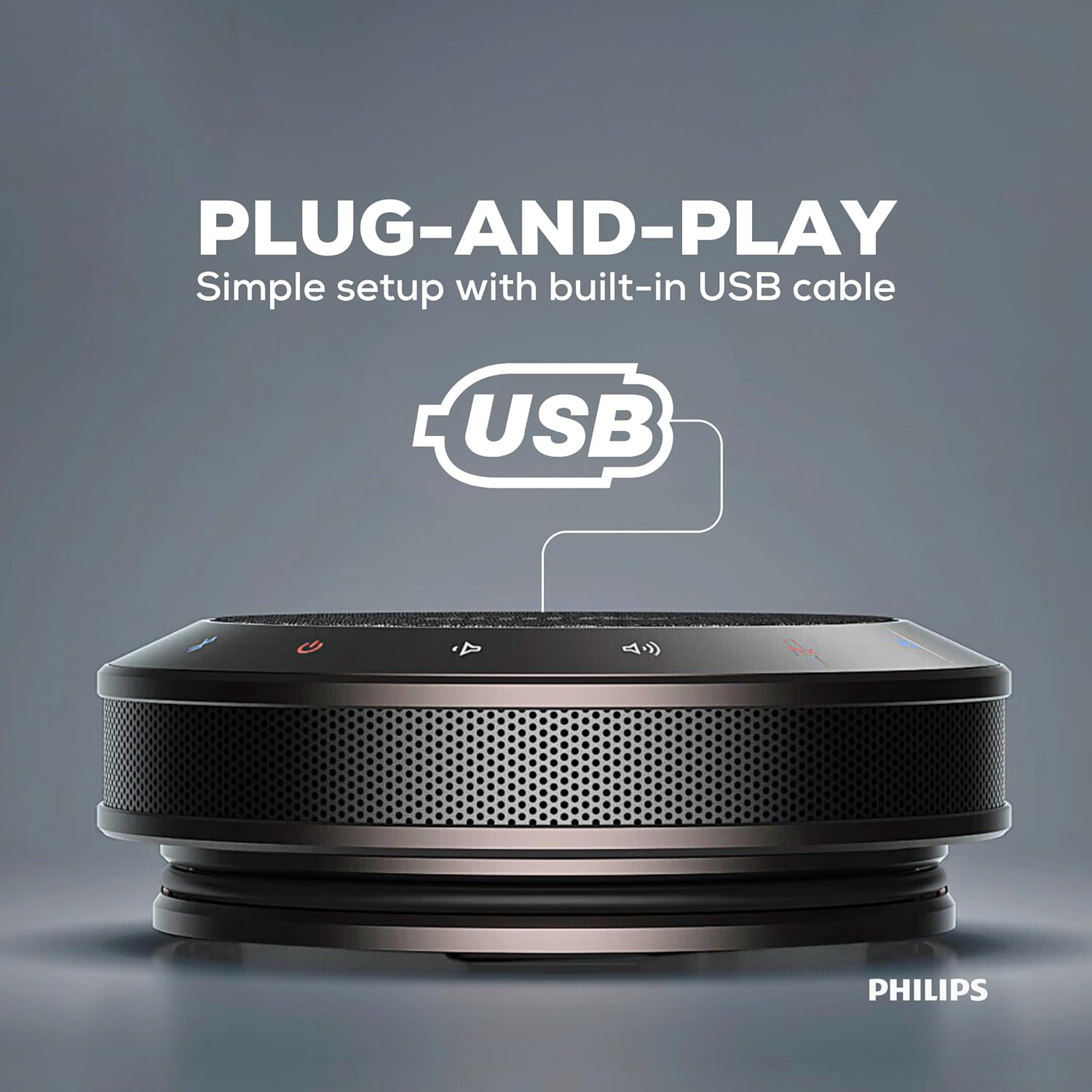
This image shows a side view of the Philips PSE0401 speakerphone with its integrated USB cable extended, emphasizing the simple plug-and-play setup for immediate use.
- Locate the built-in USB cable on the speakerphone.
- Connect the USB cable to an available USB port on your computer or laptop.
- The device will be automatically recognized by your operating system (Windows, macOS, etc.) without requiring additional drivers.
- Select the Philips PSE0401 as your audio input and output device in your communication software settings.
5.3 Bluetooth Connection

A top-down view of the Philips PSE0401 speakerphone, featuring icons for both USB and Bluetooth, illustrating its seamless and versatile connectivity options for various devices.
- Ensure the speakerphone is powered on.
- Press the Bluetooth button on the speakerphone. The Bluetooth indicator light will flash, indicating it is in pairing mode.
- On your mobile device (smartphone, tablet) or computer, go to Bluetooth settings and enable Bluetooth.
- Search for available devices and select "Philips PSE0401" from the list.
- Once connected, the Bluetooth indicator light will become solid.
6. Operation
6.1 Call Management
When connected via USB or Bluetooth, you can manage calls directly from your connected device or, if supported by your communication software, using the speakerphone's controls.
- Answer/End Call: Typically, a single press of a dedicated call button (if present) or managing from the connected device.
- Reject Call: Usually by holding a dedicated call button or managing from the connected device.

This graphic illustrates the universal compatibility of the Philips PSE0401 speakerphone with popular online meeting platforms such as Zoom, Google Meet, Skype, and Microsoft Teams, ensuring seamless integration across different systems.
6.2 Volume Control
Use the Volume Up (+) and Volume Down (-) buttons on the speakerphone to adjust the playback volume. You can also control the volume from your connected device.
6.3 Microphone Mute
Press the Mute button to mute the microphone during a call. The mute indicator light will typically illuminate. Press it again to unmute the microphone.

The Philips PSE0401 speakerphone is shown centrally on a conference table, demonstrating its 360-degree omnidirectional sound pickup capability, ensuring all participants in a meeting room are clearly heard.
6.4 Battery Status
The battery indicator lights provide information on the current charge level. Refer to the Quick Start Guide for specific LED patterns indicating charge status and low battery warnings.

This image shows the Philips PSE0401 speakerphone alongside a battery icon, highlighting its portable design and the inclusion of a 2500mAh battery for extended usage.
7. Maintenance
- Cleaning: Use a soft, dry cloth to clean the surface of the speakerphone. Do not use liquid cleaners or abrasive materials.
- Storage: Store the device in a cool, dry place away from direct sunlight and extreme temperatures.
- Avoid Water: The device is not waterproof. Avoid exposure to water or other liquids.
8. Troubleshooting
| Problem | Possible Solution |
|---|---|
| No sound from speakerphone |
|
| Microphone not picking up sound |
|
| Cannot connect via Bluetooth |
|
| Poor audio quality (echo, noise) |
|
9. Technical Specifications
- Model Name: Smart Meeting Speakerphone
- Model Number: PSE0401
- Speaker Type: Multimedia
- Connectivity Technology: Bluetooth 5.0, USB
- Audio Output Mode: Stereo
- Speaker Maximum Output Power: 6 Watts
- Frequency Response: 48 KHz
- Microphone: Built-in, Noise Cancelling, 360-degree pickup
- Battery: 2500mAh
- Product Dimensions: 6D x 16.2W x 16.5H Centimeters
- Item Weight: 520 Grams
- Color: Dark Grey
- Control Method: App (if applicable), On-device buttons
- Manufacturer: Speech Processing Solutions GmbH
10. Warranty and Support
Your Philips PSE0401 Portable Speakerphone comes with a 1-Year Warranty from the date of purchase. Please retain your proof of purchase for warranty claims.
For technical support, service, or warranty inquiries, please contact:
Importer/Packer: Ceeco Technologies Pvt Ltd
C-105, Naraina Industrial Area Phase-1
New Delhi - 110028, India
Contact: +91 9205959222
Email: philipssupport@ceeco.in
For the most up-to-date information and support resources, please visit the official Philips support website.