
Introduction
Thank you for choosing the PARYAVARAN KM908 Wireless Keyboard and Mouse Set. This manual provides essential information for setting up, operating, and maintaining your new wireless peripheral set. Please read this manual thoroughly before use to ensure optimal performance and longevity of your product.
Package Contents
- 1 x PARYAVARAN KM908 Wireless Keyboard
- 1 x PARYAVARAN Wireless Mouse
- 1 x USB Receiver (typically stored inside the mouse battery compartment)
- 1 x User Manual (this document)
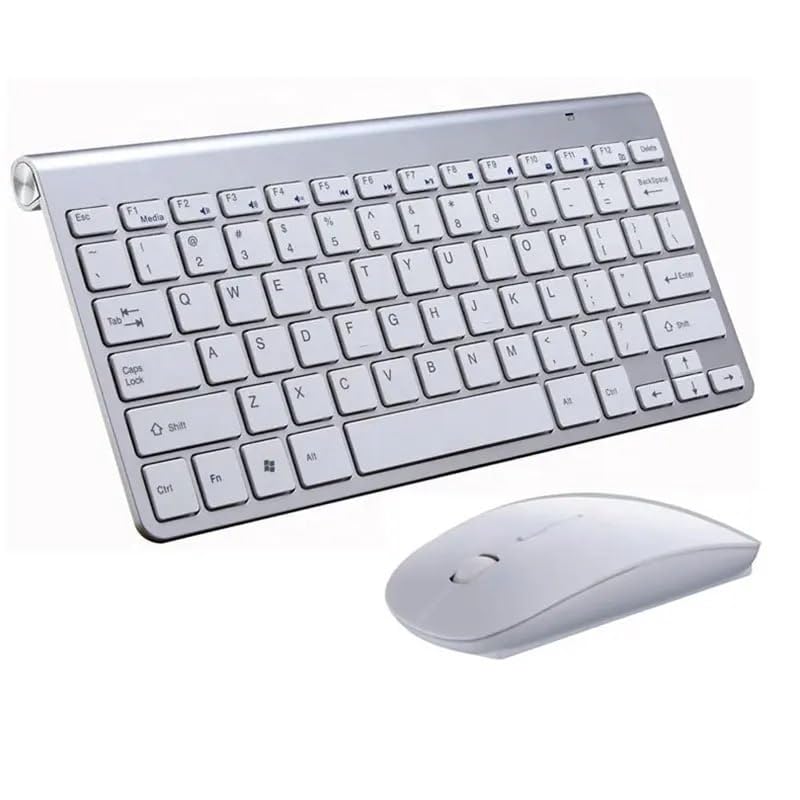
Image: The PARYAVARAN KM908 Wireless Keyboard and Mouse Set, showing both components.
Product Overview
Keyboard Features:
- Scissor Switch Key Design: Provides a smooth and quiet typing experience.
- Ultra-Slim and Lightweight: Designed for portability and a modern aesthetic.
- Function Keys: Dedicated multimedia and shortcut keys (F1-F12).
- Non-Slip Pads: Located on the underside for stability during use.
Mouse Features:
- Silent Click Design: Reduces noise for quiet operation.
- Ergonomic Shape: Comfortable for extended use.
- Optical Sensor: Provides precise tracking.

Image: A user demonstrating the comfortable typing experience with the PARYAVARAN KM908 Wireless Keyboard, highlighting its ergonomic design and non-slip pads.
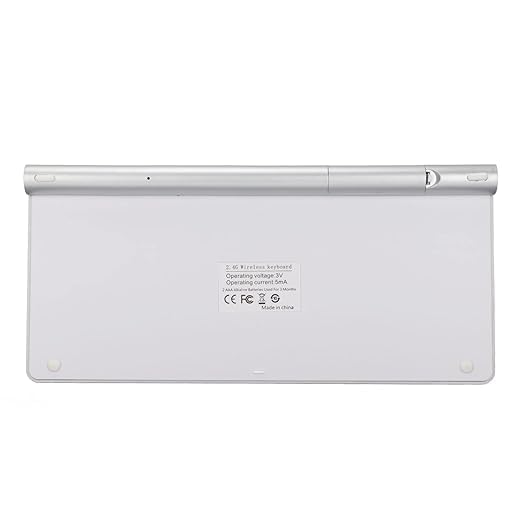
Image: Rear view of the PARYAVARAN KM908 Wireless Keyboard, showing the battery compartment area and product information label.
Setup
1. Battery Installation
The keyboard requires two AAA batteries, and the mouse requires one AA battery (batteries are not included).
- For the Keyboard: Locate the battery compartment on the back of the keyboard. Open the cover and insert two AAA batteries, ensuring correct polarity (+/-). Close the cover securely.
- For the Mouse: Locate the battery compartment on the underside of the mouse. Open the cover and insert one AA battery, ensuring correct polarity (+/-). Close the cover securely.

Image: Close-up view of the battery compartment on the PARYAVARAN KM908 Wireless Keyboard, showing where to insert AAA batteries.
2. Connecting the USB Receiver
The PARYAVARAN KM908 set uses a single 2.4 GHz USB receiver for both the keyboard and mouse.
- Locate the USB receiver. It is typically stored in the battery compartment of the mouse for safekeeping.
- Insert the USB receiver into an available USB port on your computer, laptop, or smart TV.
- The system should automatically detect and install the necessary drivers. No additional software is required.
- Once the receiver is connected, the keyboard and mouse should be ready for use.
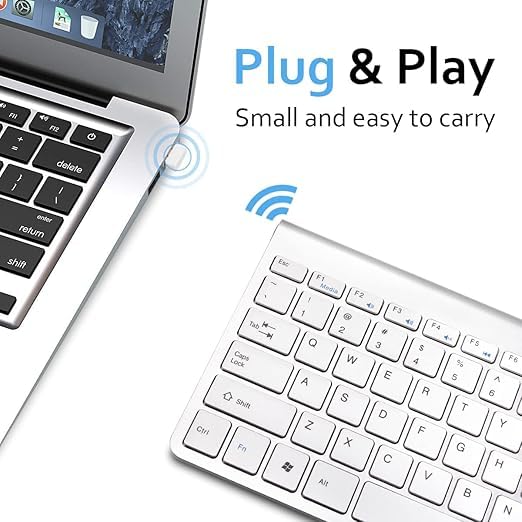
Image: Illustration of the "Plug & Play" setup, showing the USB receiver being connected to a laptop, enabling the wireless keyboard.
Operating Instructions
Keyboard Functions:
The keyboard features standard QWERTY layout keys along with function keys (F1-F12) that can be used for multimedia control and shortcuts when pressed in combination with the Fn key.
- Fn + F1-F12: Access various multimedia and system functions such as volume control, media playback, and screen brightness (functions may vary based on operating system).
- Caps Lock Indicator: A small LED light indicates when Caps Lock is active.
Mouse Functions:
The mouse provides standard left-click, right-click, and scroll wheel functionality.
- Left Click: Primary selection and activation.
- Right Click: Opens contextual menus.
- Scroll Wheel: Scrolls content vertically. Can also function as a middle-click button.
Compatibility:
This wireless set is compatible with a wide range of devices and operating systems, including:
- Desktops
- Laptops
- Smart TVs
- Other devices supporting USB HID (Human Interface Device) input.
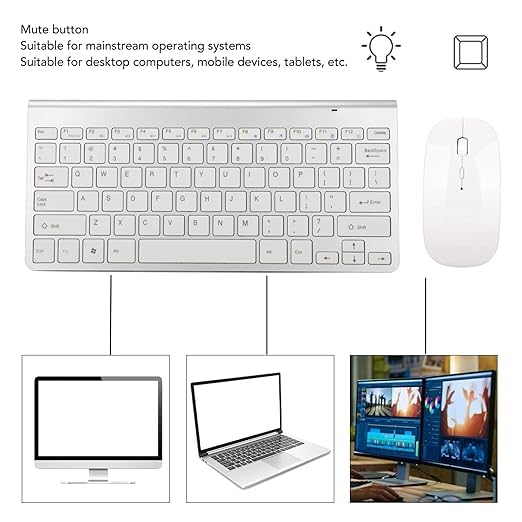
Image: Diagram illustrating the compatibility of the wireless keyboard and mouse set with desktop computers, laptops, and smart TVs.

Image: A PARYAVARAN KM908 wireless keyboard in a meeting room setting, demonstrating its 2.4GHz long-range wireless connection up to 10 meters (33 feet).
Maintenance
Cleaning:
- Use a soft, dry cloth to clean the surfaces of the keyboard and mouse.
- For stubborn dirt, slightly dampen the cloth with water or a mild, non-abrasive cleaner.
- Avoid using harsh chemicals, solvents, or abrasive materials, as these can damage the product.
- Do not immerse the devices in water or any other liquid.
Battery Replacement:
- When the keyboard or mouse stops responding or exhibits intermittent behavior, it may be time to replace the batteries.
- Follow the battery installation steps outlined in the "Setup" section.
- Dispose of used batteries responsibly according to local regulations.
Troubleshooting
| Problem | Solution |
|---|---|
| Keyboard/Mouse not responding |
|
| Lag or intermittent connection |
|
| Mouse cursor erratic or not moving |
|
Specifications
| Feature | Detail |
|---|---|
| Model | KM908 |
| Connectivity | 2.4 GHz Wireless (USB Receiver) |
| Operating Range | Up to 10 meters (33 feet) |
| Keyboard Dimensions (L x W x H) | 28 cm x 13 cm x 1.9 cm (approx.) |
| Mouse Dimensions (L x W x H) | 11.2 cm x 5.8 cm x 2.5 cm (approx.) |
| Total Item Weight | 450 g |
| Keyboard Battery | 2 x AAA (not included) |
| Mouse Battery | 1 x AA (not included) |
| Compatibility | Desktop, Laptop, Smart TV |
| Key Type | Scissor Switch |

Image: Diagram illustrating the compact layout and ultra-thin design with key dimensions of the PARYAVARAN KM908 Wireless Keyboard and Mouse.
Warranty and Support
PARYAVARAN products are designed for reliability and performance. For warranty information, technical support, or customer service inquiries, please refer to the contact details provided with your purchase documentation or visit the official PARYAVARAN website.
Please retain your proof of purchase for any warranty claims.