
1. Introduction
This manual provides detailed instructions for the installation, operation, and maintenance of your Rimoody 4Core 4G+64G Android 15 Car Radio. This advanced car stereo system is designed to enhance your driving experience with features such as Wireless Carplay, Android Auto, GPS navigation, 5G-WiFi connectivity, Bluetooth, FM/RDS radio, and a customizable EQ. Please read this manual thoroughly before use to ensure proper functionality and safety.
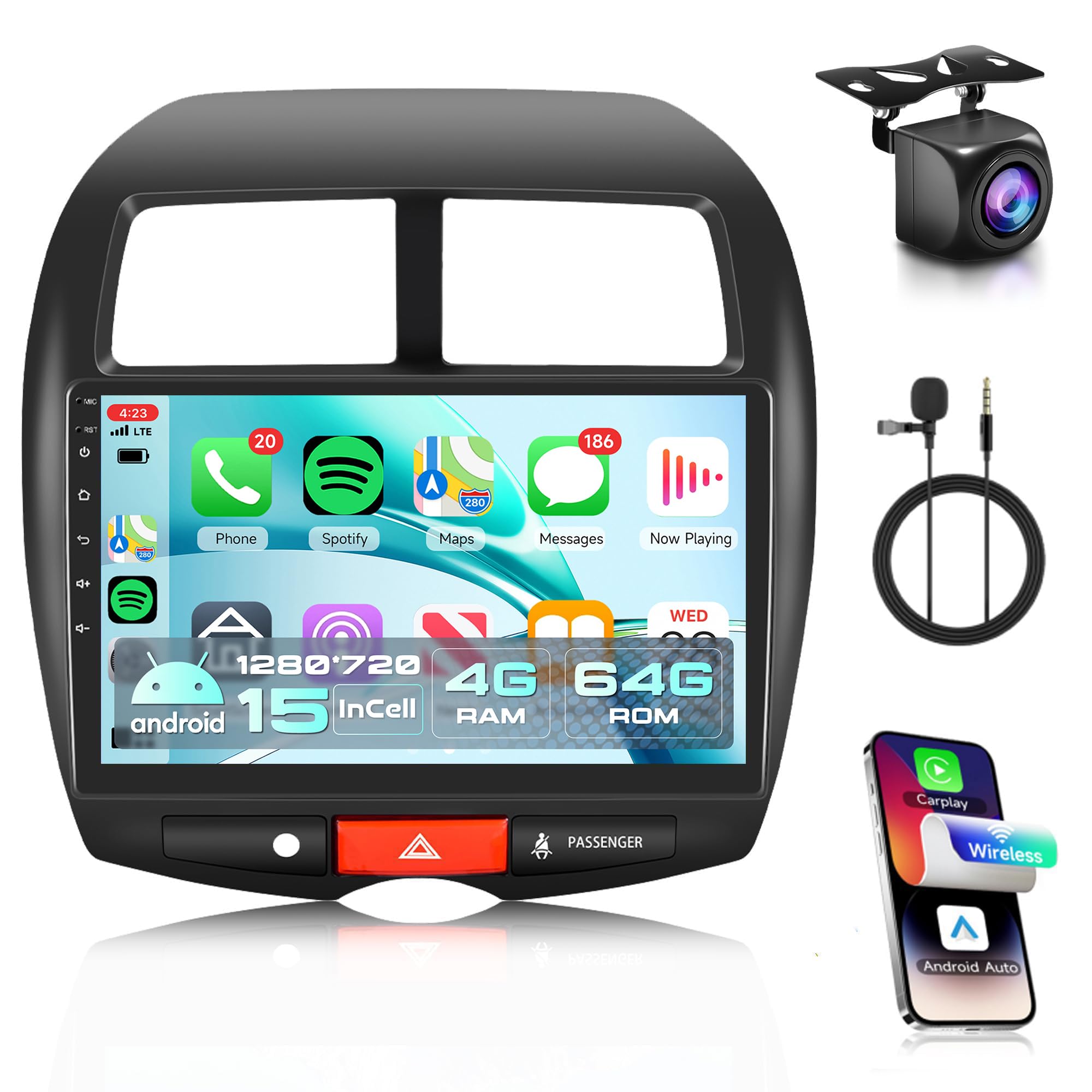
Figure 1: Rimoody 4Core 4G+64G Android 15 Car Radio main unit.
2. Vehicle Compatibility
This car radio is specifically designed for the following vehicle models:
- Mitsubishi ASX (2013-2015)
- Mitsubishi Outlander Sport (2011-2017)
- Mitsubishi RVR (2011-2017)
Important: Please confirm your original car center console matches Model A as shown in Figure 2. This product only supports Model A, not Model B. If your console is Model B, please contact customer service for recommendations.

Figure 2: Vehicle compatibility guide for center console types.
3. What's in the Box
Upon opening the package, ensure all the following components are present:
- Car Radio Unit
- Backup Camera
- Microphone
- Wiring Harness
- GPS Antenna
- USB Cable
- User Manual
- RCA Cable
- Rear Camera Input Cable
- Installation Tool
- Original Car USB Adapter (if applicable)

Figure 3: Contents of the product package and unit dimensions.
4. Setup and Installation
Installation of the car radio requires basic automotive electrical knowledge. If you are unsure, professional installation is recommended.
4.1 Pre-Installation Check
- Verify vehicle compatibility (refer to Section 2).
- Ensure all components listed in Section 3 are present.
- Disconnect the vehicle's battery to prevent electrical shorts.
4.2 Removal of Original Radio
Carefully remove the existing car radio and trim panels. Refer to your vehicle's specific service manual for detailed instructions on panel removal.

Figure 4: Visual comparison of the dashboard before and after installing the Rimoody car radio.
4.3 Wiring Connections
Connect the provided wiring harness to the car radio and your vehicle's existing wiring. Ensure all connections are secure. Refer to the wiring diagram for correct connections.
- Power Cable: Connect to the vehicle's power supply.
- RCA Cable: For audio/video output to external devices.
- USB Cable: For data transfer and charging.
- Rear Camera Input Cable: Connect the backup camera.
- GPS Antenna: Mount in a location with a clear view of the sky for optimal signal reception.
- Microphone: Connect for hands-free calling and voice commands.

Figure 5: Comprehensive wiring diagram and overview of included accessories.
4.4 Mounting the Unit
Secure the new car radio unit into the dashboard opening using the provided installation tools and brackets. Reassemble any removed trim panels.
4.5 Post-Installation
Reconnect the vehicle's battery. Turn on the ignition and test all functions of the car radio.
5. Operating Instructions
Your Rimoody car radio runs on an Android 15 system, offering a wide range of features. The 10.1-inch HD touchscreen provides a clear display with 1280*720 resolution and responsive touch control.
5.1 Wireless Carplay & Android Auto & Mirror Link
Connect your smartphone wirelessly to access navigation, music, calls, and messages directly from the car radio display. The system supports both iOS (Wireless Carplay) and Android (Wireless Android Auto) devices. Mirror Link functionality allows you to display your phone's screen content via USB cable or WiFi.

Figure 6: Wireless Carplay/Android Auto interface on the car radio.
Video 1: Demonstration of Wireless Carplay and Android Auto functionality.
5.2 GPS Navigation & WiFi
The built-in GPS module supports both online and offline maps, providing voice guidance and real-time traffic information. Connect to the internet via WiFi hotspot or tethering from your phone to browse the web, stream content, and download apps.

Figure 7: GPS navigation interface and system hardware overview.
5.3 Bluetooth & FM/RDS & EQ
Bluetooth: Enjoy hands-free calling and music playback. The system supports automatic phone book loading for convenience.
FM/RDS Radio: Tune into your favorite FM stations with clear reception and low noise. The system allows presetting up to 18 stations and supports RDS for station information display.
EQ (Equalizer): Customize your audio experience with a variety of EQ sound effects and frequency division adjustments for a surround panoramic sound.

Figure 8: Bluetooth, EQ, FM/RDS radio, and steering wheel control interfaces.
Video 2: Overview of sound settings including equalizer, surround, and subwoofer adjustments.
5.4 Rear Camera and Steering Wheel Control (SWC)
Rear Camera: The system supports AHD camera image input. When reverse gear is engaged, the screen automatically switches to the rear view, aiding in safe parking and maneuvering.
Steering Wheel Control: Control various functions of the car radio directly from your vehicle's steering wheel buttons, enhancing convenience and safety while driving.
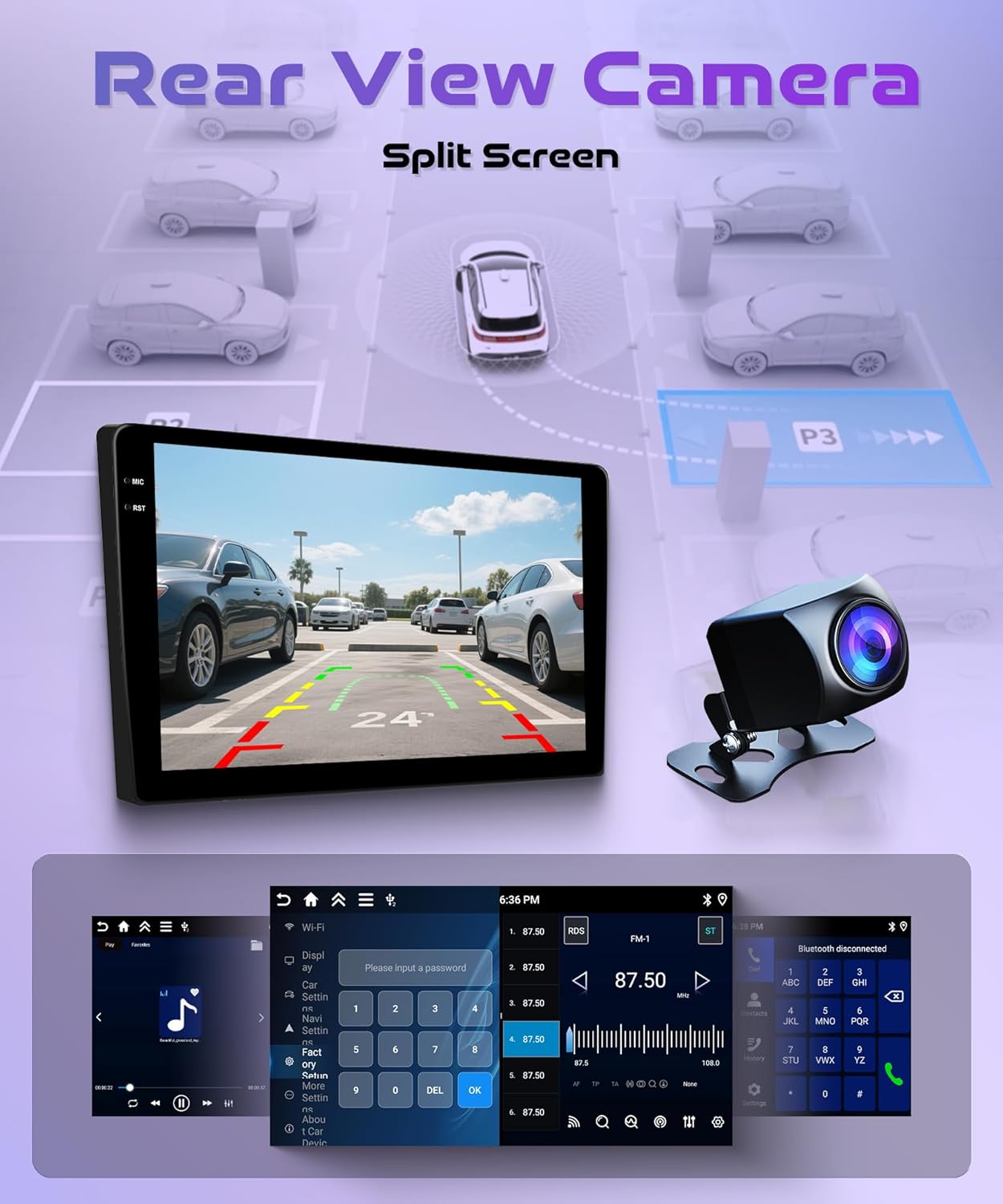
Figure 9: Rear camera display and split-screen functionality.
5.5 Split Screen and Customize Home Page APP
Split Screen: Use two applications simultaneously on the device's screen. You can customize the size and position of each app and switch between them with a simple swipe gesture.
Customize Home Page: Personalize your home screen by selecting which applications to display and rearranging their icons according to your preference.
6. Maintenance
To ensure the longevity and optimal performance of your car radio, follow these maintenance guidelines:
- Cleaning: Use a soft, dry cloth to clean the screen and exterior. Avoid abrasive cleaners or solvents that may damage the surface.
- Temperature: Avoid exposing the unit to extreme temperatures, both hot and cold, for extended periods.
- Software Updates: Periodically check for and install available software updates to ensure the system runs efficiently and securely.
- Power Supply: Ensure the vehicle's electrical system is stable to prevent power fluctuations that could harm the unit.
7. Troubleshooting
If you encounter issues with your car radio, refer to the following common problems and solutions:
| Problem | Possible Cause | Solution |
|---|---|---|
| Unit does not power on | Loose power connection, blown fuse, vehicle battery issue | Check wiring harness connections, inspect vehicle fuses, verify battery charge. |
| No sound | Volume too low, incorrect audio source, speaker wiring issue | Increase volume, select correct audio source, check speaker connections. |
| GPS signal lost or inaccurate | GPS antenna obstructed or improperly installed | Ensure GPS antenna has a clear view of the sky, check antenna connection. |
| Wireless Carplay/Android Auto not connecting | Bluetooth/WiFi off on phone, incorrect pairing, software glitch | Enable Bluetooth/WiFi on phone, re-pair device, restart both phone and car radio. |
| Screen unresponsive or frozen | Temporary software issue | Perform a soft reset (refer to device settings or contact support). |
If the problem persists after attempting these solutions, please contact customer support.
8. Specifications
- Brand: Rimoody
- Operating System: Android 15
- CPU: 4Core
- Memory: 4GB RAM + 64GB ROM
- Screen Size: 10.1 Inches
- Display Type: LCD, Capacitive Touch Screen
- Resolution: 1280*720
- Connectivity: Bluetooth, 5G-WiFi
- Navigation: Built-in GPS module, supports online and offline maps (North America)
- Radio: FM/RDS
- Special Features: Wireless Carplay, Wireless Android Auto, Mirror Link, EQ, Rear Camera Input (AHD), Steering Wheel Control (SWC), Split Screen, Customizable Home Page
- Mounting Type: Dashboard Mount
- Included Components: Car radio, backup camera, microphone, wiring harness
9. Warranty and Support
Your Rimoody car radio comes with a comprehensive warranty and dedicated customer support.
9.1 Warranty Information
The product includes a 2-year manufacturer's warranty covering defects in materials and workmanship. Please retain your proof of purchase for warranty claims.
9.2 Customer Support
For any questions, technical assistance, or warranty claims, please contact Rimoody customer support. We offer:
- 24-Hour Quick Response: Our support team is available to assist you promptly.
- Professional Installation Guide: Access to detailed manuals and videos for installation guidance.
- 90 Days Free Return: For refund or exchange if you are not satisfied with the product.
- Lifetime Technical Support: Our technical support team is available for the lifetime of the product.

Figure 10: Overview of Rimoody's customer support services.