
1. Product Overview
The Benewake TF02 Pro is a single-point ranging LiDAR sensor, an upgraded version of the TF02. It offers improved performance and accuracy across various reflectivity conditions, ensuring stable, sensitive, and high-frequency range detection. This sensor is designed for robust performance in diverse environments.

Front-side view of the Benewake TF02 Pro LiDAR sensor, showcasing its compact black housing and integrated cable.
Key Features:
- Extended Range: Capable of ranging up to 40 meters.
- High Ambient Light Resistance: Operates effectively in conditions up to 100 Klux.
- High Frame Rate: Supports data output up to 1000Hz for rapid measurements.
- Low Power Consumption: Efficient design minimizes power usage.
- IP65 Protection: Dust-tight and protected against water jets, suitable for outdoor use.
Typical Applications:
- Intelligent traffic management and monitoring.
- Intelligent parking lot systems.
- Material level monitoring in industrial settings.
- Unmanned Aerial Vehicles (UAVs) for obstacle avoidance and altitude hold.
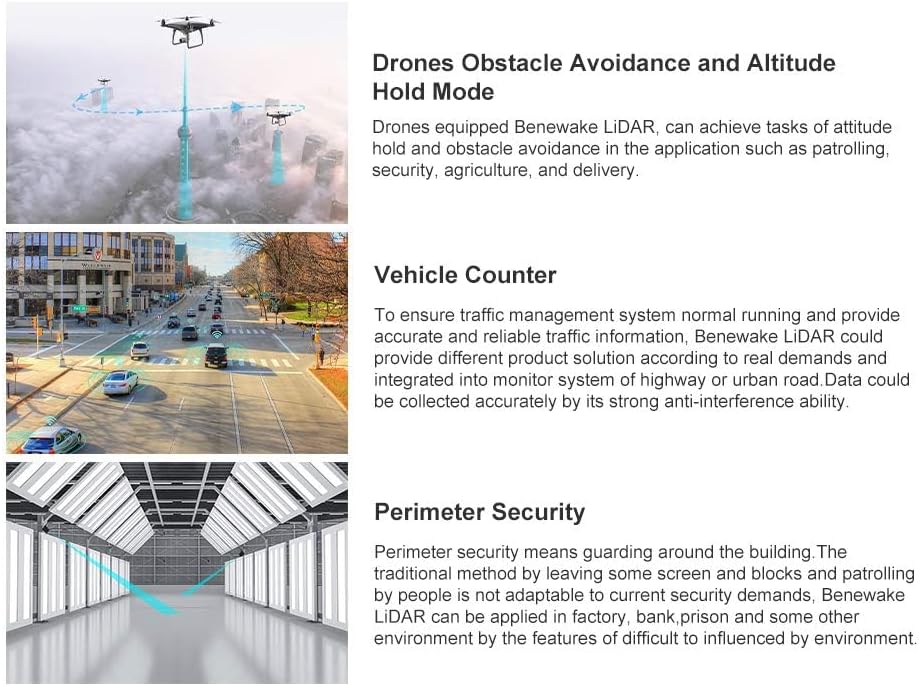
Illustrations demonstrating various applications of the TF02 Pro LiDAR sensor, such as drone obstacle avoidance, vehicle traffic monitoring, and perimeter security in industrial settings.
2. Technical Specifications
The following table details the technical specifications of the Benewake TF02 Pro LiDAR Sensor:

An image displaying a comprehensive table of the Benewake TF02 Pro LiDAR sensor's technical parameters, including operating range, accuracy, electrical, and optical specifications.
| Parameter Category | Parameter Name | Value |
|---|---|---|
| Product Performance | Operating Range | 0.05 ~ 40 m @90% reflectivity 0.05 ~ 13.5 m @10% reflectivity 0.05 ~ 40 m @90% reflectivity (100 Klux) 0.05 ~ 13.5 m @10% reflectivity (100 Klux) |
| Accuracy | ±5 cm (0.05 ~ 5 m), ±1% (5 ~ 40 m) | |
| Distance Resolution | 1 cm | |
| Frame Rate | 100 Hz | |
| Repeatability (1σ) | <2 cm (0.05 ~ 35 m @90% reflectivity) | |
| Ambient Light Resistance | 100 Klux | |
| Protection Level | IP65 | |
| Optical Parameters | Light Source | VCSEL |
| Central Wavelength | 850 nm | |
| FOV | 3° | |
| Electrical Parameters | Supply Voltage | DC 5 V ~ 12 V |
| Average Current | ≤200 mA | |
| Power Consumption | ≤1 W | |
| Communication Level | LVTTL (3.3 V) | |
| Communication Interface | UART/I2C/IO | |
| Other Parameters | Dimensions (L*W*H) | 69mm x 41.5mm x 26mm |
| Weight | 50 g (with cables) | |
| Enclosure Material | PC/ABS (Plastic) | |
| Operation Temperature | -20 ~ 60 °C | |
| Storage Temperature | -30 ~ 80 °C | |
| Cable Length | 80 cm |

Technical drawing illustrating the dimensions of the Benewake TF02 Pro LiDAR sensor, including length, width, and height measurements in millimeters.
3. Setup Instructions
Follow these steps to properly set up your Benewake TF02 Pro LiDAR Sensor:
3.1 Unpacking and Inspection
- Carefully remove the sensor and its accessories from the packaging.
- Inspect the sensor for any visible damage. If damage is found, do not proceed with installation and contact support.
- Verify that all included components (sensor, cable) are present.
3.2 Mounting the Sensor
- Choose a stable mounting location that provides a clear line of sight to the target area.
- Ensure the mounting surface is flat and secure to prevent vibrations that could affect readings.
- Utilize the mounting holes on the sensor's enclosure for secure attachment.
- Consider the IP65 rating for outdoor installations, ensuring proper sealing and protection from environmental elements.
3.3 Wiring and Connections
The TF02 Pro supports UART, I2C, and IO communication interfaces. Refer to the specific pinout diagram provided with your sensor for exact connections.
- Power Supply: Connect the sensor to a DC 5V ~ 12V power source. Ensure correct polarity to avoid damage.
- Communication Interface: Connect the appropriate communication pins (UART, I2C, or IO) to your host controller (e.g., Pixhawk, microcontroller).
- Cable Management: Secure the 80 cm cable to prevent strain or accidental disconnection.
3.4 Initial Configuration (if applicable)
- If integrating with a flight controller like Pixhawk, follow the manufacturer's guidelines for LiDAR sensor integration and configuration within the flight control software.
- For custom applications, ensure your software is configured to communicate with the sensor using the chosen interface (UART/I2C) and baud rate.
4. Operating Instructions
Once the sensor is properly installed and connected, follow these guidelines for operation:
4.1 Powering On
- Apply power to the sensor within the specified DC 5V ~ 12V range.
- The sensor will typically initiate and begin ranging automatically.
4.2 Data Acquisition
- The sensor outputs distance data at a frame rate of 100 Hz.
- Data can be read via the configured communication interface (UART, I2C, or IO).
- The distance resolution is 1 cm.
4.3 Communication Protocols
- UART: Standard serial communication. Ensure baud rates match between the sensor and host controller.
- I2C: Two-wire serial interface. Configure the I2C address if necessary.
- IO: For simple trigger or status signals, refer to the specific IO functionality in the detailed product documentation.
4.4 Environmental Considerations
- The sensor operates within a temperature range of -20 °C to 60 °C. Avoid operating outside this range.
- While resistant to ambient light up to 100 Klux, direct strong light sources (e.g., direct sunlight into the lens) may affect performance.
- The IP65 rating protects against dust and water jets, but avoid submersion or high-pressure water exposure.
5. Maintenance
Regular maintenance helps ensure the longevity and optimal performance of your TF02 Pro LiDAR Sensor.
5.1 Cleaning
- Periodically inspect the sensor's optical window for dust, dirt, or smudges.
- Gently clean the optical window with a soft, lint-free cloth and a mild lens cleaning solution. Avoid abrasive materials or harsh chemicals.
- Ensure the enclosure is free from excessive dirt buildup, which could impede heat dissipation.
5.2 Environmental Protection
- Despite its IP65 rating, avoid exposing the sensor to extreme conditions beyond its specified operating limits.
- Ensure all cable connections are secure and protected from moisture ingress.
5.3 Storage
- When not in use for extended periods, store the sensor in a dry, cool environment within the specified storage temperature range of -30 °C to 80 °C.
- Keep the sensor in its original packaging or a protective container to prevent physical damage.
6. Troubleshooting
This section provides solutions to common issues you might encounter with the TF02 Pro LiDAR Sensor.
6.1 No Power / No Indicator Light
- Check Power Supply: Verify that the power source is providing DC 5V ~ 12V and that connections are secure and correctly polarized.
- Cable Integrity: Inspect the power cable for any cuts or damage.
6.2 Incorrect Readings / No Data Output
- Clear Line of Sight: Ensure there are no obstructions in front of the sensor's optical window.
- Clean Optical Window: Clean the optical window as described in the Maintenance section.
- Target Reflectivity: Ensure the target object has sufficient reflectivity for the sensor to detect it within its operating range.
- Ambient Light: While resistant, extremely strong direct light might affect readings. Try to shield the sensor or operate in less intense conditions if possible.
- Operating Range: Confirm the target is within the 0.05m to 40m operating range.
6.3 Communication Issues
- Wiring: Double-check all communication wiring (UART, I2C, IO) for correct pin connections and continuity.
- Baud Rate (UART): Ensure the baud rate configured on your host controller matches the sensor's default or configured baud rate.
- I2C Address: Verify the I2C address if using the I2C interface.
- Software Configuration: Confirm your software or firmware is correctly configured to read data from the chosen interface.
6.4 Environmental Interference
- Temperature: Ensure the operating temperature is within the -20 °C to 60 °C range.
- Vibration: Excessive vibration can affect sensor stability. Ensure the sensor is securely mounted.
If you continue to experience issues after following these steps, please refer to the detailed product documentation or contact technical support.