
1. Introduction
Thank you for choosing the LAIFUCAM Mini WiFi Security Camera. This manual provides detailed instructions to help you set up, operate, and maintain your camera effectively. This device is designed for indoor surveillance, offering 1080P HD video, night vision, and motion detection capabilities, all controllable via a smartphone application.
The LAIFUCAM Mini WiFi Security Camera (Model FLFLFL30) is a compact and versatile solution for monitoring various indoor environments such as homes, offices, or garages. Its small form factor allows for discreet placement, while its advanced features ensure reliable surveillance.

Image 1.1: The LAIFUCAM Mini WiFi Security Camera, demonstrating its compact size and remote viewing capability via a smartphone.
2. Product Overview
2.1 Package Contents
Please check the package for the following items:
- LAIFUCAM Mini WiFi Security Camera
- Charging Cable
- Mount
- User Manual (this document)
- Information for Compatible Phone App (download required)
2.2 Key Features
- 1080P HD Video: Records clear, high-definition footage.
- 180° Wide-Angle View: Provides extensive coverage of the monitored area.
- Night Vision: Equipped with 6 IR LEDs for clear visibility up to 3 meters in low light conditions.
- Motion Detection: Sends instant notifications to your smartphone upon detecting movement.
- WiFi Connectivity: Enables remote monitoring and control via a smartphone application (supports 2.4G WiFi only).
- Local & Cloud Storage: Supports Micro SD card (up to 128GB, not included) for continuous recording and optional cloud storage.
- Rechargeable Battery: Integrated 800mAh battery provides approximately 4 hours of recording on a full charge.
- Multi-user Sharing: Allows sharing camera access with authorized users through the app.
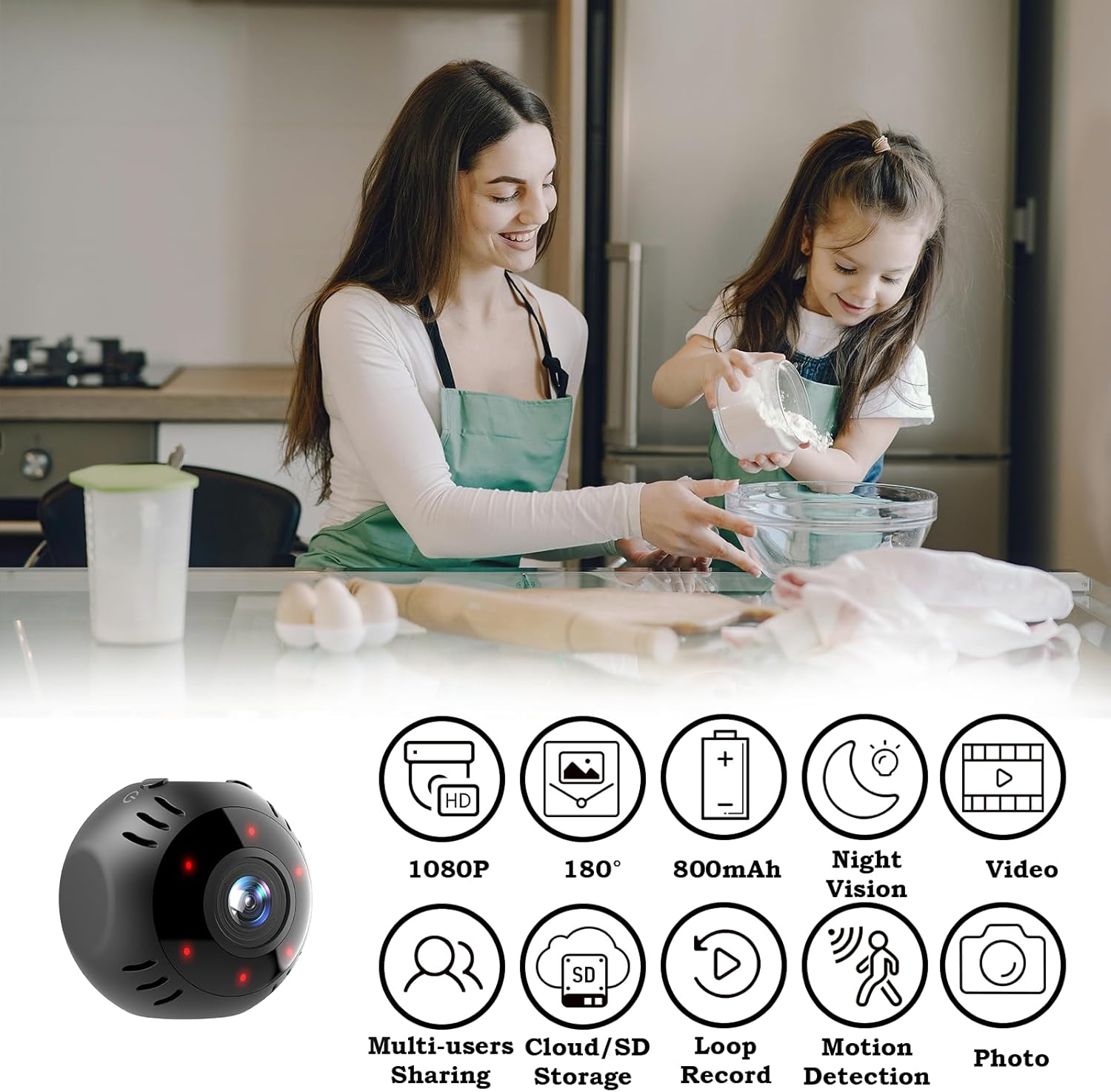
Image 2.1: Visual representation of the camera's key features, including resolution, viewing angle, battery capacity, and various functionalities.
3. Setup Instructions
3.1 Initial Charging
Before first use, fully charge the camera. Connect the provided charging cable to the camera's charging port and a USB power adapter (not included). A full charge typically takes approximately 2 hours.

Image 3.1: The camera connected for charging, illustrating the charging port and Micro SD card slot. It highlights the charging time and battery life.
3.2 App Installation
Download the compatible smartphone application. Refer to the information included in your package for the correct app name and download instructions. The app is available for both iOS and Android devices.
3.3 WiFi Connection
- Ensure your smartphone is connected to a 2.4GHz WiFi network. The camera does not support 5GHz WiFi networks.
- Open the installed application and follow the on-screen prompts to add a new device.
- Power on the camera. The camera will enter pairing mode, indicated by a specific LED light pattern (refer to the app for specific indicators).
- Use the app to scan the QR code displayed on your phone with the camera lens, or follow alternative pairing methods provided in the app.
- Once connected, the camera's LED indicator will change, and you will receive a confirmation in the app.

Image 3.2: Remote monitoring via the smartphone app, emphasizing the camera's WiFi connectivity. Note: Only 2.4G WiFi is supported.
4. Operating Instructions
4.1 Real-time Monitoring
After successful setup, open the smartphone application to view the live feed from your camera. You can access the feed from anywhere with an internet connection.

Image 4.1: Live monitoring of an indoor space via the mobile application.
4.2 Motion Detection
The camera features a sensitive motion detection sensor. When motion is detected, the camera will:
- Send an instant notification to your smartphone via the app.
- Record a short video clip of the event.
You can customize motion detection sensitivity and notification types within the app to filter unwanted alerts.

Image 4.2: Smartphone notification for motion detection, showing the alert interface.
4.3 Recording and Storage
The camera supports two storage options:
- Micro SD Card: Insert a Micro SD card (up to 128GB, not included) into the camera's slot for continuous 24/7 recording. The camera supports loop recording, overwriting the oldest footage when the card is full.
- Cloud Storage: An optional cloud storage service is available through the app. This allows you to save important moments securely online.
Recorded footage can be accessed and reviewed through the smartphone application.
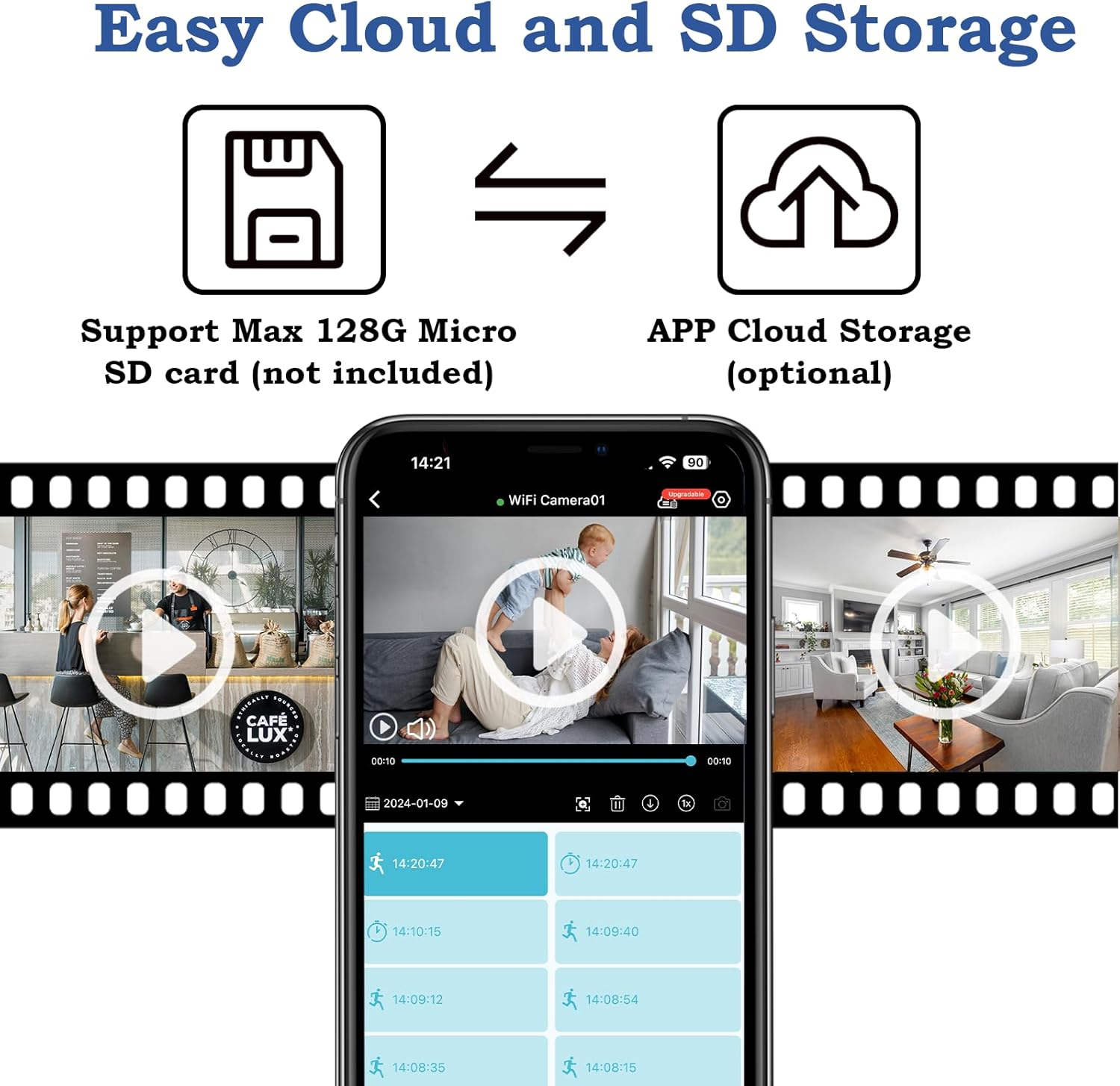
Image 4.3: Illustration of local Micro SD card and optional cloud storage solutions, with a view of the app's recording timeline.
4.4 Night Vision
The camera automatically switches to night vision mode in low light conditions, utilizing infrared LEDs to provide clear black and white footage up to 3 meters.

Image 4.4: Comparison of day and night vision capabilities, demonstrating clear visibility in both lighting conditions.
4.5 Multi-user Sharing
The application allows you to share access to your camera's live feed and recordings with other authorized users, such as family members. This feature enables multiple individuals to monitor the same location simultaneously.
5. Maintenance
- Cleaning: Use a soft, dry cloth to clean the camera lens and body. Avoid using liquid cleaners or abrasive materials.
- Firmware Updates: Periodically check the smartphone application for available firmware updates to ensure optimal performance and security.
- Battery Care: To prolong battery life, avoid exposing the camera to extreme temperatures. Recharge the battery regularly, even if the camera is not in constant use.
- Placement: Ensure the camera is placed in a stable, indoor location away from direct sunlight, heat sources, and moisture.
6. Troubleshooting
- Camera not connecting to WiFi:
- Ensure your router is broadcasting a 2.4GHz WiFi signal. The camera does not support 5GHz networks.
- Verify the WiFi password entered in the app is correct.
- Move the camera closer to the WiFi router to improve signal strength.
- Restart both the camera and your router.
- Poor video quality:
- Check your internet connection speed. A stable connection is required for optimal streaming.
- Clean the camera lens with a soft cloth.
- Motion detection not working:
- Ensure motion detection is enabled in the app settings.
- Adjust the sensitivity settings.
- Check app notification settings on your smartphone.
- Camera not charging or short battery life:
- Ensure the charging cable is securely connected to both the camera and the power source.
- Try a different USB power adapter or charging cable.
- Battery life can be affected by continuous live viewing, frequent motion detection, and extreme temperatures.
7. Specifications
| Model Number | FLFLFL30 |
| Video Resolution | 1080P HD |
| Viewing Angle | 180 Degrees |
| Connectivity | Wi-Fi (2.4GHz only) |
| Power Source | Battery Powered (800mAh, 2.96 Watt Hours) |
| Charging Time | Approx. 2 hours |
| Recording Time (Battery) | Approx. 4 hours |
| Storage Options | Micro SD Card (Max 128GB), Cloud Storage (optional) |
| Night Vision Range | 3 Meters (6 IR LEDs) |
| Motion Detection | Yes (App notifications) |
| Indoor/Outdoor Use | Indoor Only (Not Water Resistant) |
| Dimensions (L x W x H) | 1.5 x 1.5 x 1.57 inches |
| Weight | 1.28 ounces (0.08 Pounds) |
| Material | Plastic |
8. Warranty and Support
For warranty information and technical support, please refer to the documentation included with your product or contact LAIFUCAM customer service directly. Contact details can typically be found on the manufacturer's official website or within the product packaging.