
1. Product Overview
The JKBMS Smart BMS (Battery Management System) is designed to manage and protect Li-ion, LiFePO4, and LTO battery packs. It features active balancing, built-in Bluetooth connectivity, and RS485 communication capabilities, ensuring optimal performance, extended battery lifespan, and enhanced safety for various applications.

Figure 1.1: The JKBMS Smart BMS unit, showing its compact design and connection ports for battery terminals (P- and B-).
2. Specifications
The JKBMS Smart BMS (Model JK-BD6A20S20P) offers robust performance and precise control for battery management. Key specifications are detailed below:

Figure 2.1: Detailed technical specifications for the JKBMS Smart BMS, including balance current, discharge current, voltage ranges, and dimensions.
- Model: JK-BD6A20S20P
- Balance Current: 0.6A active balancing
- Continuous Discharge Current: 200A
- Maximum Instantaneous Current: 350A
- Supported Battery Types: Li-ion, LiFePO4, LTO
- Cell Count Range: 8S-20S (Series)
- Overcharge Current (Adjustable): 1.2-4.4V
- Overdischarge Current (Adjustable): 1.2-4.4V
- Single Cell Battery Collection Range: 1V-5V
- Voltage Acquisition Accuracy: ±3mV
- Power Requirements: 20V-100V
- Dimensions (L×W×H): 162 × 102 × 20.4 mm (6.38 × 4.02 × 0.8 inches)
- Product Weight: Approximately 420g (15 ounces)
- Communication: Bluetooth (standard), RS485 (optional)
3. Package Contents
Upon opening the package, verify that all components are present and undamaged:
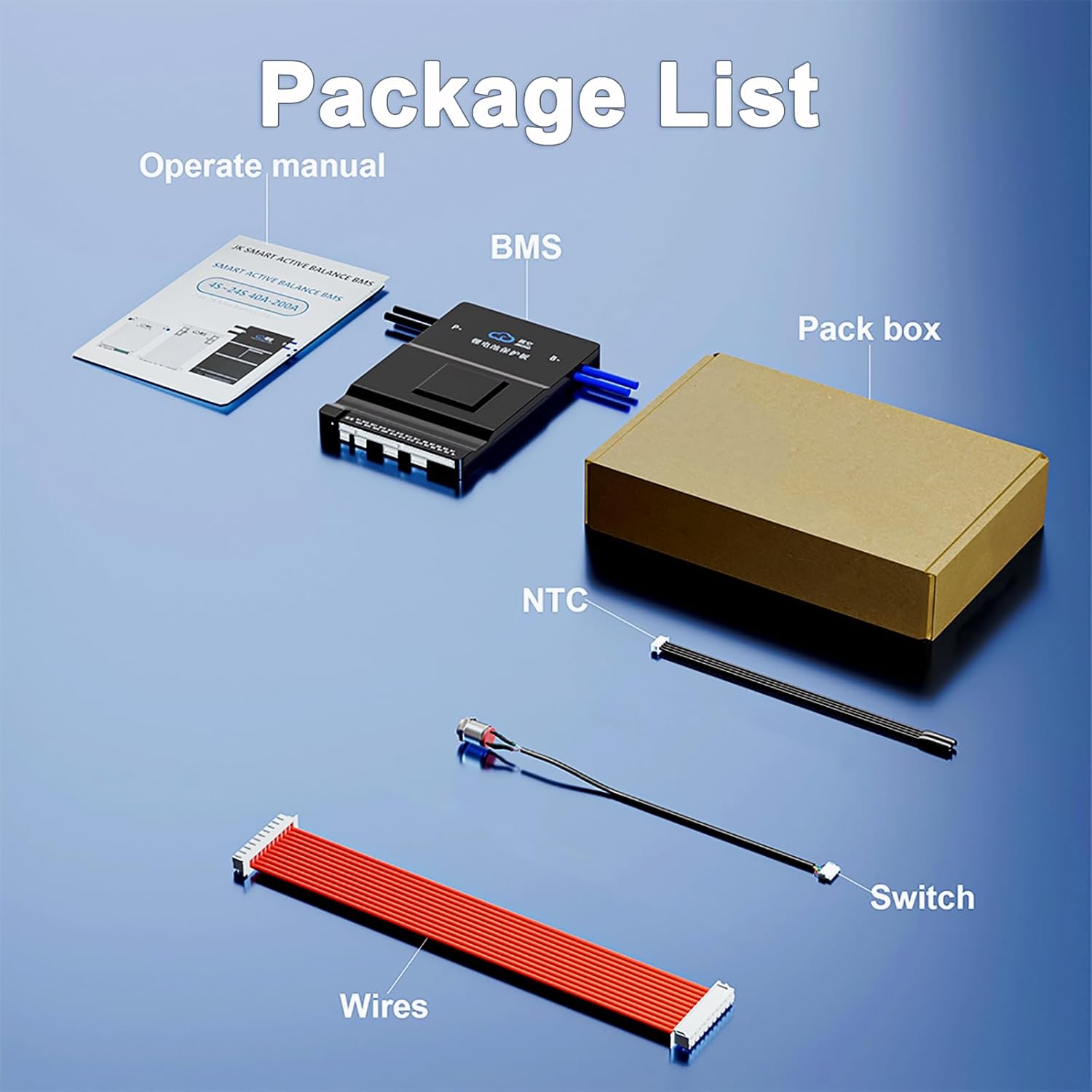
Figure 3.1: Contents included in the JKBMS Smart BMS package, showing the BMS unit, wiring harness, switch, NTC temperature sensor, and user manual.
- Smart BMS (JK-BD6A20S20P) × 1
- Balance Wires (70cm) × 1
- Power Switch (50cm) × 1
- NTC Temperature Sensor (40cm) × 1
- User Manual × 1
Note: An RS485 converter is not included in the standard package and must be acquired separately if RS485 communication is desired.
4. Installation and Wiring
Proper installation and wiring are critical for the safe and effective operation of the JKBMS. Always ensure the battery pack is disconnected before beginning any wiring procedures. High current devices require careful handling to prevent fire hazards.
4.1 Safety Precautions
- Always wear appropriate personal protective equipment (PPE), including insulated gloves and eye protection.
- Ensure the battery pack is fully discharged or at a safe voltage level before connecting the BMS.
- Double-check all wiring connections for correct polarity and secure fit to prevent short circuits.
- Work in a well-ventilated area.
- Do not work with lithium batteries unless you are confident working around high current devices.
4.2 Wiring Diagram
The following diagram illustrates the standard wiring connections for the JKBMS Smart BMS with a battery pack, load, and charger.

Figure 4.1: Wiring connections for the JKBMS Smart BMS, showing connections to the battery pack (B-, B+), individual cell voltage sampling cables, and output terminals (P-) for load and charger.
4.3 Connection Steps
- Connect B- to Battery Negative: Connect the main negative terminal (B-) of the BMS to the total negative pole of your battery pack.
- Connect P- to Load/Charger Negative: Connect the discharge/charge negative terminal (P-) of the BMS to the negative input of your load and charger.
- Connect Balance Wires: Carefully connect the balance wires from the BMS to each cell's positive terminal, starting from B1 (first cell positive) up to the last cell's positive terminal (B+). Ensure the order is correct and connections are secure.
- Connect NTC Temperature Sensor: Plug the NTC temperature sensor into its designated port on the BMS and place the sensor near the battery cells for accurate temperature monitoring.
- Connect Power Switch: Connect the provided power switch to the BMS. This switch is used to activate or deactivate the BMS.
- Final Check: Before applying power, re-verify all connections according to the wiring diagram.
5. Operation and Monitoring
The JKBMS Smart BMS can be easily monitored and controlled via its dedicated mobile application, available for both Android and iOS devices.
5.1 Initial Activation
After completing all wiring, activate the BMS by turning on the connected power switch. The BMS should power on and be discoverable via Bluetooth.
5.2 Smart Bluetooth APP
The "JK BMS" app provides real-time access to battery status, allows modification of parameters, and enables control over the BMS balance switch.

Figure 5.1: Screenshot of the JKBMS Smart Bluetooth APP, demonstrating real-time battery data monitoring and control options.

Figure 5.2: Overview of Bluetooth communication features, including viewing battery information, supporting Android/iOS, controlling MOS for charge/discharge, and recording data.
- Download the App: Search for "JK BMS" on your device's app store (Android/iOS).
- Connect via Bluetooth: Enable Bluetooth on your smartphone and open the app. The app should automatically detect the BMS. Select your BMS from the list to connect.
- Monitor Data: View real-time data such as individual cell voltages, total pack voltage, current, temperature, state of charge (SOC), and cycle count.
- Adjust Parameters: Access advanced settings to modify protection thresholds (e.g., overcharge/overdischarge voltage, overcurrent limits) and balancing settings.
- Control Balancing: Manually activate or deactivate the active balancing function if needed.
5.3 Active Balancing
The JKBMS features 0.6A active balancing, which optimizes energy distribution among cells, improving battery consistency and overall performance. This process helps to equalize cell voltages, extending the battery's lifespan.

Figure 5.3: Illustration of the active balancing process, showing energy transfer between cells to achieve voltage equalization.
6. Safety Features
The JKBMS is equipped with multiple layers of protection to ensure the safety and longevity of your battery pack.

Figure 6.1: Visual representation of the eight security protection features integrated into the JKBMS.

Figure 6.2: Icons representing various protection functions, including overcharge, overdischarge, short circuit, overcurrent, temperature control, heating function, voltmeter, equalization, Bluetooth, RS485/CAN, GPS, and software switch.
- Overcharge Protection: Prevents cells from being charged beyond their safe voltage limit, protecting against damage and extending battery life.
- Overdischarge Protection: Automatically cuts off discharge when cell voltages drop below a safe threshold, preventing irreversible damage.
- Overcurrent Protection: Limits the current drawn from the battery to prevent damage to the BMS and cells during high-load conditions.
- Short-Circuit Protection: Instantly disconnects the battery in case of a short circuit, preventing thermal runaway and fire.
- Temperature Protection: Monitors battery temperature and initiates protective measures (e.g., stopping charge/discharge) if temperatures exceed safe operating ranges.
- Equalization Protection: Ensures cells remain balanced, preventing individual cells from becoming overcharged or overdischarged relative to others.
- Disconnection Protection: Automatically protects against accidental disconnections.
- PCB Protection: Features a three-proof silicone coating, making the board dustproof, antistatic, and moisture-proof for enhanced durability.
7. Applications
The JKBMS Smart BMS is versatile and suitable for a wide range of battery-powered applications, including:

Figure 7.1: Examples of various applications where the JKBMS Smart BMS can be utilized, from electric vehicles to energy storage systems.
- Solar-powered vans and RVs
- Electric cars and tricycles
- E-bikes and scooters
- Forklifts and industrial drones
- Energy storage systems (e.g., home backup, off-grid)
- Power banks and portable power stations
- Various power tools
8. Maintenance
Regular maintenance helps ensure the long-term reliability and performance of your JKBMS Smart BMS and battery pack.
- Visual Inspection: Periodically inspect the BMS and all wiring connections for any signs of damage, corrosion, or loose connections. Ensure the BMS is free from dust and moisture.
- App Monitoring: Regularly use the "JK BMS" app to monitor battery parameters. Pay attention to cell voltage differences, temperature, and any protection warnings.
- Firmware Updates: Check for available firmware updates for the BMS through the app or manufacturer's website. Keep the firmware updated to benefit from performance improvements and bug fixes.
- Environmental Conditions: Ensure the BMS operates within its specified temperature and humidity ranges. Avoid exposing the unit to extreme conditions.
9. Troubleshooting
This section addresses common issues you might encounter with the JKBMS Smart BMS.

Figure 9.1: Common battery issues such as reduced battery life, short battery life, battery not fully charged, and battery disconnect, which the BMS aims to mitigate.
| Problem | Possible Cause | Solution |
|---|---|---|
| BMS not powering on/responding | Loose wiring, power switch off, incorrect voltage input. | Check all main power connections (B-, P-). Ensure the power switch is in the ON position. Verify input voltage is within the specified range (20V-100V). |
| Bluetooth connection issues | Bluetooth disabled on phone, app not recognizing BMS, interference. | Ensure Bluetooth is enabled on your device. Restart the app and try reconnecting. Move closer to the BMS. Ensure no other devices are actively connected to the BMS via Bluetooth. |
| Cells out of balance | Active balancing not enabled, significant cell voltage difference. | Verify active balancing is enabled in the app settings. Allow the BMS sufficient time to balance the cells. If differences are extreme, manual intervention or re-evaluation of cell health may be required. |
| BMS triggers protection (e.g., overvoltage, undervoltage, overcurrent) | Battery parameters exceeding set thresholds, faulty cell, external load issue. | Check the app for specific alarm codes. Reduce load or charging current. Inspect individual cell voltages for anomalies. Adjust protection parameters in the app if necessary, but only after understanding the implications. |
| RS485/UART communication not working | Incorrect wiring, wrong port selection, incompatible protocol. | Ensure correct wiring for RS485 (A/B) or UART (TX/RX). For UART, the "GPS port" on the BMS typically functions as the serial/UART data out. The wire closer to the cell monitor wires is TX, and the one farther away is RX. Use a 3.3V FTDI adapter for serial communications. Confirm the correct protocol is selected in your software. |
10. Support Information
For further assistance, technical support, or detailed documentation, please refer to the following resources:
- Official User Manual (PDF): Download PDF
- Manufacturer Website: Visit the JKBMS official website for product updates and additional resources.
- Customer Service: Contact JKBMS customer support for specific inquiries or warranty claims.