Introduction
This manual provides detailed instructions for the installation, operation, and maintenance of your Uckazy 12.3 Inch Car Stereo. This device is specifically designed to upgrade the multimedia capabilities of BMW X3 F25 models manufactured between 2010 and 2013, equipped with the original CIC system. It integrates advanced features such as wireless Apple CarPlay, wireless Android Auto, and a high-resolution touch screen while retaining the original vehicle functions.
Compatibility
This car stereo is compatible with BMW X3 F25 models from 2010-2013 that feature the original CIC system. Before installation, verify your vehicle's system type. The device is not compatible with NBT systems.

Figure 1: Compatible Models & Year. This image illustrates the visual difference between a compatible CIC system (4-pin LVDS port) and an incompatible NBT system (6-pin LVDS port) for BMW X3 F25 (2010-2013).
What's in the Box
Please ensure all components are present before beginning installation:
- Plug and play power Cable
- Ultra narrow 12.3" in-cell display screen
- USB/AUX/RCA Cable
- Frame
- Installation tools and touch pen
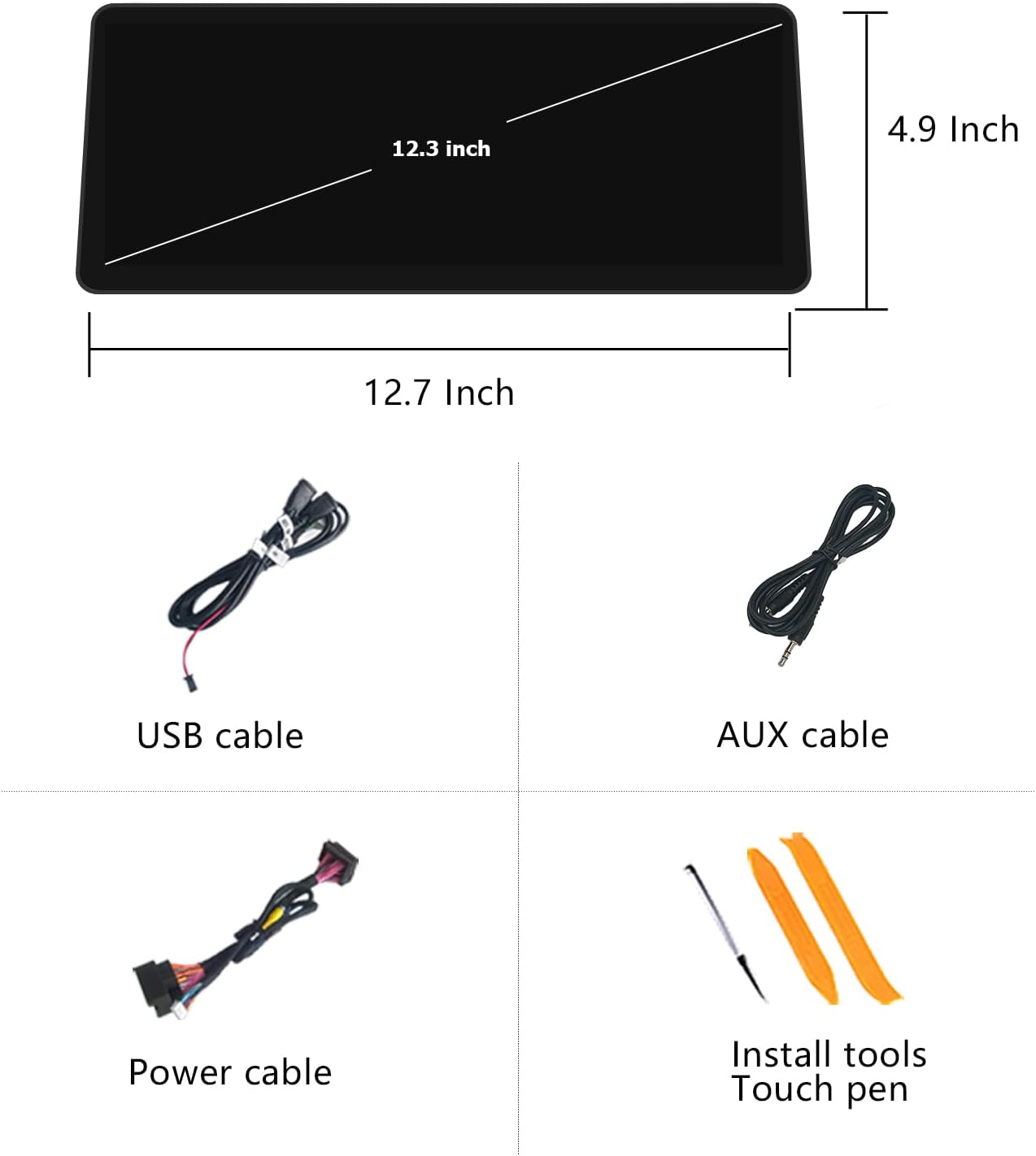
Figure 2: Package Contents. This image displays the main components included in the box: the 12.3-inch screen, USB cable, AUX cable, power cable, and installation tools with a touch pen.
Setup and Installation
The Uckazy car stereo is designed for plug-and-play installation, retaining most original vehicle functions. However, careful attention to wiring and settings is crucial for optimal performance.
1. Wiring Connections
Refer to the provided wiring diagram and ensure all cables are securely connected. Pay close attention to the fiber optic and power cable connections.

Figure 3: Wire Definition and Linking. This diagram illustrates how to connect the various cables, including power, USB, AUX, and fiber optic, to the car machine system.
Fiber Optic Cable Transfer
If your original car CD player uses fiber optic cables, you must transfer them to the new system's harness to ensure proper audio functionality.
Video 1: How to Transfer Fiber Optic Cables. This video demonstrates the process of transferring fiber optic cables from the original car CD player to the Linux system harness, which is crucial for resolving potential 'no sound' issues.
Power Cable Connection
Connect the provided power cable to the original car's power interface. Ensure a secure connection.
Video 2: Power Cable Connection. This video shows how to properly connect the power cable to the vehicle's existing wiring harness.
USB Connection for Wired CarPlay/Android Auto
For wired CarPlay or Android Auto functionality, use USB IN 1. USB IN 2 is for read storage links.

Figure 4: USB Connection for CarPlay/Android Auto. This image clarifies which USB port (USB IN 1) should be used for connecting wired CarPlay or Android Auto.
2. Initial System Settings
AUX Audio Setup
To ensure audio output from the new system, the original AUX input must be enabled and configured.
- Plug into the stock AUX port (located in the manual gear position or passenger side storage box).
- Go to Setup > Car Settings > Auto Switch to AUX.
- Select your head unit type (Harman or Alpine).
- In the original car system, go to Main menu > Multimedia > External devices.
- Long press button '8' until you hear a tone, then release. This activates the AUX input for the new system's sound.

Figure 5: AUX Setup. This image shows the location of the AUX port and the menu path to configure the 'Auto Switch to AUX' setting for audio output.
Screen Resolution Settings
To ensure correct display of original car information, set the OEM resolution in the system settings.
- Go to Setup > Car Settings > Original Car's Screen Resolution.
- Select the correct resolution for your OEM display. If unsure, try each option until the display is correct.

Figure 6: OEM Resolution Settings. This image displays the menu for adjusting the original car's screen resolution to ensure proper display of OEM information.
Camera Settings
Configure camera settings for proper reverse camera functionality.
- Go to Setup > Car Settings > Reversing Settings > Camera Type.
- Select Original Camera or Aftermarket Camera based on your setup. Incorrect selection will prevent the reverse camera from working.

Figure 7: Camera Type Settings. This image shows the menu for selecting the camera type (original or aftermarket) to ensure correct reverse camera operation.
Operating Instructions
Your Uckazy car stereo offers a seamless integration of a Linux-based system with your original BMW CIC system.
1. Dual System Operation
The device supports one-click switching between the new Linux system and the original car system, allowing you to access all original functions.

Figure 8: One-Click Switching Between Dual Systems. This image demonstrates the ease of switching between the original BMW interface and the new Linux system.
Video 3: Product Display Operating System. This video provides an overview of the system's user interface, demonstrating navigation and various settings within the Linux environment and showing the switch to the original car system.
2. Wireless CarPlay and Android Auto
Connect your smartphone wirelessly to access navigation, phone contacts, messages, music, and more via voice assistants like Siri or Google Voice Assistant.
- Ensure the necessary wires are connected on the machine before attempting wireless connection.
- Turn on Bluetooth on your smartphone and the car stereo.
- Find the car stereo's Bluetooth connection (e.g., 'CAR-BT-78C0') on your phone and pair.
- Open Siri voice assistant on your iPhone for CarPlay.
- Allow all permissions for the connection to establish.

Figure 9: Wireless CarPlay and Android Auto. This image demonstrates the wireless connectivity features, showing both CarPlay and Android Auto interfaces on the screen.
Video 4: Product Overview for Linux System 12.3 inch Screen. This video provides a detailed overview of the Linux system's features, including wireless CarPlay connection, navigation, music playback, and messaging.
3. Audio Settings (DSP)
The built-in Digital Signal Processor (DSP) with 16 EQ segments allows for detailed sound customization. Adjust the overall sound quality and speaker positioning to your preference.
4. Display Features
The 12.3-inch IN-CELL screen features full lamination technology for enhanced clarity and reduced reflection. It also includes automatic light sensitivity, adjusting day and night modes based on your car's original headlights.

Figure 10: Day and Night Mode. This image demonstrates the automatic light sensitivity feature, showing how the display adjusts between bright day mode and dimmed night mode.
5. Retained Original Features
The upgraded system retains all original car functions, including:
- Original car radio and amplifier function
- Factory steering wheel controls
- Original iDrive controller (mouse knob)
- Display of speed, fuel level, oil pressure, safety warnings
- Original reverse camera compatibility
- Original Bluetooth functionality
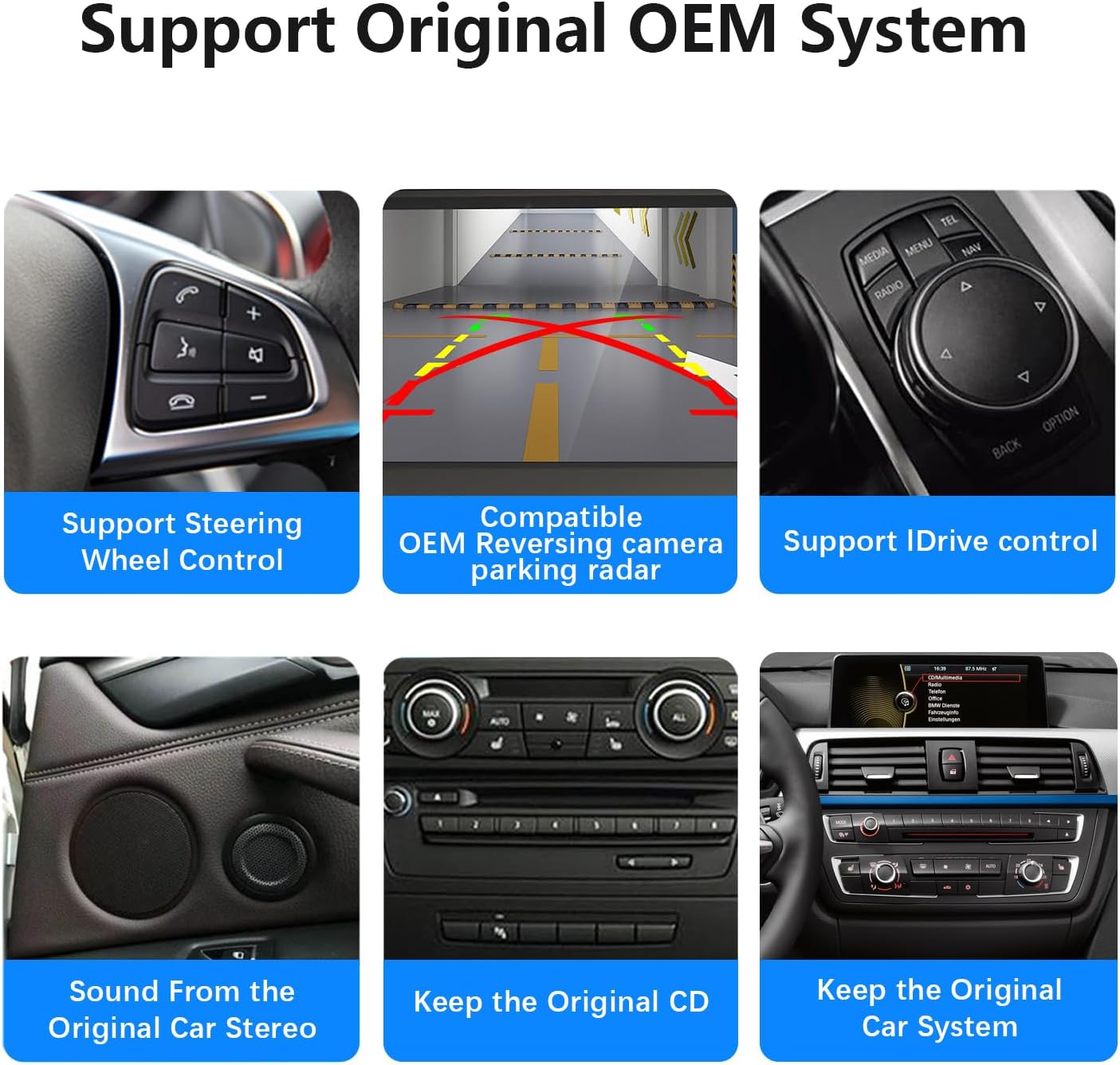
Figure 11: Support Original OEM System. This image highlights the various original BMW features that are fully supported and integrated with the new car stereo system.
Maintenance
To ensure the longevity and optimal performance of your Uckazy car stereo:
- Regularly clean the screen with a soft, lint-free cloth. Avoid abrasive cleaners.
- Keep the unit free from excessive dust and moisture.
- Avoid exposing the screen to direct sunlight for prolonged periods when the vehicle is parked.
Troubleshooting
If you encounter issues with your Uckazy car stereo, refer to the following common solutions:
- No Sound Output: Ensure the fiber optic cables from the original car CD player are correctly transferred to the new system's harness. Also, verify the AUX audio setup is completed as described in the Setup section.
- Original Car Information Not Displayed Correctly: Adjust the Original Car's Screen Resolution in the system settings (Setup section).
- Reverse Camera Not Working: Check the Camera Type setting under Reversing Settings in the system menu (Setup section) and ensure it matches your camera type (Original or Aftermarket).
- Distorted Sound (Noise) from CarPlay/Android Auto: If you experience noise, ensure the 'AB' connection is properly made as indicated in the wiring diagrams.
- General Installation or Operation Issues: If you are unsure about installation or encounter problems not covered here, please contact customer support for assistance.
Specifications
| Model Number | F25CIC-LIN |
| Screen Size | 12.3 inches |
| Resolution | 1920 x 720 |
| Display Technology | IN-CELL, Full Lamination, IPS Screen HD |
| Operating System | Linux |
| Connectivity | Bluetooth, WI-FI, Wireless/Wired Apple CarPlay, Wireless/Wired Android Auto, Wireless Mirrorlink |
| Audio Features | Built-in DSP with 16 EQ segments, Stereo Audio Output, 5.1 Surround Sound Channel Configuration |
| Video Encoding | H.264, H.265/HEVC |
| Special Feature | Touchscreen, Automatic Light Sensitivity |
| Compatible Devices | Smartphone |
| Item Weight | 3.61 pounds |
| Package Dimensions | 14.96 x 7.24 x 6.73 inches |
Warranty and Support
Warranty Information
Your purchase includes a 30-day refund/replacement policy. Additionally, protection plans are available for extended coverage:
- 2-Year Protection Plan
- 3-Year Protection Plan
- Complete Protect (monthly billing)
Please refer to your purchase documentation for specific terms and conditions of these plans.
Customer Support
For any technical assistance, installation queries, or troubleshooting not covered in this manual, please contact the seller, Uckzay Factory Outlet, directly. They can provide specialized support to resolve your issues.
You can typically find a link to 'Ask a question' on the seller's page where you purchased the product. For direct access to the Uckazy store, visit: Uckazy Store

Figure 12: Technical Support Information. This image emphasizes contacting the seller for support regarding installation, sound, or display issues.