
YODOLLA 72 INCH 16:9
YODOLLA 72-inch 16:9 Motorized Projector Screen User Manual
1. Introduction
Thank you for choosing the YODOLLA 72-inch 16:9 Motorized Projector Screen. This manual provides essential information for the safe and efficient installation, operation, and maintenance of your new projector screen. Please read these instructions thoroughly before use and retain them for future reference.
Safety Information
- Ensure the screen is installed on a stable and structurally sound surface.
- Keep the screen away from direct sunlight, heat sources, and moisture.
- Do not attempt to disassemble or repair the motor or electrical components. Contact qualified personnel for service.
- Keep remote controls out of reach of children.
- Unplug the power cord before cleaning or performing any maintenance.
2. Package Contents
Verify that all items listed below are included in your package:
- YODOLLA 72-inch 16:9 Motorized Projector Screen
- Wireless Remote Control
- Wired Remote Control
- Expansion Screws (x2)
- S-shaped Hooks (x2)
3. Product Specifications
| Feature | Specification |
|---|---|
| Model Number | 72 INCH 16:9 |
| Screen Material | Polyvinyl Chloride (PVC) |
| Display Dimensions | 62.99 x 35.43 inches |
| Product Dimensions (Overall) | 65.4"W x 43.3"H |
| Aspect Ratio | 16:9 |
| Viewing Angle | 160 degrees |
| Gain | 1.2 |
| Compatibility | 3D/4K/1080P |
| Mounting Type | Wall or Ceiling Mount |
| Item Weight | 17.96 pounds |

Figure 3.1: Product Dimensions for the 72-inch 16:9 screen. The viewable area is 62.99" x 35.43", with an overall casing width of 65.35" and height of 42.52" (including motor).

Figure 3.2: The screen offers a wide 160-degree viewing angle, ensuring clear images from various seating positions.

Figure 3.3: The screen is constructed with a multi-layer PVC material, including a White PC Film, Polyester Material, and Black Backing, designed to reduce light penetration and enhance image brightness and color reproduction.
4. Installation
The YODOLLA motorized projector screen can be installed on either a wall or a ceiling. Due to its weight (approximately 12.57 lbs), it is recommended to have at least two people for installation.
4.1 Mounting Options
The screen housing features pre-drilled holes for secure mounting. You can fix the screen directly to a wall using screws or hang it from the ceiling using the provided S-shaped hooks and expansion screws.
4.2 Installation Steps
- Measure and Mark: Carefully measure the desired location for your screen. Ensure the mounting points are level and spaced correctly to support the screen's width. Mark the drilling points on the wall or ceiling.
- Drill Holes: Use an appropriate drill bit to create pilot holes at the marked locations.
- Insert Anchors (if necessary): If mounting into drywall or hollow surfaces, insert the provided expansion screws or suitable wall anchors.
- Mount the Screen: Carefully lift the screen into position. For wall mounting, align the screen's mounting brackets with the drilled holes and secure it with screws. For ceiling mounting, attach the S-shaped hooks to the ceiling anchors, then hang the screen from the hooks.
- Connect Power: The power cord exits from the right side of the screen casing (when facing the screen). Ensure a power outlet is accessible in this area. Connect the screen to a power source.

Figure 4.1: Details of the mounting brackets and hardware. The screen can be secured directly with screws (1, 2) or hung using S-shaped hooks (S x2) and expansion screws (x2). The power connection is also visible.
5. Operation
Your YODOLLA motorized projector screen can be operated using either the included wireless remote control or the wired remote control.
5.1 Remote Control Functions
Both remote controls feature simple buttons for screen movement:
- UP Button: Retracts the screen into its casing.
- DOWN Button: Extends the screen downwards.
- STOP Button: Halts the screen movement at any desired position.
The screen features a smooth auto-lock mechanism, allowing it to be fixed at any length. The ultra-quiet motor ensures smooth and jam-free operation.

Figure 5.1: The included wireless and wired remote controls provide convenient operation of the screen's movement.
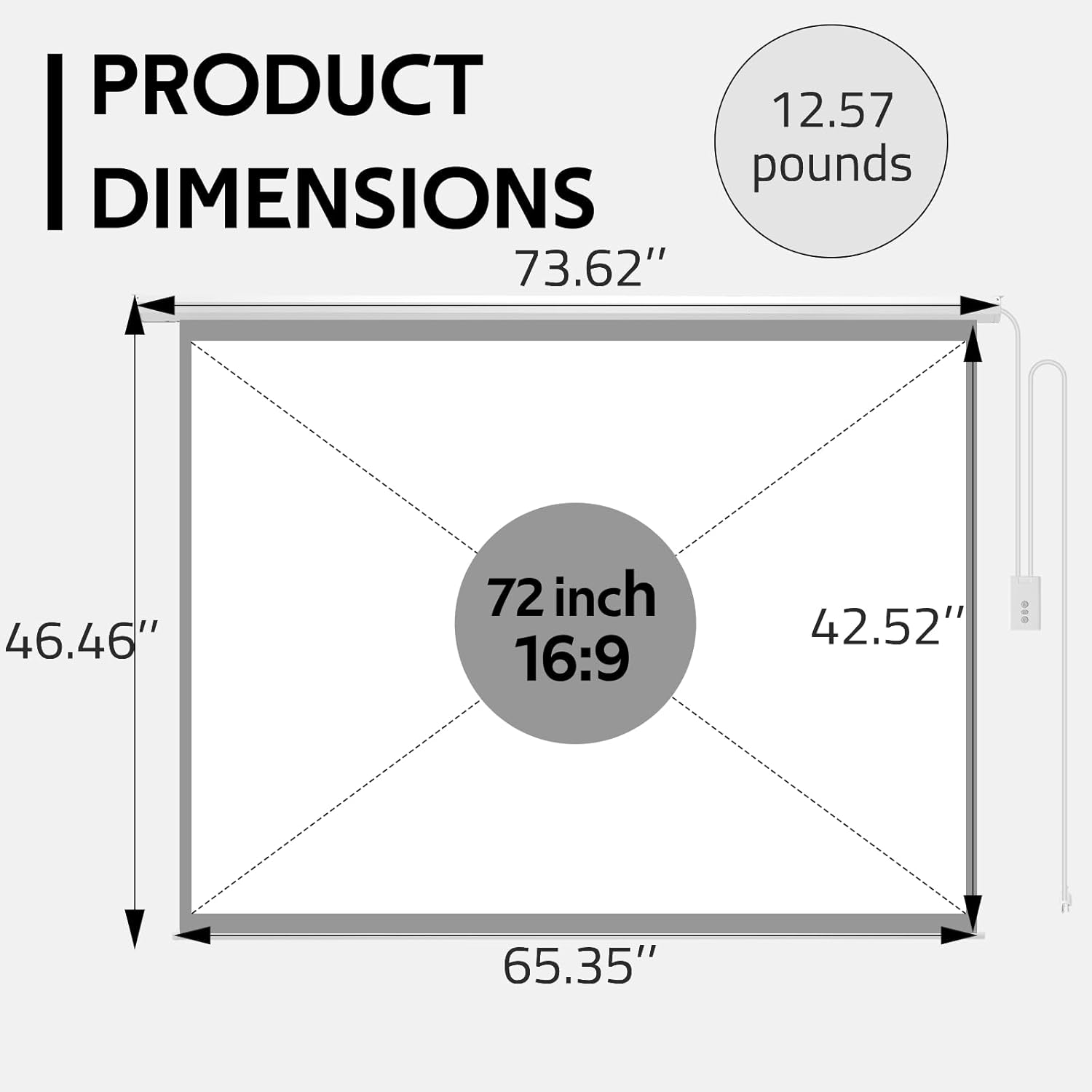
Figure 5.2: The screen's control system includes both a Radio Frequency (RF) wireless remote and a wired control for versatile operation.
6. Maintenance
Proper maintenance ensures the longevity and optimal performance of your projector screen.
6.1 Cleaning the Screen Surface
- Always unplug the screen from the power source before cleaning.
- Gently wipe the screen surface with a soft, damp cloth. Use mild soap and water if necessary.
- Avoid using abrasive cleaners, solvents, or harsh chemicals, as these can damage the screen material.
- Allow the screen to air dry completely before retracting it.
6.2 General Care
- Keep the screen retracted when not in use to protect it from dust and damage.
- Ensure the screen rolls up and down smoothly without obstruction.
- If an initial odor is present upon unboxing, extend the screen fully in a well-ventilated area for a few days to allow it to dissipate.
7. Troubleshooting
Refer to the following table for common issues and their solutions:
| Problem | Possible Cause | Solution |
|---|---|---|
| Screen does not respond to remote controls. | No power; remote battery low/dead; remote not paired; motor malfunction. | Check power connection. Replace remote batteries. Refer to pairing instructions (if applicable). Contact customer support if issue persists. |
| Screen is stuck or moves unevenly. | Obstruction in the path; internal mechanism issue. | Ensure no objects are blocking the screen's path. Do not force the screen. Contact customer support. |
| Screen has wrinkles or creases. | Improper storage; manufacturing defect. | Extend the screen fully for several days in a warm environment. If creases persist or affect viewing, contact customer support. |
| Initial plastic odor. | New product material. | Extend the screen fully in a well-ventilated area for a few days. The odor will dissipate over time. |
8. Warranty and Customer Support
YODOLLA is committed to providing high-quality products. If you encounter any concerns or require assistance with your projector screen, please do not hesitate to contact YODOLLA customer service. We are dedicated to providing effective support.
For warranty details and support, please refer to the product packaging or contact YODOLLA directly through their official channels.
Ask a question about this manual
Ask about setup, troubleshooting, compatibility, parts, safety, or missing instructions. Manuals+ will review the question and use this page’s manual context to help answer it.