
1. Introduction
The Keenetic Skipper DSL (KN-2112) is a high-performance Wi-Fi 5 Mesh AC1200 modem router designed to provide fast, stable, and secure internet connectivity for your home or office. It integrates Supervectoring VDSL2/ADSL2+ technology, a 4-port Gigabit smart switch, and a USB port, offering versatile connection options and advanced network management capabilities.
This manual provides detailed instructions for setting up, operating, maintaining, and troubleshooting your Keenetic Skipper DSL router to ensure optimal performance and a seamless user experience.
2. Package Contents
Before you begin, please verify that all items are present in your package:
- Keenetic Skipper DSL Router
- Power Adapter
- Ethernet Cable
- DSL Cable
- Quick Start Guide
3. Product Overview
Familiarize yourself with the physical features and ports of your Keenetic Skipper DSL router.

Figure 3.1: Front view of the Keenetic Skipper DSL router, showcasing its sleek design and LED indicators.

Figure 3.2: Side view of the Keenetic Skipper DSL router, highlighting the USB 2.0 port for external device connectivity.
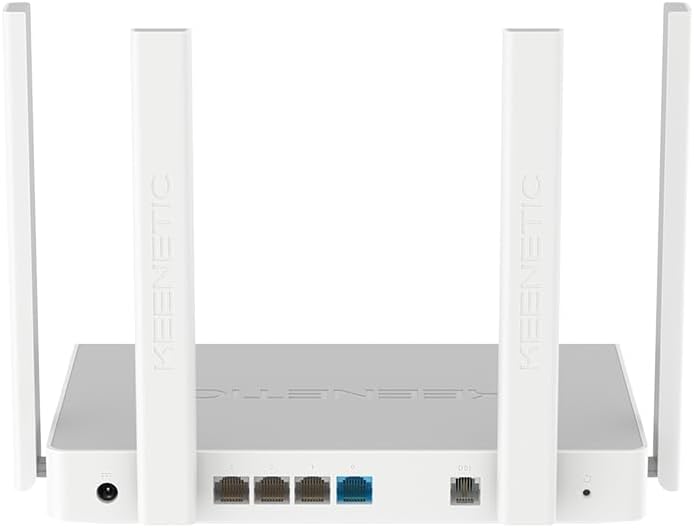
Figure 3.3: Rear view of the Keenetic Skipper DSL router, displaying the power input, four Gigabit Ethernet ports (three LAN, one WAN/LAN), DSL port, and reset button.
LED Indicators
- Power LED: Indicates power status.
- Internet LED: Indicates internet connection status.
- Wi-Fi LED: Indicates Wi-Fi network activity.
- LAN LEDs: Indicate activity on the respective Gigabit Ethernet ports.
Ports and Buttons
- Power Input: Connects to the power adapter.
- DSL Port: Connects to your DSL line for internet access.
- WAN/LAN Port: Can function as either a WAN port for Ethernet internet connection or an additional LAN port.
- LAN Ports (x3): Connect wired devices such as PCs, gaming consoles, or Smart TVs.
- USB 2.0 Port: Supports external storage, 3G/4G modems, or other USB devices.
- Reset Button: Used to restore factory default settings (press and hold for 10 seconds).
4. Setup Guide
Follow these steps to set up your Keenetic Skipper DSL router.
4.1 Hardware Connection
- Connect the DSL Line: Connect one end of the DSL cable to the DSL port on the router and the other end to your wall DSL socket or splitter.
- Connect Power: Plug the power adapter into the router's power input and then into a power outlet. The Power LED should illuminate.
- Optional: Wired Devices: For wired connections, connect an Ethernet cable from a LAN port on the router to your computer or other network device.
4.2 Initial Configuration
You can configure your router using the Keenetic web interface or the Keenetic mobile app.
Using the Web Interface:
- Ensure your computer is connected to the router via Wi-Fi or Ethernet.
- Open a web browser and enter
my.keenetic.netor192.168.1.1in the address bar. - Follow the on-screen instructions of the KeeneticOS setup wizard to configure your internet connection (DSL/WAN settings), Wi-Fi network name (SSID), and password.
- Set a strong administrator password for router access.
Using the Keenetic Mobile App:
- Download the Keenetic app from your device's app store (iOS or Android).
- Open the app and follow the prompts to discover and set up your new Keenetic router. The app will guide you through connecting to the router's default Wi-Fi network and configuring your internet and Wi-Fi settings.
5. Operating Instructions
This section covers the daily operation and key features of your Keenetic Skipper DSL router.
5.1 Wi-Fi Connectivity
The router supports Wi-Fi 5 (802.11ac) dual-band connectivity, offering speeds up to 300 Mbps on 2.4 GHz and 867 Mbps on 5 GHz.

Figure 5.1: Wi-Fi 5 Dual-Band capabilities, providing 300 Mbps on 2.4 GHz and 867 Mbps on 5 GHz for various activities.
- Connecting Devices: Search for your Wi-Fi network name (SSID) on your device and enter the password you set during configuration.
- Guest Wi-Fi: Create a separate guest network for visitors to keep your main network secure.
5.2 Keenetic Mesh Wi-Fi
Expand your Wi-Fi coverage by adding other Keenetic devices to create a seamless Mesh Wi-Fi system. This eliminates dead zones and provides consistent high-speed Wi-Fi throughout your entire home.
- Refer to the Keenetic app or web interface for instructions on adding mesh extenders.
5.3 USB Port Functionality
The USB 2.0 port offers several functionalities:

Figure 5.2: Detail of the USB 2.0 port, enabling file sharing and remote access to personal cloud storage.
- File Sharing: Connect a USB storage device (e.g., flash drive, external hard drive) to share files across your network.
- 3G/4G Modem Support: Connect a compatible USB 3G/4G modem for backup internet access or as a primary connection.
- Printer Sharing: Connect a USB printer to make it accessible to all network devices.
5.4 Keenetic App Management
The Keenetic app provides convenient remote management of your network.

Figure 5.3: Keenetic app interface showing network overview, device list, and QoS settings for real-time control.
- Network Overview: Monitor connected devices, internet status, and traffic.
- Parental Control: Set internet access schedules and content filters for specific devices.
- Device Prioritization (QoS): Prioritize bandwidth for important devices or applications.
- Remote Management: Manage your router settings from anywhere with an internet connection.
6. Advanced Features
The Keenetic Skipper DSL router offers a range of advanced features for enhanced network control and security.
6.1 VPN Support
KeeneticOS supports over 50 types of VPN connections, including WireGuard, OpenVPN, and IPSec, allowing you to create secure tunnels for remote access or privacy.
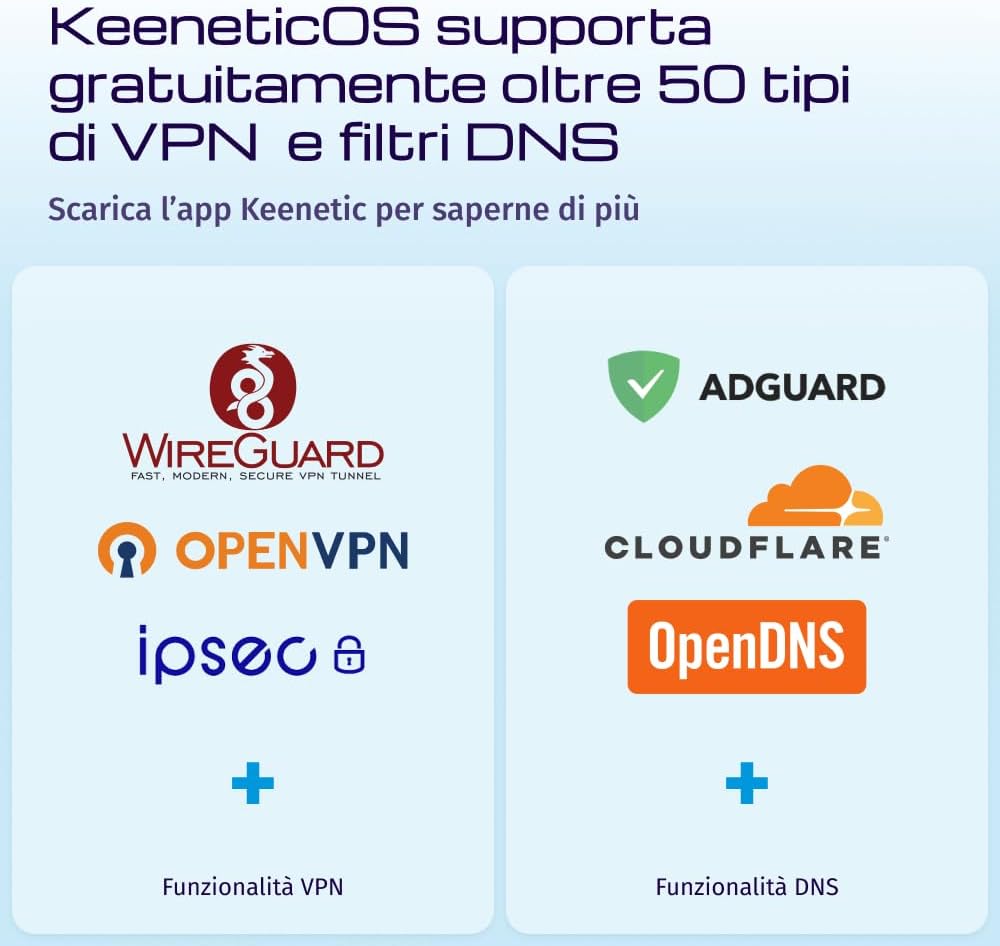
Figure 6.1: KeeneticOS supports various VPN protocols and DNS filtering services for enhanced security and privacy.
6.2 DNS Filters
Integrate popular DNS filtering services like AdGuard, Cloudflare DNS, and OpenDNS directly into your router for network-wide content filtering and ad blocking.
6.3 Network Security
The router provides robust security features to protect your network:

Figure 6.2: The router facilitates network segmentation for Smart Home and IoT devices, enhancing overall IT security.
- SPI Firewall: Stateful Packet Inspection firewall for advanced threat detection.
- WPA3 Encryption: Supports the latest Wi-Fi security protocol for stronger encryption.
- IoT Network Segmentation: Isolate Smart Home and IoT devices on a separate network segment to prevent potential security breaches from affecting your main network.
7. Maintenance
Proper maintenance ensures the longevity and optimal performance of your router.
7.1 Firmware Updates
KeeneticOS provides automatic updates to ensure your router has the latest features, security patches, and performance improvements. It is recommended to keep automatic updates enabled.
- You can check for and manually apply updates via the Keenetic app or web interface.
7.2 Physical Care
- Keep the router in a well-ventilated area to prevent overheating.
- Avoid placing the router near sources of interference (e.g., microwaves, cordless phones).
- Clean the device periodically with a soft, dry cloth. Do not use liquid cleaners.
8. Troubleshooting
This section addresses common issues you might encounter with your Keenetic Skipper DSL router.
8.1 No Internet Connection
- Check Cables: Ensure the DSL cable is securely connected to both the router and the wall socket.
- Check LEDs: Verify that the Power and Internet LEDs are solid green. If the Internet LED is off or blinking, there might be an issue with your DSL line or ISP.
- Restart Router: Power cycle the router by unplugging it from the power outlet, waiting 30 seconds, and plugging it back in.
- ISP Settings: Confirm your DSL connection settings (VPI/VCI, encapsulation, etc.) are correct in the router's web interface, as provided by your Internet Service Provider.
8.2 Weak Wi-Fi Signal or Coverage Issues
- Router Placement: Position the router in a central location, away from obstructions and potential interference sources.
- Antenna Orientation: Adjust the router's antennas for optimal signal propagation.
- Mesh System: Consider adding Keenetic Wi-Fi extenders to create a Mesh Wi-Fi system for broader coverage.
- Channel Interference: Use the Keenetic app or web interface to analyze Wi-Fi channels and select a less congested one.
8.3 Unable to Access Router Settings
- Verify Connection: Ensure your device is connected to the router's network.
- Correct Address: Double-check that you are entering
my.keenetic.netor192.168.1.1in your browser. - Clear Browser Cache: Clear your browser's cache and cookies, or try a different browser.
- Reset Router: If all else fails, perform a factory reset by pressing and holding the reset button for 10 seconds. Note that this will erase all your custom settings.
9. Specifications
Detailed technical specifications for the Keenetic Skipper DSL (KN-2112) router.
| Feature | Specification |
|---|---|
| Brand | Keenetic |
| Model Name | Keenetic Skipper |
| Model Number | KN-2112 |
| Connectivity Technology | Ethernet, Wi-Fi, DSL |
| Wireless Communication Standard | 802.11ac (Wi-Fi 5) |
| Frequency Band Class | Dual-Band (2.4 GHz, 5 GHz) |
| Data Transfer Rate | 1200 Mbps (AC1200: 300 Mbps on 2.4 GHz, 867 Mbps on 5 GHz) |
| Max Upstream Data Transfer Rate | 300 Mbps (Supervectoring DSL) |
| LAN Port Bandwidth | 1000 Mbps (Gigabit Ethernet) |
| Number of Ports | 4 (3x LAN, 1x WAN/LAN) + 1x DSL + 1x USB 2.0 |
| Antenna Type | Internal |
| Operating System | KeeneticOS |
| Security Protocol | WPA3, SPI Firewall |
| Control Method | App, Web Interface |
| Compatible Devices | Gaming Consoles, PC, Smartphones, Tablets, Laptops |
| Recommended Use | Home, Office |
| Smart Home Compatibility | Yes |
| Dimensions (LxWxH) | 36L x 6W x 28.5H cm |
| Color | White |
10. Warranty and Support
10.1 Product Warranty
The Keenetic Skipper DSL (KN-2112) router comes with a 3-year warranty from the date of purchase, covering manufacturing defects and malfunctions under normal use. Please retain your proof of purchase for warranty claims.
10.2 Technical Support
For technical assistance, troubleshooting, or further information, please refer to the following resources:
- Keenetic Website: Visit the official Keenetic website for comprehensive documentation, FAQs, and support forums.
- Keenetic App: The mobile app provides diagnostic tools and direct access to support resources.
- Customer Service: Contact Keenetic customer service through the channels provided on their official website.