
Terloogee RC-G020
Terloogee Universal TV Remote Control RC-G020 User Manual
Model: RC-G020
Introduction
This manual provides comprehensive instructions for the setup, operation, and maintenance of your Terloogee Universal TV Remote Control, model RC-G020. This remote is designed to simplify your home entertainment experience by controlling multiple devices from a single unit.

Image: Front and back view of the Terloogee Universal TV Remote Control RC-G020, highlighting its compact and ergonomic design.
Key Features
- Wide Compatibility: Compatible with various TV brands including Samsung, Sharp, LG, Sony, Panasonic, Hisense, JVC, TCL, Hitachi, Insignia, Magnavox, Haier, and more.
- Multi-Device Control: Capable of controlling up to 8 different devices such as TVs, Blu-ray/DVD players, VCRs, SAT/DVB-T boxes, AMP/HIFI systems, and MP3 players.
- Learning Function: Easily personalize the remote by copying functions from your original remote control.
- Ergonomic Design: Comfortable to grip and designed for ease of use.
- Fast Response: Provides quick response times for commands.
- Infrared Technology: Utilizes reliable infrared connectivity for device control.
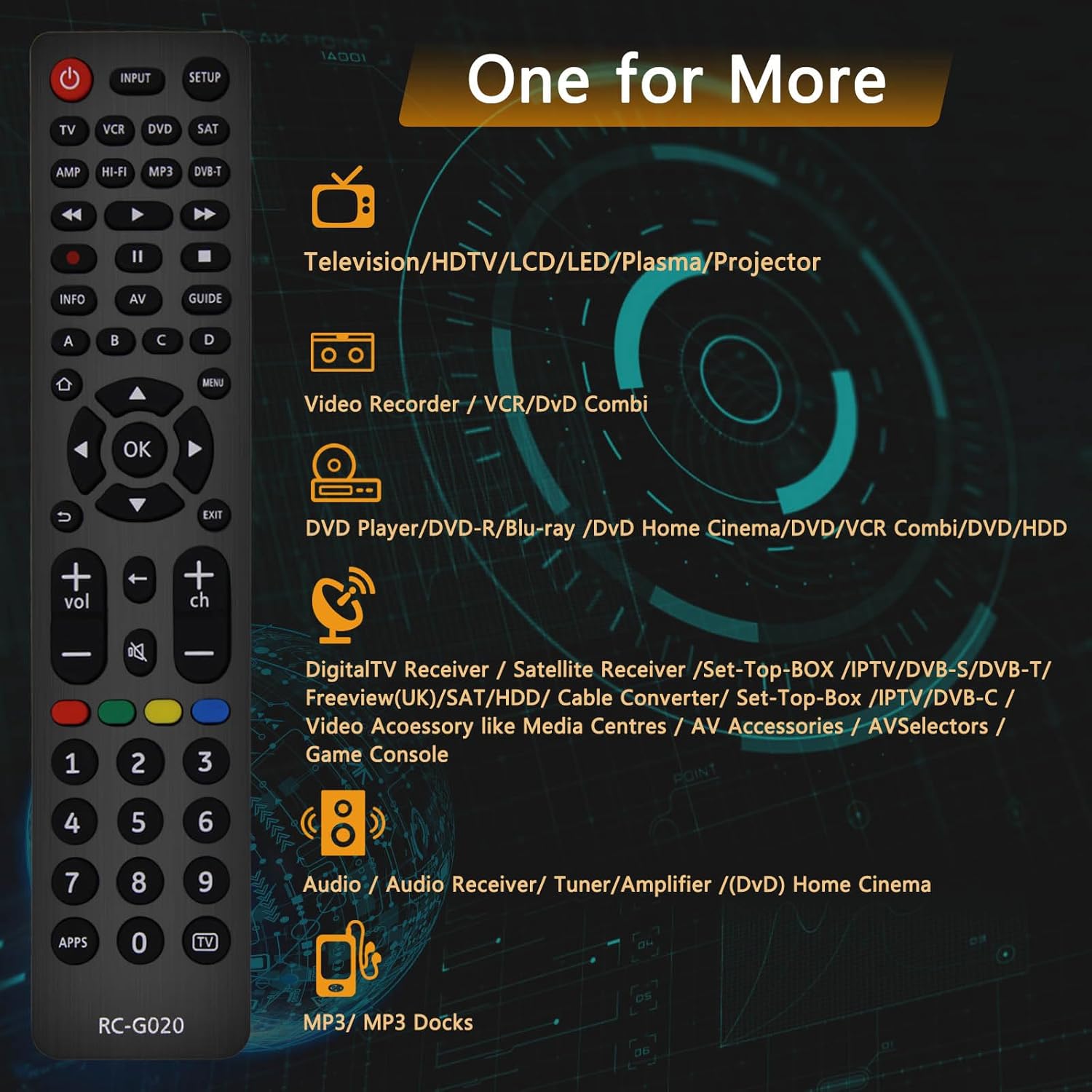
Image: The remote control demonstrating its "One for More" capability, illustrating the range of devices it can manage.
Setup and Pairing
Setting up your Terloogee Universal Remote Control is a simple 3-step process that takes less than a minute. Batteries are not included.
1. Install Batteries
Open the battery compartment on the back of the remote control. Insert two AAA batteries, ensuring correct polarity (+/-). Close the battery compartment securely.
2. Automatic Code Search (Recommended for TVs)
- Ensure your TV is turned on.
- Point the remote control towards your TV.
- Press and hold the "TV" button (or the corresponding device button like "DVD", "SAT", etc.) until the indicator light on the remote turns on and stays lit.
- While holding the device button, press and hold the "Power" button. The indicator light will start flashing.
- Release the "Power" button when your TV turns off. This indicates the correct code has been found.
- Test basic functions like volume and channel change. If they work, the setup is complete. If not, repeat the process as the remote might have skipped the correct code.
3. Learning Function (for specific buttons or unsupported devices)
The learning function allows you to copy specific button functions from your original remote control to the Terloogee Universal Remote.
- Place the Terloogee remote and your original remote control face-to-face, with their infrared emitters aligned, approximately 1-3 cm apart.
- Press and hold the "SETUP" button on the Terloogee remote until the indicator light turns on and stays lit.
- Press the button on the Terloogee remote that you wish to program (e.g., "INPUT"). The indicator light will flash slowly.
- Press the corresponding button on your original remote control (e.g., the "Input" button). The indicator light on the Terloogee remote will flash rapidly three times and then stay lit, indicating successful learning.
- Repeat steps 3 and 4 for any other buttons you wish to program.
- Press the "SETUP" button again to exit learning mode. The indicator light will turn off.

Image: Visual representation of the remote's key attributes, including its ergonomic design and durable ABS material.
Operating Instructions
Once set up, operating the Terloogee Universal Remote Control is intuitive.
Button Functions:
- Power (Red Button): Turns the selected device on or off.
- Input: Cycles through input sources (HDMI 1, HDMI 2, AV, etc.).
- Setup: Used for programming the remote.
- Device Selection Buttons (TV, VCR, DVD, SAT, AMP, HI-FI, MP3, DVB-T): Selects the device you wish to control. The remote will operate functions for the currently selected device.
- Navigation Pad (Up, Down, Left, Right, OK): Used for menu navigation and selection.
- Volume (+/-): Adjusts the volume of the selected audio device or TV.
- Channel (+/-): Changes channels on the TV or set-top box.
- Mute: Mutes or unmutes the audio.
- Number Pad (0-9): For direct channel entry or numerical input.
- Playback Controls (Play, Pause, Stop, Rewind, Fast Forward, Skip): Controls media playback on compatible devices like DVD/Blu-ray players or VCRs.
- Info, AV, Guide, Menu, Exit: Standard function buttons for accessing information, changing AV modes, viewing program guides, navigating menus, and exiting screens.
- Colored Buttons (Red, Green, Yellow, Blue): Often used for specific functions within menus or interactive services, depending on the device.
- APPS, TV: Dedicated buttons for smart TV applications or switching to TV mode.
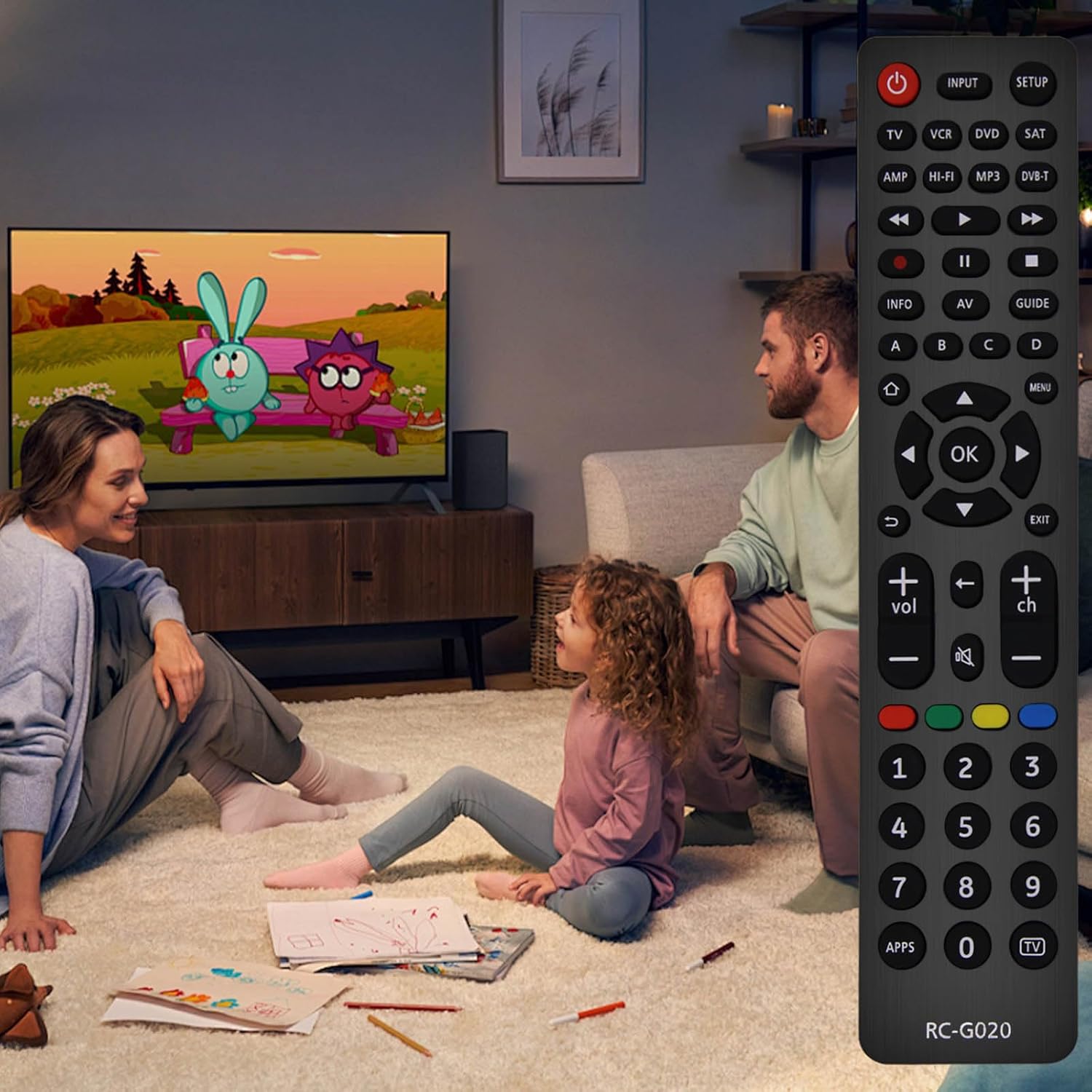
Image: The remote control in a typical home setting, emphasizing its role in enhancing the family viewing experience.
Maintenance and Care
To ensure the longevity and optimal performance of your Terloogee Universal Remote Control, follow these maintenance guidelines:
- Cleaning: Wipe the remote with a soft, dry cloth. For stubborn dirt, slightly dampen the cloth with water or a mild cleaning solution. Avoid harsh chemicals or abrasive cleaners.
- Battery Replacement: Replace batteries when the remote's response becomes sluggish or the indicator light does not illuminate. Always use two new AAA batteries of the same type. Do not mix old and new batteries, or different types of batteries.
- Storage: Store the remote in a cool, dry place away from direct sunlight and extreme temperatures.
- Avoid Drops: While designed to be durable, avoid dropping the remote, as this can damage internal components.
- Liquid Exposure: Keep the remote away from liquids. If it gets wet, remove batteries immediately and allow it to dry completely before reinserting them.
Troubleshooting
If you encounter issues with your Terloogee Universal Remote Control, refer to the following common problems and solutions:
| Problem | Possible Cause | Solution |
|---|---|---|
| Remote does not work at all. | Dead or incorrectly inserted batteries. | Check battery polarity. Replace with fresh AAA batteries. |
| Remote controls some functions but not others. | Incorrect device code or incomplete learning. | Repeat the automatic code search or learning function for the specific device/buttons. Note that some advanced functions may not be supported if not present on the original remote. |
| Remote's range is poor. | Low batteries; obstruction between remote and device; interference. | Replace batteries. Ensure a clear line of sight to the device's IR receiver. Remove any potential sources of interference. |
| Learning function fails. | Original remote's battery low; remotes not aligned correctly; ambient light interference. | Ensure original remote has fresh batteries. Adjust alignment and distance (1-3 cm). Try in a dimly lit room. |
If you continue to experience issues, please refer to the support section for further assistance.
Specifications
| Feature | Detail |
|---|---|
| Model Number | RC-G020 |
| Brand | Terloogee |
| Connectivity Technology | Infrared (IR) |
| Number of Buttons | 25 |
| Max Number of Supported Devices | Up to 8 (TV, VCR, DVD, SAT/DVB-T, AMP/HIFI, MP3, etc.) |
| Power Source | 2 x AAA Batteries (not included) |
| Maximum Range | 10 meters (1E+1 Metres) |
| Dimensions (L x W x H) | Approx. 20.7 x 5.2 x 3.7 cm |
| Weight | Approx. 110 g |
| Material | ABS Plastic |
| Color | Black |
| Country of Origin | China |

Image: Detailed dimensions of the remote control, showing its length, width, and thickness.
Warranty and Support
Terloogee is committed to providing high-quality products. While specific warranty details are not provided in this manual, please retain your proof of purchase for any warranty claims.
For any problems, questions, or support needs regarding your Terloogee Universal Remote Control, please do not hesitate to contact us. We are dedicated to solving any issues to your satisfaction.
You can typically find contact information on the product packaging or through the retailer where you purchased the item. For general inquiries, you may also visit the official Terloogee store on Amazon: Terloogee Store.
Ask a question about this manual
Ask about setup, troubleshooting, compatibility, parts, safety, or missing instructions. Manuals+ will review the question and use this page’s manual context to help answer it.