
1. Introduction
The EnhanBili MBOX600 Pro is an advanced LED screen controller designed for versatile control and ease of use in various display scenarios. This device is managed via a web application, offering comprehensive scalability and a robust server to maximize system potential. It supports diverse secondary development and innovation requirements.
2. Safety Information
- Power Supply: Use only the specified power adapter. Ensure the power source matches the device's voltage requirements.
- Ventilation: Do not block ventilation openings. Ensure adequate airflow around the device to prevent overheating.
- Environment: Operate the device within the specified temperature range (-20℃ to 70℃). Avoid exposure to moisture, dust, and extreme temperatures.
- Handling: Handle the device with care. Avoid dropping or subjecting it to strong impacts.
- Servicing: Do not attempt to open or repair the device yourself. Refer all servicing to qualified personnel.
3. Product Overview
3.1 Front Panel
The front panel of the MBOX600 Pro features various indicators and control ports for easy access and monitoring.

Image 3.1: Front view of the EnhanBili MBOX600 Pro LED Screen Controller. This image displays the front panel with indicators for Power, Run, HDD, WiFi, and 4G/5G, along with USB 2.0 ports, a SIM card slot, SOURCE and FN buttons, and a CONFIG port.
- PWR Indicator: Indicates power status.
- RUN Indicator: Indicates system operation status.
- HDD Indicator: Indicates hard drive activity.
- WiFi Indicator: Indicates Wi-Fi connection status.
- 4G/5G Indicator: Indicates cellular network connection status.
- USB 2.0 Ports: For connecting USB devices such as a keyboard, mouse, or USB drive.
- SIM Slot: For inserting a SIM card for 4G/5G connectivity.
- SOURCE Button: Used to switch input sources.
- FN Buttons (FN1, FN2): Function buttons for customizable operations.
- CONFIG Port: For configuration and maintenance purposes.
3.2 Rear Panel
The rear panel provides various input and output interfaces for connecting to LED displays, audio systems, and other peripherals.

Image 3.2: Rear view of the EnhanBili MBOX600 Pro LED Screen Controller. This image shows the rear panel with LED OUT ports, Audio Out, HDMI Out, HDMI In, USB 3.0 ports, Ethernet port, Sensor ports, WiFi and 4G/5G antenna connectors, and the 12V power input.
- LED OUT (1-4): Ethernet ports for connecting to LED display receiving cards.
- AUDIO OUT: 3.5mm audio output jack.
- HDMI OUT: HDMI output port for monitoring or cascading.
- HDMI IN: HDMI input port for video sources.
- USB 3.0 Ports: High-speed USB ports for data transfer or connecting peripherals.
- ETHERNET: RJ45 port for network connection.
- SENSOR 1, SENSOR 2: Ports for connecting external sensors.
- WiFi Antenna Connector: For connecting the Wi-Fi antenna.
- 4G/5G Antenna Connector: For connecting the 4G/5G antenna.
- 12V Power Input: DC power input for the device.
4. Setup
Follow these steps to set up your MBOX600 Pro LED Screen Controller.
4.1 Physical Installation
- Placement: Place the MBOX600 Pro on a stable, flat surface or mount it securely using appropriate hardware. Ensure adequate space for ventilation.
- Antennas: Connect the Wi-Fi and 4G/5G antennas (if applicable) to their respective connectors on the rear panel.

Image 4.1: Dimensional drawing of the EnhanBili MBOX600 Pro LED Screen Controller, showing various measurements and mounting points. The diagram indicates mounting with M4x12 screws.
4.2 Connections
Refer to the connection diagram below for a visual guide.
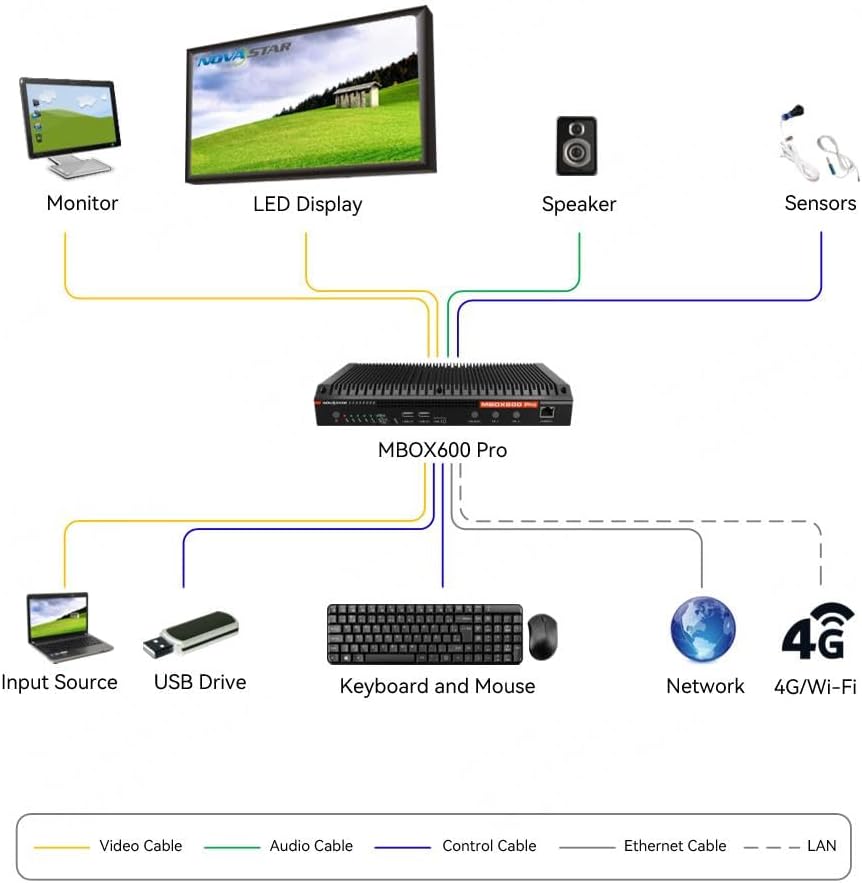
Image 4.2: Connection diagram illustrating how to connect the MBOX600 Pro to various devices, including an LED Display, Monitor, Speaker, Sensors, Input Source (Laptop), USB Drive, Keyboard and Mouse, and Network (Ethernet/4G/Wi-Fi). Different cable types are color-coded for clarity.
- LED Display Connection: Connect the LED OUT ports (1-4) on the rear panel to your LED display's receiving cards using Ethernet cables.
- Input Source: Connect your video source (e.g., laptop, media player) to the HDMI IN port on the rear panel using an HDMI cable.
- Monitor Output (Optional): If you need a local monitoring display, connect an external monitor to the HDMI OUT port.
- Audio Output (Optional): Connect speakers or an audio system to the AUDIO OUT port using a 3.5mm audio cable.
- Peripherals: Connect a keyboard and mouse to the USB 2.0 or USB 3.0 ports for local control.
- Network Connection:
- Wired: Connect an Ethernet cable from your network router/switch to the ETHERNET port.
- Wireless (Wi-Fi): Ensure antennas are connected. Configure Wi-Fi settings via the web application.
- Cellular (4G/5G): Insert a valid SIM card into the SIM slot on the front panel. Ensure antennas are connected.
- Sensors (Optional): Connect compatible sensors to the SENSOR 1 and SENSOR 2 ports.
- Power Connection: Connect the provided 12V power adapter to the 12V Power Input port on the rear panel, then plug the adapter into a power outlet.
5. Operating Instructions
5.1 Powering On/Off
- Power On: After connecting the power adapter, the device will automatically power on. The PWR indicator on the front panel will illuminate.
- Power Off: It is recommended to shut down the operating system gracefully via the web application or connected peripherals before disconnecting power.
5.2 Web Application Control
The MBOX600 Pro is primarily managed through a web-based application. Access this application by entering the device's IP address into a web browser on a connected computer.
- Initial Access: Refer to the device's network configuration guide for initial IP address and login credentials.
- Features: The web application provides comprehensive control over display settings, content management, system configuration, and monitoring.
5.3 Front Panel Button Functions
- SOURCE Button: Press to cycle through available input sources (e.g., HDMI, internal content).
- FN1 / FN2 Buttons: These function buttons can be configured via the web application for quick access to specific features or presets.
5.4 Indicator Lights
Monitor the status of the device using the front panel indicators:
- PWR (Power): Solid green when powered on.
- RUN (System Run): Blinking green indicates normal system operation.
- HDD (Hard Disk Drive): Blinking green indicates hard drive activity.
- WiFi: Solid green when connected to a Wi-Fi network.
- 4G/5G: Solid green when connected to a cellular network.
6. Maintenance
6.1 Cleaning
- Ensure the device is powered off and disconnected from the power source before cleaning.
- Use a soft, dry cloth to wipe the exterior surfaces. Do not use liquid cleaners or aerosols.
- Keep ventilation openings clear of dust and debris.
6.2 Environmental Considerations
- Operate the device within the specified temperature range of -20℃ to 70℃.
- Avoid placing the device in direct sunlight or near heat sources.
- Maintain a humidity level between 10% and 90% (non-condensing).
6.3 Firmware Updates
Periodically check the manufacturer's website for firmware updates. Updates can provide improved performance, new features, and bug fixes. Follow the instructions provided with the update package carefully.
7. Troubleshooting
This section addresses common issues you might encounter with the MBOX600 Pro.
- No Power:
- Ensure the power adapter is securely connected to both the device and a working power outlet.
- Verify the power outlet is functional.
- No Display Output:
- Check all LED OUT Ethernet cables for secure connections to the LED display.
- Verify the input source is correctly selected using the SOURCE button or web application.
- Ensure the LED display is powered on and configured correctly.
- Input Source Not Detected:
- Confirm the HDMI cable from your source is securely connected to the HDMI IN port.
- Ensure the input source device is powered on and outputting a signal.
- Network Connection Issues:
- For wired connections, check the Ethernet cable and router status.
- For Wi-Fi, ensure antennas are connected and Wi-Fi settings are correct in the web application.
- For 4G/5G, ensure the SIM card is properly inserted and antennas are connected. Check cellular signal strength.
8. Specifications
Detailed technical specifications for the EnhanBili MBOX600 Pro.
| Feature | Specification |
|---|---|
| Model Number | MBOX600 Pro |
| Brand | EnhanBili |
| Operating Temperature | -20℃ to 70℃ |
| Overall Consumption | 34W |
| Net Weight | 1.8 Kg (3.96 pounds) |
| Gross Weight | 3.5 Kg |
| Product Dimensions (L x W x H) | 5.31 x 1.77 x 12.6 inches |
| Compatible Devices | Laptop (and other video sources) |
| Connector Type | DVI, HDMI, USB, Ethernet |
| Certifications | CE, FCC, RoHS |
9. Warranty and Support
For warranty information, technical support, or service inquiries, please contact EnhanBili customer support through their official website or the retailer where the product was purchased. Keep your purchase receipt and product serial number handy for faster service.