
1. Introduction
The MaiKar A500 Car Head-Up Display (HUD) is designed to project essential driving data onto your car's windshield, allowing you to monitor vehicle information without diverting your attention from the road. This device supports both OBD2 and GPS functions, providing a wide range of real-time data such as speed, RPM, water temperature, voltage, and more. This manual provides detailed instructions for the installation, operation, and maintenance of your A500 HUD.
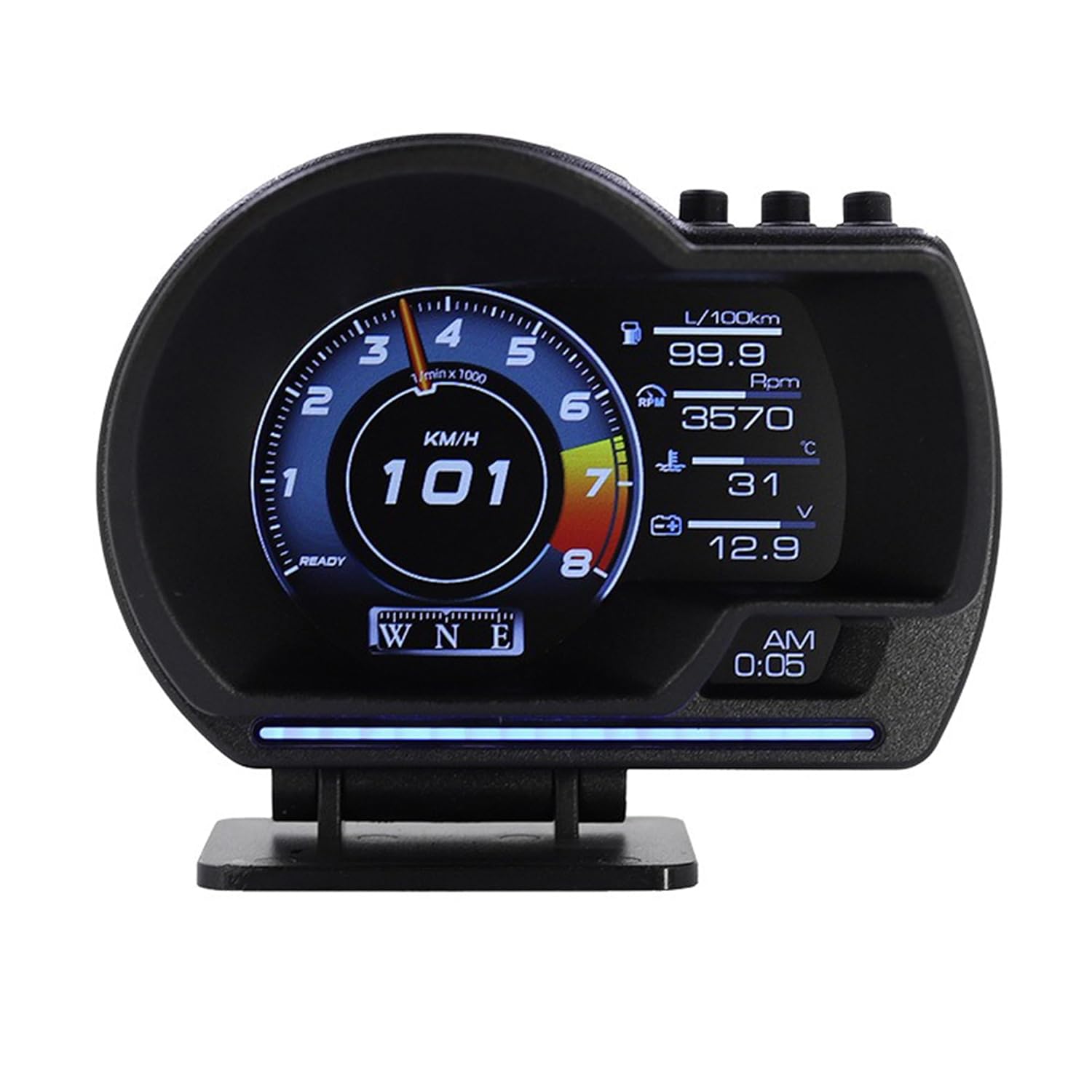
2. Product Features
- Dual Functionality: Operates in both OBD2 and GPS modes, offering comprehensive data display.
- Multiple Display Interfaces: Features 9 distinct interface styles including cool, mechanical, digital, GT, and turbo themes to suit user preference.
- Real-Time Data Display: Shows speed, RPM, fuel level, coolant and oil temperature, fuel consumption, emission status, air-fuel ratio, turbocharger pressure, GPS altitude, and direction of travel.
- 3.5-inch LCD Screen: Provides clear visibility of data day and night.
- Alarm Functions: Includes over-speed alarm, high water temperature alarm, battery voltage alarm, fatigued driver reminder, and shift reminder.
- Fault Code Clearing: Allows for clearing of engine fault codes.
- High Refresh Rate: Up to 10 Hz refresh rate for smooth data display.
- Flexible Installation: Supports adhesive installation on the center console and suction installation on the windshield. Includes a split bracket with 360° rotation for adjustable viewing angles.
- Automatic Brightness Adjustment: Light sensor automatically adjusts display brightness based on ambient light.
3. Package Contents
Please verify that all items are present in the package:
- MaiKar A500 Car Head-Up Display Unit (x1)
- OBD Cable (x1)
- User Manual (x1)
- Double-faced Adhesive Tape (x1)
4. Specifications
- Display Size: 3.5 inch color LCD screen
- Housing Color: Black plastic
- Weight: Approximately 10.58 ounces (300 grams)
- Dimensions (L x W x H): Approximately 4.29 x 2.95 x 3.39 inches (10.9 x 7.5 x 8.6 cm)
- Unit Marks: KM/H (Kilometers/hour), MPH (Miles/hour), RPM (rotations per minute), °C/°F (Celsius/Fahrenheit), KM (Kilometers), V (Voltage), M (Miles), L/100km (Liter/100 kilometers), L/H (Liter/hour)
5. Compatibility
The A500 HUD is primarily designed for OBD2 compliant vehicles. Most cars manufactured after 2008 are OBD2 compliant. If your vehicle does not support OBD2, only the GPS functions will be available.
To confirm OBD2 compliance:
- Check for a 16-pin Data Link Connector (DLC) located under the dashboard.
- Look for a sticker under the engine hood in the engine compartment that explicitly states "OBD II compliant" or "certified".
Supported OBD-II Protocols: ISO 9141, KWP2000, SAE J1850, CAN, J1850 VPW, J1850 PWM.
Note: The OBD HUD may not be suitable for all car models, especially those manufactured before 2008. Please verify compatibility before purchase.
6. Setup and Installation
The A500 HUD offers two primary installation methods:
6.1 Component Identification

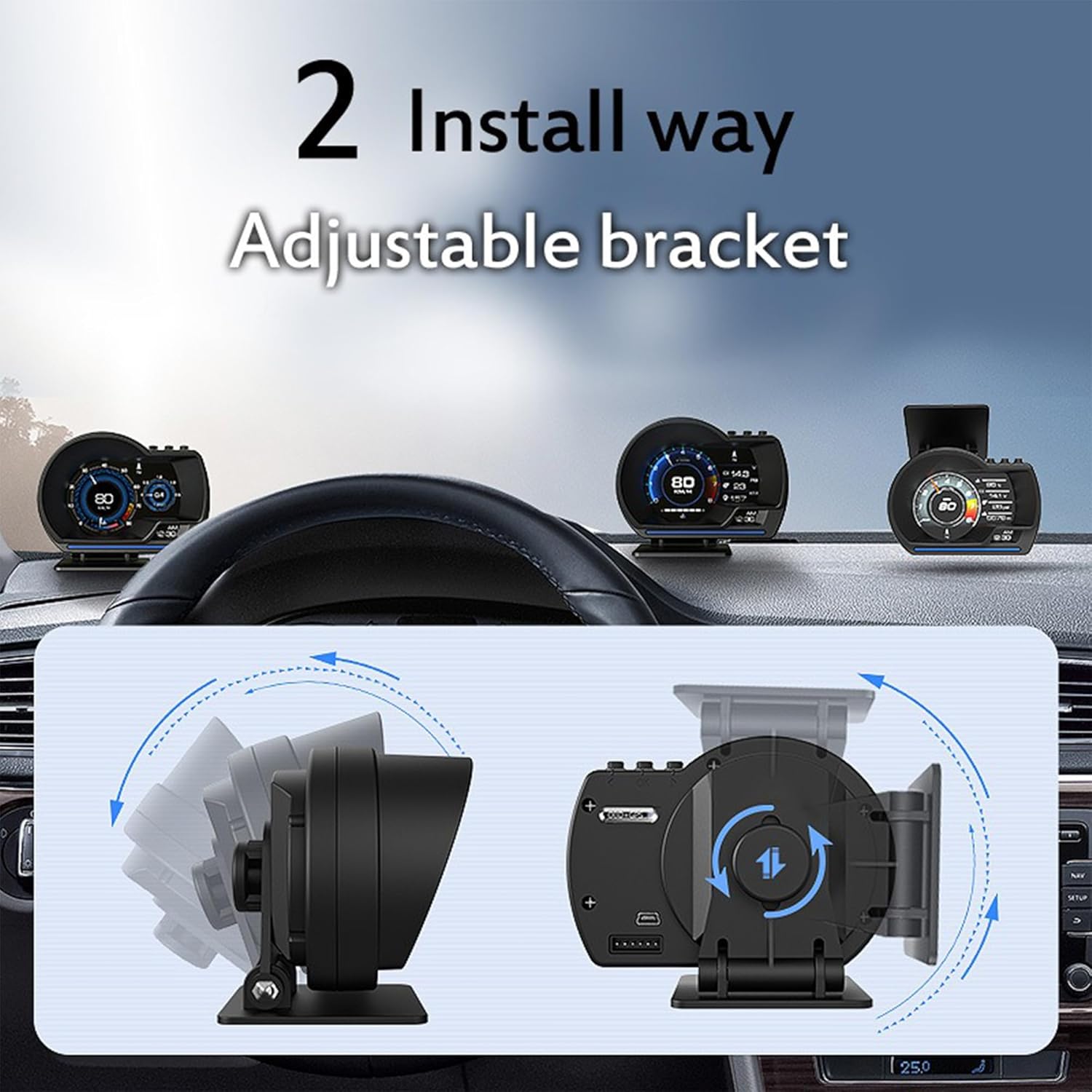
6.2 Installation Methods
Choose the installation method that best suits your vehicle and preference:
- Center Console Adhesive Installation:
- Clean the desired area on your vehicle's center console to ensure it is free of dust and grease.
- Attach the double-faced adhesive tape to the bottom of the HUD's base.
- Securely place the HUD on the cleaned surface.
- Windshield Suction Installation:
- Attach a compatible suction cup mount (not included, but the bracket supports it) to the HUD's adjustable bracket.
- Clean a suitable area on your windshield.
- Mount the HUD to the windshield using the suction cup.


6.3 Connecting the OBD Cable
After mounting the HUD:
- Locate your vehicle's 16-pin OBD2 port, typically found under the dashboard on the driver's side.
- Connect one end of the provided OBD cable to the HUD's OBD Interface (refer to Figure 3).
- Connect the other end of the OBD cable to your vehicle's OBD2 port.
- Once connected, the HUD should power on automatically when the vehicle's ignition is turned on.
7. Operating Instructions
7.1 Display Modes and Interfaces
The A500 HUD offers various display interfaces to customize your driving experience. You can switch between these interfaces using the control buttons (Left, OK, Right) on the top of the unit (refer to Figure 2).

Each interface can display a combination of data such as:
- Speed, RPM, Voltage, Driving Distance, Compass, Clock
- Speed, RPM, Water Temperature, Voltage, Turbo, Driving Distance, Compass, Clock
- Acceleration Test, Brake Test
- Full Data List (DTC status, Freeze DTC, Fuel system, Coolant temp, FuelTrim, etc.)
7.2 Alarm Functions
The HUD provides visual and audible alerts for various conditions:
- Shift Reminder: Indicates optimal shift points for fuel efficiency or performance.
- Over Speed Alarm: Alerts when a pre-set speed limit is exceeded.
- Engine Fault: Displays an icon when an engine fault code is detected.
- Fatigued Driver Reminder: Suggests taking a break after extended driving periods.
- High Water Temperature Alarm: Warns if the engine coolant temperature becomes excessively high.
- Battery Voltage Alarm: Alerts if the vehicle's battery voltage is too low or too high.

7.3 Clearing Fault Codes
The A500 HUD can clear certain engine fault codes. When an "Engine Fault" icon appears, you can navigate to the fault code clearing function within the HUD's menu (refer to the detailed menu navigation in the full user manual for specific steps) and select the option to clear the codes. This can resolve minor issues and turn off the check engine light, but persistent faults should be diagnosed by a professional.
8. Troubleshooting
- HUD Does Not Power On:
- Ensure the OBD cable is securely connected to both the HUD and the vehicle's OBD2 port.
- Verify that the vehicle's ignition is on.
- Check the vehicle's OBD2 port for power (consult your vehicle's manual or a mechanic if unsure).
- No Data Displayed (OBD Mode):
- Confirm your vehicle is OBD2 compliant (refer to Section 5).
- Ensure the OBD cable is properly connected.
- Some older OBD2 vehicles or specific models might have compatibility issues. Try switching to GPS mode if available.
- Inaccurate Speed Reading:
- The HUD may require calibration. Refer to the detailed settings menu in the full user manual for speed calibration options.
- Ensure the correct speed unit (KM/H or MPH) is selected.
- Display is Too Bright or Too Dim:
- The HUD has an automatic brightness adjustment feature. Ensure the light sensor (refer to Figure 3) is not obstructed.
- Manual brightness adjustment options may be available in the settings menu.
- GPS Signal Issues:
- Ensure the HUD has a clear view of the sky for optimal GPS signal reception.
- Driving through tunnels or dense urban areas can temporarily disrupt GPS signal.
9. Maintenance
- Cleaning: Use a soft, dry cloth to clean the display screen and the unit's housing. Avoid using abrasive cleaners or solvents, as they may damage the surface.
- Cable Care: Ensure the OBD cable is not pinched or excessively bent, which could damage the internal wiring.
- Storage: If storing the vehicle or HUD for an extended period, disconnect the HUD from the OBD2 port to prevent potential battery drain. Store the unit in a cool, dry place.
- Software Updates: Periodically check the manufacturer's website or contact support for any available firmware updates via the Upgrade Interface (refer to Figure 3).
10. Warranty and Support
MaiKar offers a one-year after-sales service for the A500 Head-Up Display. For technical support, warranty claims, or any inquiries regarding your product, please contact MaiKar customer service through your purchase platform or the contact information provided with your product packaging.
Please retain your proof of purchase for warranty validation.


