
JAIOTlink JA-CA42
JAIOTlink 1080P Indoor Security Camera User Manual
Model: JA-CA42
Introduction
Thank you for choosing the JAIOTlink 1080P Indoor Security Camera. This device is designed to provide reliable and clear monitoring for your home, baby, pets, or any indoor space. Featuring 1080P HD resolution, dual-band Wi-Fi connectivity, color night vision, motion detection with auto-tracking, and two-way audio, this camera offers comprehensive surveillance and communication capabilities. This manual will guide you through the setup, operation, and maintenance of your new security camera.

Image: The JAIOTlink 1080P Indoor Security Camera, a white dome-shaped device with a large black lens array, shown next to a smartphone displaying a live feed of a baby playing, illustrating its use for home monitoring.
Safety Information
- This camera is designed for indoor use only. Do not expose it to water, moisture, or extreme temperatures.
- Use only the provided power adapter and Type-C cable to prevent damage and ensure proper operation.
- Keep the device out of reach of children and pets to avoid accidental damage or injury.
- Do not attempt to disassemble or repair the camera yourself. Contact customer support for assistance.
- Ensure the camera is placed on a stable surface or securely mounted to prevent it from falling.
Package Contents
Please check the box for the following items:
- JAIOTlink 1080P Indoor Security Camera Body
- Type-C Cable
- Mounting Screws
Product Overview
Familiarize yourself with the main components of your JAIOTlink camera:
- Lens: Captures video footage.
- Infrared LEDs: For night vision illumination.
- Microphone: Captures audio for two-way communication and sound detection.
- Speaker: For two-way audio communication.
- Status Indicator Light: Indicates the camera's current status (e.g., ready for connection, connected).
- MicroSD Card Slot: For local video storage (card not included, supports up to 256GB).
- Reset Button: Used to reset the camera to factory settings.
- Power Port: Connects the Type-C cable for power supply.
Setup Guide
1. Download the EseeCloud App
Search for and download the 'EseeCloud' app from your smartphone's app store (App Store for iOS or Google Play Store for Android).

Image: A smartphone screen displaying the EseeCloud app page in an app store, indicating where to download the required application.
2. Register an Account
Open the EseeCloud app and follow the on-screen instructions to register a new account. If you already have an account, simply log in.
3. Power On the Camera
Connect the Type-C cable to the camera's power port and plug the other end into a power outlet. The camera will power on, and the status indicator light will begin to flash, indicating it's ready for connection.
4. Add Device and Connect to Wi-Fi
- In the EseeCloud app, tap the '+' icon to add a new device.
- Follow the prompts to select your camera model or scan a QR code if available.
- Ensure your phone's Bluetooth and location services are enabled as prompted by the app.
- Select your Wi-Fi network (the camera supports both 2.4GHz and 5GHz bands for stable streaming) and enter the password.
- Follow the app's instructions to complete the pairing process. Once connected, the status indicator light will turn solid, and you will receive a confirmation in the app.

Image: A smartphone screen displaying a prompt to enable Bluetooth and location services for device setup.

Image: A smartphone screen showing the Wi-Fi network selection interface within the app, highlighting support for both 2.4G and 5G Wi-Fi bands.

Image: A smartphone screen confirming that the device has been successfully added and configured within the EseeCloud app.
5. Mounting the Camera
The camera can be placed on a flat surface or mounted on a ceiling or wall using the included mounting screws. Choose a location that provides the desired viewing angle and is within range of your Wi-Fi network.
Operating Instructions
1. Live View
Open the EseeCloud app and select your camera to view the live 1080P HD video feed. You can monitor your space in real-time from anywhere.

Image: The JAIOTlink camera alongside icons for TF card and cloud storage, with a filmstrip showing various live view scenarios including a baby, dog, cat, elderly person, and a woman relaxing, illustrating 24/7 live view capability.
2. Two-Way Audio
Tap the microphone icon in the app to activate two-way audio. You can speak through the camera's speaker and hear audio from the camera's microphone, allowing for real-time communication with family, pets, or visitors.

Image: A baby in a crib with speech bubbles, one showing a microphone icon and another saying "Baby, Mommy is coming", demonstrating the two-way audio feature for communicating with a baby.
3. Pan/Tilt Control
Use the directional controls in the app to remotely pan the camera 355° horizontally and tilt it 110° vertically, providing a full 360° coverage of the room.
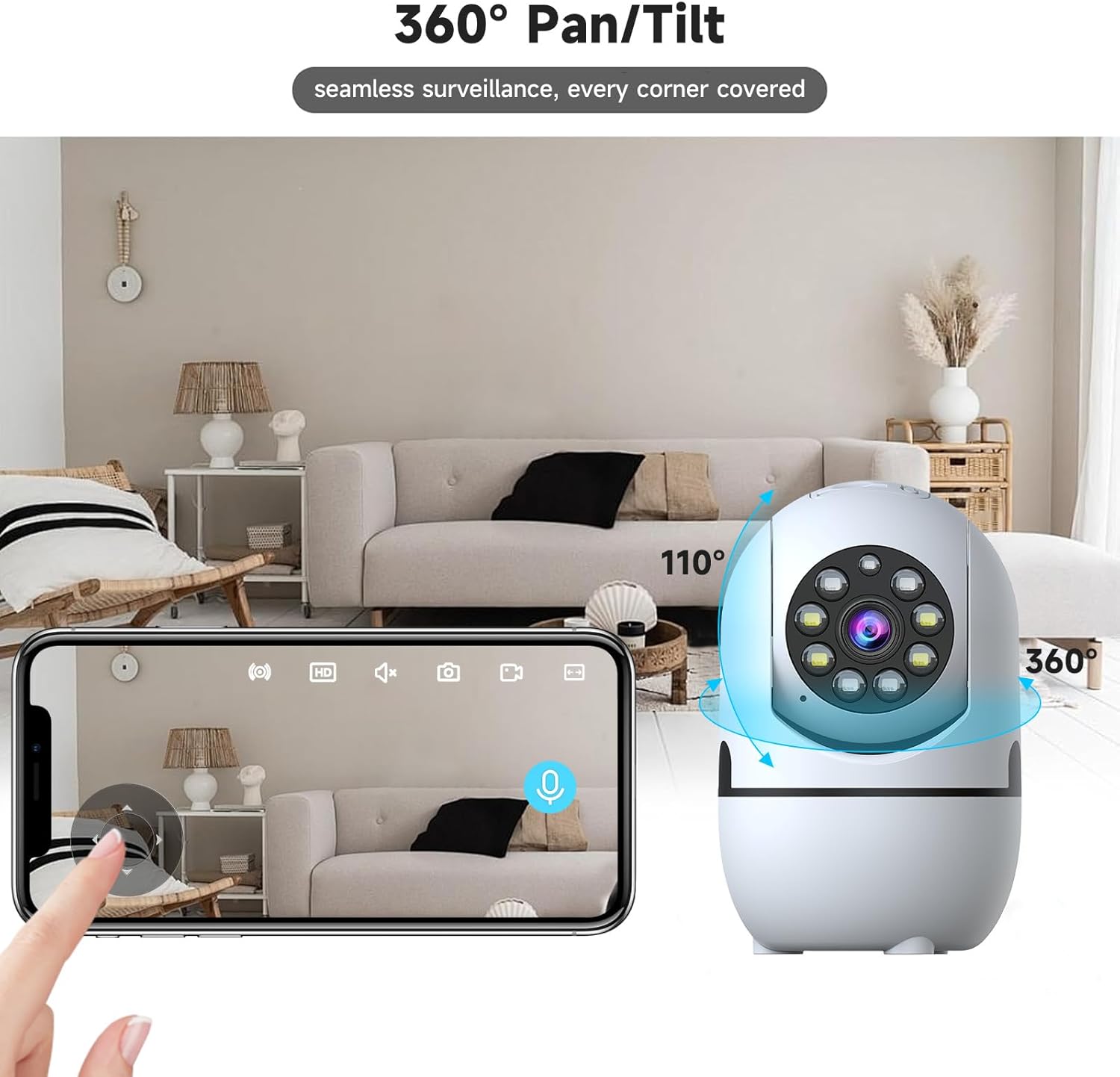
Image: The JAIOTlink camera positioned in a living room, with arrows indicating its 360-degree pan and 110-degree tilt capabilities, demonstrating comprehensive room coverage.
4. Motion Detection & Auto Tracking
Enable motion detection in the app to receive instant notifications when movement is detected. The camera can automatically track moving objects, ensuring important events are captured. You can also set customizable motion detection zones.

Image: A cat on a couch with a blue box highlighting its movement, and a smartphone displaying an 'EseeCloud' notification for motion detection, illustrating the camera's tracking and alert features.

Image: A man in a dimly lit room with a flashlight, and a smartphone displaying the EseeCloud app with options for siren, email, and push notifications upon motion detection, demonstrating security alert features.
5. Night Vision
The camera offers advanced night vision modes:
- Full Color Night Vision: Provides vivid, full-color images even in low-light conditions.
- Infrared Night Vision: Traditional black and white night vision for clear viewing in complete darkness.
- Smart Night Vision: Automatically switches between infrared and color night vision based on detected motion or light conditions.

Image: A three-panel comparison showing a living room scene under different night vision modes: Full color night vision, Infrared night vision (black and white), and Smart night vision (showing a person detected in color), illustrating the camera's versatile low-light capabilities.
6. Video Storage
Recordings can be stored in two ways:
- MicroSD Card: Insert a microSD card (up to 256GB, not included) into the camera's slot for local storage.
- Cloud Storage: Subscribe to the optional cloud storage service through the app for secure, remote storage of your video footage.
7. Alexa Compatibility
The JAIOTlink camera is compatible with Amazon Alexa. Link your camera to Alexa through the EseeCloud app settings to enable hands-free live view using simple voice commands.
Maintenance
- Cleaning: Gently wipe the camera lens and body with a soft, dry cloth. Do not use liquid cleaners or aerosols.
- Placement: Ensure the camera is in a well-ventilated area and not obstructed by objects that could block its view or airflow.
- Firmware Updates: Regularly check the EseeCloud app for available firmware updates to ensure optimal performance and security.
Troubleshooting
| Problem | Possible Solution |
|---|---|
| Camera won't power on. | Ensure the power cable is securely connected to the camera and the power outlet. Try a different outlet. |
| Cannot connect to Wi-Fi. | Check if your Wi-Fi network is 2.4GHz or 5GHz (camera supports both). Ensure the Wi-Fi password is correct. Move the camera closer to the router. Reset the camera and try pairing again. |
| Live view is blurry or pixelated. | Check your internet connection speed. Ensure the camera lens is clean. Adjust the camera's position for better lighting. |
| Two-way audio not working. | Ensure microphone and speaker permissions are granted to the EseeCloud app on your phone. Check volume settings on your phone and in the app. |
| Motion detection not sending alerts. | Verify motion detection is enabled in the app. Check notification settings on your phone. Ensure detection zones are correctly configured. |
| MicroSD card not recording. | Ensure the card is inserted correctly and is not full. Format the card through the app. Use a compatible card (up to 256GB). |
Specifications
| Feature | Detail |
|---|---|
| Model Number | JA-CA42 |
| Video Capture Resolution | 1080p HD |
| Connectivity Protocol | Wi-Fi (2.4GHz & 5GHz Dual-Band) |
| Pan/Tilt Range | 355° Horizontal, 110° Vertical (360° Coverage) |
| Night Vision Range | Up to 33 Feet (Color, Infrared, Smart Modes) |
| Storage Options | MicroSD Card (up to 256GB, not included), Cloud Storage (subscription required) |
| Audio | Two-Way Audio (Built-in Microphone & Speaker) |
| Motion Detection | Yes, with Auto Tracking and Customizable Zones |
| Compatibility | Amazon Alexa, Smartphone App (EseeCloud) |
| Power Source | Corded Electric (5 Volts) |
| Dimensions (L x W x H) | 2.72 x 2.72 x 4.25 inches |
| Item Weight | 9.9 ounces |
| Material | Acrylonitrile Butadiene Styrene (ABS) |
| Indoor/Outdoor Usage | Indoor Only |
Warranty and Support
JAIOTlink provides a 12-month reliable warranty for this product. For any technical assistance, troubleshooting, or warranty claims, please contact our customer support team:
- Email: E-Mingxun@outlook.com
Please have your model number (JA-CA42) and purchase information ready when contacting support.
Important Note on Videos
While the product listing indicates the presence of videos, the provided metadata does not include specific URLs or creator information (e.g., 'creator_type: Seller') for these videos. Therefore, no official product videos could be embedded in this manual as per the strict embedding criteria.
Related Documents - JA-CA42
 |
Hollyland LARK M2 Wireless Microphone System User Manual Comprehensive user manual for the Hollyland LARK M2 wireless microphone system, covering product overview, usage instructions for mobile and camera versions, indicator light explanations, technical specifications, app information, and support contacts. |
 |
JABLOTRON JA-150R One-way Signal Repeater for JA-100 Wireless Devices The JABLOTRON JA-150R is a one-way signal repeater designed to extend the communication distance and increase transmission reliability for JABLOTRON 100+ wireless devices. It supports various detectors, key fobs, and PG modules, and is powered by mains with battery backup. |
 |
JABLOTRON JA-110P Bus PIR-bevægelsesdetektor - Installations- og tekniske specifikationer Detaljeret installationsvejledning og tekniske specifikationer for JABLOTRON JA-110P Bus PIR-bevægelsesdetektoren, inklusive opsætning, interne indstillinger, detektionsegenskaber og overensstemmelsesinformation. |
 |
JABLOTRON JB-EXT-TH-B Bus Outdoor Temperature Detector - Installation and Technical Guide Comprehensive guide for the JABLOTRON JB-EXT-TH-B bus outdoor temperature detector, covering installation, functions, MyJABLOTRON integration, and technical specifications. Compatible with JABLOTRON control panels. |
 |
JABLOTRON JA-110P Bus PIR Motion Detector Installation and Technical Guide Comprehensive guide for the JABLOTRON JA-110P Bus PIR volumetric motion detector, detailing installation procedures, internal parameter settings, detection characteristics, lens options, and technical specifications for professional installers. |
 |
JABLOTRON JA-159J Bezdrátové zvonkové tlačítko: Návod k instalaci a technické specifikace Kompletní průvodce instalací, nastavením a používáním bezdrátového zvonkového tlačítka JABLOTRON JA-159J. Informace o kompatibilitě se systémy Jablotron, výměně baterií, technických parametrech a spolupráci s multifunkčními relé. |
Ask a question about this manual
Ask about setup, troubleshooting, compatibility, parts, safety, or missing instructions. Manuals+ will review the question and use this page’s manual context to help answer it.