POFAN G58

POFAN Wireless HDMI Transmitter and Receiver (Model G58) User Manual

Model: G58 | Brand: POFAN

Introduction

This manual provides detailed instructions for the setup, operation, maintenance, and troubleshooting of your POFAN Wireless HDMI Transmitter and Receiver (Model G58). This device is designed to wirelessly transmit 4K video and audio signals from various HDMI output devices to displays such as HDTVs, projectors, and monitors, eliminating the need for physical HDMI cables.

The system supports 2.4GHz and 5GHz dual-band transmission, offering a stable connection for streaming video, audio, and files. It is a plug-and-play solution, requiring no driver installations or complex network configurations.

Package Contents

Please verify that all items are present in your package:

  • 1 x HDMI Transmitter (TX)
  • 1 x HDMI Receiver (RX)
  • 1 x User Manual
  • 1 x USB-C to HDMI Adapter
  • 1 x HDMI Cable
  • 2 x USB-C Cables
  • 1 x Mini/Micro HDMI Adapter
Image showing the POFAN Wireless HDMI Transmitter and Receiver kit components, including TX, RX, user manual, USB-C to HDMI adapter, HDMI cable, USB-C cables, and Mini/Micro HDMI adapter.
Figure 1: Package Contents. This image displays all items included in the POFAN Wireless HDMI Transmitter and Receiver kit, ensuring users can verify their package is complete.

Setup Instructions

The POFAN Wireless HDMI system is designed for plug-and-play operation, requiring no software installation.

  1. Connect the Transmitter (TX): Plug the Transmitter (TX) into the HDMI output port of your source device (e.g., laptop, PC, TV box, camera). Ensure the TX unit receives power, typically via a USB-C cable connected to a power source (5V/1A recommended) or a USB port on your source device.
  2. Connect the Receiver (RX): Plug the Receiver (RX) into the HDMI input port of your display device (e.g., HDTV, projector, monitor). Ensure the RX unit receives power, typically via a USB-C cable connected to a power source (5V/1A recommended) or a USB port on your display device.
  3. Power On: Power on both your source device and display device.
  4. Automatic Connection: The Transmitter and Receiver will automatically pair and establish a connection. The display should show the content from your source device.
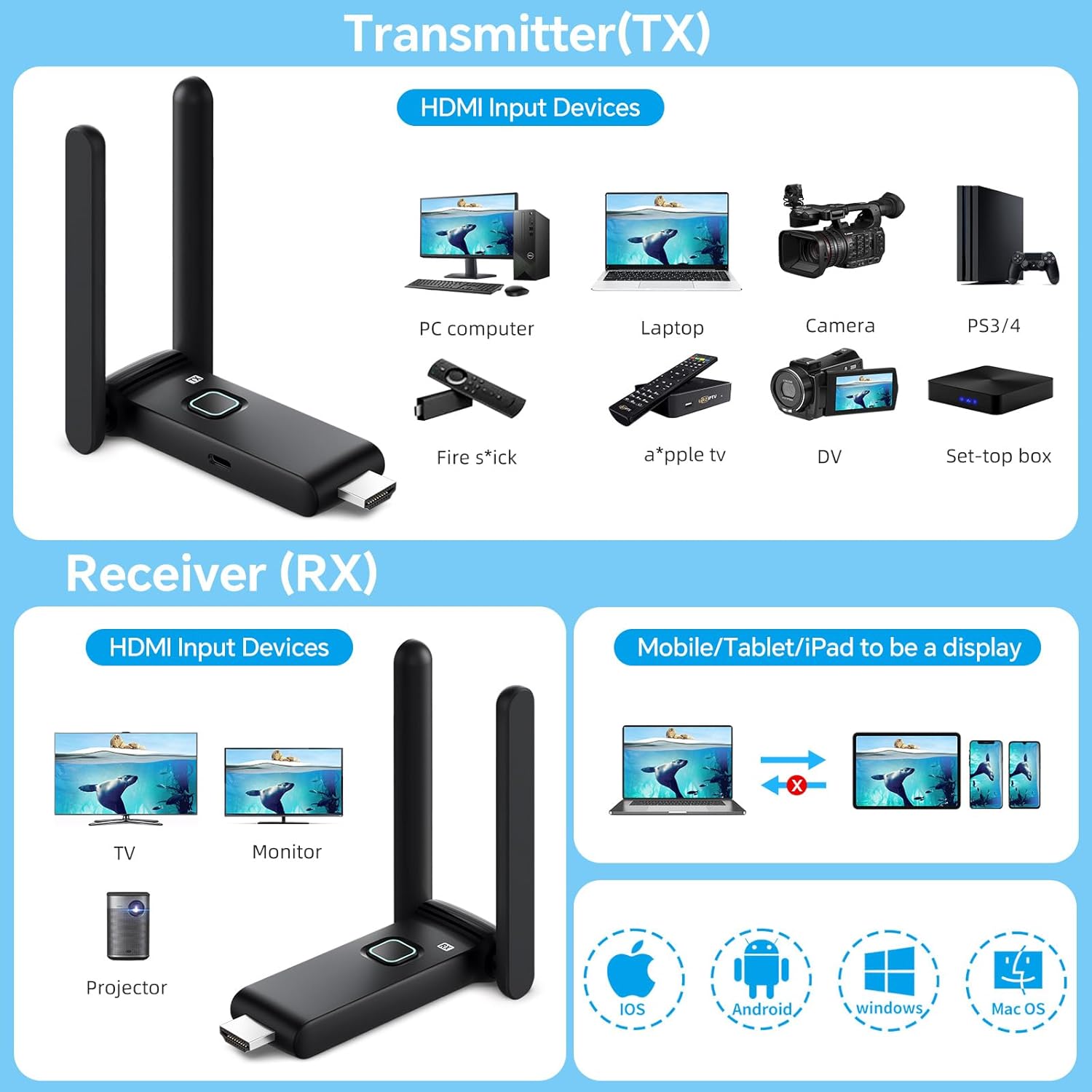
Image showing the Transmitter (TX) and Receiver (RX) units and their compatible input/output devices.
Figure 2: Transmitter and Receiver Compatibility. This image illustrates the types of devices that can be connected to the Transmitter (TX) as input sources and the Receiver (RX) as output displays, including laptops, PCs, cameras, TVs, and projectors.
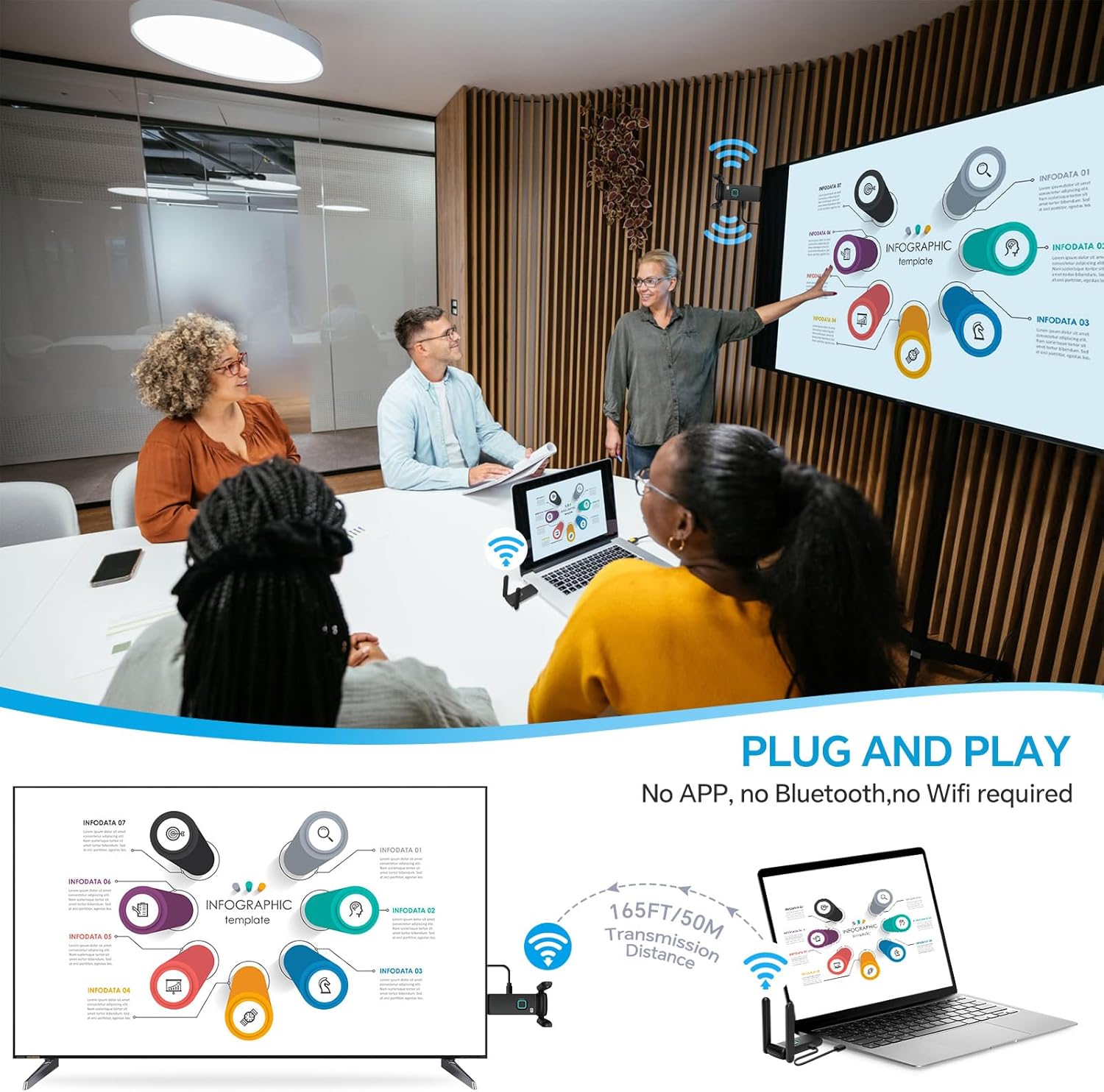
Image demonstrating the plug-and-play setup of the wireless HDMI system, showing a laptop connected to the TX and a TV displaying the content from the RX.
Figure 3: Plug and Play Setup. This image visually explains the simple plug-and-play process, where the transmitter connects to a laptop and the receiver connects to a TV, enabling wireless display without complex configuration.

Important Power Note: Use a 5V/1A power supply for stable connection. Insufficient power from a device's USB port (e.g., laptop, TV) may cause interruptions or delays. It is recommended to use a dedicated charger for power.

Operating Instructions

Wireless Transmission Range

The system provides a robust and stable signal with a line-of-sight range of up to 165 feet (50 meters). When transmitting through walls or floors, the range may decrease to approximately 32 feet (10 meters).
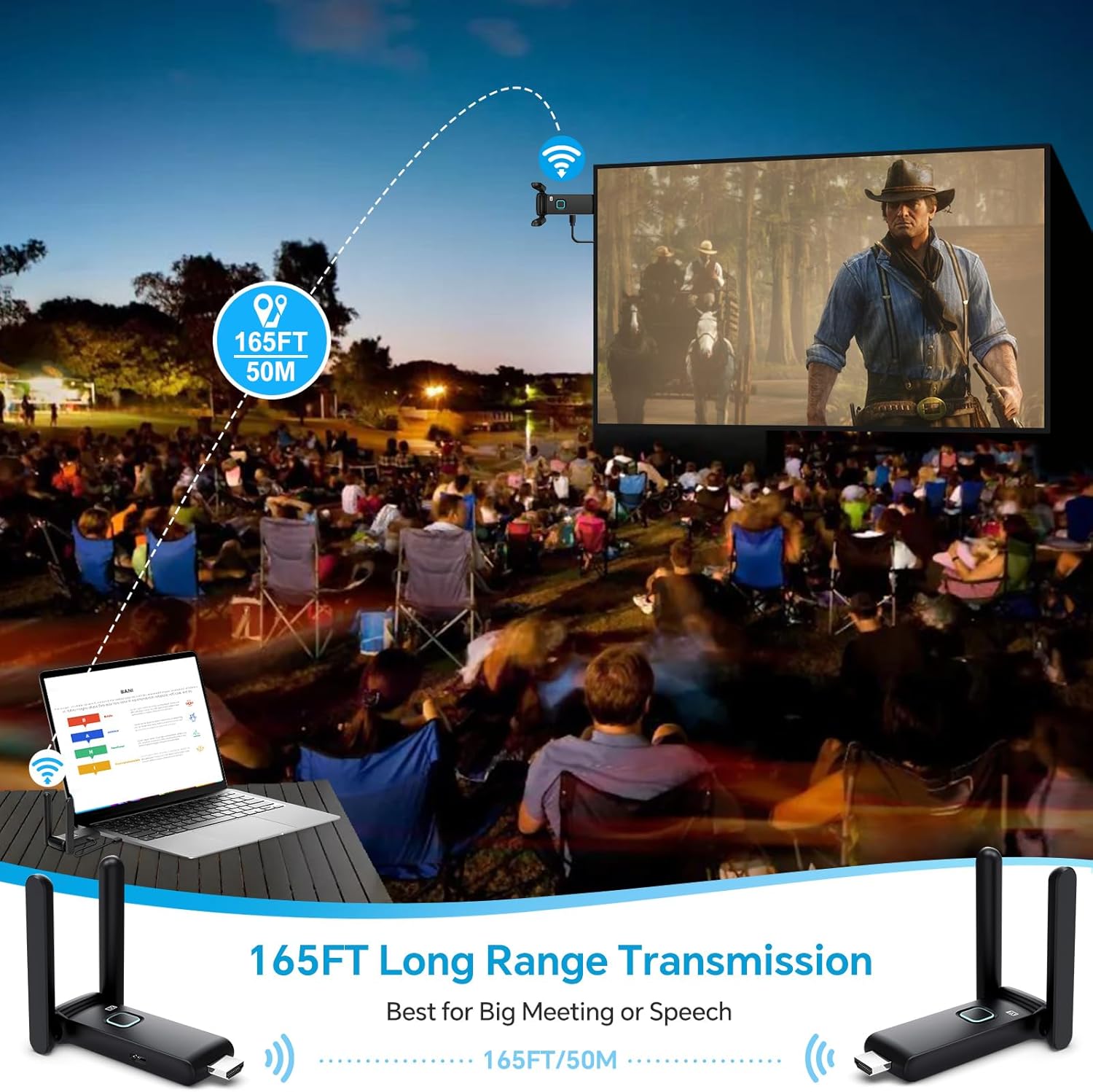
Image illustrating the 165ft (50m) long-range transmission capability of the wireless HDMI system, showing a laptop transmitting to a large outdoor screen.
Figure 4: Long Range Transmission. This image demonstrates the effective transmission distance of up to 165 feet (50 meters) in open spaces, suitable for large meetings or presentations.

Multi-Screen Synchronization

The wireless HDMI extender delivers seamless 4K video transmission across displays with ultra-low latency, enabling synchronized multi-screen playback. One Transmitter (TX) can be connected with up to 4 Receivers (RX) to display content on multiple screens simultaneously. The system supports up to 6 RX displays.

Image showing a laptop transmitting wirelessly to four large screens in a conference or event setting, demonstrating 1 TX to 4 Displays functionality.
Figure 5: Multi-Display Setup. This image illustrates how one transmitter can connect to four receivers, allowing simultaneous display of content on multiple screens, ideal for presentations or large venues.
Image showing a laptop wirelessly connected to six separate display screens, demonstrating the capability of supporting up to 6 receivers simultaneously.
Figure 6: Six Receiver Support. This image highlights the system's ability to display content on up to six receivers simultaneously, providing extensive multi-screen capabilities.

Using the TuTuPlay App for Mobile Device Integration

For enhanced functionality, you can use the TuTuPlay App to turn your smartphone or tablet into a second screen or for real-time monitoring.

  1. Connect TX to HDMI output device and power it.
  2. Install TuTuPlay App on your iPhone or other smartphone.
  3. Find "TUTULINK-xxx" in Wi-Fi settings and connect. The original password is "12345678".
  4. Open RScreen on iPhone/other smartphones for syncing.
Image showing a camera transmitting wirelessly to a monitor, a phone, and an iPad, demonstrating the TuTuPlay app functionality for turning touch screens into monitors.
Figure 7: TuTuPlay App for Touch Screen Monitoring. This image illustrates how the TuTuPlay app allows a camera's output to be monitored on a phone or iPad, effectively turning them into secondary displays.
Step-by-step guide on how to pair the transmitter with a phone or tablet using the TuTuPlay app, showing connection to TX, app installation, Wi-Fi connection, and RScreen usage.
Figure 8: Pairing with Phone/Tablet. This diagram provides a visual step-by-step guide for connecting the transmitter to a smartphone or tablet using the TuTuPlay app for screen mirroring.

Video Demonstration: Multiple Receivers

Video 1: Multiple Receivers - Up to 4 RX Can connect to 4 TVs. This video demonstrates the POFAN Wireless HDMI system's capability to connect a single transmitter to multiple receivers, allowing content to be displayed on up to four televisions simultaneously.

Maintenance

  • Cleaning: Use a soft, dry cloth to clean the devices. Avoid liquid cleaners or solvents.
  • Storage: Store the devices in a cool, dry place away from direct sunlight and extreme temperatures.
  • Power Supply: Always ensure a stable 5V/1A power supply for optimal performance. Avoid using underpowered USB ports from source or display devices, as this can lead to unstable connections or signal interruptions.
  • Heat Dissipation: The devices feature a large-area window opening design for better heat dissipation. Ensure these areas are not obstructed during use.
Image showing the compact size of the wireless HDMI unit and arrows indicating airflow for heat dissipation.
Figure 9: Portable and Heat Dissipating Design. This image highlights the compact size of the device and its design features for efficient heat dissipation, ensuring stable operation.

Troubleshooting

Problem Possible Cause Solution
No signal on display / Black screen
  • Insufficient power to TX or RX.
  • Incorrect HDMI connection.
  • TX and RX not paired.
  • Source device not outputting signal.
  • Display input not set to correct HDMI port.
  • Ensure both TX and RX are powered by a stable 5V/1A source. Use a dedicated charger if necessary.
  • Verify TX is plugged into the source's HDMI output and RX into the display's HDMI input.
  • Restart both TX and RX units. They should pair automatically.
  • Check if the source device is powered on and configured to output video.
  • Select the correct HDMI input on your display.
Intermittent signal / Flickering screen
  • Weak signal due to distance or obstacles.
  • Insufficient power.
  • Interference from other wireless devices.
  • Reduce the distance between TX and RX.
  • Minimize obstacles (walls, furniture) between units.
  • Ensure stable 5V/1A power supply for both units.
  • Move the units away from other 2.4GHz/5GHz wireless devices.
Audio but no video / Video but no audio
  • HDMI cable issue.
  • Source device output settings.
  • Display device audio/video settings.
  • Try a different HDMI cable.
  • Check your source device's display and audio output settings.
  • Verify your display's audio and video input settings.
Lag or delay in transmission
  • Distance or obstacles.
  • Interference.
  • Source device performance.
  • Reduce distance and clear line of sight.
  • Minimize other wireless activity.
  • Ensure your source device has sufficient processing power for the content being transmitted.
  • Note: For serious gamers, some minimal delays may be noticeable in fast-paced games.

Specifications

Feature Detail
Brand POFAN
Model Number G58
Connectivity Technology Wireless (Ethernet, HDMI)
Wireless Frequency 2.4G/5.8G dual band
Transmission Distance Up to 165FT/50M (line of sight); approx. 32FT/10M (through walls/floors)
Refresh Rate 60Hz
Latency Approx. 0.1s
Max Receivers Supported Up to 6 RX units
Compatible Devices Laptop, Set-top box, Television, Screen, Video camera, Blu-ray players, DVDs, Digital SLRs, Cable/Satellite TV receivers, Tablets, Apple laptops, Sony/Canon cameras.
Connector Type HDMI
Power Supply 5V/1A (recommended)
Built-In Media HDMI Receiver, HDMI Transmitter

Warranty Information

This POFAN product is covered by a 1-Year Manufacturer Warranty from the date of purchase. This warranty covers defects in materials and workmanship under normal use. It does not cover damage caused by misuse, accident, unauthorized modification, or external causes such as power surges.

Please retain your proof of purchase for warranty claims.

Customer Support

For technical assistance, troubleshooting, or warranty inquiries, please contact POFAN customer support through the following channels:

  • Online Support: Visit the official POFAN store on Amazon: POFAN Amazon Store
  • Manufacturer: POFAN (Vendor: kebaixin)

When contacting support, please have your product model number (G58) and proof of purchase readily available.

© 2026 POFAN. All rights reserved.

Related Documents - G58

Preview 18650 Battery Case - Durable PP Storage for AA, AAA, 18650 Batteries
Secure and portable PP battery storage case designed for 1 or 6 AA, AAA, and 18650 batteries. Protects against dust, moisture, and falls. Features compact design and semi-clear finish.
Preview MUUBAER Dashcam Quad-camera User Manual and Technical Features
Comprehensive user manual and technical specifications for the MUUBAER Dashcam Quad-camera, detailing setup, configuration, safety instructions, and features like 4K recording, G-Sensor, and WiFi connectivity.
Preview BT3401 LED Wireless Bluetooth Speaker User Manual and Specifications
User manual and technical specifications for the BT3401 LED Wireless Bluetooth Speaker, covering operation, features, safety, and FCC compliance.
Preview Smart Watch User Manual: Operation, Features, and Troubleshooting
Comprehensive user manual for Smart Watch devices, detailing setup, operation, key features, and troubleshooting. Includes instructions for the Glory Fit app and multi-language support.
Preview G58 Glasses Earphones User Manual - Shenzhen diyage Technology
User manual for the G58 Glasses Earphones by Shenzhen diyage Technology. Learn about product information, safety warnings, and operating instructions for these audio sunglasses.
Preview Charging Electric Shutter System Operating Instructions
Comprehensive guide to operating and setting up the Charging Electric Shutter System, including remote control pairing, app integration, and limit adjustments.

Ask a question about this manual

Ask about setup, troubleshooting, compatibility, parts, safety, or missing instructions. Manuals+ will review the question and use this page’s manual context to help answer it.