
Introduction
The SpaceX Starlink Mini Satellite Dish (4th Gen) provides reliable, high-speed internet connectivity in remote areas. Designed for portability, it is ideal for RVs, camping, remote work, and off-grid living. This manual will guide you through the setup, operation, and maintenance of your Starlink Mini.
- Advanced Satellite Technology: Features the latest Gen 4 technology for reliable, high-speed internet.
- Versatile Connectivity: Functions as a wireless router, modem router combo, or gaming router.
- High-speed Transmission: Ensures smooth, buffer-free streaming even from remote locations.
- Compact and Portable: Designed for travel and hassle-free internet access on the go.
Important Notice: Outside region fees may apply. A one-time activation fee of $300 may be charged for use of your Mini outside a specific area. A one-time congestion fee of $100 may also apply in some areas, which Starlink plans to remove when network capacity improves.
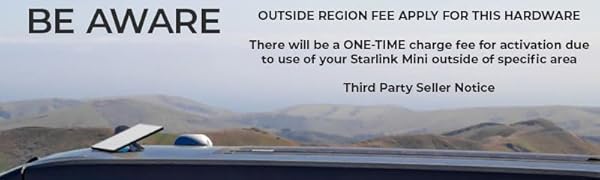
Image: Important notice regarding potential fees for using Starlink Mini outside designated regions or during congestion.
Package Contents
Before you begin, ensure all components are present in your Starlink Mini package:
- Starlink Mini Satellite Dish with Integrated WiFi
- Kickstand
- Mini Pipe Adapter and Flat Mount
- DC Power Cable (15m / 49.2ft)
- Power Supply
- Starlink Plug
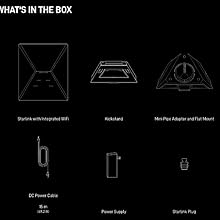
Image: Visual representation of the Starlink Mini, kickstand, adapter, DC power cable, power supply, and plug.
Setup
Follow these steps to set up your Starlink Mini for optimal performance:
- Unpack Components: Carefully remove all items from the packaging.
- Attach Kickstand: Locate the kickstand on the back of the Starlink Mini dish. Fold it out until it clicks into place, ensuring the dish is angled correctly for sky visibility.
- Connect Power Cable: Plug the DC power cable into the port on the Starlink Mini dish. Ensure a secure connection.
- Connect Power Supply: Connect the other end of the DC power cable to the power supply unit. Then, plug the power supply into a suitable power source (wall outlet or compatible 12V source).
- Position the Dish: Place the Starlink Mini dish in an open area with a clear, unobstructed view of the sky. Avoid trees, buildings, or other obstacles that could block the signal.
- Download Starlink App: Download the official Starlink app on your smartphone or tablet. The app will guide you through the final configuration steps, including connecting to the Wi-Fi network and checking for software updates.

Image: The Starlink Mini dish with its integrated kickstand extended, showing its compact and portable design.

Image: Front view of the Starlink Mini Satellite Dish.

Image: Side view of the Starlink Mini Satellite Dish, highlighting its slim profile.
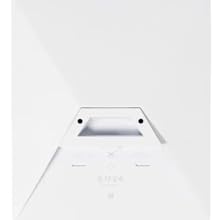
Image: Back view of the Starlink Mini Satellite Dish, showing the kickstand and connection ports.
Operating Instructions
Once set up, the Starlink Mini operates largely automatically. Here are key operational aspects:
- Automatic Alignment: The dish will automatically orient itself to connect with the Starlink satellite constellation. This process may take a few minutes.
- Monitoring with App: Use the Starlink app to monitor your connection status, speed, and any potential obstructions. The app provides real-time statistics on ping success, latency, and power draw.
- Wi-Fi Configuration: Configure your Wi-Fi network name and password through the Starlink app.
- Portability: The compact design allows for easy transport. Simply fold the kickstand, disconnect the power, and pack it for your next destination.
The Starlink Mini is designed for seamless internet access in various environments:
- Residential: Connect at home.
- Roam: Connect on the go, perfect for RVs and camping.
- Boats: Connect on the water.

Image: Starlink Mini dish providing internet in a remote, grassy outdoor setting with a laptop, demonstrating its use for remote work.
Maintenance
To ensure the longevity and optimal performance of your Starlink Mini, follow these maintenance guidelines:
- Keep Clear: Ensure the dish surface is free from dirt, snow, ice, or other obstructions. The dish has a self-heating capability to melt snow, but heavy accumulation may require manual clearing.
- Cable Care: Handle the power cable with care to prevent damage. Avoid sharp bends or kinks.
- Software Updates: Regularly check the Starlink app for software updates. Updates often include performance improvements and new features.
- Storage: When not in use, store the Starlink Mini in a dry, protected environment.
Troubleshooting
If you encounter issues with your Starlink Mini, try the following troubleshooting steps:
- No Internet Connection:
- Check for obstructions using the Starlink app's 'Obstructions' tool.
- Ensure the power cable is securely connected to both the dish and the power supply.
- Verify the power supply is plugged into a working outlet.
- Restart the Starlink Mini by unplugging it from power for 30 seconds and then plugging it back in.
- Slow Speeds:
- Confirm there are no obstructions blocking the dish's view of the sky.
- Check the Starlink app for any network congestion alerts in your area.
- Ensure your device is connected to the Starlink Wi-Fi network and not another network.
- Wi-Fi Not Appearing:
- Ensure the Starlink Mini is powered on and has completed its initial boot-up sequence.
- Try restarting the Starlink Mini.
- Check your device's Wi-Fi settings to ensure it's scanning for networks.
Specifications
| Antenna Type | Satellite |
| Brand | Generic |
| Color | White |
| Number of Channels | 10 |
| Maximum Range | 3200 Feet |
| Product Dimensions (L x W x H) | 7"L x 4"W x 9"H |
| Item Weight | 5 Pounds |
| Unit Count | 1.0 Count |
Warranty
This product comes with a standard manufacturer's warranty. For specific details regarding warranty coverage, duration, and claims process, please refer to the warranty card included in your product packaging or visit the official Starlink support website.
Support
For further assistance, technical support, or to access additional resources, please visit the official Starlink support website or contact their customer service. The Starlink app also provides a comprehensive help section and diagnostic tools.