
K04 Double recording+Wifi+GPS (GHJQA008)
4K Dash Cam Night Vision Dual Lens Car Video Recorder
User Manual - Model K04 Double recording+Wifi+GPS
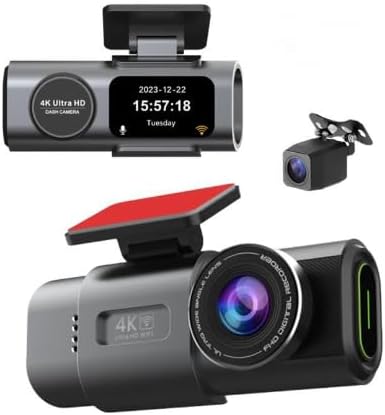
Image: The main 4K Dash Cam unit with its display showing date and time, accompanied by the smaller rear camera unit.
1. Introduction
1.1 Product Overview
This manual provides detailed instructions for the installation, operation, and maintenance of your new 4K Dash Cam. Please read this manual thoroughly before using the device to ensure proper functionality and safety.

Image: A visual representation of the dash cam installed in a vehicle, highlighting key features such as 4K resolution, Smart Voice control, Night Vision, Built-in WiFi, GPS (Optional), G-Sensor, and Loop Recording.
1.2 Key Features
- 4K UHD Front Recording: Captures high-resolution video for clear details.
- Dual Lens System: Simultaneous recording from front (4K) and rear (1080P) cameras.
- Night Vision: Enhanced low-light performance for clear recordings in dark conditions.
- Built-in WiFi: Allows for easy connection to a smartphone app for video management and settings.
- GPS Functionality: Records driving route, speed, and location data (for GPS-enabled models).
- G-Sensor: Automatically locks and saves video footage upon detecting sudden impacts or collisions.
- Loop Recording: Overwrites the oldest unlocked footage when the memory card is full.
- Parking Monitor: Provides surveillance when the vehicle is parked (requires hardwire kit, sold separately).
2. Package Contents
Please check the package contents upon unboxing. If any items are missing or damaged, contact customer support immediately.
- 4K Front Dash Cam Unit
- 1080P Rear Camera
- Car Charger
- Rear Camera Cable
- Mounting Bracket (with adhesive or suction cup)
- User Manual
- GPS Module (for GPS-enabled models)
3. Setup Guide
3.1 Installing the Dash Cam
- Prepare SD Card: Insert a high-speed (Class 10 or higher) Micro SD card (not included) into the dash cam's SD card slot. Format the card in the dash cam's settings before first use.
- Mount the Front Camera: Choose a location on your windshield, preferably behind the rearview mirror, that does not obstruct your view. Clean the area thoroughly. Attach the mounting bracket to the windshield and then slide the dash cam onto the bracket.
- Install the Rear Camera: Mount the rear camera on the rear windshield, ensuring a clear view. Run the rear camera cable discreetly along the vehicle's interior trim to connect it to the main dash cam unit.
- Connect Power: Plug the car charger into your vehicle's cigarette lighter socket and connect the other end to the dash cam's power input port. Route the cable neatly to avoid interference with driving.

Image: A clear view of both the main front dash cam unit and the compact rear camera, illustrating their design and relative sizes.
3.2 Initial Configuration
- Power On: The dash cam will automatically power on and begin recording when your vehicle's ignition is turned on.
- Set Date and Time: Navigate through the menu settings to set the correct date and time. This is crucial for accurate video timestamps.
- Language Selection: Choose your preferred language from the system settings.
- Format SD Card: It is highly recommended to format the Micro SD card directly within the dash cam's settings before first use and periodically thereafter to ensure optimal performance and prevent data corruption.
4. Operation
4.1 Recording Modes
- Loop Recording: The dash cam continuously records video in short segments (e.g., 1, 3, or 5 minutes). When the memory card is full, the oldest unlocked segment is automatically overwritten.
- Emergency Locking (G-Sensor): In the event of a sudden impact or collision, the built-in G-sensor will detect the event and automatically lock the current video segment, preventing it from being overwritten by loop recording.
- Manual Locking: You can manually lock the current recording by pressing the designated button on the dash cam.

Image: A visual explanation of the Emergency Locking feature, showing a car collision scenario and how the dash cam automatically locks important video footage.
4.2 Wi-Fi Connectivity
The built-in Wi-Fi allows you to connect your smartphone to the dash cam via a dedicated app (e.g., "RoadCam" or similar, check manual for specific app name). This enables you to:
- View live footage from the dash cam.
- Download recorded videos to your phone.
- Adjust dash cam settings.
4.3 GPS Functionality (Optional)
For models equipped with GPS, the dash cam will record your vehicle's speed, location, and driving route. This data can be viewed using a compatible GPS player software on your computer, often available for download from the manufacturer's website.
4.4 Night Vision
The dash cam features enhanced night vision capabilities, utilizing advanced sensors and wide apertures (e.g., F2.0) to capture clear video footage even in low-light conditions or at night.

Image: The dash cam's main unit displaying the current date and time, alongside the compact rear camera, illustrating the dual recording setup.
4.5 Dual Lens Operation
The dash cam records simultaneously from both the front (4K) and rear (1080P) cameras, providing comprehensive coverage of your vehicle's surroundings. Both video feeds are saved as separate files or integrated into a single file, depending on the model's settings.

Image: A split image demonstrating the simultaneous recording capabilities of the dual dash cam, showing a clear 4K front view and a 1080P rear view from a vehicle's perspective.
5. Maintenance
5.1 Cleaning the Lenses
Regularly clean the front and rear camera lenses with a soft, lint-free cloth. Avoid using abrasive cleaners that could scratch the lens surface. A clean lens ensures clear video quality.
5.2 SD Card Management
- Formatting: Format the Micro SD card within the dash cam's settings at least once a month to prevent data corruption and ensure smooth recording.
- Replacement: Micro SD cards have a limited lifespan due to continuous read/write cycles. It is recommended to replace the card every 6-12 months, especially if you notice recording errors or performance degradation.
- Storage: Always use a high-quality, high-endurance Micro SD card specifically designed for dash cams.
6. Troubleshooting
If you encounter issues with your dash cam, refer to the following table for common problems and solutions.
| Problem | Possible Cause | Solution |
|---|---|---|
| Dash cam does not power on. | No power supply; faulty car charger; loose connection. | Check car charger connection and vehicle's cigarette lighter. Try another power source if available. |
| Recording stops or freezes. | SD card full; SD card error; incompatible/slow SD card. | Format the SD card. Use a high-speed (Class 10 U3) and high-endurance SD card. Replace the SD card if issues persist. |
| Poor video quality. | Dirty lens; protective film still on lens; low resolution setting. | Clean the camera lens. Remove any protective film. Check video resolution settings in the menu. |
| Wi-Fi connection issues. | Incorrect app; Wi-Fi not enabled on dash cam; interference. | Ensure Wi-Fi is enabled on the dash cam. Download the correct app. Try restarting both devices. |
| Date/Time resets. | Internal battery/capacitor issue; power interruption. | Ensure continuous power supply. If problem persists, contact support. |
7. Technical Specifications
| Feature | Specification |
|---|---|
| Model Name | HJJQ008 (K04 Double recording+Wifi+GPS) |
| Front Camera Resolution | 3840*2160 (4K UHD) |
| Rear Camera Resolution | 1080P |
| Connectivity Technology | WiFi, Powerline (for power supply) |
| Special Features | Night Vision, G-Sensor, Loop Recording, Parking Monitor, GPS (Optional) |
| Mounting Type | Car (Adhesive/Suction Mount) |
| Product Dimensions | 4.84 x 6.29 x 3.14 inches |
| Manufacturer | BRONG RACING |
8. Warranty and Support Information
This product comes with a standard manufacturer's warranty. For specific warranty terms and conditions, please refer to the documentation included with your purchase or visit the manufacturer's official website.
For technical support, troubleshooting assistance, or warranty claims, please contact the manufacturer or seller directly. Keep your purchase receipt and product model number handy when contacting support.
Manufacturer: BRONG RACING
Model Number: GHJQA008
Ask a question about this manual
Ask about setup, troubleshooting, compatibility, parts, safety, or missing instructions. Manuals+ will review the question and use this page’s manual context to help answer it.