
Introduction
This manual provides essential information for setting up, operating, maintaining, and troubleshooting your HP 15-DY58 Slim Laptop. Please read this guide thoroughly to ensure proper use and to maximize the performance and longevity of your device.
What's in the Box
Upon opening your HP 15-DY58 Slim Laptop package, you should find the following items:
- HP 15-DY58 Slim Laptop
- AC Power Adapter and Power Cord
- Quick Start Guide (if included separately)
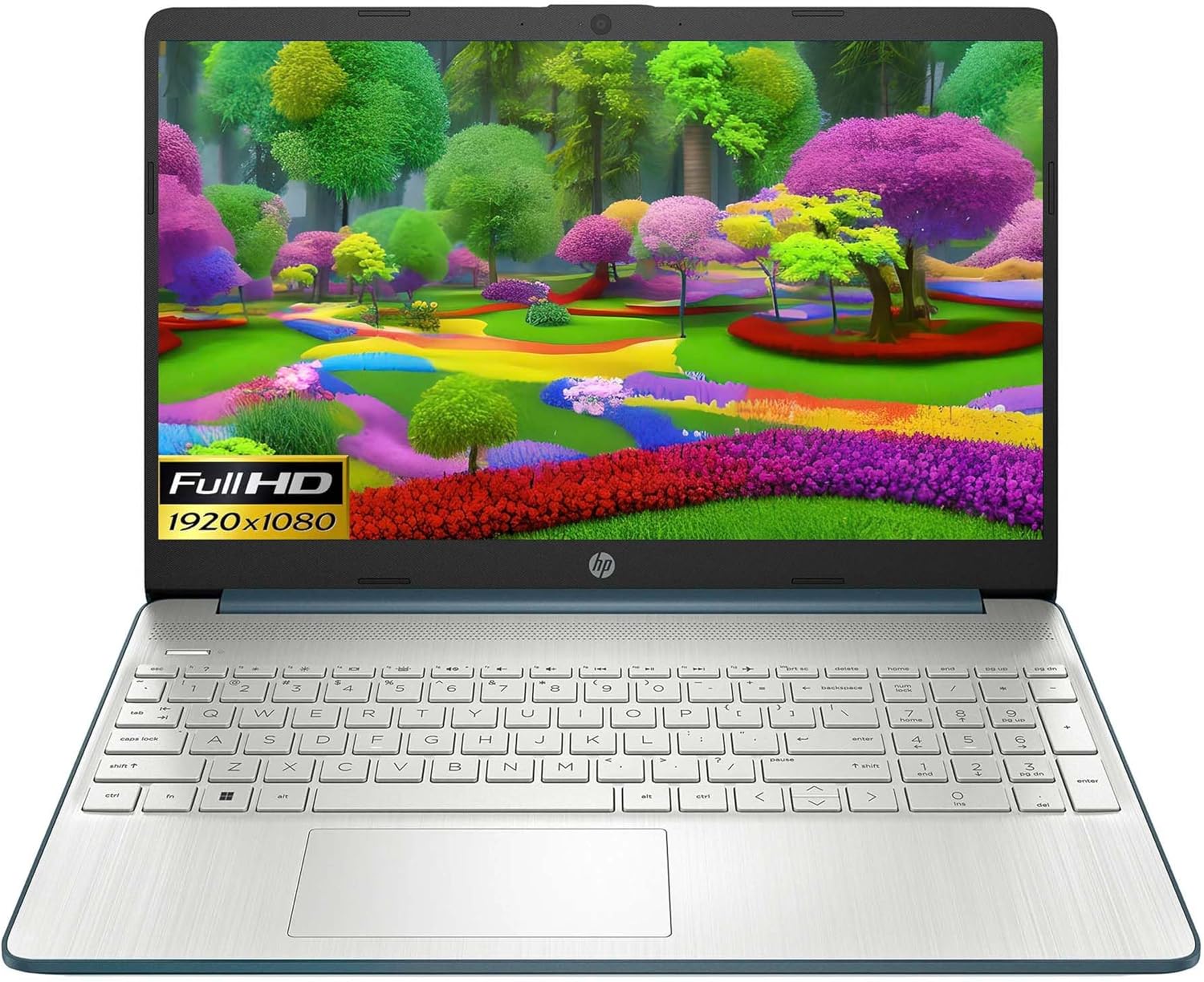
Image: HP 15 Slim Laptop, closed view, showing the blue lid with HP logo.
Setup
1. Initial Power On
- Connect the Power Adapter: Plug the AC power adapter into the laptop's AC smart pin port and then into a wall outlet.
- Open the Laptop: Carefully lift the display lid.
- Power On: Press the power button, usually located on the keyboard deck. The laptop will begin the initial Windows 11 setup process.
- Follow On-Screen Instructions: Complete the Windows 11 setup, including language selection, network connection, and user account creation.

Image: HP 15 Slim Laptop open, showcasing the Windows 11 operating system interface during initial setup.
2. Connecting Peripherals
Your HP 15-DY58 Slim Laptop offers various ports for connecting external devices:
- USB Type-A Ports: Connect USB devices such as mice, keyboards, or external storage drives. There are two SuperSpeed USB Type-A 5Gbps ports.
- USB Type-C Port: Connect compatible USB-C devices. This laptop features one SuperSpeed USB Type-C 5Gbps signaling rate port.
- HDMI Port: Connect an external monitor or TV using an HDMI cable for extended display. The laptop has one HDMI 1.4b port.
- Headphone/Microphone Combo Jack: Connect headphones, external speakers, or a headset with a microphone.
- SD Media Card Reader: Insert an SD card to transfer photos and files.

Image: Left side ports including SD card reader, headphone jack, USB-C, AC power, and HDMI.

Image: Right side ports featuring two USB Type-A ports.
Operating Your Laptop
Basic Functions
- Power Button: Located on the keyboard deck, use it to turn the laptop on or off, or to put it to sleep.
- Keyboard: The full-size island-style keyboard provides comfortable typing. Familiarize yourself with function keys (Fn) for quick access to settings like volume, brightness, and Wi-Fi.
- Touchpad: Use the integrated touchpad for navigation. It supports multi-touch gestures for scrolling, zooming, and more.

Image: HP 15 Slim Laptop open, showcasing its display and keyboard.
Wireless Connectivity
- Wi-Fi: Connect to wireless networks using Wi-Fi 5 (802.11ac). Access Wi-Fi settings through the Windows 11 taskbar or Settings app.
- Bluetooth: Pair Bluetooth-enabled devices such as headphones, speakers, or mice using Bluetooth 5. Manage Bluetooth devices in Windows 11 Settings.
Display and Audio
- Display: The 15.6-inch Full HD (1920 x 1080) micro-edge display offers clear visuals. Adjust brightness and display settings via Windows 11.
- Audio: The laptop features dual speakers for audio output. The headphone/microphone combo jack allows for private listening or communication.
- Camera: The HP True Vision 720p HD camera with integrated dual array digital microphones is suitable for video calls and online meetings.
Maintenance
Cleaning Your Laptop
- Screen: Use a soft, lint-free cloth lightly dampened with water or a screen cleaner. Avoid harsh chemicals.
- Keyboard and Chassis: Use a soft cloth to wipe surfaces. Compressed air can remove dust from between keys.
- Ports: Ensure ports are free of dust and debris. Use compressed air if necessary.
Software Updates
Regularly update your Windows operating system and drivers to ensure optimal performance and security. Access Windows Update through the Settings app.
Battery Care
- Avoid extreme temperatures.
- Do not fully discharge the battery frequently.
- For long-term storage, charge the battery to about 50-70%.
Troubleshooting
This section addresses common issues you might encounter with your HP 15-DY58 Slim Laptop.
Laptop Does Not Power On
- Ensure the AC adapter is securely connected to both the laptop and a working power outlet.
- Check if the power outlet is functional by plugging in another device.
- If the battery is completely drained, allow it to charge for a few minutes before attempting to power on.
Display Issues
- No Display: If the laptop powers on but the screen remains black, try connecting an external monitor via the HDMI port to check if the issue is with the laptop's internal display.
- Dim Display: Adjust screen brightness using the function keys (usually F2/F3 or similar, look for sun icons) or through Windows 11 display settings.
Connectivity Problems (Wi-Fi/Bluetooth)
- Wi-Fi: Ensure Wi-Fi is enabled in Windows 11 settings. Restart your router and modem. Run the Windows Network Troubleshooter.
- Bluetooth: Ensure Bluetooth is enabled. Try unpairing and re-pairing the device. Update Bluetooth drivers if necessary.
Specifications
| Feature | Detail |
|---|---|
| Model | HP 15-DY58 Slim Laptop |
| Processor | Intel 12th Gen Core i5-1235U (up to 4.2 GHz, 10-core) |
| Graphics | Integrated Intel Iris Xe Graphics |
| Operating System | Windows 11 Home (64-bit) |
| Memory (RAM) | 8 GB DDR4 |
| Storage | 256 GB PCIe NVMe M.2 SSD |
| Display | 15.6-inch Full HD (1920 x 1080), Micro-edge, Anti-glare, 250 nits |
| Wireless Connectivity | Wi-Fi 5 (802.11ac), Bluetooth 5 |
| Ports | 1x SuperSpeed USB Type-C 5Gbps, 2x SuperSpeed USB Type-A 5Gbps, 1x HDMI 1.4b, 1x AC Smart Pin, 1x Headphone/Microphone Combo, 1x Multi-format SD Media Card Reader |
| Camera | HP True Vision 720p HD Camera with Integrated Dual Array Digital Microphones |
| Audio | Dual Speakers |
| Keyboard | Full-size Island-style Keyboard |
| Dimensions (LxWxH) | 14 x 10 x 1 inches |
| Weight | 3.3 pounds |

Image: HP 15 Slim Laptop, emphasizing its energy efficiency certifications.
Warranty and Support
For detailed warranty information, please refer to the warranty card included with your product or visit the official HP support website. HP provides various support resources, including:
- Online Support: Access drivers, software updates, and troubleshooting guides.
- Technical Support: Contact HP customer service for assistance with technical issues.
- Product Registration: Register your product to receive updates and support.
Visit support.hp.com for more information.


