
Fuers P6-QQ6
Fuers 6MP Wireless Security Camera User Manual
Model: P6-QQ6 | Brand: Fuers
Introduction
This manual provides detailed instructions for the installation, operation, and maintenance of your Fuers 6MP Wireless Security Camera. This advanced surveillance camera features dual lenses for comprehensive coverage, AI-powered human detection and auto-tracking, two-way audio, and robust IP66 weatherproofing, making it suitable for both outdoor and indoor use. Please read this manual thoroughly before using the product to ensure proper functionality and safety.

Image: The Fuers 6MP Wireless Security Camera, highlighting its dual-lens design and suitability for both outdoor and indoor environments.
What's in the Box
Verify that all items are present and in good condition upon opening the package:
- 1x Fuers 6MP Dual Lens WiFi Camera
- 1x 12V Power Adapter
- 1x Waterproof Cap
- 1x Pack of Screws for mounting
- 1x User Manual (this document)

Image: A visual representation of all components included in the product packaging.
Features
- Dual Lens 360° View: Equipped with one fixed wide-angle lens and one Pan/Tilt (PT) lens, providing a comprehensive 360-degree surveillance area without missing details. The fixed lens monitors a key area while the PT lens tracks motion.
- 6MP HD Resolution: Captures clear and detailed video at 2592p resolution.
- AI Human Detection & Auto Tracking: Built-in AI algorithm accurately detects human movement, automatically tracks the subject, and sends intelligent alerts to your phone.
- Clear Color Night Vision & Two-Way Audio: Features three light control modes (full color, infrared, double light warning) for clear monitoring in darkness. The integrated microphone and speaker allow for real-time two-way communication.
- IP66 Weatherproof: Constructed with high-quality ABS materials, ensuring resistance to vandalism and harsh outdoor conditions.
- Flexible Storage Options: Supports continuous recording to a microSD card (up to 256GB, sold separately) and cloud storage.
- Multiple Connectivity: Supports 2.4GHz WiFi and wired Ethernet connections. Compatible with Network Video Recorders (NVRs) and Power over Ethernet (POE) devices.

Image: An overview of the camera's main features and its IP66 weatherproof design.

Image: Detailed explanation of the dual-lens system, showing how the fixed and PTZ lenses work together for comprehensive coverage.
Specifications
| Brand | Fuers |
| Model Number | P6-QQ6 |
| Connectivity Technology | Wireless (2.4GHz WiFi), Wired (Ethernet) |
| Video Capture Resolution | 6MP (2592p) |
| Special Features | 2-Way Audio, Color Night Vision, PT Technology, Motion Sensor, AI Human Detection, Auto Tracking, Light Alarm |
| Number of Channels | 1 |
| Power Source | DC 12V (Adapter included) |
| Dimensions (L x W x H) | 6.8 x 3.9 x 3.7 inches |
| Item Weight | 1.25 pounds |
| Compatible Devices | Network Video Recorders (NVRs), Power over Ethernet (POE) devices, Wireless Camera Systems, Smart Home Assistants |
| Night Vision Range | 50 Feet |
| Frame Rate | 30 fps |
| Recording Mode | Continuous, Motion Detection |
| Lens Type | Fixed, Varifocal |
| Viewing Angle | 180 Degrees |
| Storage | MicroSD Card (up to 256GB), Cloud Storage |
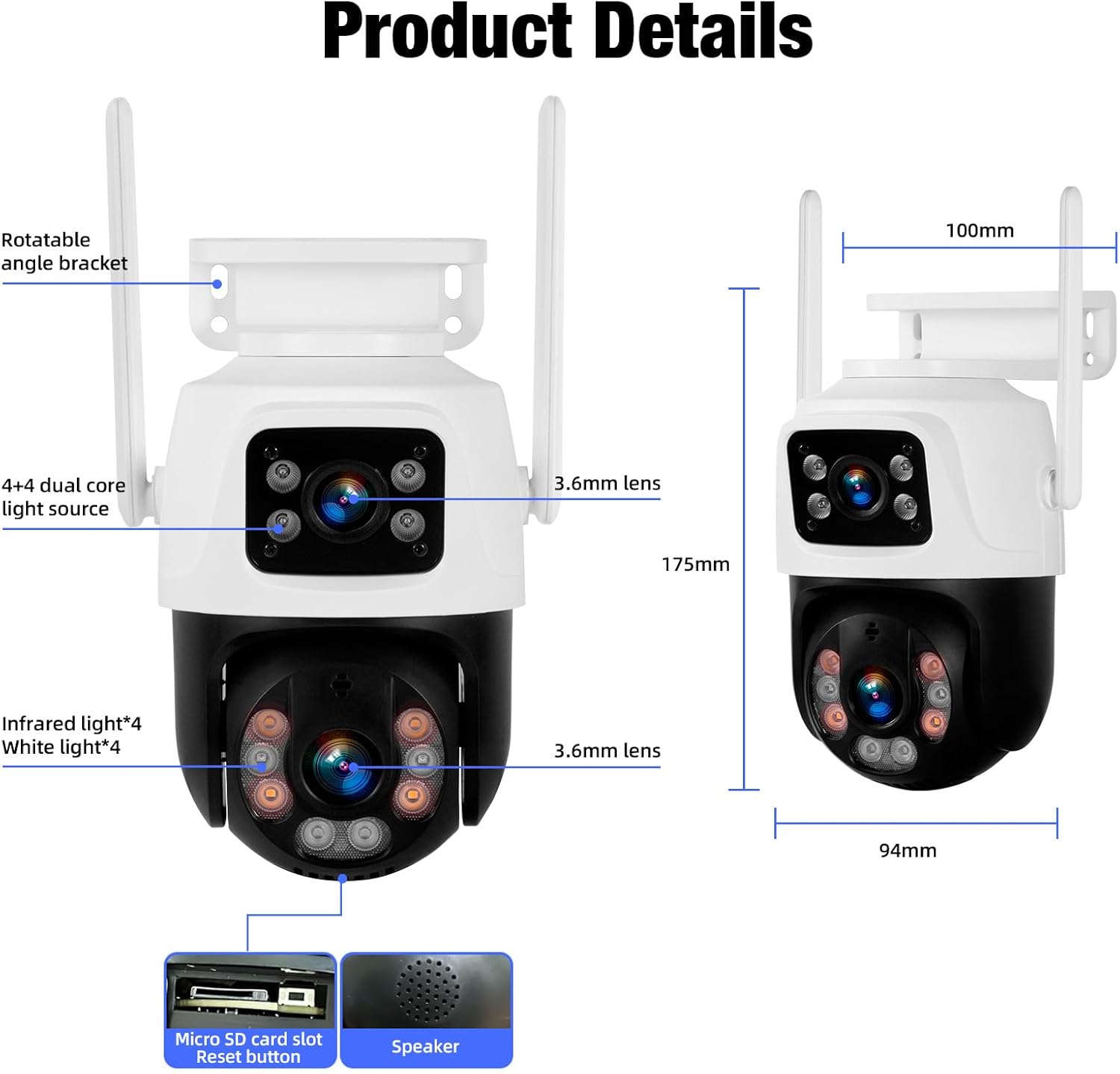
Image: Technical diagram illustrating the physical dimensions and key internal components of the camera.
Setup
1. Powering On and Initial Connection
Connect the provided 12V power adapter to the camera and plug it into a power outlet. The camera will initiate its startup sequence.
2. Connection Methods
Your Fuers camera offers two primary connection methods:
- Method 1: WiFi Connection via iCSee APP
This is the recommended method for most users. The camera supports 2.4GHz WiFi networks.
- Download the 'iCSee' app from the Google Play Store or Apple App Store.
- Open the iCSee app and create an account or log in.
- Click the '+' sign in the upper right corner to add a new device.
- Follow the on-screen prompts to connect the camera to your 2.4GHz WiFi network. Ensure your phone is also connected to the same 2.4GHz network during setup.
- Once connected, you can view live footage and manage settings remotely.
- Method 2: Wired Connection to NVR/POE System
For more stable and continuous surveillance, the camera can be connected to a Network Video Recorder (NVR) or Power over Ethernet (POE) system via an Ethernet cable. Note that an NVR needs to be purchased separately.
- Connect an Ethernet cable from the camera's network port to your NVR or POE switch.
- Refer to your NVR's manual for specific instructions on adding IP cameras to the system.

Image: Visual guide for connecting the camera using either WiFi with the iCSee app or a wired connection to an NVR.

Image: Step-by-step visual instructions for setting up the camera using the iCSee mobile application.
3. Mounting the Camera
The camera can be mounted on a wall or ceiling. Use the provided screws and waterproof cap to secure the camera in your desired location. Ensure the mounting surface is stable and can support the camera's weight.

Image: Examples of how the camera can be mounted on a ceiling or a wall.
Operating
1. Live View and Pan/Tilt Control
Once connected, open the iCSee app to access the live view. For the PT lens, use the on-screen controls to pan (270°) and tilt (90°) the camera to adjust the viewing angle. The dual-lens system allows for simultaneous monitoring of a fixed area and a movable area.

Image: The camera's live feed displayed on a mobile device via the iCSee app.

Image: Illustration of the camera's pan and tilt range, controlled remotely via the app.
2. Night Vision Modes
The camera offers three night vision modes to suit different lighting conditions:
- Full Color Night Vision: Utilizes built-in white lights to provide a full-color image even in complete darkness.
- Infrared Night Vision: Uses infrared LEDs for a clear black-and-white image in low-light or no-light conditions, offering a discreet surveillance option.
- Double Light Warning: Combines infrared and white light. When motion is detected, the white lights activate to deter intruders and capture color video.

Image: Comparison of day vision, full-color night vision, and infrared night vision capabilities.

Image: Direct comparison illustrating the difference between infrared and full-color night vision.
3. Two-Way Audio
Use the two-way audio feature to communicate with visitors or deter unwanted individuals. Simply tap the microphone icon in the iCSee app to speak through the camera's speaker, and listen through your phone's speaker.

Image: Demonstration of the two-way audio feature and intelligent motion/sound detection.

Image: A scenario showing how two-way audio facilitates communication between the user and someone at the camera's location.
4. Motion Detection & AI Tracking
The camera's advanced AI algorithm can distinguish human shapes, reducing false alarms. When a human is detected in the alarm area, the camera will automatically track their movement and send an alert message to your phone. You can also configure smart light alerts to activate the camera's lights upon detection.

Image: Visual representation of the camera's motion detection and AI tracking in action.

Image: The camera's smart light alert and notification system deterring an intruder.
5. Recording and Playback
The camera supports 24/7 continuous recording and motion-triggered recording. Insert a microSD card (up to 256GB) into the designated slot for local storage. You can also subscribe to cloud storage services for off-site backup. Playback of recorded footage is available through the iCSee app or your connected NVR system.

Image: Overview of the camera's 24/7 recording capabilities and storage options.
Maintenance
1. Cleaning
Regularly clean the camera lens and housing with a soft, damp cloth to ensure clear image quality. Avoid using harsh chemicals or abrasive materials that could damage the camera's surface or lens coatings.
2. Weather Protection (IP66)
The camera is rated IP66 weatherproof, meaning it is protected against dust ingress and powerful water jets. It is designed to operate effectively in various outdoor conditions, with a working temperature range of -10°C to +55°C (14°F to 131°F).

Image: The camera's IP66 weatherproof rating, ensuring durability in various weather conditions.
3. Firmware Updates
Periodically check the iCSee app for available firmware updates. Keeping your camera's firmware up-to-date ensures optimal performance, security, and access to new features.
Troubleshooting
| Problem | Possible Cause / Solution |
| Camera not connecting to WiFi | Ensure your WiFi is 2.4GHz. Check WiFi password. Move camera closer to router. Reset camera and try again. |
| No image or black screen in app | Check power connection. Ensure camera is online in the app. Restart camera and app. |
| Motion detection not working | Verify motion detection is enabled in app settings. Adjust sensitivity. Ensure no obstructions in view. |
| Poor night vision quality | Clean the lens. Ensure IR/white lights are not obstructed. Check night vision mode settings in app. |
| Two-way audio issues | Check microphone and speaker permissions for the app on your phone. Ensure volume is up. Reduce background noise. |
| SD card not recognized | Ensure SD card is inserted correctly. Format the SD card via the app. Use a compatible SD card (up to 256GB). |
Warranty and Support
For warranty information, technical support, or any product-related inquiries, please contact Fuers customer service through the contact details provided on the product packaging or the official Fuers website. Please have your model number (P6-QQ6) and purchase details ready when contacting support.
Ask a question about this manual
Ask about setup, troubleshooting, compatibility, parts, safety, or missing instructions. Manuals+ will review the question and use this page’s manual context to help answer it.