
1. Introduction
This manual provides instructions for the installation, operation, and maintenance of your hizpo Android 13 Car Radio Stereo. This unit is specifically designed for Subaru Legacy Outback models from 2015 to 2018, offering advanced features such as GPS navigation, wireless CarPlay, Android Auto, Bluetooth connectivity, and more. Please read this manual thoroughly before installation and use to ensure proper function and safety.
2. Setup and Installation
Proper installation is crucial for the optimal performance of your car stereo. It is recommended that installation be performed by a qualified professional.
2.1 Package Contents
Before beginning installation, verify that all components are present:
- Main Head Unit
- USB Cable
- RCA Harness
- GPS Antenna
- Canbus Box
- Power Cable
- User Manual (this document)
- Mounting Brackets and Screws
2.2 Pre-Installation Steps
- Disconnect Battery: Before starting any electrical work, disconnect the vehicle's negative battery terminal to prevent short circuits.
- Remove Factory Radio: Carefully remove the existing factory radio from your Subaru Legacy Outback (2015-2018). Refer to your vehicle's service manual for specific instructions on dash disassembly.
- Inspect Wiring: Familiarize yourself with the vehicle's wiring harness and the provided wiring harness for the new head unit.
2.3 Wiring Connections
Connect the provided wiring harnesses to the corresponding ports on the head unit and your vehicle's wiring. Ensure all connections are secure.
- Power Harness: Connect the main power harness, including constant power (yellow), accessory power (red), and ground (black) wires.
- CANbus Box: Connect the CANbus box as instructed. This is essential for integrating with your vehicle's factory amplifier and steering wheel controls.
- GPS Antenna: Mount the GPS antenna in a location with a clear view of the sky, typically on the dashboard or under the windshield, and connect it to the head unit.
- USB Cables: Route the USB cables to an accessible location, such as the glove compartment or center console.
- RCA Harness: Connect the RCA harness for audio outputs, subwoofer output, and auxiliary inputs if applicable.
- Rearview Camera Input: Connect the video input for the rearview camera.
2.4 Mounting the Head Unit
Once all connections are made, carefully slide the new head unit into the dashboard opening. Secure it using the provided mounting brackets and screws. Reassemble the dashboard trim.

Image: Comparison of the car's dashboard before and after the installation of the hizpo car radio stereo. The top image shows the original factory radio, and the bottom image shows the new Android 13 touchscreen head unit seamlessly integrated into the dashboard.
2.5 Initial Power-On
Reconnect the vehicle's negative battery terminal. Turn on the ignition. The head unit should power on and display the Android 13 operating system. Follow any on-screen prompts for initial setup.
3. Operating Instructions
3.1 Basic Functions
- Power On/Off: Press and hold the power button (usually on the left side of the unit) to turn the device on or off. A short press typically mutes/unmutes audio.
- Volume Control: Adjust volume using the on-screen controls or the steering wheel controls.
- Home Screen: Tap the Home icon to return to the main Android interface.
- Back Button: Tap the Back icon to go to the previous screen or menu.
3.2 CarPlay / Android Auto
The unit supports wireless Apple CarPlay and Android Auto. These functions are pre-installed and activated.
- Ensure your smartphone's Wi-Fi and Bluetooth are enabled.
- On the head unit, open the CarPlay or Android Auto application.
- Follow the on-screen instructions to connect your smartphone via Bluetooth and then Wi-Fi for wireless projection.
- Once connected, you can access phone functions, navigation, music, and messaging directly from the head unit's display.

Image: A visual representation of the CarPlay and Android Auto interfaces on the hizpo car radio stereo. It shows various app icons like Phone, Music, Spotify, Maps, and Podcasts, demonstrating how smartphone functions are integrated into the head unit's display.
3.3 GPS Navigation
The unit comes with offline map data preloaded and supports online navigation applications like Waze.
- Offline Maps: Access the preloaded navigation application to use maps without an internet connection.
- Online Navigation: Connect the unit to Wi-Fi (e.g., via a mobile hotspot) to use online navigation apps.
- GPS Antenna: Ensure the GPS antenna is properly installed and has a clear signal for accurate positioning.
3.4 Bluetooth Functionality
Connect your smartphone via Bluetooth for hands-free calling and audio streaming.
- Go to the Bluetooth settings on the head unit.
- Enable Bluetooth on your smartphone and search for available devices.
- Select the head unit's Bluetooth name (e.g., "hizpo Car Stereo") from your phone's list and pair.
- Once paired, you can make/receive calls, access your phonebook, and stream music wirelessly.
3.5 Rearview Camera Input
The system supports a rearview camera (factory or aftermarket). When the vehicle is shifted into reverse gear, the display automatically switches to the camera view.
- Automatic Display: The screen will automatically show the rearview camera feed when reversing.
- Trajectory Adjustment: You can adjust the reversing trajectory (up/down, width, left/right) through the system settings for better parking assistance.

Image: The rearview camera display on the hizpo car radio stereo, showing a car reversing with adjustable trajectory lines and settings for width, height, horizontal offset, and safe distance. This feature assists in safe parking and maneuvering.
3.6 Steering Wheel Control (SWC)
The unit is compatible with your vehicle's factory steering wheel controls, allowing you to manage audio functions without taking your hands off the wheel.
- Functionality: Control volume, change tracks, switch radio stations, and answer/end calls directly from your steering wheel.
- Setup: The CANbus box typically handles automatic recognition. If controls do not work, navigate to the 'Steering Wheel Control' settings in the unit's menu to manually map buttons.

Image: A screenshot of the Steering Wheel Control configuration screen on the hizpo car radio stereo. It displays various functions that can be assigned to steering wheel buttons, such as volume up/down, next/previous track, mode, and mute, allowing for custom mapping.
3.7 USB Connection
The unit supports USB connections for various peripherals.
- USB Flash Drive: Connect a USB flash drive (up to 2TB) to play music, videos, or view photos.
- DVR: Connect a compatible USB DVR camera for recording driving footage.
- DAB+: Connect an optional DAB+ receiver for digital audio broadcasting.
- TPMS: Connect an optional TPMS (Tire Pressure Monitoring System) device to monitor tire pressure.
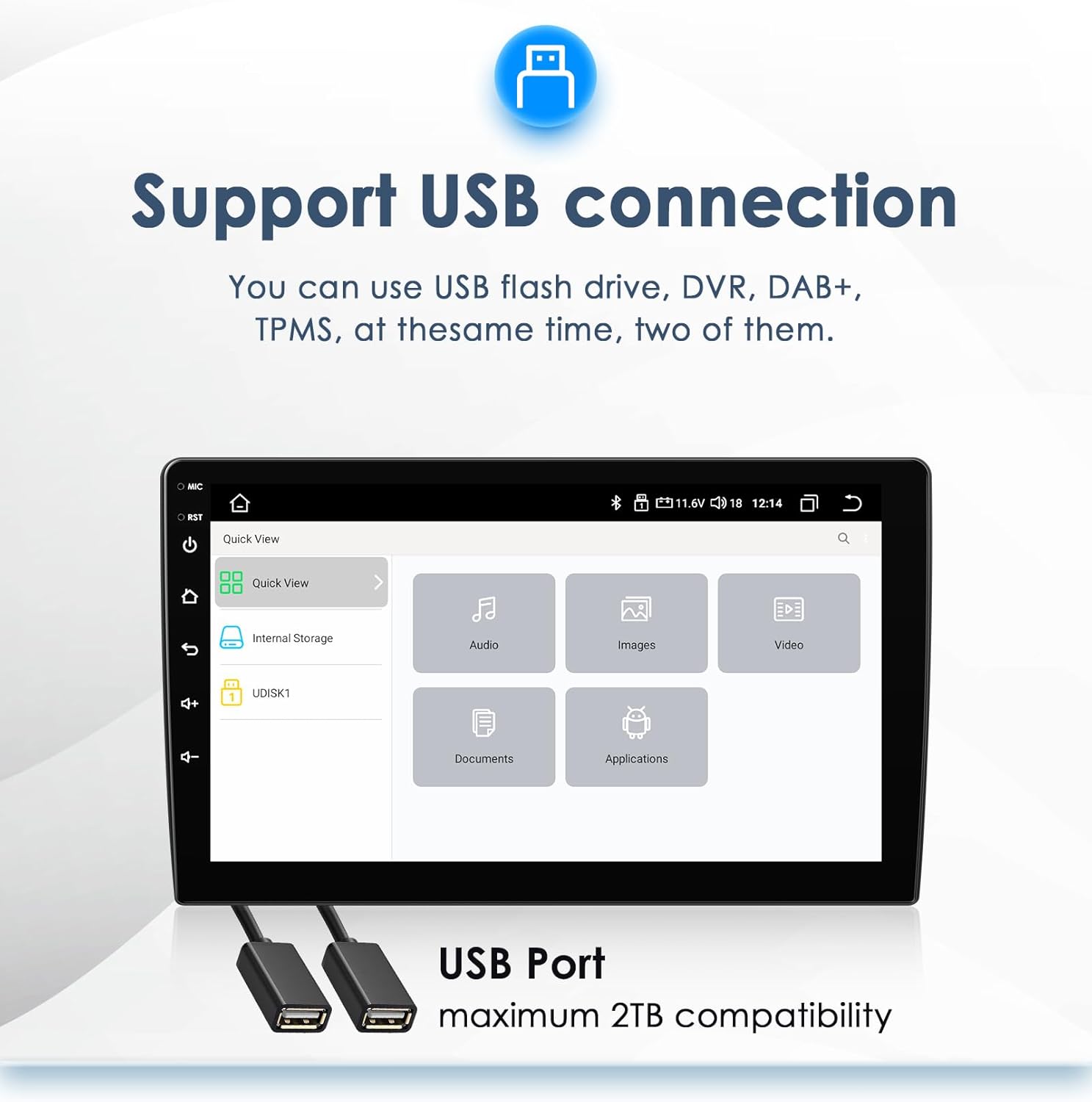
Image: The USB connection interface on the hizpo car radio stereo, showing options to access internal storage and connected USB devices (UDISK1). It highlights categories like Audio, Images, Video, Documents, and Applications, indicating the types of files that can be accessed via USB.
3.8 TPMS Function (Optional)
If an optional TPMS module is connected, the unit can display real-time tire pressure and temperature data.
- Monitoring: View individual tire pressure and temperature readings on the screen.
- Alerts: Receive alerts for abnormal tire conditions.
- Setup: Access the TPMS setup menu to pair sensors and configure settings.
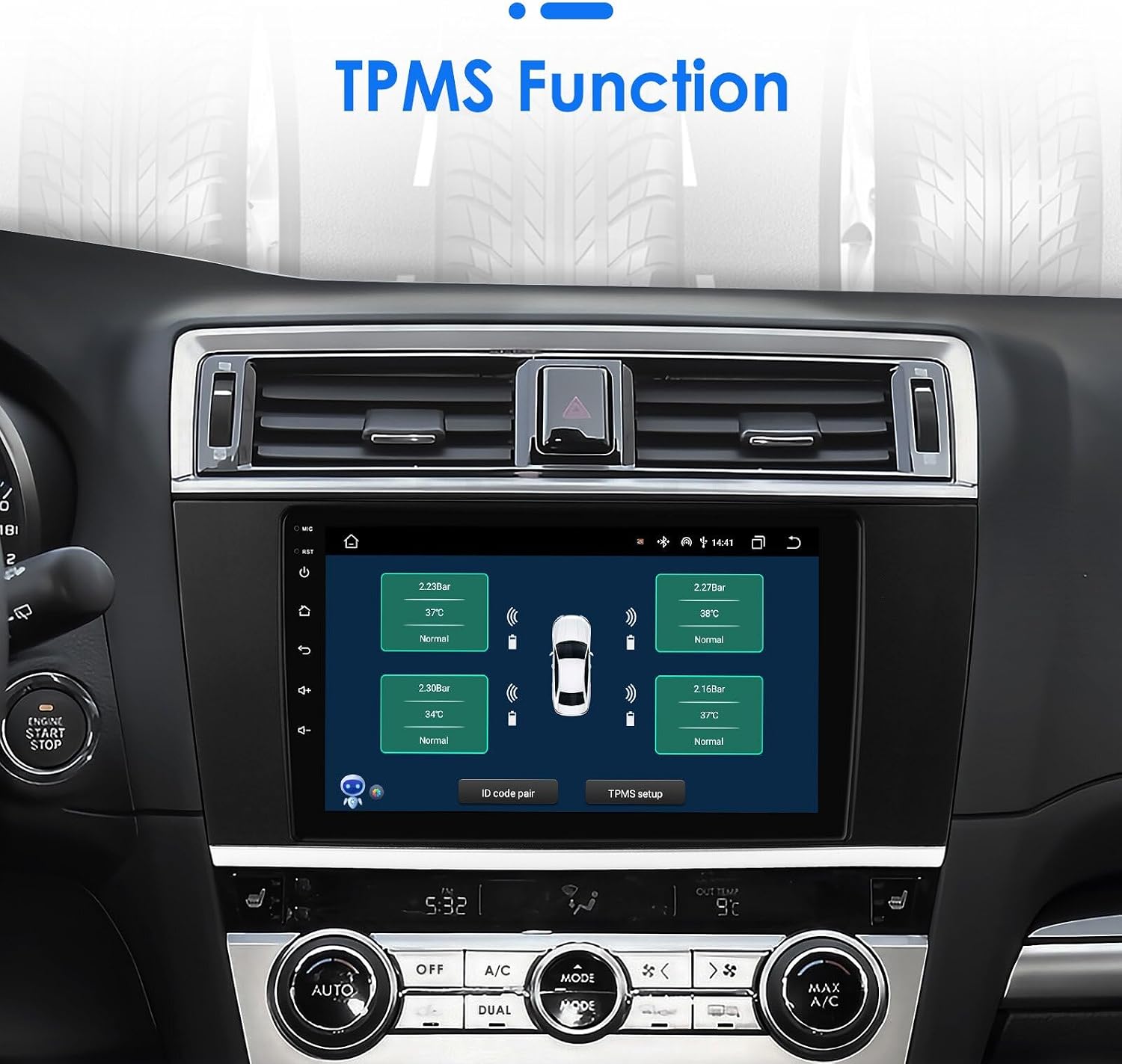
Image: The TPMS (Tire Pressure Monitoring System) display on the hizpo car radio stereo. It shows a graphical representation of a car with real-time tire pressure and temperature readings for each tire, along with options for ID code pairing and TPMS setup.
3.9 Radio (FM/RDS)
Access the built-in FM radio tuner with RDS (Radio Data System) support.
- Tuning: Manually tune or auto-scan for radio stations.
- Presets: Save your favorite stations for quick access.
- RDS: Display station information, song titles, and traffic announcements where available.
4. Maintenance
4.1 Cleaning the Unit
- Screen: Use a soft, lint-free cloth, slightly dampened with water or a screen cleaner, to gently wipe the touchscreen. Avoid abrasive materials or harsh chemicals.
- Body: Wipe the unit's body with a soft, dry cloth.
4.2 Software Updates
Periodically check the manufacturer's website or contact support for available software updates. Updates can improve performance, add new features, or fix bugs. Follow the provided instructions carefully when performing updates.
5. Troubleshooting
If you encounter issues with your hizpo car stereo, refer to the following common problems and solutions:
| Problem | Possible Cause | Solution |
|---|---|---|
| Unit does not power on. | Loose power connection, blown fuse, vehicle battery issue. | Check power wiring, inspect vehicle fuses, ensure battery is charged. |
| No sound from speakers. | Volume muted, speaker wires disconnected, incorrect amplifier settings, CANbus issue. | Check volume, verify speaker connections, ensure CANbus is correctly installed and configured for factory amplifier. |
| GPS signal is weak or inaccurate. | GPS antenna improperly placed or disconnected. | Ensure GPS antenna has a clear view of the sky and is securely connected. |
| Bluetooth connection issues. | Bluetooth not enabled, pairing failed, interference. | Ensure Bluetooth is enabled on both devices. Delete previous pairings and re-pair. Restart both devices. |
| Steering wheel controls not working. | CANbus not connected or configured, incorrect wiring. | Verify CANbus connection and configuration in settings. Check wiring harness. |
| Touchscreen unresponsive. | Software glitch, temporary freeze. | Restart the unit by pressing and holding the power button. If issue persists, perform a factory reset (data will be lost). |
If the problem persists after trying these solutions, please contact hizpo customer support for further assistance.
6. Specifications
| Feature | Description |
|---|---|
| Operating System | Android 13 |
| CPU | QUAD CORE MTK 8163 4*1.3Ghz |
| RAM | 2GB |
| Internal Storage (Flash) | 64 GB |
| Screen Size | 9 Inches |
| Screen Resolution | 1024*600 |
| Connectivity | Bluetooth, USB, Wi-Fi |
| Special Features | Wireless Apple CarPlay / Android Auto, GPS Navigation, Rearview Camera Input, Steering Wheel Control |
| Radio Tuner | FM (87.5-108MHz), RDS, DAB/DAB+ (optional) |
| Video Decoder | 1080P |
| Music Format Support | MP3, WMA, AAC, RM, FLAC, etc. |
| Video Format Support | MPEG-1/2/4, H264, H263, VC1, RV, RMVB, DivX, Sorenson Spark, VP8, AVS Stream |
| Audio Output Mode | Stereo |
| Compatible Devices | Smartphone |
| Mounting Hardware Included | USB cable, RCA harness, GPS antenna, Canbus box |
| Dimensions (Package) | 33.78 x 18.39 x 12.29 cm |
| Weight (Package) | 1.35 kg |
7. Warranty and Support
For warranty information, please refer to the documentation provided with your purchase or contact the seller directly. If you require technical support or have questions not covered in this manual, please reach out to hizpo customer service through the retailer where the product was purchased or visit the official hizpo website for support contact details.