
1. Product Overview
The Yamnweo MW-6 is a compact and versatile 6-channel professional DJ audio mixer designed for various audio applications, including live streaming, podcasting, and home parties. It features a built-in DSP with 99 preset effects, USB audio interface for recording and playback, Bluetooth 5.0 connectivity, and phantom power for condenser microphones.
This mixer is engineered to provide a good recording experience with its integrated recording card, enhancing audio playback and recording quality for computers and mobile devices. Its stable power supply effectively filters out AC signal interference, ensuring clear and delicate sound output.

Figure 1.1: Front Panel Overview of the MW-6 Mixer. This diagram illustrates the various inputs, outputs, and control knobs on the mixer's front panel, including gain controls, EQ sections, effect sends, and master output faders.
2. Setup Instructions
Follow these steps to set up your Yamnweo MW-6 mixer for operation.
2.1 Power Connection
The MW-6 mixer requires an AC power supply. Connect the provided power adapter to the three-pin power interface on the rear of the mixer and then to a standard 110V AC power outlet. Ensure the power switch is in the 'OFF' position before connecting.

Figure 2.1: Power Supply Options. The mixer can be powered via a standard power cord or a power bank, offering flexibility for various setups. A notebook connection is also shown, indicating USB power or data transfer capabilities.
2.2 Connecting Audio Devices
The MW-6 mixer supports a variety of audio input and output devices.
- Microphones: Connect condenser or wired microphones to the MIC/LINE inputs (channels 1-4) using XLR cables. Activate +48V phantom power for condenser microphones using the dedicated switch for each channel.
- Instruments: Connect instruments like guitars or electronic keyboards to the MIC/LINE inputs using 1/4-inch TS/TRS cables.
- External Audio Sources: Use the CH5/6 REC RCA inputs for connecting devices such as CD players or other line-level audio sources.
- Main Output: Connect your power amplifier or loudspeaker box to the MAIN OUTPUT (Left/Right) XLR or 1/4-inch TRS jacks.
- Headphones: Plug headphones into the PHONE output for monitoring.

Figure 2.2: Typical Connection Diagram. This image illustrates how to connect various audio sources such as guitars, electronic keyboards, condenser microphones, and wired microphones to the mixer, as well as output devices like power amplifiers, loudspeaker boxes, headphones, and USB/laptops.
2.3 PC Connection
For live streaming, recording, or using the mixer as an audio interface with a computer, connect the mixer to your PC using a USB cable. The mixer features a built-in USB recording sound card.

Figure 2.3: PC Connection for Recording and Live Streaming. The mixer is shown connected to a laptop via a USB cable, demonstrating its use as an audio interface for computer-based audio tasks.
3. Operating Instructions
This section details the primary functions and controls of the MW-6 mixer.
3.1 Gain and EQ Controls
- GAIN: Adjusts the input sensitivity for each channel. Set this to an appropriate level to prevent clipping (distortion) while ensuring a strong signal.
- EQ (High/Low): Each channel features a 2-band equalizer. The HIGH knob adjusts frequencies above 12kHz, and the LOW knob adjusts frequencies below 80Hz. Use these to shape the tone of each input.
- PAD: The PAD button attenuates the input signal by 20dB, useful for very loud sources to prevent input overload.

Figure 3.1: High/Low Equalization. This image highlights the High and Low EQ knobs, which allow for balanced tuning to integrate sound more effectively with music.
3.2 DSP Effects
The mixer includes a built-in DSP (Digital Signal Processor) with 99 preset effects. Use the PROGRAM knob to select an effect and the FX level controls to apply it to individual channels.
- Effect List: The display shows a list of effects, including Reverb, EarlyRefDelay, Echo, Chorus/Flange, Tremolo, Wah-Wah, RadioVoice, PitchShifter, DisQDr, and MultiFX.
- Applying Effects: Turn the PROGRAM knob to browse effects. Adjust the FX knob on each channel to send that channel's signal to the selected effect.

Figure 3.2: 99 DSP Reverberation Effects. The mixer's display shows the available digital audio effects, allowing users to select and apply various reverberation and other effects to their audio.
3.3 Bluetooth 5.0 Connectivity
The MW-6 supports Bluetooth 5.0 for wireless audio streaming from compatible devices.
- Pairing: Activate Bluetooth on your mobile device (phone, tablet). Press the BT button on the mixer to enter pairing mode. Select 'MW-6' from your device's Bluetooth list to connect.
- Playback: Once connected, audio played on your device will stream through the mixer. Adjust the Bluetooth level on the mixer.

Figure 3.3: Bluetooth 5.0 Connection. A smartphone is depicted wirelessly connected to the mixer, demonstrating the one-button stable transmission feature for audio playback.
3.4 USB Playback and Recording
Insert a USB flash drive into the USB port for direct audio playback or recording.
- Playback: The mixer can play audio files directly from a USB drive without additional setup. Use the USB controls to navigate tracks.
- Recording: The mixer can record audio directly to a USB flash drive. Refer to the display and controls for recording functions (REC).

Figure 3.4: USB Playback. A USB drive is shown inserted into the mixer, indicating its capability to play songs directly without requiring additional setup.
3.5 Phantom Power (+48V)
The mixer provides +48V phantom power for condenser microphones. Ensure this is only activated when using condenser microphones that require it. Activating it for dynamic microphones or other devices can cause damage.

Figure 3.5: +48V Power Supply. This image highlights the +48V phantom power switches for microphone inputs, indicating full support for capacitor/wired microphones that require this power.
3.6 Ear Monitor
Use the dedicated PHONE output to connect headphones for real-time monitoring of your mix. This allows you to hear the sound feedback and make precise adjustments.

Figure 3.6: Ear Monitor Function. Headphones are connected to the mixer, illustrating the ability to monitor audio feedback and make adjustments.
3.7 Attenuated Signal (PAD)
The PAD button on each channel, when engaged, will attenuate the input sound signal by 20dB. This is crucial for preventing distortion when connecting high-output devices or microphones.

Figure 3.7: Attenuated Signal. This image highlights the PAD button, which reduces the input signal by 20dB to prevent clipping from strong audio sources.
4. Maintenance
Proper maintenance ensures the longevity and optimal performance of your mixer.
- Cleaning: Use a soft, dry cloth to clean the exterior of the mixer. Avoid using liquid cleaners or solvents, as they may damage the finish or internal components.
- Storage: Store the mixer in a cool, dry place away from direct sunlight, extreme temperatures, and high humidity.
- Handling: Always handle the mixer with care. Avoid dropping it or subjecting it to strong impacts.
- Ventilation: Ensure proper ventilation around the mixer to prevent overheating. Do not block any ventilation openings.
5. Troubleshooting
If you encounter issues with your MW-6 mixer, refer to the following common problems and solutions.
| Problem | Possible Cause | Solution |
|---|---|---|
| No power/Display not lighting up | Power cable not securely connected; Power outlet not active; Faulty power adapter. | Check all power connections. Ensure the power outlet is working. Try a different power adapter if available. |
| No sound output | Volume levels too low; Incorrect input/output connections; Muted channels/master. | Increase master volume and individual channel levels. Verify all cables are correctly connected. Check if any channels or master output are muted. |
| Distorted audio | Input gain too high; PAD not engaged for loud sources; Faulty cables. | Reduce input GAIN. Engage the PAD button for high-output devices. Test with different cables. |
| Bluetooth not connecting | Mixer not in pairing mode; Device too far; Interference. | Ensure the mixer's BT button is pressed for pairing. Keep the device within range. Minimize other wireless interference. |
6. Specifications
Key technical specifications for the Yamnweo MW-6 mixer:
- Model: MW-6
- Number of Channels: 6
- Product Dimensions: 12.5"D x 8.8"W x 5"H (31.75 cm D x 22.35 cm W x 12.7 cm H)
- Connectivity Technology: USB, Bluetooth 5.0
- Audio Input: RCA, XLR
- Output Connector Type: USB Type B, XLR, 1/4-inch TRS
- Voltage: 110 Volts (AC)
- DSP Effects: 99 Preset Effects
- Phantom Power: +48V (selectable per channel)
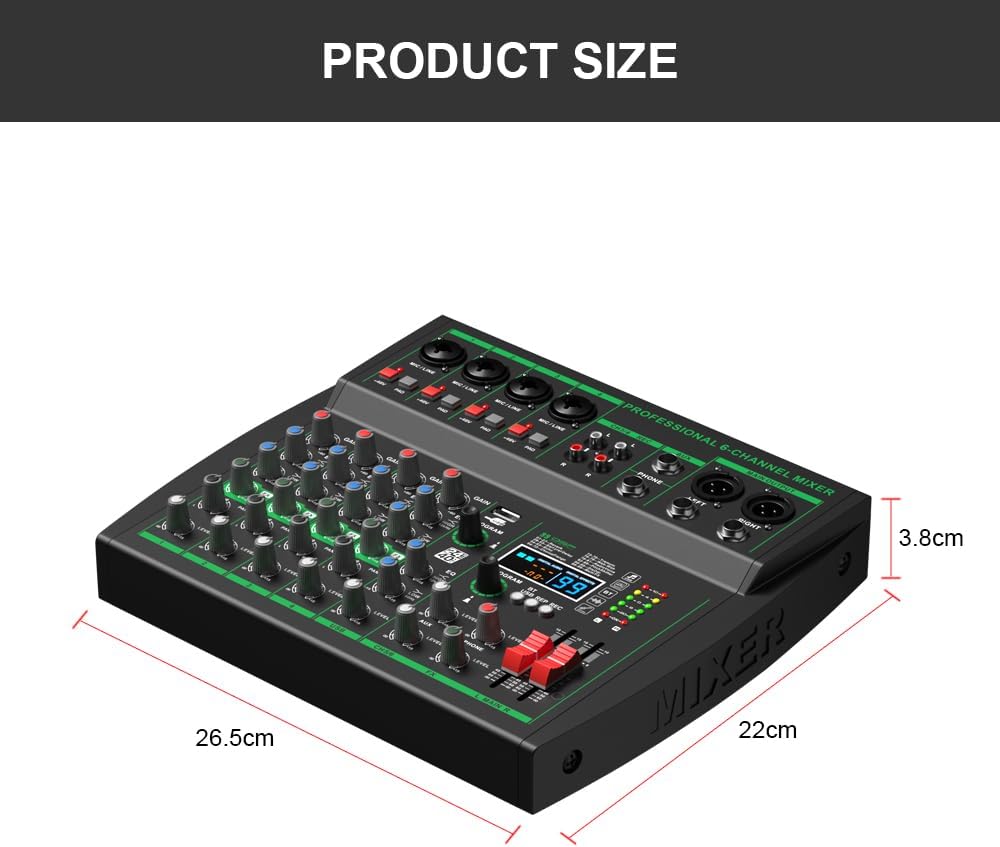
Figure 6.1: Product Dimensions. This image provides a visual representation of the mixer's size, with measurements indicating its compact design.
7. Warranty and Support
For warranty information, technical support, or service inquiries, please refer to the documentation provided with your purchase or contact Yamnweo customer service through the retailer where the product was purchased. Keep your proof of purchase for warranty claims.
8. Video Demonstrations
Watch the official product video for a visual guide on the mixer's features and appearance.
Video 8.1: Overall Product Appearance. This video provides a comprehensive look at the Yamnweo MW-6 mixer, showcasing its design, various ports, and control layout. It highlights key features such as DSP effects, Bluetooth connectivity, PC connection, phantom power, USB playback, and EQ controls.