1. Introduction
The NelkoGlobal PL70-BK is a versatile thermal shipping label printer designed for small businesses and online sellers. It offers both Bluetooth and USB connectivity, enabling seamless printing from various devices including Android, iPhone, Windows, and Mac. This printer utilizes thermal technology, eliminating the need for ink or toner, and delivers crisp, clear labels at high speeds. This manual provides detailed instructions for setup, operation, and maintenance to ensure optimal performance of your device.
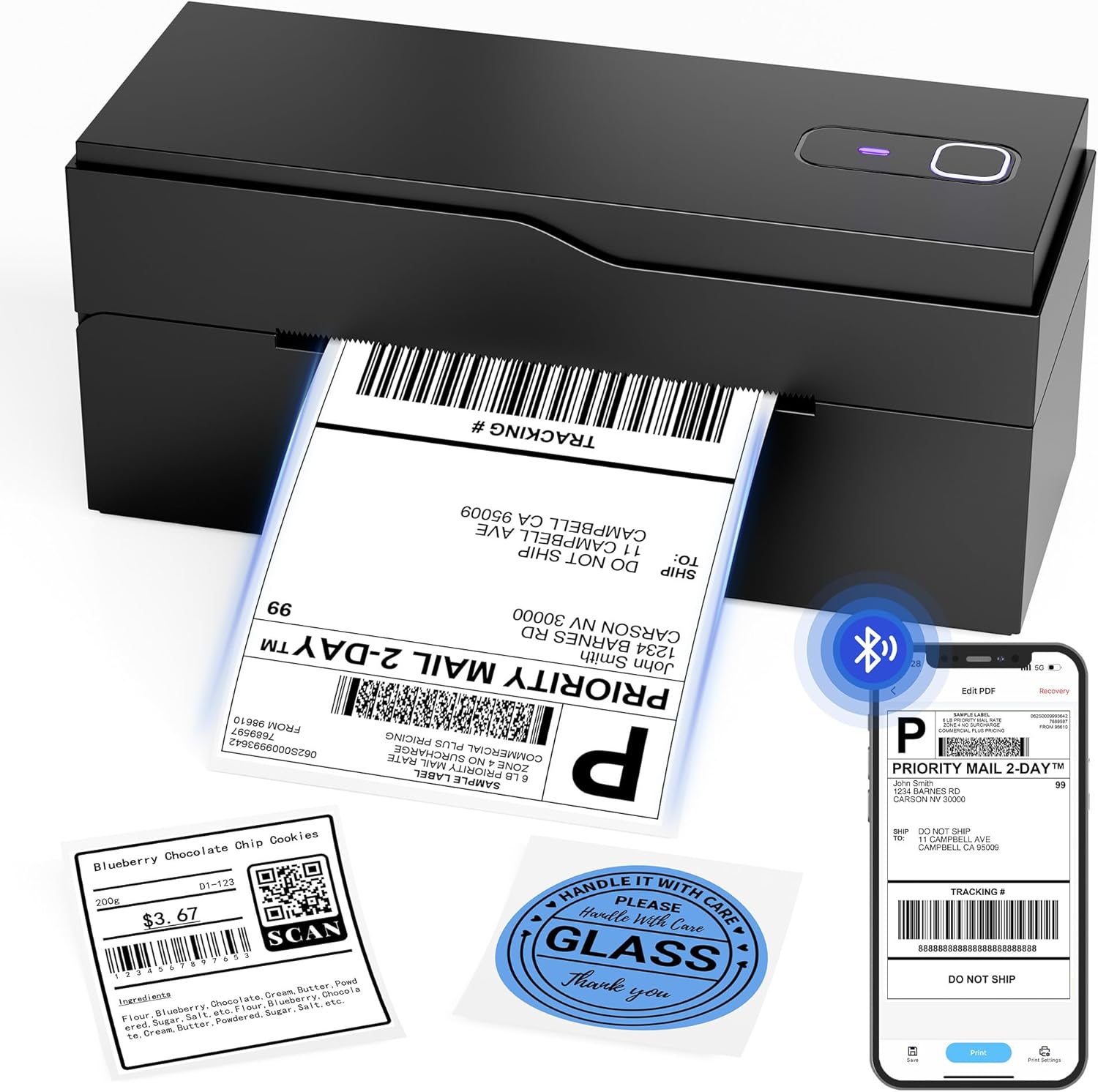
Image: The NelkoGlobal PL70-BK thermal label printer in operation, showing a shipping label being printed. Also displayed are various types of labels that can be printed, including a price label and a 'Handle With Care' sticker, along with a smartphone screen showing the printer's app interface.
2. Package Contents
Please verify that all items listed below are included in your package:
- PL70BT-BK Bluetooth Label Printer
- Power Adapter
- Type-C Adapter
- Power Cable
- USB Cable
- Trial Thermal Labels (20 pieces)
- User Manual
- Warranty Card

Image: A clear display of all components included in the product package: the PL70-BK printer, power adapter, Type-C adapter, power cord, USB cable, a stack of 20 trial thermal labels, the user manual, and a warranty card.
3. Setup Guide
3.1 Hardware Connection
- Connect the power adapter to the printer and plug it into a power outlet.
- Turn on the printer using the power button.
3.2 Software Installation and Connectivity
The PL70-BK printer supports both Bluetooth and USB connections for various operating systems.
3.2.1 Mobile Device Setup (Bluetooth)
For Android and iOS devices, use the "Labelife" app.
- Scan the QR code below or search for "Labelife" in your device's app store (Labelife Official Website).

Image: QR code for downloading the Labelife app from Google Play and App Store.
- Enable Bluetooth on your mobile device.
- Open the "Labelife" app and connect to the printer via Bluetooth. Ensure the distance between your phone and the printer does not exceed 5 meters during connection.

Image: Steps for connecting the printer via Bluetooth using the Labelife app on a mobile device, showing the app interface and Bluetooth pairing process.
- Import your PDF document, select the appropriate label size, adjust print density, and click to print.
3.2.2 Computer Setup (USB & Bluetooth)
The printer is compatible with Mac, Windows (10 or newer), Linux, and Chrome OS.
USB Connection:
- Connect the printer to your computer using the provided USB cable.

Image: A user connecting the printer to a laptop via USB cable, illustrating the physical connection for computer printing.
- Download the printer driver from the official NelkoGlobal website. During installation, select the USB connection option.
- After installation, open the file you wish to print and select the PL70-BK printer.
Bluetooth Connection (PC):
- Ensure the printer is powered on.
- Download the "Labelife" app from the official website (compatible with PC).
- Easily connect to the printer's Bluetooth via your PC's Bluetooth settings. No configuration is required within the app settings.

Image: A three-step guide for setting up the printer on a PC via Bluetooth, showing driver installation, Bluetooth connection, and printing from the Labelife app.
- Customize your printed labels using the app and start printing.

Image: An illustration demonstrating the easy connectivity of the NelkoGlobal PL70-BK printer, highlighting both Bluetooth (Android, iOS, iPad, PC) and USB (Mac OS, Windows, Linux, Chrome OS) printing options.
4. Operation
4.1 Loading Labels
The printer is designed for easy label loading. Open the top cover and feed the thermal labels into the printer, ensuring they are aligned correctly with the guides. The printer will automatically detect and calibrate the label size.
4.2 Printing Process
Once connected and labels are loaded, you can initiate printing from your chosen device and application. The printer operates at a rapid speed of 150mm/s, capable of producing up to 72 4"x6" labels or 144 2"x2" labels per minute without paper jams.

Image: The NelkoGlobal PL70-BK printer actively printing labels, with multiple printed labels scattered around, emphasizing its 150mm/s fast printing speed and high output capacity (72 4"x6" labels/min or 144 2"x2" labels/min).
4.3 Label Compatibility
This thermal printer accommodates a wide range of label sizes, from 1" to 4.7" (25.4mm to 120mm) in width. It is suitable for various label types including shipping labels, mailing labels, price labels, barcode labels, and name tags.

Image: The NelkoGlobal PL70-BK printer with various label types and sizes, including rolls of circular labels and stacks of rectangular labels, demonstrating its compatibility with label widths from 1" to 4.7" (25.4mm to 120mm).
4.4 Print Quality
The printer delivers crisp outputs with a 203 DPI resolution. As a thermal printer, it requires no ink or toner, ensuring clear and scannable prints.

Image: A comparison graphic showing a clear, sharp barcode labeled "our" versus a blurry, unclear barcode labeled "other," highlighting the 203 DPI resolution and inkless printing of the NelkoGlobal printer. A note states: "Only compatible with thermal paper."
4.5 Platform Compatibility
The PL70-BK is compatible with major e-commerce and shipping platforms, making it ideal for small businesses and online sellers. Supported platforms include Amazon, eBay, Shopify, USPS, UPS, Etsy, PayPal, Poshmark, XPS Ship, DHL, ShipWorks, TNT, ShipWorks, Stamps.com, Easypost, Wish, Pirate Ship, ShipWire, ShipStation, Hermes, BigCommerce, FedEx, Shippo, Parcel2Go.com, J&T Express, Shopee, and Shipping Easy.

Image: A computer monitor displaying logos of numerous e-commerce and shipping platforms, indicating the wide compatibility of the NelkoGlobal PL70-BK printer with services like eBay, Shopify, Amazon, USPS, UPS, Etsy, PayPal, and more.
5. Maintenance
The NelkoGlobal PL70-BK is a thermal printer, meaning it does not use ink or toner cartridges, simplifying maintenance. The primary maintenance involves ensuring you use only thermal paper and keeping the print head clean.
5.1 Thermal Paper Requirement
This printer is compatible only with thermal paper. Using non-thermal paper will not produce any print and may damage the print head. Always ensure you have a supply of compatible thermal labels.
5.2 Cleaning the Print Head
To maintain print quality, periodically clean the print head. Turn off the printer and allow it to cool. Gently wipe the print head with an alcohol swab or a specialized thermal printer cleaning pen. Avoid touching the print head with bare hands.
6. Troubleshooting
This section addresses common issues you might encounter with your NelkoGlobal PL70-BK printer.
| Problem | Possible Cause | Solution |
|---|---|---|
| Printer not connecting via Bluetooth | Bluetooth is off on device; printer not discoverable; interference; app issue. | Ensure Bluetooth is enabled on your device. Restart the printer and your device. Make sure the printer is within 5 meters of your device. Reinstall the Labelife app if necessary. |
| No print output / Blank labels | Not using thermal paper; labels loaded incorrectly; print head issue. | Ensure you are using thermal paper. Reload labels correctly, ensuring the thermal side is facing the print head. Clean the print head. |
| Poor print quality (faded, blurry) | Dirty print head; low-quality thermal paper; incorrect print density settings. | Clean the print head. Use high-quality thermal labels. Adjust print density settings in the Labelife app or printer driver. |
| Paper jams | Labels not aligned; damaged labels; dust/debris in paper path. | Ensure labels are properly aligned in the feeder. Remove any damaged labels. Clean the paper path. |
| Labels printing sideways or cut off | Incorrect label size settings in software; driver issue. | Verify label dimensions in the Labelife app or printer driver settings match your physical labels. Ensure the correct orientation is selected. Reinstall the driver if issues persist. |
If you encounter issues not listed here or require further assistance, please contact NelkoGlobal customer support.
7. Technical Specifications
| Feature | Specification |
|---|---|
| Model Name | PL70-BK |
| Printing Technology | Thermal |
| Connectivity Technology | Bluetooth, USB |
| Print Resolution | 203 Dots Per Inch (DPI) |
| Max Print Speed (Monochrome) | 72 labels per minute (4"x6") |
| Compatible Label Width | 1" to 4.7" (25.4mm to 120mm) |
| Compatible Devices | Android, iOS, Mac, Windows 10 or newer |
| Product Dimensions | 8.39"D x 3.74"W x 3.15"H (21.3 x 9.5 x 8 cm) |
| Item Weight | 1.74 pounds (0.79 kg) |
| Power Source | Power Adapter (Included) |
| Special Features | Bluetooth Direct Connection, Easy to Set up, No ink No toner, Portable |
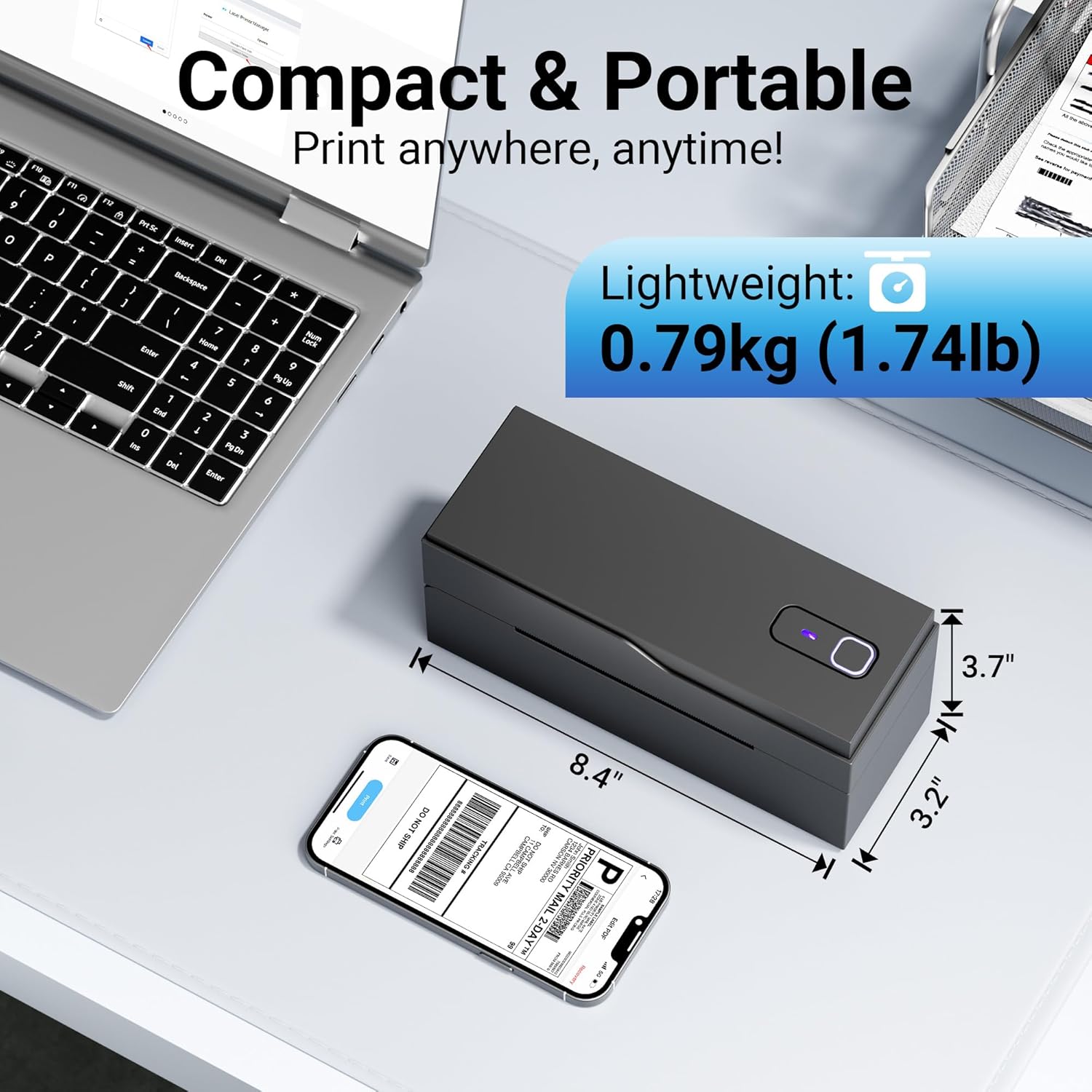
Image: The NelkoGlobal PL70-BK printer displayed with its compact dimensions (8.4" x 3.2" x 3.7") and lightweight specification (0.79kg / 1.74lb), highlighting its portability.
8. Warranty and Support
Your NelkoGlobal PL70-BK Thermal Label Printer comes with a comprehensive text guide to ensure a seamless setup and user experience. NelkoGlobal is committed to providing exceptional technical support for its valued customers.
8.1 Customer Support
For technical assistance, troubleshooting, or any inquiries regarding your printer, please refer to the contact information provided in the included Warranty Card or visit the official NelkoGlobal website for support resources.
8.2 Protection Plans
Optional protection plans are available for extended coverage:
- 3-Year Protection Plan
- 4-Year Protection Plan
- Complete Protect (monthly plan covering eligible past and future purchases)
Details on these plans can be found at the point of purchase or by contacting customer service.