
1. Introduction
This manual provides essential information for the installation, operation, and maintenance of your new Bobuluo Android 14 Car Stereo. Please read this manual thoroughly before using the product to ensure proper functionality and safety. This QLED 1280x800P Double Din Touchscreen IPS Receiver is designed for Ford F150 models from 2009 to 2014, featuring Wireless CarPlay, Android Auto, Built-in WiFi, GPS, Steering Wheel Control, and Bluetooth connectivity.
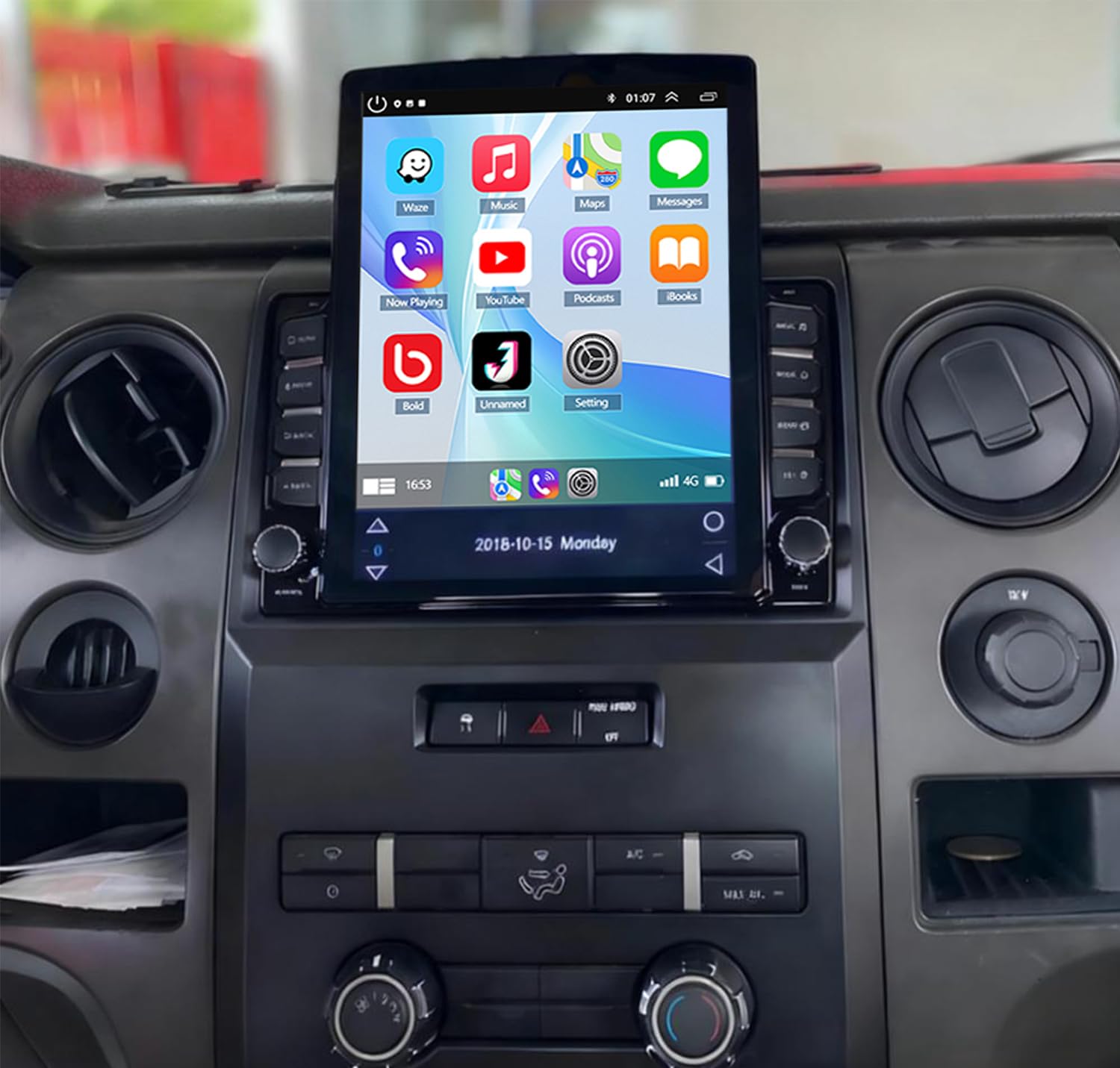
Image 1: Main unit of the Bobuluo Android 14 Car Stereo.
2. Safety Information
- Always ensure the vehicle is parked safely before operating the stereo's advanced features.
- Professional installation is recommended to avoid damage to the unit or vehicle.
- Do not attempt to disassemble or modify the unit. This may void the warranty and cause damage.
- Keep the unit away from water, moisture, and extreme temperatures.
- Ensure all wiring connections are secure and properly insulated to prevent short circuits.
3. Package Contents
Verify that all items are included in your package:
- Bobuluo Android 14 Car Stereo Unit
- Power Cable
- RCA Input/Output Cables
- 2 USB Cables
- Camera Input Cable
- GPS Antenna
- Canbus Box
- Radio Adapter Cable
- Instruction Manual
- Car Compass

Image 2: All included accessories for the car stereo.
4. Setup and Installation
4.1 Dashboard Compatibility
Ensure your Ford F150 dashboard (2009-2014) is compatible with the new stereo unit. Refer to the image below for compatible and incompatible dashboard designs.

Image 3: Examples of compatible and incompatible Ford F150 dashboards.
4.2 Removing the Factory Unit
Carefully remove the existing factory radio and screen. This process typically involves:
- Removing screws securing the dashboard.
- Prying off the plastic cover surrounding the factory screen.
- Disconnecting plugs behind the original screen.
- Removing screws of the original CD unit and taking out the original screen.
Video 1: Guide on how to disconnect factory cables for a Ford F150 radio upgrade.
4.3 Wiring Connections
Connect the provided cables to the new stereo unit. Ensure each connection is firm and correct.
- Radio Adapter Cable: Connect the radio adapter cable to the corresponding port on the stereo.
- GPS Antenna: Connect the GPS antenna. Place the antenna in the glove box instead of behind the dashboard for better signal reception.
- Camera Input: Connect the camera input cable.
- USB Cables: Connect the two USB cables.
- RCA Input/Output: Connect the RCA input/output cables for audio and video.
- Power Cable: Connect the main power harness.
- Reversing Light Wire: Connect the reversing light wire for the backup camera.

Image 4: Detailed overview of wiring connections for the car stereo.
Video 2: Visual guide for touchscreen wireless car stereo connections.
Video 3: Wiring reference for wireless car stereo installation.
4.4 Initial Testing
After connecting the new unit, put it into the dashboard and perform initial tests before fully securing it.
- Power on your car; the new unit's screen should light up.
- Check if the GPS receives a signal.
- Test volume controls and song switching via steering wheel controls.
- Test air-conditioning functions.
- Test the backup camera by engaging reverse gear.
- Check if the radio can receive channels.
- Verify sound output is normal when playing music.
Video 4: Instructions on how to test the new car stereo unit in-dash.
5. Operating Instructions
5.1 Touchscreen Interface
The 9.7-inch QLED touchscreen provides a responsive and intuitive interface. Navigate through apps and settings by swiping and tapping.
Video 5: Overview of the car stereo radio's features and interface.
5.2 Wireless CarPlay and Android Auto
Connect your smartphone wirelessly for seamless integration of navigation, music, messages, and calls. Use voice control (Siri or Google Assistant) for hands-free operation.
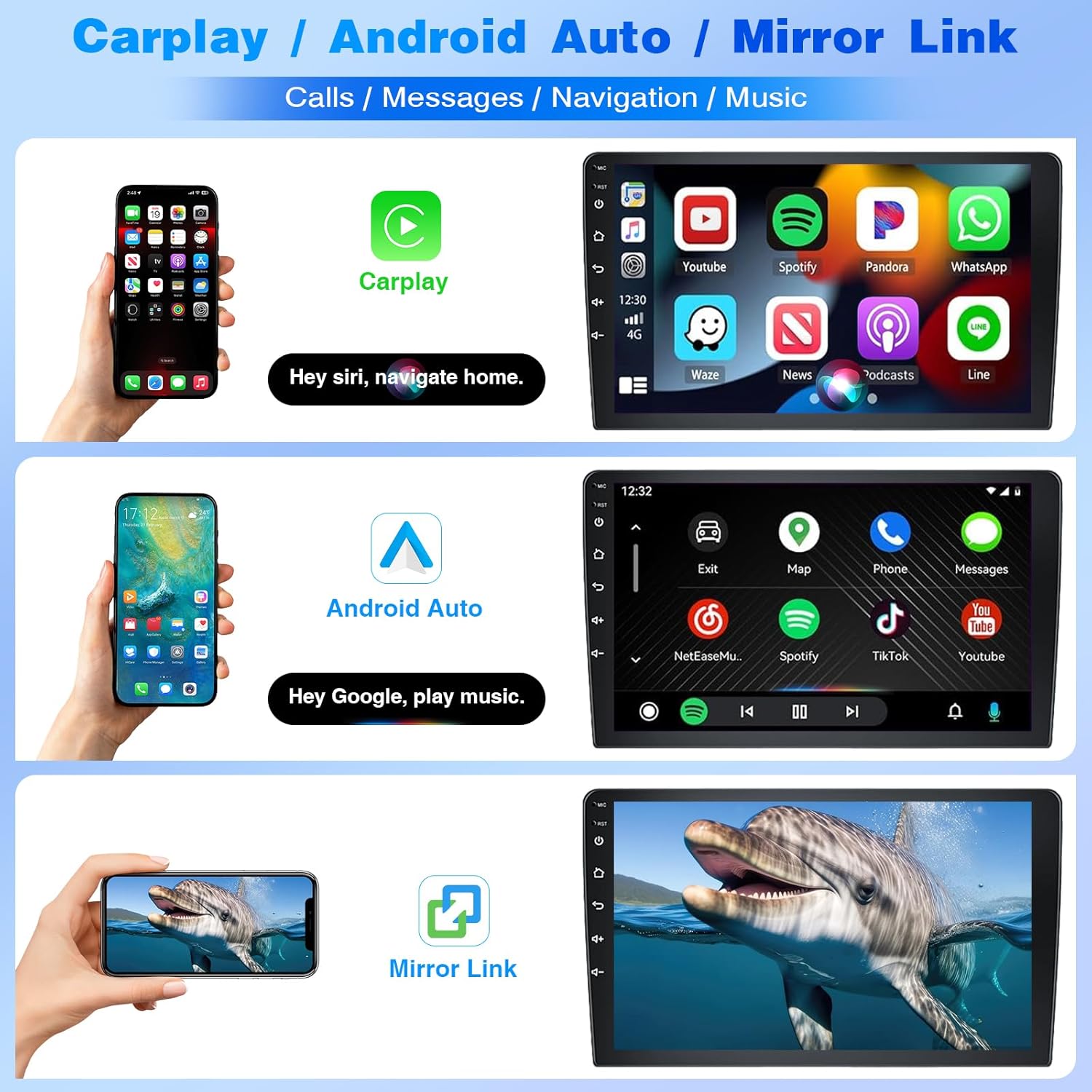
Image 5: Display showing Wireless CarPlay, Android Auto, and Mirror Link functionality.
Video 6: Demonstration of Wireless CarPlay connection with an Android car stereo.
5.3 GPS Navigation & WiFi
Utilize built-in GPS for online and offline navigation. Connect to WiFi via your phone's hotspot to access online maps and download various Android applications.
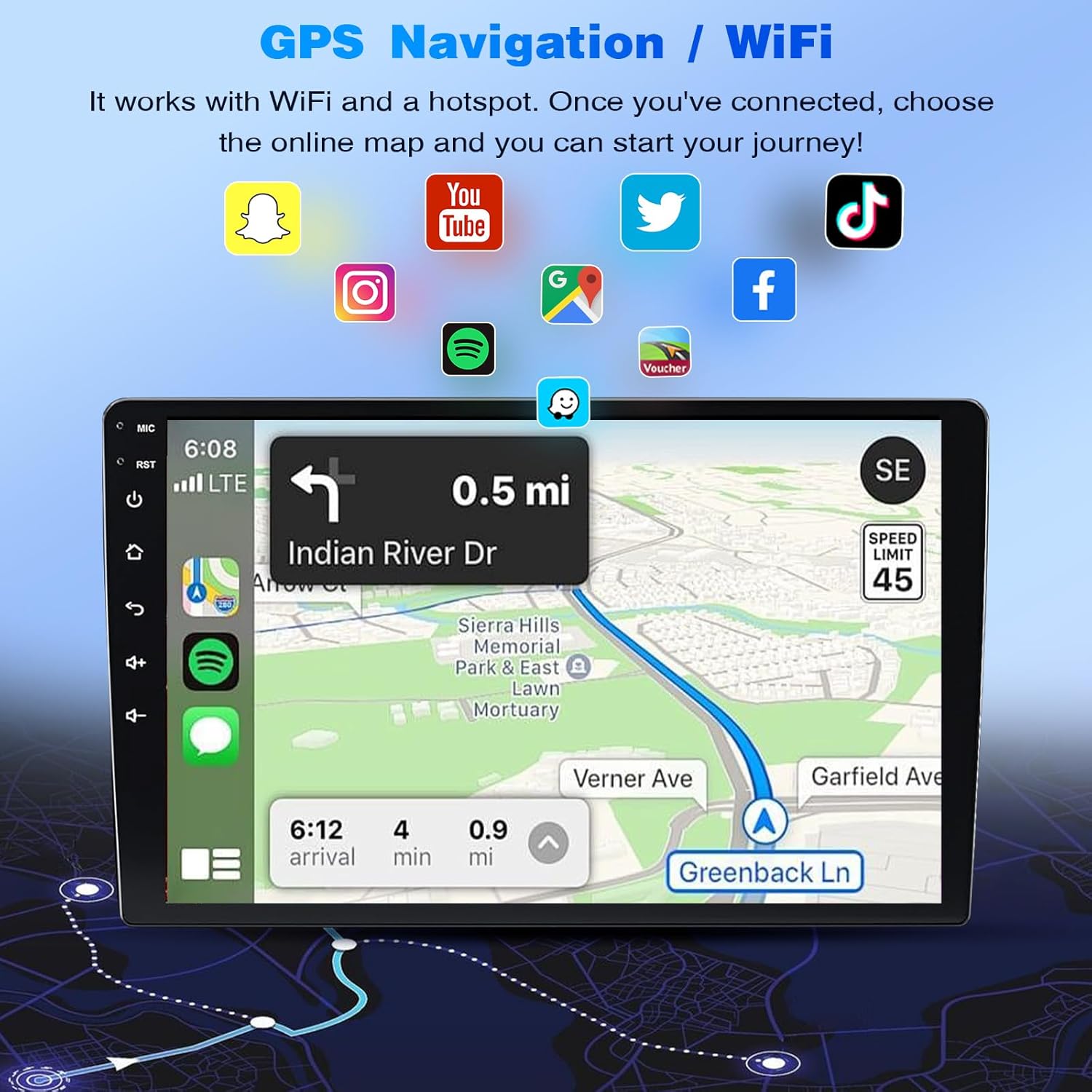
Image 6: Screen displaying GPS navigation with various app icons, indicating WiFi connectivity.
5.4 Bluetooth Hands-Free & FM Radio
Pair your phone via Bluetooth for hands-free calls, phonebook synchronization, and music streaming. Enjoy your favorite radio stations with the integrated FM radio.

Image 7: Visual representation of Bluetooth, Split Screen, FM/RDS Radio, and Voice Control functions.
5.5 Reverse Camera & Steering Wheel Control
The unit supports a reverse camera for safer parking, automatically displaying the rear view when reversing. Customize steering wheel controls to manage songs and volume conveniently.
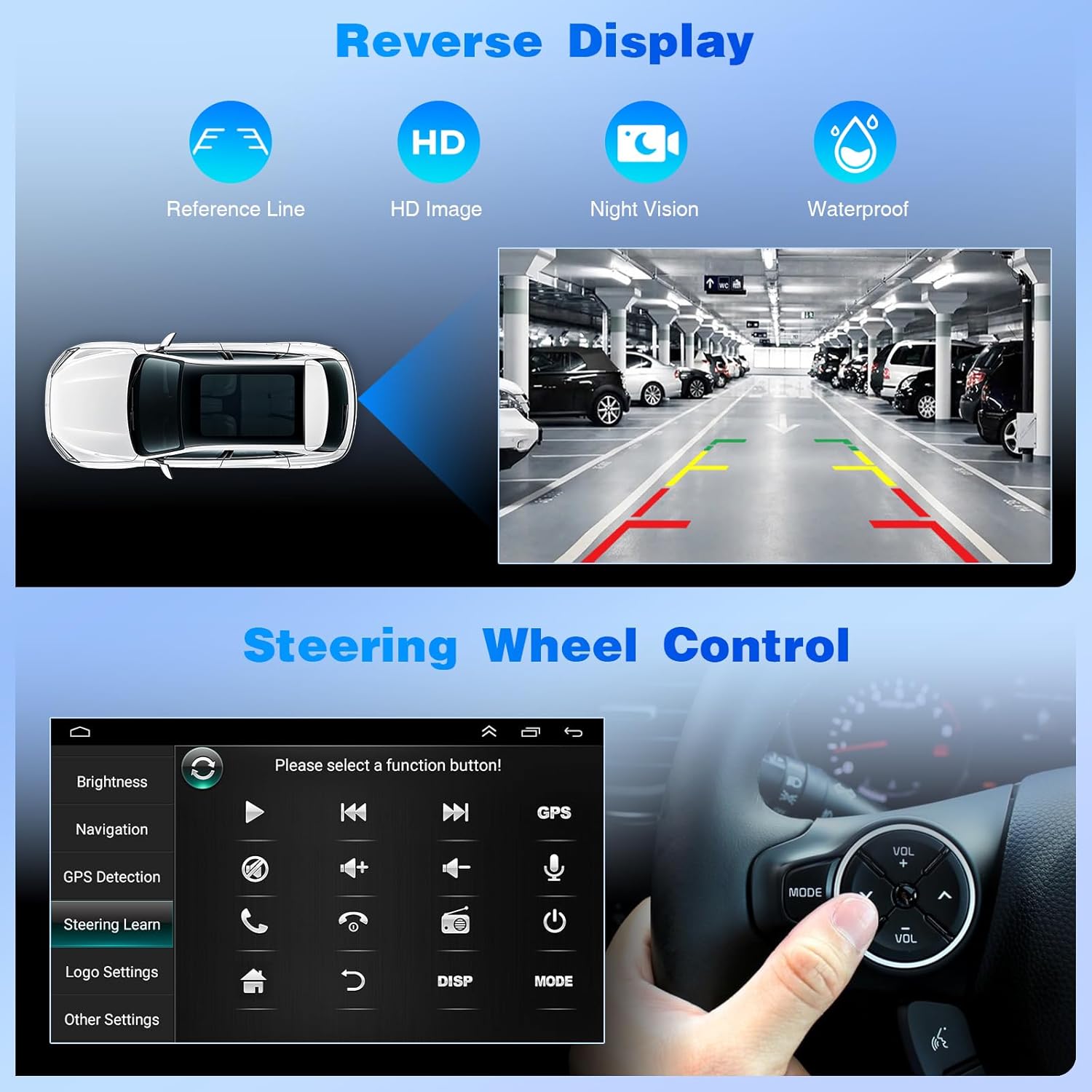
Image 8: Display showing reverse camera view and steering wheel control learning interface.
5.6 Split Screen Mode
Utilize the split screen feature to run two applications simultaneously, such as navigation and music, for enhanced multitasking.
6. Maintenance
- Screen Cleaning: Use a soft, lint-free cloth to clean the QLED touchscreen. Avoid abrasive cleaners or solvents.
- Software Updates: Periodically check for software updates to ensure optimal performance and access to new features.
- Cable Management: Ensure all cables are neatly tucked away and not interfering with vehicle operation.
- Temperature Control: Avoid exposing the unit to extreme heat or cold for prolonged periods.
7. Troubleshooting
- No Audio Output:
If there is no audio after installation, especially when connecting to your phone, ensure all audio cables are correctly connected. If your car has an aftermarket amplifier, it might not be compatible. New units typically support SONY amplifiers. If you have another brand, contact customer support for compatibility or troubleshooting.
- CarPlay/Android Auto Connection Issues:
Ensure Bluetooth is enabled on both your phone and the stereo. Verify the correct device is selected for pairing. If issues persist, try restarting both devices or checking your phone's settings for CarPlay/Android Auto permissions.
- GPS Signal Loss:
Ensure the GPS antenna is placed in an optimal location, such as the glove box, and not obstructed. Avoid placing it behind metal objects or other electronics that could interfere with the signal.
- Touchscreen Unresponsive:
Try restarting the unit. If the issue continues, ensure the screen is clean and free from debris. If unresponsive after a restart, contact support.
8. Specifications
| Feature | Specification |
|---|---|
| Brand | Bobuluo |
| Model Name | Android 13 Car Stereo |
| Vehicle Service Type | Truck (Ford F150 2009-2014) |
| Screen Size | 9.7 Inches |
| Resolution | 1280 x 800 |
| Operating System | Android, iOS (via CarPlay/Android Auto) |
| Memory Storage Capacity | 32 GB |
| Connectivity Technology | Bluetooth, USB, Wi-Fi, Mirroring + Airplay, Wireless/Wire (Carplay+Android Auto) |
| Special Feature | Bluetooth, Touchscreen, GPS, Steering Wheel Control, Split Screen |
| Audio Output Mode | Stereo (4x45W output, HiFi, 15-band equalizer) |
| Human-Interface Input | Touchscreen, App, Remote, Voice |
| Item Weight | 2260 Grams |
9. Warranty and Support
For warranty information, please refer to the product packaging or contact Bobuluo customer support directly. If you encounter any issues or have questions regarding your car stereo, please reach out to the seller via your purchase platform for assistance. Providing photos or detailed descriptions of the issue can help expedite the support process.