
1. Introduction
This instruction manual provides comprehensive guidance for the safe and efficient installation, operation, and maintenance of the Chatsworth L3-1K0K4 Monitored eConnect Power Distribution Unit (PDU). This PDU is designed for use in data centers and equipment room racks, offering continuous, automated monitoring capabilities.
Please read this manual thoroughly before attempting to install or operate the device. Keep this manual for future reference.
2. Safety Information
WARNING: Failure to follow these safety instructions may result in fire, electric shock, injury, or damage to the product or other property.
- Ensure all electrical connections comply with local and national electrical codes.
- Only qualified personnel should perform installation and maintenance.
- Do not operate the PDU in wet or damp conditions.
- Verify the power source voltage and current capacity match the PDU's requirements (120/208V, 30A).
- Always disconnect power before performing any service or maintenance.
- The PDU is designed to withstand high temperatures up to 149°F (65°C) but should not be exposed to temperatures exceeding this limit.
3. Package Contents
Carefully unpack the PDU and verify that all items are present and undamaged. If any items are missing or damaged, contact your supplier immediately.
- Chatsworth L3-1K0K4 Monitored eConnect PDU
- Universal, tool-less mounting hardware
- Instruction Manual (this document)
- (Optional: Check for any additional accessories listed on the packaging or order form, such as locking outlets or electronic swinghandle locks if purchased separately.)
4. Product Overview
The Chatsworth L3-1K0K4 Monitored eConnect PDU is a vertical, single-phase power distribution unit featuring 6 outlets, designed for efficient power management in data center racks. It provides continuous power monitoring at each PDU and input branch circuit with +/-1% accuracy, offering proactive environmental warnings and threshold alarms with integrated temperature and humidity sensors.
4.1 Key Features
- Continuous Monitoring: Automated monitoring of each PDU for rack-level measurement.
- High Temperature Tolerance: Withstands ambient temperatures up to 149°F (65°C).
- Circuit Protection: Reliable, heat-tolerant 100% rated magnetic hydraulic circuit breakers protect against current spikes.
- Environmental Sensing: Integrated temperature and humidity sensors for proactive warnings.
- Secure Connections: Optional locking outlets prevent accidental disconnections.
- Flexible Installation: Vertical configuration fits in zero U space, not obstructing equipment access or airflow.
4.2 PDU Components
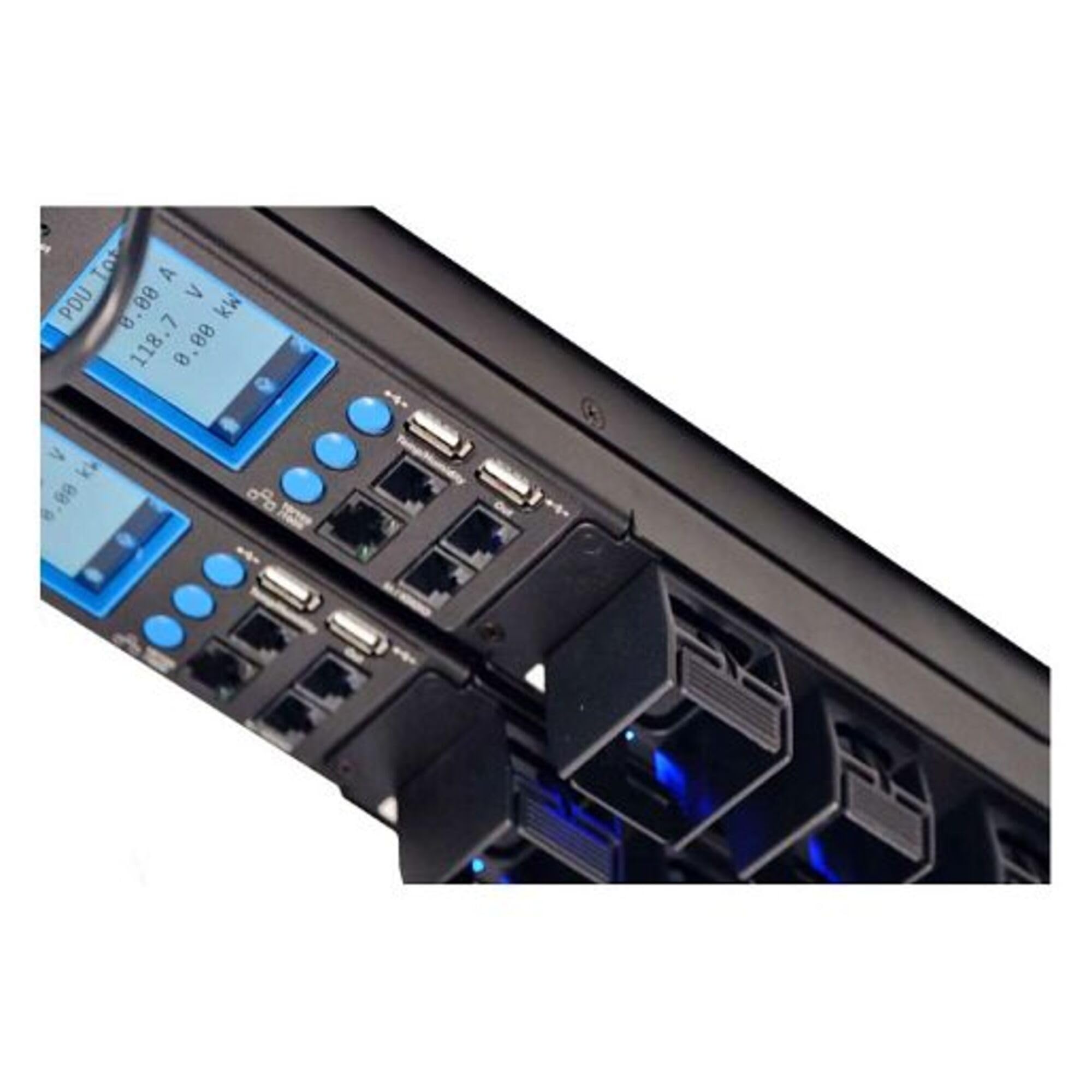
The PDU typically consists of:
- Power Input Cord: Connects the PDU to the main power source.
- Outlets: 6 outlets for connecting IT equipment.
- Circuit Breakers: Provide overcurrent protection.
- Display/Interface: For monitoring power usage, environmental data, and alarms.
- Mounting Brackets: For securing the PDU within a rack.
5. Setup and Installation
Follow these steps for proper installation of your L3-1K0K4 PDU.
5.1 Mounting the PDU
- Select Location: Choose a suitable vertical "zero U" space within your data center rack. Ensure it does not block access to equipment mounting rails or exhaust airflow.
- Attach Mounting Hardware: Use the provided universal, tool-less mounting hardware to secure the PDU to the rack frame. Ensure it is firmly attached and level.
- Pre-installation (Optional): The PDU can be shipped preinstalled in CPI GlobalFrame or TeraFrame cabinets. If so, verify secure mounting.
5.2 Electrical Connection
- Verify Power Source: Confirm that the power source (120/208V, 30A) matches the PDU's requirements.
- Connect Input Power: Plug the PDU's input power cord into a dedicated, properly grounded power receptacle.
- Power On: Once the input power is connected, the PDU will power on. Observe the display for initial status.
- Connect Equipment: Plug your IT equipment power cords into the PDU's outlets. If using optional locking outlets, ensure cords are securely fastened.
6. Operating the PDU
The L3-1K0K4 PDU provides continuous monitoring of power usage and environmental conditions.
6.1 Monitoring Power Usage
- The PDU continuously monitors power usage at each PDU and input branch circuit with an accuracy of +/-1%.
- Access the PDU's integrated display or network interface (if configured) to view real-time power consumption data.
- This data helps in managing power usage in high-density applications.
6.2 Environmental Monitoring
- Integrated temperature and humidity sensors provide environmental data.
- The PDU generates proactive environmental warnings and threshold alarms if conditions exceed predefined limits.
- Refer to the PDU's network interface or display for configuring alarm thresholds and receiving notifications.
6.3 Circuit Breakers
The PDU is equipped with magnetic hydraulic circuit breakers. In case of an overcurrent event, a breaker will trip to protect connected equipment. To reset a tripped breaker:
- Identify the tripped breaker (it will be in the "OFF" or "TRIPPED" position).
- Disconnect the equipment connected to the affected outlet to identify the cause of the overcurrent.
- Push the breaker handle firmly to the "ON" position.
- Reconnect equipment one by one to ensure the issue is resolved. If the breaker trips again, do not reconnect the faulty equipment.
7. Maintenance
Regular maintenance ensures the longevity and reliable operation of your PDU.
- Cleaning: Periodically clean the exterior of the PDU with a soft, dry cloth. Do not use liquid cleaners or solvents. Ensure the PDU is powered off before cleaning.
- Inspection: Regularly inspect power cords, outlets, and circuit breakers for any signs of wear, damage, or loose connections.
- Firmware Updates: Check the Chatsworth website for any available firmware updates for your eConnect PDU model to ensure optimal performance and security.
- Environmental Checks: Monitor temperature and humidity readings to ensure the data center environment remains within acceptable operating parameters.
8. Troubleshooting
This section provides solutions to common issues you might encounter with your PDU.
| Problem | Possible Cause | Solution |
|---|---|---|
| PDU does not power on. | No input power; faulty power cord; tripped upstream breaker. | Verify input power connection. Check power cord for damage. Check upstream circuit breaker. |
| Equipment connected to PDU does not power on. | PDU circuit breaker tripped; faulty equipment power cord; equipment fault. | Check and reset PDU circuit breakers (see Section 6.3). Verify equipment power cords. Test equipment with another power source. |
| Environmental alarm triggered. | Temperature or humidity outside set thresholds. | Check data center cooling/humidity systems. Review PDU environmental sensor readings and alarm thresholds. |
| Inaccurate power readings. | Sensor calibration issue; PDU fault. | Contact Chatsworth technical support for assistance. |
9. Specifications
Technical specifications for the Chatsworth L3-1K0K4 Monitored eConnect PDU:
- Model Name: L3-1K0K4 21514123
- Brand: Chatsworth
- Manufacturer: Chatsworth
- UPC: 703957493337
- Mfr Part Number: L3-1K0K4
- Model Number: L3-1K0K4
- Input Voltage: 120/208V
- Input Current: 30A
- Outlets: 6
- Configuration: Vertical, Single Phase
- Ambient Temperature Rating: Up to 149°F (65°C)
- Dimensions: 70.5 H x 2.2 W (approximate, based on product title)
10. Warranty Information
According to product information, this product is sold with No Warranty. Please refer to your purchase agreement or contact your vendor for any specific return or service policies that may apply.
11. Technical Support
For technical assistance, troubleshooting beyond this manual, or inquiries regarding your Chatsworth L3-1K0K4 PDU, please contact Chatsworth technical support or your authorized reseller.
Visit the official Chatsworth website for up-to-date support resources, FAQs, and contact information: www.chatsworth.com