
BAKEN D10A
BAKEN 10-Inch Android 12 Tablet (Model D10A) User Manual
Comprehensive instructions for setup, operation, and maintenance.
Introduction
This manual provides detailed instructions for using your BAKEN 10-inch Android 12 Tablet, model D10A. Please read this manual thoroughly before using your device to ensure proper operation and to maximize its lifespan. Keep this manual for future reference.
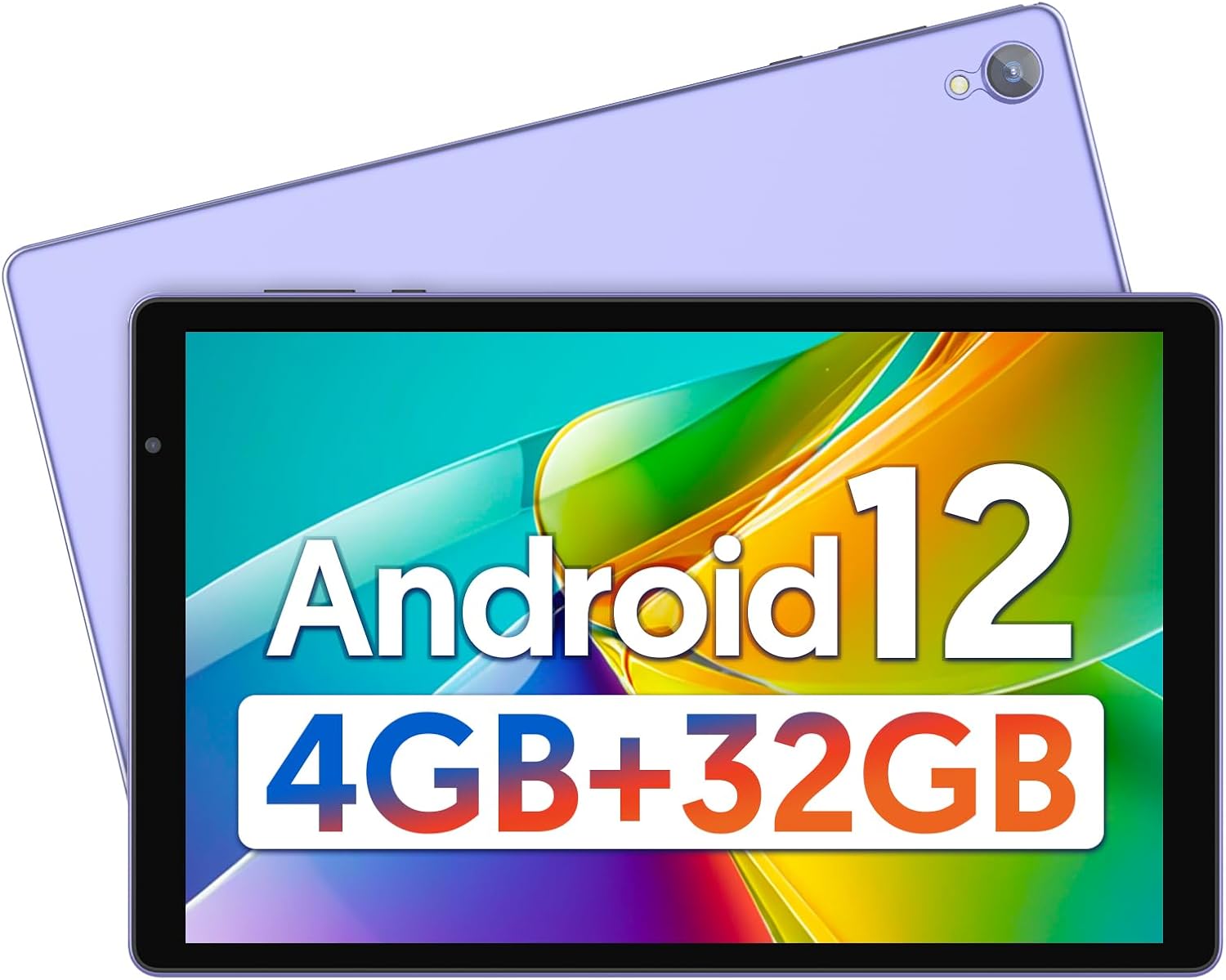
Figure 1: BAKEN 10-inch Android 12 Tablet Overview
This image displays the front of the BAKEN 10-inch tablet, highlighting its Android 12 operating system and memory configuration of 4GB RAM and 32GB ROM.
What's in the Box
Upon opening your product packaging, verify that all items are present:
- BAKEN 10-inch Android 12 Tablet (Model D10A)
- Charging Cable (USB Type-C)
- Power Adapter
- User Manual (this document)
If any items are missing or damaged, please contact customer support.
Device Layout
Familiarize yourself with the physical components and ports of your BAKEN tablet.

Figure 2: BAKEN Tablet Ports and Buttons
This diagram illustrates the location of key features on the BAKEN tablet, including the headphone jack, volume controls, power button, reset pinhole, front camera, Micro SD card slot, USB Type-C port, and dual speakers.
- Power On/Off Button: Press and hold to power on or off. Short press to sleep/wake.
- Volume Buttons: Adjust audio output level.
- Headphone Jack: Connect 3.5mm headphones.
- USB Type-C Interface: For charging and data transfer.
- Micro SD Card Slot: Insert a Micro SD card for expandable storage.
- Front-facing Camera: For video calls and selfies.
- Rear Camera: For taking photos and videos.
- Speakers: Audio output.
- Reset Pinhole: Use a thin pin to press the Reset Pinhole if the device is unresponsive.
Setup
1. Initial Charging
Before first use, fully charge your tablet. Connect the USB Type-C cable to the tablet's charging port and the power adapter to a wall outlet. The charging indicator will typically show progress on the screen.
2. Powering On/Off
- To Power On: Press and hold the Power On/Off button until the BAKEN logo appears on the screen.
- To Power Off: Press and hold the Power On/Off button until a power menu appears. Select "Power off" and confirm.
- Sleep/Wake: Briefly press the Power On/Off button to put the tablet to sleep or wake it up.
3. Initial Setup Wizard
Upon first power-on, the tablet will guide you through an initial setup process:
- Language Selection: Choose your preferred language.
- Wi-Fi Connection: Select your Wi-Fi network and enter the password.
- Google Account: Sign in with your Google account or create a new one. This is necessary for accessing the Google Play Store and other Google services.
- Date & Time: Set the correct date and time, or allow the network to set it automatically.
- Security: Set up a screen lock (PIN, pattern, or password) for device security.
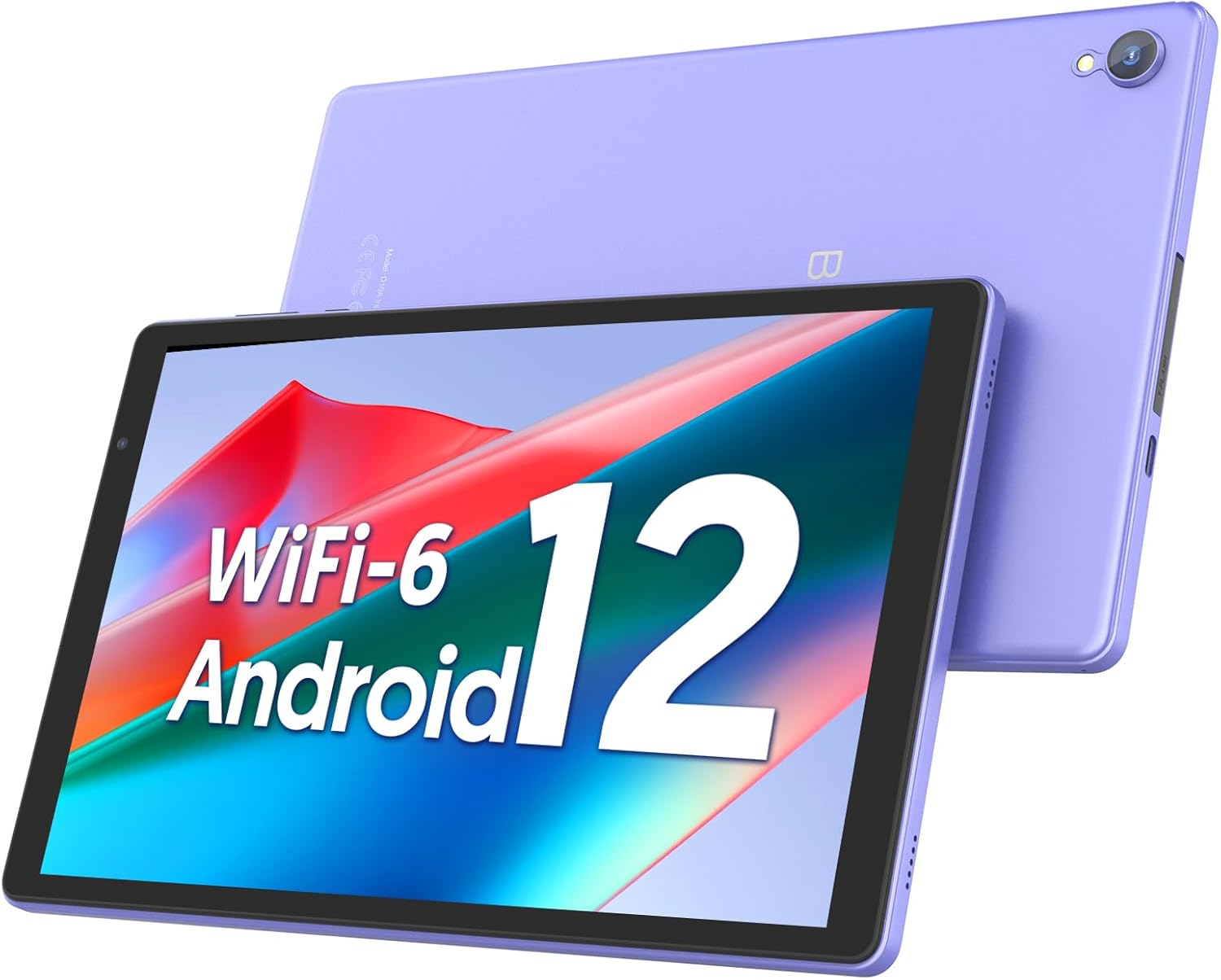
Figure 3: Wi-Fi 6 Connectivity
This image highlights the tablet's support for Wi-Fi 6, indicating advanced wireless connectivity for faster and more stable internet access.
4. Inserting a Micro SD Card (Optional)
To expand storage, insert a Micro SD card into the designated slot. Ensure the tablet is powered off before inserting or removing the card.

Figure 4: Expandable Storage
This image demonstrates the tablet's storage capabilities, featuring 32GB of internal ROM and the option to expand up to 1TB using a Micro SD card.
Operating Your Tablet
1. Basic Navigation
- Touch Gestures: Tap, swipe, pinch-to-zoom are standard Android gestures.
- Home Screen: The central hub for your apps and widgets.
- Notification Panel: Swipe down from the top of the screen to access notifications and quick settings.
- Navigation Bar: Typically at the bottom of the screen, includes Back, Home, and Recent Apps buttons.
2. App Management
- Installing Apps: Download and install applications from the Google Play Store.
- Uninstalling Apps: Press and hold an app icon on the home screen or app drawer, then drag it to "Uninstall" or select the uninstall option. Alternatively, go to Settings > Apps.
3. Display Settings
Adjust screen brightness, wallpaper, and sleep timeout in Settings > Display. The tablet features a 1280x800 IPS HD touchscreen with low blue light technology for eye protection.
4. Audio Settings
Control volume for media, alarms, and notifications in Settings > Sound. The tablet is equipped with a high-quality audio system for an immersive sound experience.
5. Camera Usage
Your tablet includes a 2MP front camera and a 5MP rear camera. Open the Camera app to take photos or record videos. Tap the screen to focus and press the shutter button to capture.
6. Battery Management
The BAKEN tablet is equipped with a 6000mAh battery, providing up to 6 hours of continuous use. To optimize battery life:
- Reduce screen brightness.
- Turn off Wi-Fi or Bluetooth when not in use.
- Close unused applications running in the background.
- Enable battery saver mode in Settings > Battery.
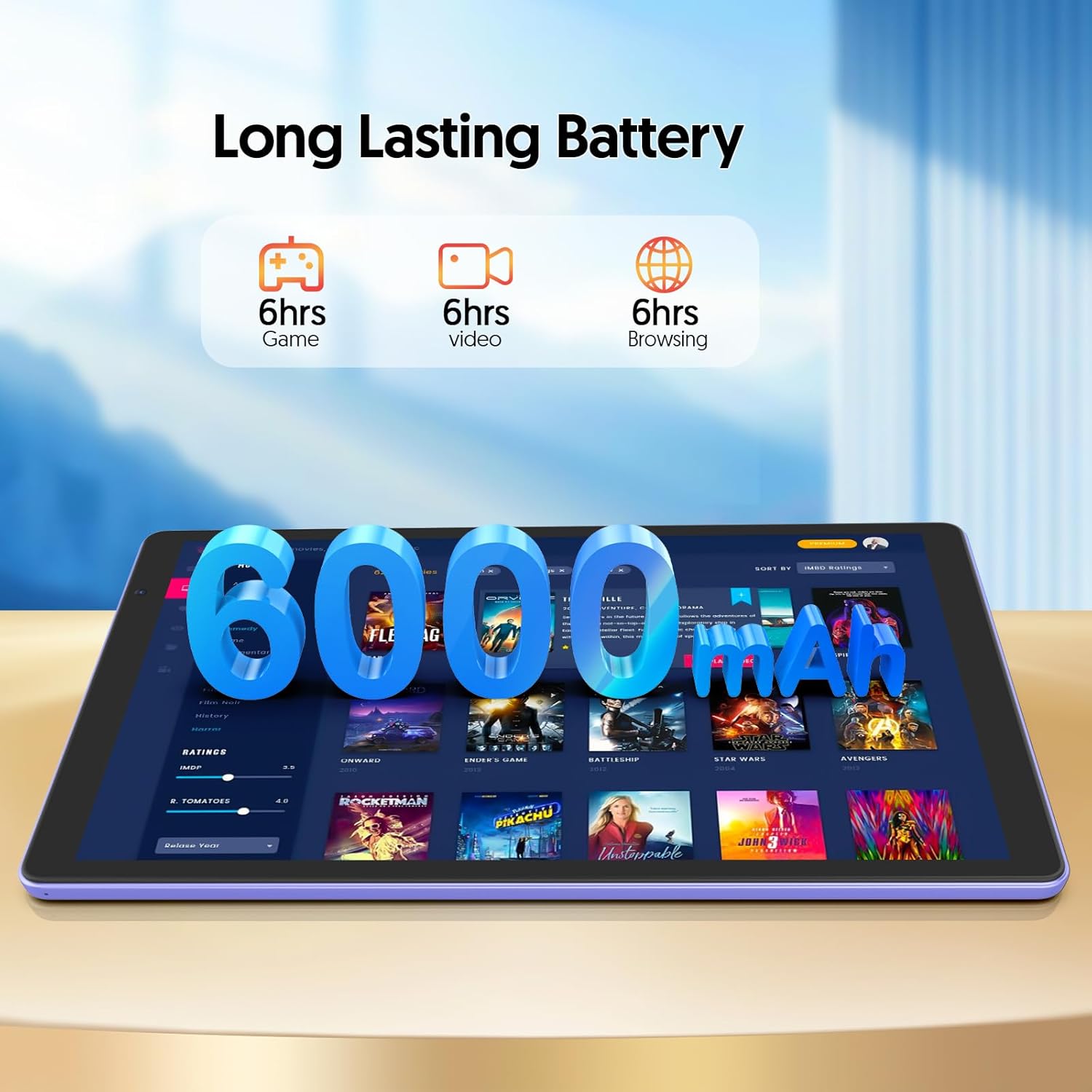
Figure 5: 6000mAh Long-Lasting Battery
This image illustrates the tablet's 6000mAh battery capacity, highlighting its endurance for up to 6 hours of gaming, video playback, or web browsing.
Maintenance
1. Cleaning Your Tablet
- Use a soft, lint-free cloth to clean the screen and body.
- Do not use harsh chemicals or abrasive materials.
- Avoid getting moisture into ports.
2. Software Updates
Periodically check for system updates in Settings > System > System update. Keeping your software up-to-date ensures optimal performance and security.
3. Storage Management
Regularly manage your tablet's storage to maintain performance. Go to Settings > Storage to view usage and free up space by uninstalling unused apps, deleting old files, or moving media to an SD card.
Troubleshooting
This section addresses common issues you might encounter with your BAKEN tablet.
Tablet Does Not Power On
- Ensure the battery is charged. Connect the charger and wait a few minutes before attempting to power on.
- Press and hold the Power On/Off button for at least 10-15 seconds.
- If unresponsive, use a thin pin to press the Reset Pinhole (refer to Device Layout).
Wi-Fi Connection Issues
- Ensure Wi-Fi is enabled in Settings > Network & internet > Wi-Fi.
- Verify the Wi-Fi password is correct.
- Restart your Wi-Fi router and the tablet.
- Try connecting to a different Wi-Fi network to isolate the issue.
Slow Performance
- Close unused applications running in the background.
- Clear cache data for frequently used apps (Settings > Apps > [App Name] > Storage & cache > Clear cache).
- Ensure sufficient free storage space (refer to Storage Management).
- Restart the tablet.
Charging Problems
- Check if the charging cable and adapter are securely connected.
- Try using a different USB Type-C cable and power adapter to rule out faulty accessories.
- Ensure the charging port is clean and free of debris.
Specifications
Key technical specifications for the BAKEN 10-inch Android 12 Tablet (Model D10A).
| Feature | Detail |
|---|---|
| Brand | BAKEN |
| Model Name | D10A |
| Operating System | Android 12 |
| Screen Size | 10 Inches |
| Screen Resolution | 1280 x 800 Pixels (IPS HD Touchscreen) |
| Processor | Quad Core (Allwinner A133) |
| RAM | 4GB (2+2) |
| Internal Storage (ROM) | 32GB |
| Expandable Storage | Up to 1TB via Micro SD Card |
| Wireless Connectivity | Wi-Fi 6 (802.11ax), Bluetooth |
| Battery Capacity | 6000mAh (up to 6 hours usage) |
| Cameras | 2MP Front, 5MP Rear |
| Dimensions (LxWxH) | 9.65 x 0.4 x 6 inches |
| Item Weight | 1.54 pounds |

Figure 6: Allwinner A133 Processor
This image depicts the A133 high-performance processor, which powers the BAKEN tablet, ensuring efficient operation.
Warranty Information
Your BAKEN tablet comes with a one-year limited warranty from the date of purchase. This warranty covers manufacturing defects and workmanship under normal use. It does not cover damage caused by misuse, accidents, unauthorized modifications, or external causes.
Please retain your proof of purchase for warranty claims. For detailed warranty terms and conditions, refer to the warranty card included in your product packaging or contact customer support.
Customer Support
If you encounter issues not covered in this manual or require further assistance, please contact BAKEN customer support. Have your tablet's model number (D10A) and purchase information ready when contacting support.
For the most up-to-date support information, visit the official BAKEN website or refer to the contact details provided in your product packaging.
Ask a question about this manual
Ask about setup, troubleshooting, compatibility, parts, safety, or missing instructions. Manuals+ will review the question and use this page’s manual context to help answer it.