
Introduction
The Black Emblem X1 Wireless Gaming Headset is designed to provide an immersive audio experience and versatile connectivity for various gaming platforms. Featuring 40mm high-performance drivers, it delivers 7.1 surround sound for precise audio cues. This lightweight headset offers dual connectivity modes (2.4GHz wireless and Bluetooth 5.4) and a long-lasting 40-hour battery, ensuring comfort and performance during extended use.

Image: The Black Emblem X1 Wireless Gaming Headset, showcasing its black and purple design, removable microphone, USB dongle, and USB-C charging cable.
Package Contents
Verify that all items are present in your package:
- 1 x Black Emblem X1 Wireless Gaming Headset
- 1 x Type-C Charging Cable
- 1 x 2.4GHz USB Dongle
- 1 x User Manual
Product Overview
The Black Emblem X1 headset features a lightweight design with breathable memory-foam ear cushions and an adjustable headband for comfort. It includes a removable microphone for clear communication and intuitive controls on the earcup.

Image: A diagram highlighting the comfortable design elements of the headset, such as breathable memory-foam earcups, an adjustable headband, and an adjustable, detachable microphone.
Controls and Ports
- Power Button: Long press 3-4s to power on/off. Single click to pause/play and answer/hang up calls. Long press 15-20s to restart and clear pairing.
- Multifunction Key: Single click to turn on/off microphone. Double click to switch connection modes (2.4G or Bluetooth).
- Volume Up Button: Single click to increase volume. Long press 2-3s for next track.
- Volume Down Button: Single click to decrease volume. Long press 2-3s for previous track.
- USB-C Charging Port: For charging the headset.
- Status Indicator Light: Blue for Bluetooth mode, Green for 2.4G mode.

Image: Detailed view of the headset's controls, including the power, multifunction, and volume buttons, with explanations of their respective actions.
Setup & Connection
The Black Emblem X1 headset offers multiple connection options for broad compatibility.
1. Powering On/Off
- To power on, press and hold the Power Button for 3-4 seconds until the indicator light illuminates.
- To power off, press and hold the Power Button for 3-4 seconds until the indicator light turns off.
2. 2.4GHz Wireless Mode (for PC, Switch, Mac, Laptop, PS5, PS4)
- Plug the 2.4GHz USB Dongle into an available USB port on your device (PC, Switch, Mac, Laptop, PS5, PS4).
- Power on the headset.
- Double-click the Multifunction Button on the headset to switch to 2.4G mode. The indicator light will turn green.
- The headset should automatically pair with the dongle. A steady green light indicates a successful connection.
Note: If the 2.4G connection mode needs to be reset, turn on the device, then press and hold the power button for 5 seconds (do not release after "power on" prompt). When you hear "pairing," it indicates the 2.4G connection mode has been reset.
Video: Demonstrates how to connect the Black Emblem X1 headset to a PlayStation console using the 2.4GHz USB dongle.
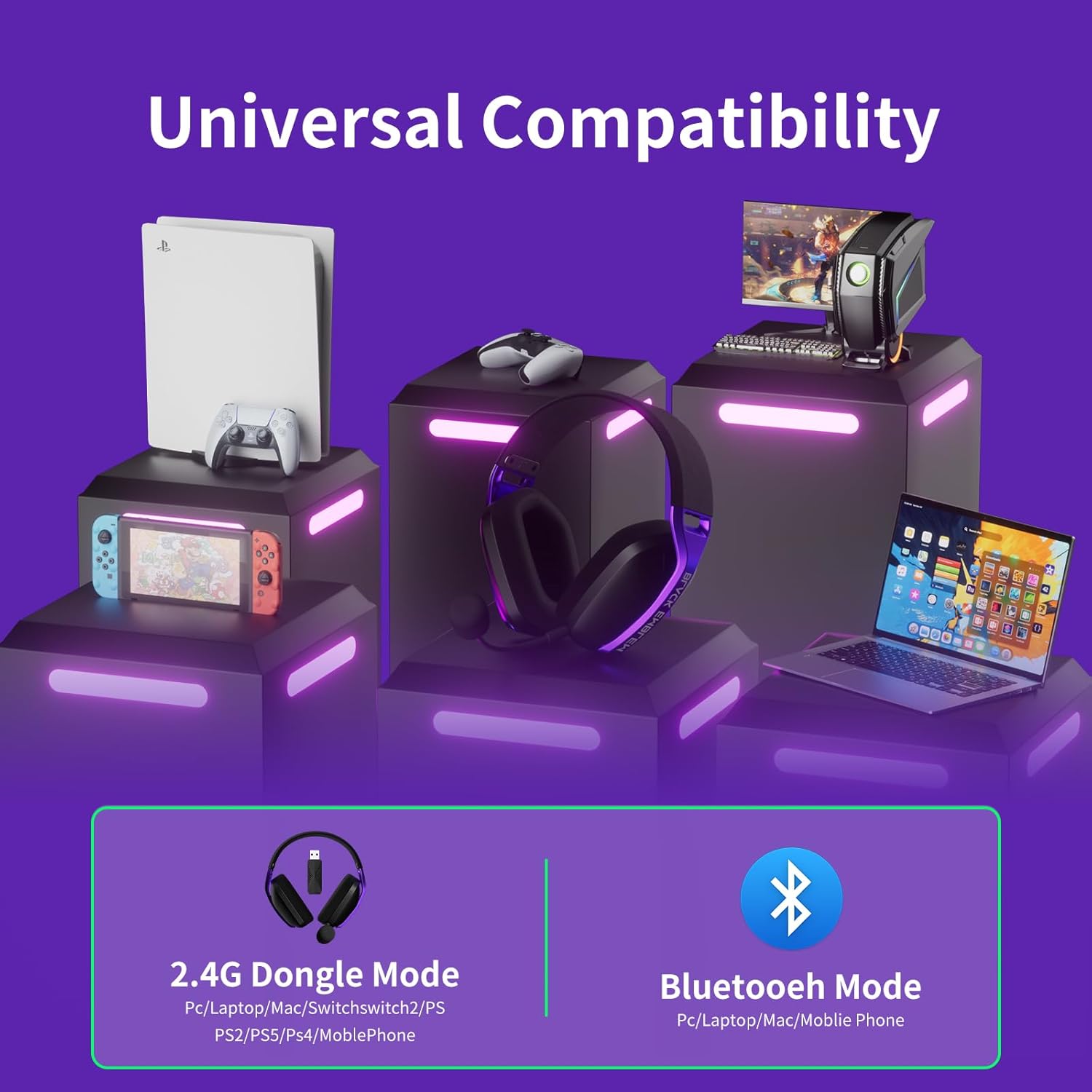
Image: Visual representation of the headset's universal compatibility across various platforms, including PCs, PlayStation consoles, Nintendo Switch, Mac, and mobile devices.
3. Bluetooth 5.4 Mode (for Mobile, iPad, Tablets)
- Power on the headset.
- Double-click the Multifunction Button on the headset to switch to Bluetooth mode. The indicator light will turn blue.
- On your mobile device, iPad, or tablet, go to Bluetooth settings and select "Black Emblem X1" to pair.
- A steady blue light indicates a successful connection.
Note: Bluetooth mode is not compatible with PS4/PS5.
4. Wired Mode (for Xbox Controllers)
The headset can connect to an Xbox controller via a 3.5mm audio cable (not included). This wired connection is the only compatible method for Xbox consoles.
Note: Dongle and Bluetooth modes are NOT compatible with any Xbox console.
Operating Instructions
Microphone Usage
- To attach the microphone, align the 3.5mm jack with the port on the left earcup and insert firmly.
- To detach, gently pull the microphone out of the port.
- To turn the microphone on or off, single-click the Multifunction Button.
Audio Control
- Use the Volume Up and Volume Down buttons to adjust the audio level.
- Single click the Power Button to play or pause audio.
- Long press the Volume Up button (2-3s) for the next track.
- Long press the Volume Down button (2-3s) for the previous track.
Note: When connected to PS4/PS5/XBOX via wired connection, the volume buttons on the headset may stop working. Adjust volume directly through the console's settings or the game's audio options.
Charging
The headset is equipped with a 40-hour battery life for extended gaming sessions.
- Connect the provided Type-C Charging Cable to the USB-C port on the headset and to a power source.
- The indicator light will show charging status (specific color/behavior not detailed in provided data, assume standard charging indication).
- Do not use the headset while charging. Unplug the cable before powering on for use.

Image: The Black Emblem X1 headset highlighting its impressive 40-hour battery life, allowing for prolonged use on a single charge.
Maintenance & Care
- Keep the headset clean by wiping with a soft, dry cloth.
- Avoid exposing the headset to extreme temperatures, humidity, or direct sunlight.
- Store the headset in a safe place to prevent damage when not in use.
- Do not attempt to disassemble or repair the headset yourself, as this may void the warranty.
Troubleshooting
If you encounter issues with your Black Emblem X1 headset, refer to the following common solutions:
- Headset does not power on: Ensure the headset is charged. If it was charging, unplug the charging cable and then press the power button to turn it on.
- 2.4G Wireless connection issues:
- Ensure the USB dongle is securely plugged into your device.
- Verify the headset is in 2.4G mode (green indicator light). Double-click the multifunction button to switch modes if necessary.
- To reset the 2.4G connection mode: Turn on the headset, then press and hold the power button for 5 seconds (do not release after "power on" prompt). Release when you hear "pairing."
- Bluetooth connection issues:
- Ensure the headset is in Bluetooth mode (blue indicator light). Double-click the multifunction button to switch modes if necessary.
- Make sure Bluetooth is enabled on your mobile device/iPad/tablet and the headset is selected for pairing.
- No audio or poor audio quality:
- Check the volume levels on both the headset and your connected device.
- Ensure the correct audio output device is selected in your device's sound settings.
- If using 2.4G mode, ensure the dongle is properly recognized by your device.
- Microphone not working:
- Ensure the microphone is securely attached to the headset.
- Single-click the multifunction button to ensure the microphone is not muted.
- Check your device's sound settings to ensure the headset microphone is selected as the input device.
- Volume buttons not working on PS4/PS5/XBOX: This is expected behavior when connected via wired mode to these consoles. Adjust volume directly through the console's settings or the game's audio options.
Video: Provides troubleshooting steps for when the 2.4G dongle mode fails to connect to a device, offering visual guidance for resolving common issues.
Specifications
| Model Name | X1 |
| Connectivity Technology | 2.4G, Bluetooth, Wired, Wireless |
| Wireless Communication Technology | 2.4G, Bluetooth 5.4 |
| Compatible Devices | PC, PS5, PS4, Switch, Mac, Mobile, iPad, Tablets |
| Audio Driver Size | 40mm |
| Audio Latency | ≤20ms (via 2.4GHz) |
| Battery Life | Up to 40 hours |
| Item Weight | 12.3 ounces (165g) |
| Special Features | 7.1 Surround Sound, Lightweight, Adjustable Headband, Removable Mic, Breathable Earcups |
| Manufacturer | Shenzhen Liuli Dream Technology Co.,Ltd. |
Warranty & Support
Black Emblem products are designed and manufactured to the highest quality standards. For detailed warranty information and customer support, please refer to the contact information provided in the product packaging or visit the official Black Emblem website.
Please retain your proof of purchase for any warranty claims.


