
1. Introduction
Thank you for choosing the Hivento Smart Tower Fan. This manual provides essential information for the safe and efficient operation of your new appliance. Please read it thoroughly before use and retain it for future reference.
This smart tower fan features WiFi connectivity, an aroma box, multiple operating modes, and advanced safety features designed for comfort and convenience in your home or office.
2. Safety Instructions
Always follow basic safety precautions when using electrical appliances to reduce the risk of fire, electric shock, and injury.
- Ensure the power supply voltage matches the fan's requirements.
- Do not operate the fan with a damaged cord or plug. Contact customer support for repairs.
- Keep hands, hair, and loose clothing away from the fan's openings during operation.
- Do not insert any objects into the fan grille.
- Unplug the fan from the power outlet before cleaning or performing any maintenance.
- Do not use the fan in wet or damp environments, such as bathrooms.
- Place the fan on a stable, level surface to prevent tipping.
- This fan includes a safety plug with a fuse to prevent damage from power surges. Do not attempt to bypass or modify this feature.
- The child lock feature helps prevent accidental operation by children. Always activate it when children or pets are nearby.
3. Product Overview
The Hivento Smart Tower Fan is designed for efficient air circulation with user-friendly controls.

Image: The Hivento Smart Tower Fan, its remote control, and a smartphone displaying the control app.
Components:
- Main Fan Unit: Bladeless design for safety and quiet operation.
- Control Panel: Located on top of the fan with an LED display for settings and status.
- Remote Control: For convenient operation from up to 6 meters away.
- Aroma Box: Integrated compartment for essential oils to diffuse fragrance.
- Stable Base: Ensures the fan remains upright and stable.
4. Setup
4.1 Initial Assembly
Most tower fans require minimal assembly, typically attaching the base. Refer to the quick start guide included in your packaging for specific base assembly instructions.
4.2 Power Connection
- Place the fan on a firm, level surface.
- Ensure the power cord is not damaged.
- Plug the fan into a standard electrical outlet.
4.3 WiFi and App Setup
To utilize the smart features, connect your Hivento Smart Tower Fan to your home WiFi network via the dedicated app.

Image: Visual guide for connecting the smart tower fan to the mobile application, illustrating the steps from adding a device to controlling it.
- Download the compatible smart home application (e.g., Tuya Smart, Smart Life) from your device's app store.
- Register or log in to your account.
- Ensure your smartphone is connected to a 2.4GHz WiFi network. 5GHz WiFi networks are not supported.
- Open the app and select 'Add Device' or the '+' icon.
- Follow the on-screen instructions to put the fan into pairing mode (usually by pressing and holding a button on the fan's control panel).
- Confirm the indicator light on the fan is blinking as described in the app.
- Select your 2.4GHz WiFi network and enter the password.
- Wait for the fan to connect to the network. Once connected, you can control the fan via the app.
- The fan is compatible with Alexa, Google Assistant, and Siri for voice control. Follow the app's instructions to link your fan to these smart assistants.
5. Operating Instructions
Your Hivento Smart Tower Fan can be operated using the control panel on the unit, the included remote control, or the smartphone app.

Image: A hand operating the Hivento Smart Tower Fan with its remote control.
5.1 Control Panel and Remote Functions
- Power Button: Turns the fan On or Off.
- Speed Button: Cycles through 3 wind speeds: Low, Medium, High.
- Mode Button: Selects between 3 operating modes:
- Natural Mode: Simulates a natural breeze with varying fan speeds.
- Sleep Mode: Operates at a lower speed and reduced noise level for undisturbed rest. The display screen will dim after 10 seconds in sleep mode. Press any button to re-illuminate the screen.
- ECO Mode: Adjusts fan speed automatically based on ambient temperature for energy efficiency.
- Oscillation Button (OSC): Activates or deactivates the 70° wide-angle oscillation feature, distributing airflow across the room.
- Timer Button: Sets the auto-off timer from 1 to 15 hours in 1-hour increments. The LED display will show the set duration.
- Child Lock Button: Activates or deactivates the child lock, preventing accidental changes to settings via the control panel.

Image: Illustration of the fan's three modes and three speed settings, demonstrating customizable airflow.

Image: The tower fan demonstrating its 70-degree oscillation feature, circulating air throughout a room.
5.2 Aroma Box Usage
Enhance your environment by adding essential oils to the integrated aroma box.
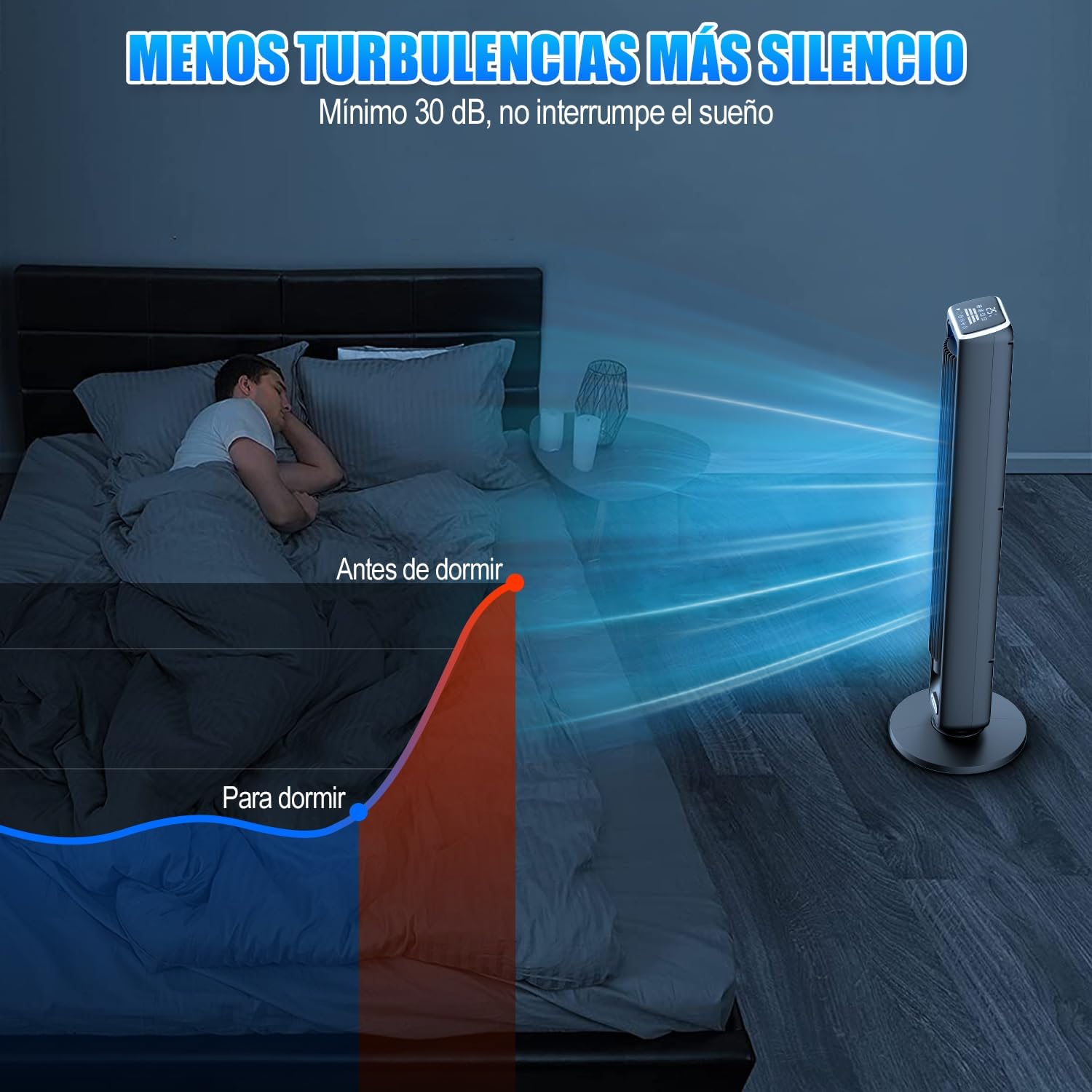
Image: A user adding essential oils to the aroma box located at the base of the fan.
- Locate the aroma box compartment, typically at the base of the fan.
- Gently pull out the aroma box tray.
- Add a few drops of your preferred essential oil onto the cotton pad inside the tray.
- Slide the aroma box tray back into its compartment until it clicks securely.
6. Maintenance
Regular cleaning ensures optimal performance and longevity of your Hivento Smart Tower Fan.
6.1 Cleaning the Fan
- Always unplug the fan from the power outlet before cleaning.
- Use a soft, damp cloth to wipe the exterior surfaces of the fan.
- For dust accumulation in the air intake/outlet grilles, use a vacuum cleaner with a brush attachment or compressed air.
- Do not use abrasive cleaners, solvents, or harsh chemicals, as these may damage the fan's finish.
- Ensure the fan is completely dry before plugging it back in.
6.2 Cleaning the Aroma Box
- Remove the aroma box tray.
- Replace the cotton pad if it is heavily soiled or if you wish to switch to a different essential oil scent.
- Wipe the tray with a damp cloth and dry thoroughly before reinserting.
7. Troubleshooting
If you encounter issues with your Hivento Smart Tower Fan, refer to the following common problems and solutions.
| Problem | Possible Cause | Solution |
|---|---|---|
| Fan does not turn on. | No power supply; power cord damaged; safety fuse tripped. | Check if the fan is properly plugged into a working outlet. Inspect the power cord for damage. If the safety fuse in the plug is tripped, replace it according to instructions. |
| WiFi connection fails. | Incorrect WiFi band; wrong password; fan too far from router. | Ensure your router is broadcasting a 2.4GHz WiFi signal. 5GHz networks are not supported. Verify the WiFi password. Move the fan closer to the router. Restart the fan and try pairing again. |
| Fan is noisy at higher speeds. | Normal operation at high settings; internal obstruction. | Some noise is expected at higher fan speeds. If the noise is unusual or excessive, unplug the fan and check for any obstructions in the air intake/outlet. |
| Aroma diffusion is weak or absent. | Aroma box empty; cotton pad saturated or old. | Add more essential oil to the cotton pad. Replace the cotton pad if it is old or heavily saturated with previous scents. |
| Display light is too bright at night. | Sleep mode not activated. | Activate Sleep Mode. The display will dim automatically after 10 seconds. Press any button to temporarily re-illuminate the screen. |
8. Specifications
| Feature | Detail |
|---|---|
| Brand | Hivento |
| Model | B0DMVX5P1R |
| Color | Smart (Black) |
| Dimensions (Product) | 21cm (D) x 21cm (W) x 105cm (H) |
| Weight (Product) | 4.74 kg |
| Number of Speeds | 3 |
| Operating Modes | Natural, Sleep, ECO |
| Oscillation | 70° Wide-Angle |
| Airflow Speed | Up to 7.5 m/s |
| Noise Level | As low as 30dB |
| Timer | 1 to 15 hours |
| Control Methods | Control Panel, Remote Control, Smartphone App |
| Smart Home Compatibility | Alexa, Google Assistant, Siri |
| WiFi Support | 2.4GHz (5GHz not supported) |
| Special Features | Aroma Box, Bladeless Design, Child Lock, Safety Plug with Fuse |
| Included Components | Fan Unit, Remote Control, Power Cable, User Manual |
9. Warranty and Support
Hivento is committed to providing quality products and customer satisfaction.
9.1 Customer Support
If you have any questions about the product, require assistance with setup, operation, or troubleshooting that is not covered in this manual, please do not hesitate to contact our customer support team. Contact information can typically be found on the product packaging or the official Hivento website.
9.2 Warranty Information
Specific warranty details, including coverage period and terms, are usually provided with your purchase documentation or on the manufacturer's website. Please retain your proof of purchase for warranty claims.