
KGUSS X2S
KGUSS xDuoo X2S Hi-Res Lossless Portable Music Player User Manual
Model: X2S
1. Introduction
This manual provides detailed instructions for the operation and maintenance of your KGUSS xDuoo X2S Hi-Res Lossless Portable Music Player. Please read this manual thoroughly before using the device to ensure proper functionality and to maximize your listening experience.
Key Features
- DSD128 Native Playback: Supports direct decoding of DSD128 lossless audio formats.
- High-Resolution Audio: Supports PCM 24Bit/192Khz for detailed sound reproduction.
- Wide Format Compatibility: Plays DFF, DSF, DSD, APE, FLAC, ALAC, WAV, AIFF, AAC, MP3, WMA.
- Customizable EQ: Features a 6-band dynamic equalizer with +/-12dB gain control.
- Expandable Storage: Supports up to 128GB TF/Micro SD card.
- Powerful Headphone Driver: Rail-to-rail amplifier chip for driving various HIFI headphones.
- OLED Screen: 0.96-inch OLED display for clear information.
- Compact and Lightweight Design: Aluminum alloy shell, weighing 50g, for portability.
What's in the Box
- xDuoo X2S Portable Music Player
- User Manual
2. Device Overview
Familiarize yourself with the various components and controls of your xDuoo X2S player.
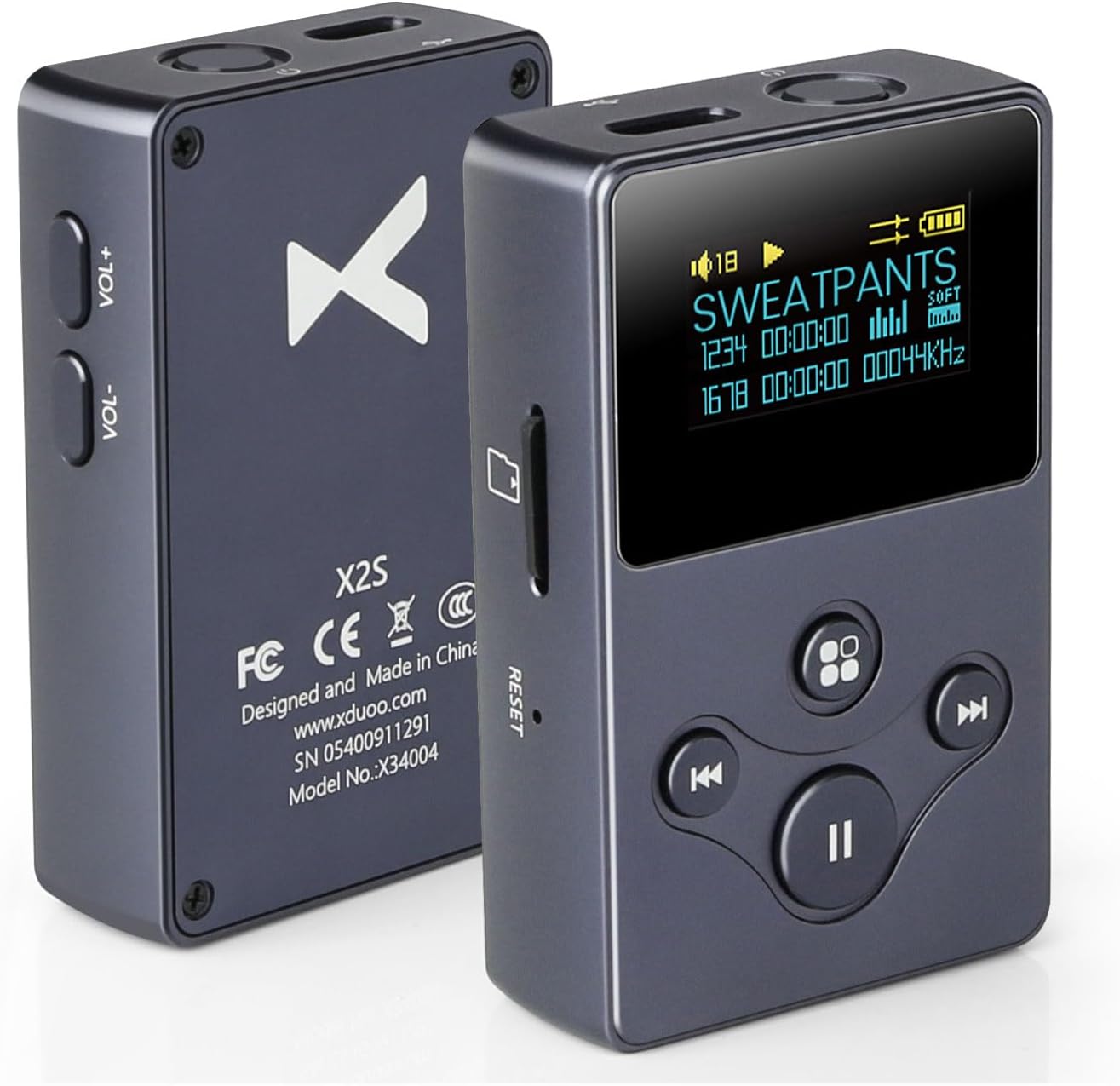
Image: Front and back view of the xDuoo X2S portable music player, showcasing its compact design and button layout.

Image: Detailed diagram illustrating the various ports and buttons on the xDuoo X2S player, with corresponding numbers for identification.
- 3.5mm Phone Out: Standard audio output jack for headphones.
- Card Slot: Insert TF/Micro SD card (up to 128GB). The device does not have internal memory.
- Reset: Use a thin object to press this button to forcibly shut down or restart the device if it becomes unresponsive.
- USB In: Type-C port for connecting to a computer to copy music files and for charging the device.
- Power On/Off: Long-press to turn the device on or off. Short-press to turn the screen on or off.
- Volume +: Short-press to increase volume incrementally. Long-press to increase volume quickly. Maximum volume is 31.
- Volume -: Short-press to decrease volume incrementally. Long-press to decrease volume quickly.
- Prev: Short-press for the previous track. Long-press for fast reverse.
- Next: Short-press for the next track. Long-press for fast forward.
- Play/Pause: Short-press to play or pause the current track.
- Menu/Back: Short-press to return to the previous menu.
3. Setup
3.1 Inserting a Micro SD Card
The xDuoo X2S player requires a Micro SD card for music storage as it does not have built-in memory. Ensure the card is formatted correctly (FAT32 or exFAT recommended).
- Locate the card slot (labeled 2 in the Device Overview).
- Gently insert the Micro SD card into the slot until it clicks into place.
- To remove, push the card in slightly until it springs out.

Image: The xDuoo X2S player with a Micro SD card partially inserted into its slot, demonstrating the expandable storage feature.
3.2 Charging the Device
Before first use, fully charge the player. The device uses a built-in 3.7V/800mAH battery.
- Connect the provided USB Type-C cable to the USB In port (labeled 4) on the player.
- Connect the other end of the USB cable to a 5V/1A USB power adapter or a computer's USB port.
- The charging indicator on the screen will show the charging status. A full charge typically takes less than 2 hours.
3.3 Connecting Headphones
Connect your headphones to the 3.5mm Phone Out jack (labeled 1) before playing audio.
- Insert the 3.5mm audio jack of your headphones firmly into the headphone port.
4. Operating Instructions
4.1 Power On/Off and Screen Control
- Power On: Long-press the Power On/Off button (labeled 5) until the screen illuminates.
- Power Off: Long-press the Power On/Off button until the device shuts down.
- Screen On/Off: Short-press the Power On/Off button to toggle the screen display without turning off the device.
4.2 Navigation
Use the Menu/Back button (labeled 11), Prev (labeled 8), Next (labeled 9), and Play/Pause (labeled 10) buttons to navigate through menus and control playback.
- Menu/Back: Press to move back to the previous menu or exit a current function.
- Prev/Next: Use these buttons to scroll through menu options or tracks.
- Play/Pause: Confirms selections in menus or controls playback.
4.3 Volume Adjustment
Adjust the playback volume using the dedicated volume buttons.
- Volume + (labeled 6): Short-press to increase volume. Long-press for rapid volume increase.
- Volume - (labeled 7): Short-press to decrease volume. Long-press for rapid volume decrease.
- The maximum volume level is 31.
4.4 Music Playback
The player supports a variety of high-resolution and standard audio formats.

Image: A person enjoying music with headphones connected to the xDuoo X2S player, illustrating the device's capability for DSD128 native playback and high-resolution audio.
- After powering on, the player will typically enter the playing interface directly.
- Navigate to your desired music files on the Micro SD card.
- Press the Play/Pause button (labeled 10) to start playback.
- Use Prev (labeled 8) and Next (labeled 9) to change tracks.
- The player supports DSD128 lossless format, PCM 24Bit/192Khz, and other formats including DFF, DSF, DSD, APE, FLAC, ALAC, WAV, AIFF, AAC, MP3, WMA.
4.5 EQ Adjustment
Customize your audio output with the built-in 6-band equalizer.

Image: The xDuoo X2S player screen showing the 6-band dynamic equalizer interface, allowing users to adjust audio frequencies.
- Access the EQ settings through the player's menu.
- Adjust the 6 frequency bands with a gain control range of +/-12dB to suit your preferences.
4.6 File Management
Transfer music files to your Micro SD card using a computer.
- Connect the xDuoo X2S player to your computer using the USB Type-C cable.
- The player will appear as a removable storage device.
- Copy your music files (DFF, DSF, DSD, APE, FLAC, ALAC, WAV, AIFF, AAC, MP3, WMA) to the Micro SD card.
- Safely eject the device from your computer before disconnecting the cable.
4.7 Playing Interface
When the player is turned on, it will directly enter the playing interface. Below is an explanation of the elements displayed:

Image: A visual representation of the xDuoo X2S player's main playback screen, with indicators for volume, play/pause status, play order, battery level, file name, song number, play time, EQ status, spectrum, sampling rate, total songs, and duration.
- Volume: Indicates current volume level.
- Play/Pause: Shows current playback status.
- Play Order: Displays the current playback mode (e.g., repeat, shuffle).
- Battery: Shows remaining battery life.
- File Name: Name of the currently playing track.
- EQ: Indicates if equalizer is active.
- Spectrum: Visual representation of audio output.
- Sampling Rate: Displays the sampling rate of the current track.
- Songs No.: Current track number.
- Play Time: Elapsed time of the current track.
- Total Songs: Total number of songs in the current folder/playlist.
- Duration: Total duration of the current track.
5. Maintenance
5.1 Cleaning the Device
- Use a soft, dry cloth to wipe the surface of the player.
- Avoid using liquid cleaners, solvents, or abrasive materials, as these can damage the finish or internal components.
5.2 Battery Care
- To prolong battery life, avoid fully discharging the battery frequently.
- If storing the device for an extended period, charge it to approximately 50% and store it in a cool, dry place.
- Avoid exposing the device to extreme temperatures.
5.3 Storage
- Store the player in a clean, dry environment away from direct sunlight and excessive dust.
- Keep the device away from strong magnetic fields.
6. Troubleshooting
If you encounter issues with your xDuoo X2S player, refer to the following common problems and solutions.
| Problem | Possible Cause | Solution |
|---|---|---|
| Device does not power on. | Low battery; device frozen. | Charge the device for at least 10 minutes. If unresponsive, press the Reset button (labeled 3) with a thin object. |
| No sound from headphones. | Headphones not connected properly; volume too low; corrupted audio file. | Ensure headphones are fully plugged in. Increase volume. Try a different audio file. |
| Cannot transfer files to Micro SD card. | Loose USB connection; Micro SD card not recognized or full. | Ensure USB cable is securely connected. Reinsert Micro SD card. Check card capacity and format. Try a different USB port or cable. |
| Device freezes or becomes unresponsive. | Software error. | Press the Reset button (labeled 3) with a thin object to restart the device. |
| Music files not appearing. | Unsupported file format; files not in root directory or recognized folder. | Ensure files are in supported formats (DFF, DSF, DSD, APE, FLAC, ALAC, WAV, AIFF, AAC, MP3, WMA). Check file organization on the Micro SD card. |
7. Specifications
Detailed technical specifications for the xDuoo X2S Portable Music Player.

Image: A table summarizing the main technical specifications of the xDuoo X2S player, including power, charging, card support, output, and audio formats.
| Feature | Detail |
|---|---|
| Power Supply | Built-in 3.7V/800mAH battery |
| Charging Specification | 5V/1A |
| Card Support | Up to 128GB TF/Micro SD card |
| Output Power | 250mW (32Ω load) |
| Supported Formats | DSD: DSD64-DSD128 (DFF, DSF) APE: 16-24bit/44.1-96khz FLAC: 16-24bit/44.1-192khz WAV: 16-24bit/44.1-192khz AIFF: 16-24bit/44.1-192khz WMA, MP3, AAC, OGG |
| Frequency Response | 20Hz~20KHz (±0.5dB) |
| Gain | +6dB |
| THD+N | 0.003% (1KHz) |
| S/N Ratio | 108dB |
| Adaptation Headphone Impedance | 16Ω~300Ω |
| Battery Life | >10 hours |
| Charging Time | <2 hours |
| Dimensions (L*W*H) | 6.3cm * 4.0cm * 1.5cm (approx. 2.48 x 1.58 x 0.59 inches) |
| Weight | 50g (approx. 1.76 ounces) |

Image: A diagram illustrating the compact dimensions (height, width, thickness) and weight of the xDuoo X2S portable music player.
8. Warranty and Support
For warranty information and technical support, please refer to the official KGUSS or xDuoo website, or contact your retailer. Keep your purchase receipt as proof of purchase for warranty claims.
For further assistance, you may visit the KGUSS Store on Amazon.