
1. Introduction
This manual provides detailed instructions for the Hagibis Switch2 Dock USB C to HDMI Cable Adapter (Model: SWC10-8K). This adapter allows you to connect various USB-C enabled devices, such as the Nintendo Switch, laptops, tablets, Steam Deck, and ROG Ally, to an external display via HDMI, supporting resolutions up to 8K@60Hz and providing up to 100W Power Delivery (PD) for simultaneous charging.
2. Product Features
- Compact Design: Lightweight and portable, serving as a replacement for larger docks, ideal for travel.
- High Resolution Output: Supports video resolutions up to 8K (7680x4320P) at 60Hz. Also compatible with 4K@144Hz and 2K@240Hz. Note: Nintendo Switch output is limited to 1080P.
- Power Delivery (PD) 100W: Features a PD certified smart chip for stable voltage conversion, enabling fast charging while playing without harming the host device. Requires an official Switch power adapter or a charger with over 39W output for Nintendo Switch.
- Wide Compatibility: Compatible with Nintendo Switch 1/2, Switch OLED, laptops, tablets, mobile phones, Steam Deck, ROG Ally, and other Thunderbolt 3/4 or USB-C 3.1 DP Alt mode devices. Not compatible with Switch Lite.
- Stable and Smooth Performance: Utilizes a high-performance video chip to ensure no flashing or splash screens.

Image: The Hagibis USB C to HDMI Cable Adapter, showcasing its compact design and connectors.
3. Compatibility
The Hagibis Switch2 Dock USB C to HDMI Cable Adapter is designed for broad compatibility with devices supporting USB-C video output (DisplayPort Alternate Mode).
| Equipment | Interface | Compatibility Instructions |
|---|---|---|
| Computer | Thunderbolt 3/4, USB 4, USB-C/Type-C | Compatible. Note: The interface supports DisplayPort (DP for short). |
| For iPad/iPhone 15 & 16 | USB-C | Compatible. Note: Lightning port is not applicable. |
| Mobile/Tablet | USB-C/Type-C | Partially Compatible. Note: The interface is USB 3.1 or USB 3.2 and supports DisplayPort (DP for short). |
| Steam Deck | Type-C | Compatible. |
| Switch | Type-C | Compatible. Note: Switch Lite is not applicable. |
| ROG Ally | Type-C | Compatible. Note: Supports ROG 30W Enhanced Mode. |

Image: Detailed compatibility chart for various devices.
4. Setup Instructions
- Connect the HDMI end of the Hagibis adapter to an HDMI input port on your TV or monitor.
- Connect the USB-C end of the adapter to the USB-C port on your device (e.g., Nintendo Switch, laptop, tablet).
- For power delivery and charging, connect a USB-C power adapter (e.g., official Switch charger or a 39W+ PD charger) to the PD USB-C port on the Hagibis adapter.
- Ensure your display is set to the correct HDMI input source.
Video: Demonstrates connecting the Hagibis USB-C to HDMI cable to a laptop and monitor, including power delivery.
Video: Shows the setup and use of the Hagibis Switch Dock with a Nintendo Switch and external display.

Image: Visual guide for connecting the HDMI, power supply, and USB-C ports.
5. Operating Instructions
Once connected, your device's display should automatically mirror or extend to the connected HDMI display. The adapter supports both mirroring and extending display modes, depending on your device's capabilities and settings.
- For Nintendo Switch: The adapter enables TV mode, allowing you to play games on a larger screen while simultaneously charging your Switch.
- For Laptops/Tablets: Use your device's display settings to configure mirroring or extended desktop modes.
- For Gaming Handhelds (Steam Deck, ROG Ally): Connect to an external monitor for an enhanced gaming experience. Ensure your device's settings are configured for external display output.

Image: A laptop mirroring its display to an external monitor using the adapter.
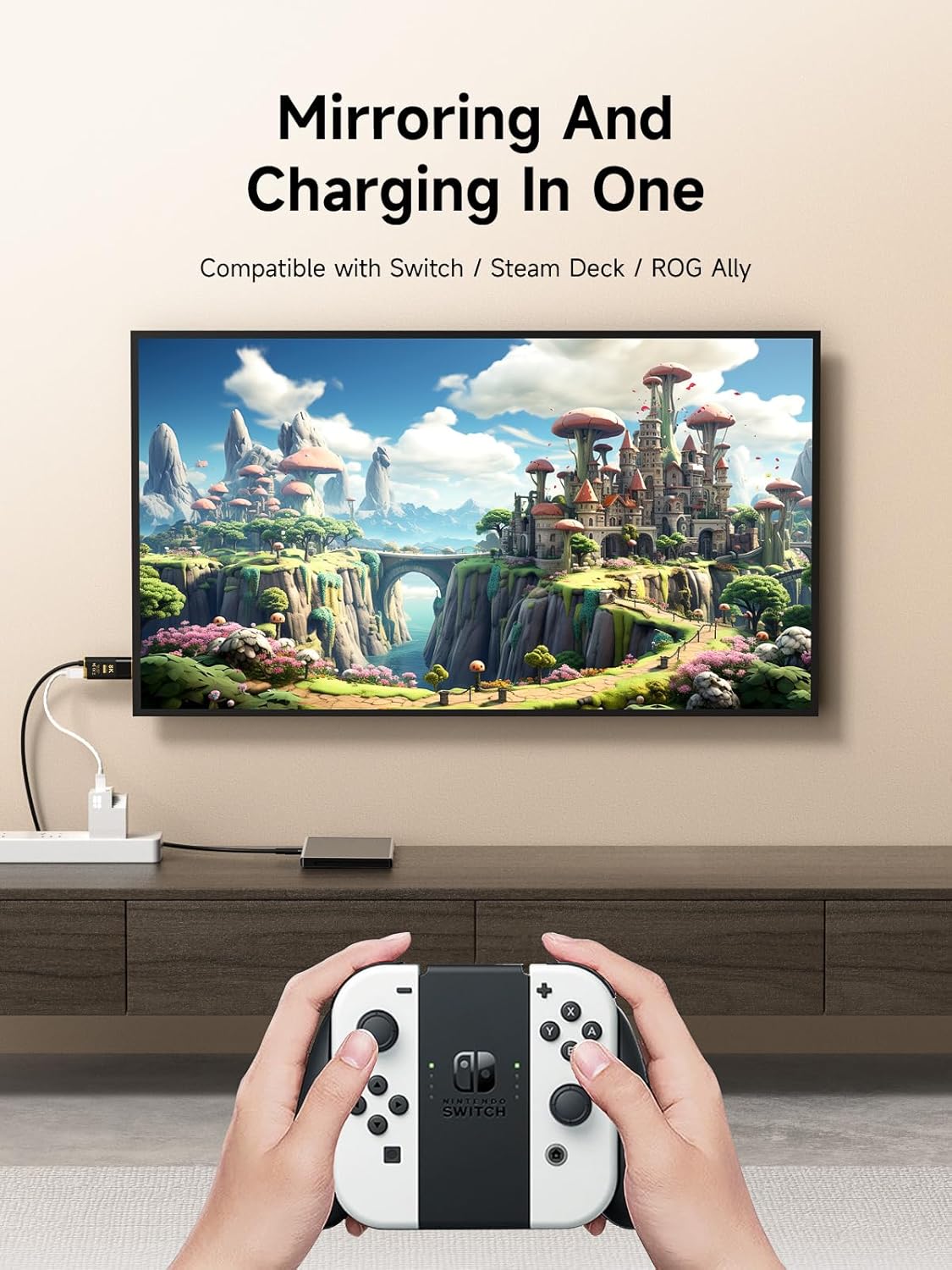
Image: A Nintendo Switch connected to a television, displaying gameplay.
6. Troubleshooting
- No Display Output:
- Ensure all connections are secure.
- Verify your TV/monitor is set to the correct HDMI input.
- Confirm your device supports USB-C video output (DisplayPort Alternate Mode).
- For Nintendo Switch, ensure an external power source (official charger or 39W+ PD charger) is connected to the adapter's PD port.
- Flickering Screen or Unstable Connection:
- Check the quality of your HDMI cable (if using an extension).
- Ensure your power adapter provides sufficient power (especially for Nintendo Switch).
- Try a different HDMI port on your display.
- Nintendo Switch 2 Compatibility (Urgent Notice):
Due to potential compatibility issues with Nintendo Switch 2 system version 21.0.0 and later, the cast function of this product may be affected. Hagibis is actively working on firmware updates to address these issues. Please check the official Hagibis website for the latest firmware and update instructions if you experience problems with Switch 2.
7. Specifications
| Feature | Detail |
|---|---|
| Model Number | SWC10-8K |
| Product Dimensions | 5.08 x 4.49 x 1.18 inches |
| Item Weight | 2.5 ounces |
| Video Output | HDMI (up to 8K@60Hz, 4K@144Hz, 2K@240Hz) |
| Power Delivery | Up to 100W via USB-C PD port |
| Connector Type | USB Type C (input), HDMI (output), USB Type C (PD input) |
| Cable Length | 6.6ft (2m) |
| Color | Black with Gold accents |
| Manufacturer | Shanghai Xinxie Industrial Co., Ltd. |

Image: Detailed product parameters including dimensions and cable length.
8. Maintenance
- Keep the adapter and cable clean and free from dust. Use a soft, dry cloth for cleaning.
- Avoid exposing the product to extreme temperatures, humidity, or direct sunlight.
- Do not bend the cable excessively or apply undue force to the connectors.
- Store the adapter in a safe place when not in use to prevent damage.
9. Warranty and Support
For warranty information and technical support, please refer to the documentation included with your purchase or visit the official Hagibis website. Keep your proof of purchase for warranty claims.