
E18C
Generic E18C Smart Access Control & Intercom User Manual
Model: E18C
1. Introduction
The Generic E18C is an advanced, commercial-grade facial recognition intercom and access control terminal. It is engineered to deliver high-security access solutions for various environments, including residential communities and business premises. This device integrates cutting-edge deep learning algorithms and dual cameras for precise liveness detection, effectively preventing unauthorized access through spoofing attempts.
Key features include:
- Fast & Accurate Facial Recognition: Identifies users in under 0.2 seconds with 99.5% accuracy.
- Dual Camera & Anti-Spoofing: Utilizes dual cameras and advanced algorithms to counter photo and video attacks.
- Health and Safety Features: Includes mask detection and body temperature measurement (±0.3°C accuracy).
- Multiple Authentication Methods: Supports face recognition, PIN, RFID cards, NFC, BLE, and QR codes.
- High User Capacity: Manages up to 20,000 faces, 20,000 cards, and 50,000 event logs.
- Audio & Video Communication: Enables two-way communication via IP phones, mobile clients, or softphones.
- Durable & Weatherproof: IP65-rated for reliable indoor and outdoor performance.
- Flexible Power Options: Supports Power-over-Ethernet (PoE) or 12V DC.
- Web-Based Configuration: Allows for easy remote setup and management.
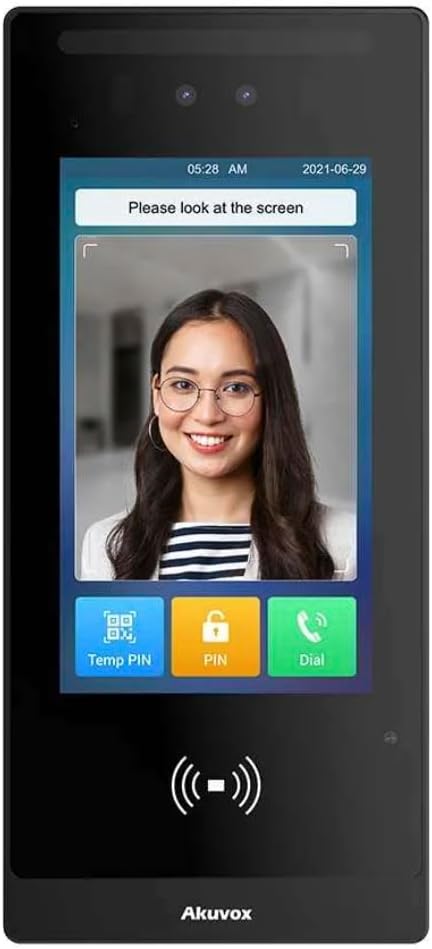
Figure 1: E18C Smart Access Control Device
This image shows the front of the E18C device, featuring a screen displaying a facial recognition prompt with a user's face. Below the screen are touch buttons for "Temp PIN", "PIN", and "Dial", along with an NFC/RFID reader symbol. The device has a sleek black design with the "Akuvox" brand name at the bottom.
2. Safety Information
Please read all safety instructions carefully before installation and operation to prevent damage to the device or injury to users.
- Power Supply: Use only the specified 12V DC power supply or Power-over-Ethernet (PoE) compliant equipment. Incorrect voltage may damage the device.
- Installation: Ensure installation is performed by qualified personnel in accordance with local electrical codes.
- Environment: Although IP65-rated, avoid direct exposure to extreme weather conditions or corrosive substances.
- Cleaning: Disconnect power before cleaning. Use a soft, dry cloth. Do not use liquid or aerosol cleaners.
- Disassembly: Do not attempt to disassemble or repair the device yourself. Refer all servicing to qualified service personnel.
3. Package Contents
Verify that all items are present in the package:
- E18C Facial Recognition Intercom and Access Control Terminal
- Mounting Bracket (if applicable)
- Mounting Screws and Anchors (if applicable)
- Quick Start Guide (not included in this manual, but typically provided)
- Wiring Connectors (if applicable)
Note: Specific accessories may vary based on the purchased kit.
4. Setup and Installation
4.1 Mounting the Device
The E18C is IP65-rated, making it suitable for both indoor and outdoor installations. Choose a location that provides optimal viewing for facial recognition and is protected from direct impact.
- Mark the drilling points on the wall using the mounting bracket as a template.
- Drill holes and insert wall anchors if necessary.
- Secure the mounting bracket to the wall.
- Connect the necessary wiring (power, network, lock control) to the device.
- Attach the E18C terminal to the mounting bracket and secure it.

Figure 2: E18C Device Side View
This image displays the E18C device from a slight angle, highlighting its slim profile and the design of its casing. It provides a better perspective on how the device might be mounted or integrated into a wall, showing the depth and overall form factor.
4.2 Powering the Device
The E18C offers flexible power options:
- Power-over-Ethernet (PoE): Connect a standard Ethernet cable from a PoE-enabled switch or injector to the device's LAN port. This provides both power and network connectivity.
- 12V DC Power: Connect a 12V DC power adapter (not always included) to the device's DC power input. Ensure the power adapter meets the device's specifications.
4.3 Network Connection
Connect the device to your local network via an Ethernet cable. The E18C supports web-based configuration, requiring network access for initial setup and management.
4.4 Initial Configuration (Web Interface)
Access the device's web interface for comprehensive configuration:
- Ensure the device is powered on and connected to the network.
- Obtain the device's IP address (refer to your network's DHCP server or use a network scanner tool).
- Open a web browser on a computer connected to the same network.
- Enter the device's IP address into the browser's address bar.
- Log in using the default administrator credentials (refer to the Quick Start Guide or manufacturer's documentation for default username and password).
- Change the default password immediately for security purposes.
- Configure network settings, time, date, and other system parameters as required.
4.5 User Enrollment
Enroll users through the web interface or directly on the device:
- Facial Recognition: Guide users to stand in front of the device's camera for enrollment. Ensure good lighting and a clear view of the face.
- RFID Cards: Present the RFID card to the device's reader during enrollment.
- PIN Codes: Assign unique PIN codes to users via the web interface.
- NFC/BLE/QR Codes: Configure these methods through the web interface and associated mobile applications if applicable.
5. Operation
5.1 Access Authentication
The E18C supports multiple methods for granting access:
- Face Recognition: Approach the device and look directly at the camera. The device will identify you and grant access if authorized.
- PIN Code: Enter your assigned PIN code on the device's keypad (if available) or virtual keypad on the screen.
- RFID Card: Present your registered RFID card to the card reader area on the device.
- NFC/BLE/QR Code: Use a compatible mobile device or QR code to gain access, as configured in the system.
5.2 Mask Detection and Temperature Measurement
For environments requiring health and safety protocols, the E18C can enforce mask-wearing and measure body temperature:
- If mask detection is enabled, users without a mask may be denied access or prompted to wear one.
- Temperature measurement occurs automatically during facial recognition. An alarm or access denial may occur if a high temperature is detected.
5.3 Audio & Video Communication (Intercom Function)
The E18C functions as an intercom, allowing two-way communication:
- Visitors can initiate a call to pre-configured IP phones, mobile clients, or softphones.
- Authorized personnel can communicate with visitors and remotely grant access if needed.
6. Maintenance
- Cleaning: Regularly clean the device's screen and camera lenses with a soft, lint-free cloth. Do not use abrasive cleaners.
- Software Updates: Periodically check the manufacturer's website or the device's web interface for firmware updates. Keeping the software updated ensures optimal performance and security.
- Data Backup: Regularly back up user data and configuration settings from the device's web interface to prevent data loss.
7. Troubleshooting
| Problem | Possible Cause | Solution |
|---|---|---|
| Device not powering on. | No power supply or faulty connection. | Check power cable connection. Ensure PoE switch is active or 12V DC adapter is functioning. |
| Facial recognition failure. | Poor lighting, incorrect angle, user not enrolled, or mask detection enabled. | Ensure adequate lighting. Stand directly in front of the camera. Verify user enrollment. If mask detection is on, ensure a mask is worn or disable the feature temporarily for testing. |
| Cannot access web interface. | Incorrect IP address, network issue, or device not connected. | Verify device's IP address. Check network cable connection. Ensure computer is on the same network. |
| Intercom calls not connecting. | Network configuration issues, incorrect SIP settings, or recipient device offline. | Check network connectivity. Verify SIP server settings and recipient IP/SIP addresses in the web interface. Ensure the receiving device is online. |
8. Specifications
| Feature | Detail |
|---|---|
| Model | E18C |
| Manufacturer | Akuvox |
| Facial Recognition Speed | < 0.2 seconds |
| Facial Recognition Accuracy | 99.5% |
| User Capacity (Faces) | Up to 20,000 |
| User Capacity (Cards) | Up to 20,000 |
| Event Log Capacity | Up to 50,000 |
| Authentication Methods | Face, PIN, RFID Cards, NFC, BLE, QR Codes |
| Temperature Measurement Accuracy | ±0.3°C |
| Ingress Protection (IP) Rating | IP65 |
| Power Options | PoE (Power-over-Ethernet) or 12V DC |
| Voltage | 12 Volts (DC) |
| Display Type | LCD or LED |
| Operating Temperature | 0.6 Degrees Celsius |
| Included Components | Facial Recognition Intercom and Access Control |
9. Warranty and Support
For warranty information, technical support, or service inquiries, please refer to the documentation provided with your purchase or contact the seller/manufacturer directly. Keep your proof of purchase for warranty claims.
Manufacturer: Akuvox
Related Documents - E18C
 |
Akuvox Smart Intercom Catalogue: Advanced Solutions for Security and Communication Explore the comprehensive Akuvox Smart Intercom Catalogue, featuring advanced door phones, indoor monitors, access control systems, and smart building solutions for residential, commercial, and healthcare applications. |
Ask a question about this manual
Ask about setup, troubleshooting, compatibility, parts, safety, or missing instructions. Manuals+ will review the question and use this page’s manual context to help answer it.