
1. Introduction
The Sanwa Direct 400-MAWBT204BK is a versatile wireless air mouse designed for comfortable operation in various postures. It supports both Bluetooth and 2.4GHz wireless connectivity, making it compatible with a wide range of devices. This manual provides essential information for setting up, operating, maintaining, and troubleshooting your air mouse.

Image 1.1: The Sanwa Direct 400-MAWBT204BK Air Mouse, a compact and ergonomic device.
Its ergonomic design allows for easy one-handed use, whether you are sitting, lounging on a sofa, or lying in bed. The integrated media control buttons enhance your experience for video viewing, e-book reading, and presentations.

Image 1.2: The air mouse being used in various scenarios, including presentations, e-book reading, while lying down, with VR goggles, in a car (CarPlay), and for tablet operation.
2. Setup
2.1 Package Contents
- Sanwa Direct 400-MAWBT204BK Air Mouse
- USB-A to Type-C Charging Cable (approx. 75cm)
- 2.4GHz Wireless Receiver (stored inside the mouse)
- Instruction Manual
2.2 Charging the Device
Before initial use, fully charge the air mouse using the included USB-A to Type-C charging cable. Connect the Type-C end to the mouse's charging port and the USB-A end to a powered USB port (e.g., computer, USB wall adapter).

Image 2.1: The air mouse connected to a laptop via its USB-C charging cable. The image also highlights the approximate continuous operation time (75 hours) and continuous standby time (2000 hours).
2.3 Connecting to a Device
The air mouse supports two connection methods: Bluetooth 5.0 and 2.4GHz wireless. You can switch between these modes using the dedicated switch on the side of the mouse.

Image 2.2: The air mouse demonstrating both 2.4GHz wireless connectivity (via USB receiver to a laptop) and Bluetooth 5.0 connectivity (to a smartphone).
2.3.1 2.4GHz Wireless Connection
- Locate the 2.4GHz wireless receiver. It is typically stored in a compartment on the underside of the mouse.
- Insert the receiver into an available USB-A port on your computer or compatible device.
- Slide the mode switch on the air mouse to the "2.4G" position. The LED indicator will show green.
- The device should automatically recognize the mouse.

Image 2.3: The underside of the air mouse showing the storage compartment for the 2.4GHz USB receiver and the BT/OFF/2.4G mode switch.
2.3.2 Bluetooth Connection
- Slide the mode switch on the air mouse to the "BT" position. The LED indicator will show blue.
- On your device (e.g., PC, tablet, smartphone), enable Bluetooth and search for new devices.
- Select "SANWA 400-MAWBT204" or a similar name from the list of available devices to pair.
- Once paired, the mouse is ready for use.
2.4 Compatible Operating Systems and Devices
The air mouse is compatible with a broad range of operating systems and devices:
- Operating Systems: Windows 11/10, macOS (Sonoma) 14, macOS (Ventura) 13, macOS (Monterey) 12, iPadOS 14-17, iOS 14-17, ChromeOS, Android 13-14.
- Devices: Windows PCs/tablets, Apple Mac series, iPads, iPhones, Chrome OS PCs, Android tablets/smartphones.
Note: Devices must be compatible with Bluetooth 5.0 HOGP or have an available USB-A port for 2.4GHz wireless connection.

Image 2.4: Diagram illustrating compatible devices for 2.4GHz wireless (PCs with USB-A ports) and Bluetooth 5.0 (Mac, iPad, iPhone, Android devices).
3. Operating Instructions
3.1 Button Functions
The air mouse features multiple buttons for intuitive control:

Image 3.1: A detailed diagram of the air mouse, labeling its various buttons and their functions, including the cursor stick, left/right click, scroll wheel, page up/down, and media control buttons.
- Cursor Stick: Tilt the central stick to move the cursor smoothly on the screen.
- Left Click (L): Standard left-click function.
- Right Click (R): Standard right-click function.
- Wheel: Rotate the wheel with your finger for smooth vertical scrolling. Note: Wheel click functionality is not available.
- Page Up/Down Buttons: Located on the top and bottom of the cursor stick area.
- Media Control Buttons: Located on the lower circular pad.
- Play/Pause: Center button for media playback control.
- Previous Track: Left button for skipping to the previous track.
- Next Track: Right button for skipping to the next track.
- Volume +: Top button for increasing volume.
- Volume -: Bottom button for decreasing volume.
3.2 Media Playback Control
The dedicated media control buttons allow for convenient management of audio and video playback.
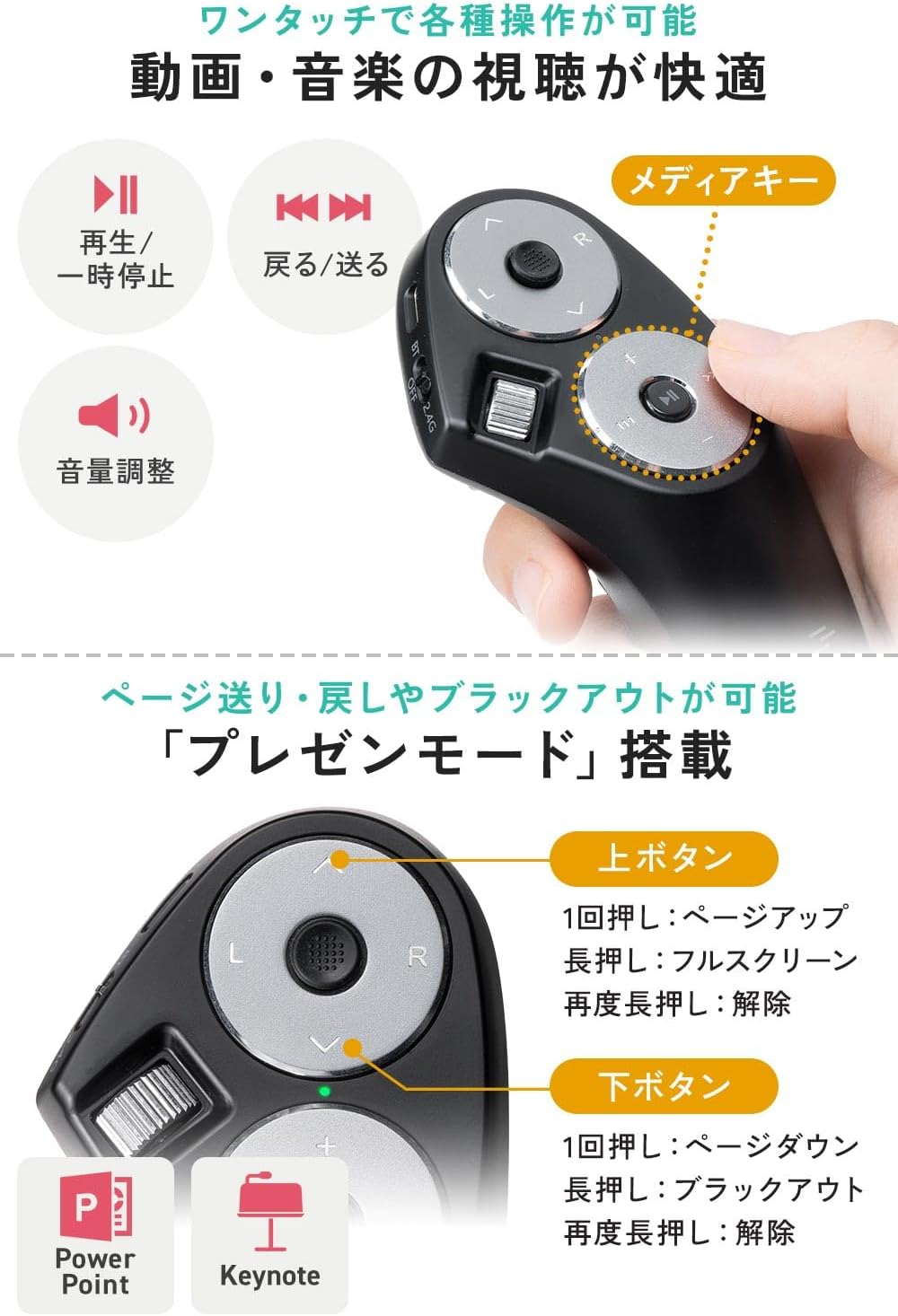
Image 3.2: Close-up of the media control buttons (Play/Pause, Previous/Next, Volume +/-) and the presentation mode functions (Page Up/Down, Full Screen, Blackout) for PowerPoint and Keynote.
3.3 Presentation Mode
The air mouse includes a presentation mode for use with applications like PowerPoint and Keynote.
- Up Button:
- Single press: Page Up (next slide).
- Long press: Full screen mode.
- Long press again: Exit full screen mode.
- Down Button:
- Single press: Page Down (previous slide).
- Long press: Blackout screen.
- Long press again: Exit blackout screen.
3.4 Drag & Drop Functionality
The air mouse supports drag & drop operations, useful for managing files and folders.

Image 3.3: Illustration of the drag & drop function, activated by long-pressing the Left (L) button while operating the cursor stick to move items.
To perform a drag & drop, long-press the Left (L) button to fix the click, then use the cursor stick to move the item. Release the L button to drop the item.
4. Maintenance
4.1 Battery Management
The air mouse is equipped with a rechargeable battery. To conserve battery life, always switch the device to the "OFF" position when not in use. The battery performance is approximately:
- Continuous Operation Time: Approximately 75 hours
- Continuous Standby Time: Approximately 2000 hours
- Usable Days: Approximately 62 days (based on 8 hours/day PC use with 5% operation)
Note: These values are internal calculations and do not account for natural discharge. Actual performance may vary over time.
4.2 Cleaning
Use a soft, dry cloth to clean the surface of the mouse. Avoid using harsh chemicals or abrasive materials, as they may damage the device.
5. Troubleshooting
If you encounter issues with your Sanwa Direct Air Mouse, please refer to the following common solutions:
- Device not responding: Ensure the mouse is charged and the power/mode switch is set to the correct connection mode (BT or 2.4G). For 2.4GHz, ensure the receiver is properly inserted. For Bluetooth, verify it is paired correctly in your device's settings.
- Cursor movement is erratic or too sensitive: The cursor sensitivity is fixed at 2000 counts/inch. Some users may find this sensitive. Adjusting mouse pointer speed in your operating system settings may help. The device does not have a dedicated DPI adjustment button.
- Media control buttons not working in certain applications: Some applications (e.g., YouTube, Netflix in certain browsers) may not fully support the media control buttons. This is often due to application-specific key assignments rather than a mouse malfunction.
- Difficulty with drag & drop: Ensure you are long-pressing the Left (L) button to activate the drag function before moving the cursor.
- Cursor stick feels loose: The cursor stick is designed to be removable. If it detaches, simply reattach it firmly.
6. Specifications
| Model Number | 400-MAWBT204BK |
| Dimensions | 11.43 x 5.78 x 5.63 cm (approximate, see Image 6.1) |
| Weight | Approximately 56g |
| Color | Black |
| Reading Method | Blue LED Optical Type |
| Resolution | 2000 counts/inch |
| Buttons | Left Click, Right Click, Cursor Stick, Up Button, Down Button, Play/Pause, Previous Track, Next Track, Volume +, Volume - |
| Connectivity | Bluetooth Ver.5.0 Class2, 2.4GHz RF Wireless |
| Bluetooth Profile | HOGP (HID over GATT Profile) |
| Frequency Range | 2.402-2.480GHz (Bluetooth) |
| Communication Range | Approx. 10m (non-magnetic surface), Approx. 2m (magnetic surface) |
| Power Supply | Rechargeable via USB Type-C |
| Continuous Operation Time | Approx. 75 hours |
| Continuous Standby Time | Approx. 2000 hours |
| Included Accessories | USB-A to Type-C Charging Cable (approx. 75cm) |
| Origin | China |

Image 6.1: Diagram showing the dimensions (in cm) and key components of the air mouse, including the power/connection switch, charging port, notification LED, receiver, receiver storage cover, and charging cable.
7. Warranty and Support
7.1 Warranty Information
This Sanwa Direct product comes with a 1-year warranty from the date of purchase. Please retain your proof of purchase for warranty claims.
7.2 Customer Support
For technical assistance, product inquiries, or warranty service, please contact Sanwa Direct customer support through their official website or the retailer where the product was purchased.


