
1. Product Overview
The Ant Esports GP365 Pro is a versatile wireless controller designed for an immersive gaming experience across multiple platforms. It supports 2.4G wireless and wired connections, compatible with PC (X-Input & D-Input), PlayStation 3, and Android devices. Key features include Hall Effect magnetic triggers for superior accuracy and durability, dual vibration motors for haptic feedback, and a high-quality Li-Ion battery for extended gaming sessions.

Figure 1: Front view of the Ant Esports GP365 Pro Wireless Controller, showcasing its ergonomic design and button layout.
Product Composition
The Gamepad features 16 keys:
- Directional Pad: UP, DOWN, LEFT, RIGHT
- Action Buttons: A, B, X, Y
- Shoulder Buttons: L1, R1
- Trigger Buttons: L2, R2 (Hall Effect)
- Function Buttons: SELECT, START, TURBO, HOME
- Analog Sticks: ANALOG (L3) and ANALOG (R3)

Figure 2: Side view of the controller, highlighting the shoulder and trigger buttons.

Figure 3: Back view of the controller, showing the textured grips and overall ergonomic shape.
2. Setup and Connection
Charging the Controller
Before first use, fully charge the controller. Connect the provided USB charging cable to the controller's USB port and to a standard 5V/1A or above charger, or a USB port on your computer.
- During charging, the LED indicator blinks slowly.
- When charging is complete, the LED indicator will be steady on.
- If the battery is low during operation, the LED indicator blinks quickly, signaling the need for charging.
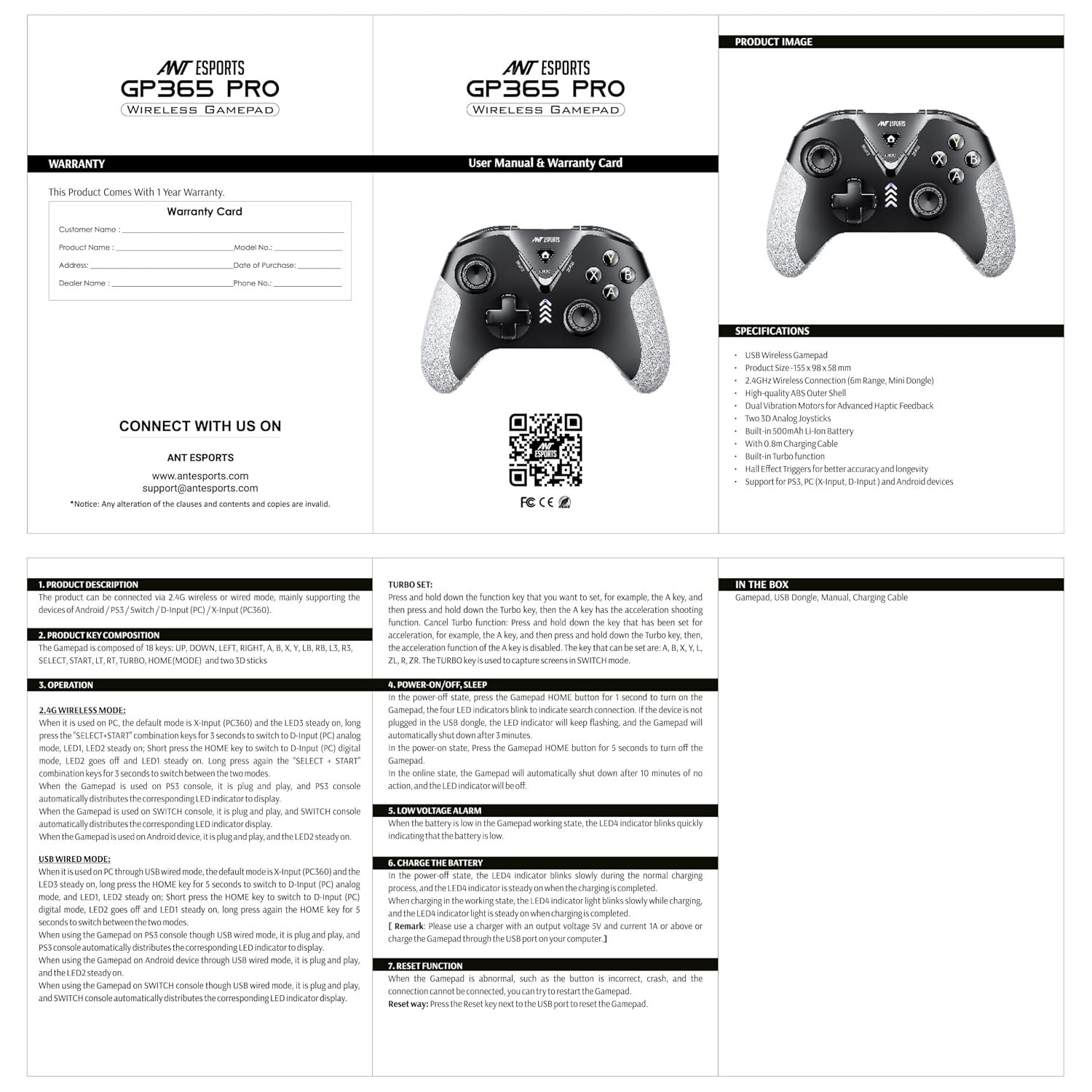
Figure 4: The controller connected for charging, illustrating the high-quality Li-Ion battery.
Power On/Off/Sleep
- To Power On: Press the HOME button for 1 second. The four LED indicators will blink to indicate search for connection.
- If the device is not connected within 10 seconds, the Gamepad will automatically shut down.
- The Gamepad will automatically shut down after 5 minutes of inactivity.
- To Power Off: Press and hold the HOME button for 5 seconds.
- In idle state, the Gamepad will automatically shut down after 10 minutes of no action, and the LED indicator will be off.
Wireless Connection (2.4G)
The controller connects wirelessly via a 2.4 GHz USB dongle, offering a range of up to 6 meters.

Figure 5: The controller with its 2.4 GHz wireless dongle, enabling a stable connection.
PC (X-Input & D-Input)
- X-Input Mode (PCX360): This is the default wireless mode for PC. LED3 will be steady on.
- To Switch to D-Input (PC Analog) Mode: In X-Input mode, press and hold SELECT + START for 5 seconds. LED1, LED2, LED3, LED4 will blink quickly. Upon successful connection, LED1 and LED2 will turn off, and LED3 will be steady on.
- To Switch Back to X-Input Mode: Press and hold SELECT + START for 5 seconds again.
PlayStation 3
When used with a PS3 console, the controller is plug-and-play. The PS3 console will automatically assign the corresponding LED indicator.
Android Devices
When using the controller with an Android device via USB wireless mode, it is plug-and-play. The Android device will automatically assign the corresponding LED indicator.
Wired Connection
The controller can also be used in wired mode by connecting it directly to your device with a USB cable.
PC (X-Input & D-Input)
- X-Input Mode (PCX360): This is the default wired mode for PC. LED3 will be steady on.
- To Switch to D-Input (PC Analog) Mode: In wired mode, short press the HOME key. LED1, LED2, LED3, LED4 will blink quickly. Upon successful connection, LED1 and LED2 will turn off, and LED3 will be steady on.
- To Switch Back to X-Input Mode: Long press the HOME key for 5 seconds.
PlayStation 3
When used with a PS3 console via USB wired mode, the controller is plug-and-play. The PS3 console will automatically assign the corresponding LED indicator.
Android Devices
When using the controller with an Android device via USB wired mode, it is plug-and-play. The Android device will automatically assign the corresponding LED indicator.
3. Operating Functions
TURBO Function
The TURBO function allows a button to repeatedly register input when held down.
- To Set TURBO: Press and hold the desired function key (e.g., A key), then press the TURBO key. The TURBO function is now active for that key.
- To Cancel TURBO: Press the TURBO key again while holding the key for which TURBO was set. This disables the acceleration function for that specific key.
- Applicable keys for TURBO function: A, B, X, Y, L1, R1, L2, R2.
Screen Capture / Switch Mode
The TURBO key also functions as a screen capture or mode switch button, depending on the connected platform.

Figure 6: Illustration of the dual vibration motors providing immersive haptic feedback.

Figure 7: Close-up of the L2/R2 Hall Effect magnetic triggers, designed for accuracy and durability.
4. Maintenance
- Keep the controller dry. Avoid exposing it to moisture, humidity, or extreme temperatures.
- Clean the controller with a soft, dry cloth. Do not use harsh chemicals or abrasive cleaners.
- Store the controller in a safe place when not in use to prevent damage.
- Avoid dropping or subjecting the controller to strong impacts.
5. Troubleshooting
Connection Issues / Unresponsive Buttons
If the controller experiences abnormal connection, incorrect button responses, or crashes, a reset may be required.
- Reset Method: Locate the reset key next to the USB port on the controller. Use a thin, pointed object (like a paperclip) to press the reset button.
- After resetting, attempt to reconnect the controller to your device.
Charging Issues
- Ensure the charging cable is securely connected to both the controller and the power source.
- Verify that the power source (charger or USB port) is functional.
- Try using a different USB charging cable or power adapter.
6. Specifications
| Brand | Ant Esports |
| Model Name | GP365 Pro |
| Compatible Devices | Android, PC, Playstation 3 |
| Controller Type | Gamepad |
| Connectivity Technology | 2.4G Wireless, USB Wired |
| Product Features | Hall Effect Triggers, Dual Vibration, TURBO Function, Ergonomic Design, Xbox Style Joystick Placement |
| Button Quantity | 16 |
| Hardware Platform | PC |
| Power Source Type | Battery Powered (High Quality Li-Ion) |
| Compatible Video Game Console Models | Sony PlayStation 3 |
| Item Weight | 199 Grams |
| Item Dimensions | 15.5 x 9.8 x 5.8 Centimeters |
| Color | Black Grey |
| Wireless Range | Up to 6 meters |
| Charging Cable Length | 0.8 meters |
7. What's in the Box
- Ant Esports GP365 Pro Wireless Gamepad
- USB Dongle
- User Manual
- USB Charging Cable
8. Warranty and Support
Warranty Information
This product comes with a 1 Year Manufacturer Warranty from the date of purchase.
Customer Support
For further assistance, product information, or warranty claims, please contact Ant Esports support:
- Website: www.antesports.com
- Email: support@antesports.com
- Additional Resources: You can find more information and support by scanning the QR code or visiting https://bit.ly/3S6slUw.

