Product Overview
The ATTACK SHARK M86 is an 82-key, 75% compact mechanical keyboard designed for both enthusiasts and professionals. It features a gasket-mounted structure, hot-swappable switches, and PBT side-printed keycaps. The keyboard supports triple-mode connectivity (Bluetooth, 2.4GHz wireless, and USB-C wired) and offers extensive RGB backlighting customization. Its compact design optimizes desktop space while retaining essential keys for gaming and productivity.

Figure 1: ATTACK SHARK M86 82-Key Wireless Mechanical Keyboard (Creamy variant).

Figure 2: Overview of M86 keyboard features.
Setup and Connectivity
The M86 keyboard offers three connection modes: Bluetooth, 2.4GHz wireless, and USB-C wired. You can easily switch between these modes using the dedicated switches on the keyboard.
1. Wired Connection
- Connect the provided USB-C cable to the keyboard's USB-C port.
- Connect the other end of the cable to an available USB port on your computer.
- The keyboard will be automatically recognized and ready for use.
2. 2.4GHz Wireless Connection
- Locate the 2.4GHz USB receiver, typically stored in a magnetic compartment on the underside of the keyboard.
- Plug the USB receiver into an available USB port on your computer.
- Switch the keyboard's mode selector to "2.4G".
- The keyboard should connect automatically. If not, press FN + R to initiate pairing.
3. Bluetooth Connection
- Switch the keyboard's mode selector to "BT".
- On your device (PC, laptop, tablet, smartphone), enable Bluetooth and search for new devices.
- The keyboard will appear as "ATTACK SHARK M86" or similar. Select it to pair.
- If prompted, enter the pairing code displayed on your screen.
- The keyboard supports Bluetooth 5.0. For pairing, press FN + Q/W/E to select one of three available Bluetooth channels.

Figure 3: Connectivity switches and ports on the M86 keyboard.
Video 1: Demonstrates the wireless connectivity options and side-printed PBT keycaps of the ATTACK SHARK M86 keyboard.
Operating Instructions
System Compatibility Switch
The M86 keyboard includes a switch to toggle between Windows and Mac operating system layouts. Locate the "Win/Mac" switch on the side of the keyboard and slide it to your desired operating system for optimal key mapping.
Multimedia and Function Keys
The keyboard's F-keys (F1-F12) can be used as multimedia keys in combination with the FN key. Refer to the keycap legends for specific functions such as volume control, media playback, and other shortcuts.
- FN + F1-F12: Access various multimedia and system functions.
- N-Key Rollover: Ensures all key presses are registered accurately, even during rapid typing or complex gaming commands.
- WIN Key Lock: Press FN + WIN to lock the Windows key, preventing accidental presses during gaming.
Video 2: Highlights the RGB backlighting and 75% layout of the ATTACK SHARK M86 mechanical gaming keyboard.
RGB Backlight Customization
The M86 keyboard features 16.8 million chroma RGB backlight effects. You can customize lighting parameters, set up per-key lighting, and adjust effects using key combinations or the dedicated customization software.
- FN + \ |: Cycle through different lighting modes.
- FN + ↑ / ↓: Adjust lighting brightness.
- FN + ← / →: Adjust lighting speed.
- FN + X: Turn on/off lighting.
- FN + !: Change lighting color.
- FN + CAPS: Change light bar lighting mode.
- FN + A: Change light bar lighting color.
- FN + ~: Recording Storage.
For advanced customization, including macro programming and per-key lighting effects, download the official ATTACK SHARK M86 driver software from the manufacturer's website.

Figure 4: RGB lighting control shortcuts.
Video 3: A general overview of the ATTACK SHARK M86 keyboard's features and design.
Hot-Swappable Switches and Keycaps
The M86 keyboard features a hot-swappable PCB, allowing you to change mechanical switches without soldering. It supports both 3-pin and 5-pin switches, enabling extensive customization of your typing experience.
Replacing Switches
- Using the provided keycap puller, carefully remove the desired keycap.
- Using the provided switch puller, gently grip the switch and pull it straight up to remove it from the PCB.
- Align the pins of the new switch with the holes on the PCB and press it down firmly until it clicks into place. Ensure the pins are not bent.
- Replace the keycap.
The keyboard comes with pre-lubed linear blueberry switches, known for their smooth typing feel and pleasant sound.
PBT Side-Printed Keycaps
The M86 utilizes durable PBT side-printed keycaps, manufactured using double injection molding and heat sublimation. This design ensures the legends are long-lasting, sweat-proof, and allow the keyboard's backlight to shine through the characters for improved visibility.

Figure 5: Hot-swappable switches and PBT keycaps.
Video 4: Showcases the wireless functionality and side-printed PBT keycaps of the ATTACK SHARK M86 keyboard.
Battery Management
The M86 keyboard is equipped with a 4000mAh high-capacity battery, providing extended usage in wireless modes.
- Charging: Connect the keyboard via the USB-C cable to a power source (computer USB port or USB wall adapter). The charging indicator will show the charging status.
- Checking Battery Level: Press FN + Left Arrow to display the current battery level on the keyboard's indicator lights.
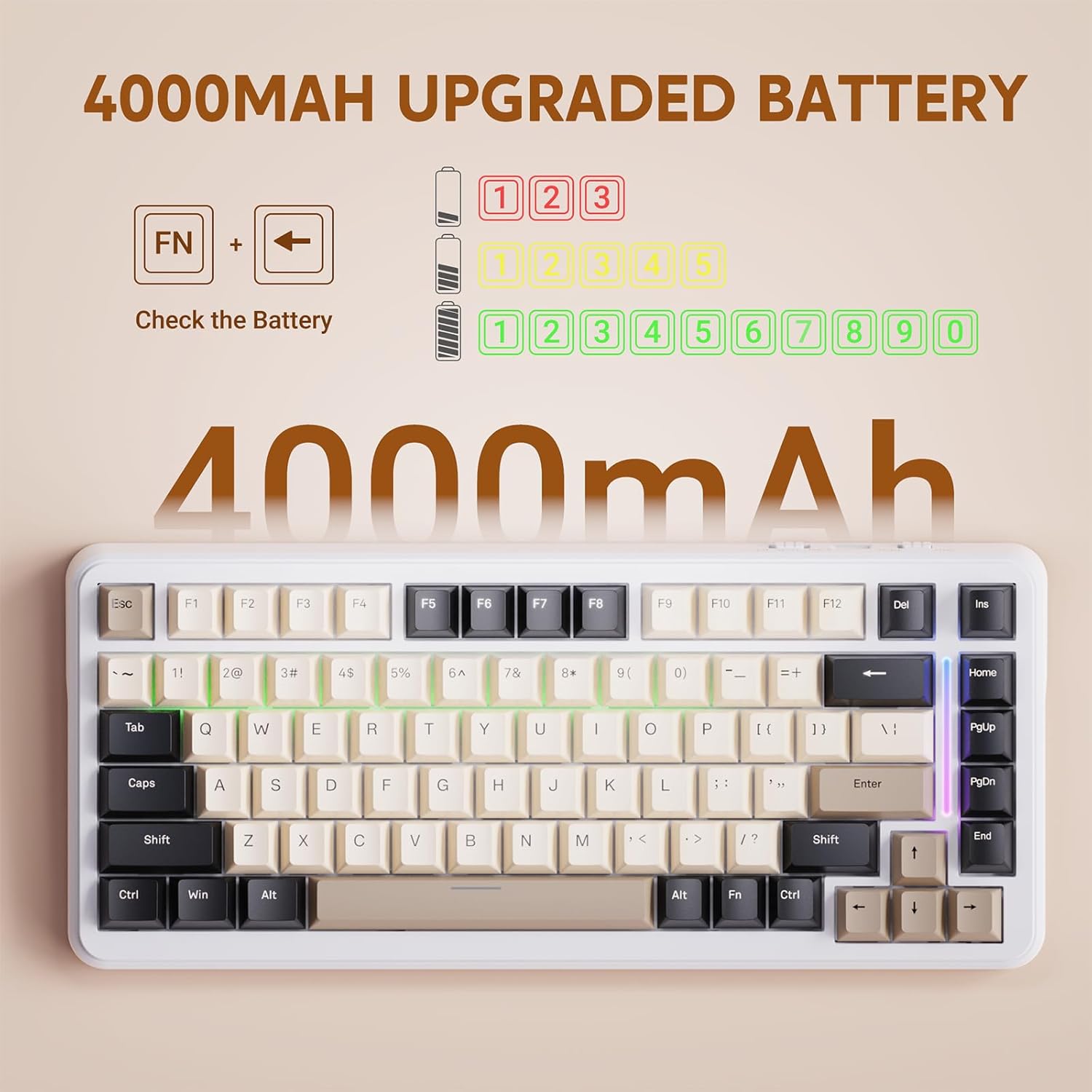
Figure 6: Battery capacity and check function.
Maintenance
To ensure the longevity and optimal performance of your ATTACK SHARK M86 keyboard, follow these maintenance guidelines:
- Cleaning Keycaps: Use a soft, damp cloth to wipe down keycaps. For deeper cleaning, remove keycaps using the provided puller and clean them with mild soap and water, ensuring they are completely dry before reattaching.
- Cleaning the Case: Wipe the keyboard case with a soft, dry cloth. Avoid abrasive cleaners or solvents.
- Dust Removal: Use compressed air to remove dust and debris from between the keycaps and switches.
- Storage: When not in use, store the keyboard in a clean, dry environment away from direct sunlight and extreme temperatures.
Troubleshooting
If you encounter issues with your ATTACK SHARK M86 keyboard, please refer to the following common solutions:
- Keyboard Not Responding (Wired):
- Ensure the USB-C cable is securely connected to both the keyboard and the computer.
- Try a different USB port on your computer.
- Test with a different USB-C cable if available.
- Keyboard Not Responding (2.4GHz Wireless):
- Ensure the 2.4GHz USB receiver is properly plugged into a USB port.
- Verify the keyboard's mode selector is set to "2.4G".
- Re-pair the keyboard by pressing FN + R.
- Check battery level.
- Keyboard Not Responding (Bluetooth):
- Ensure the keyboard's mode selector is set to "BT".
- Verify Bluetooth is enabled on your device.
- Remove the keyboard from your device's Bluetooth list and attempt to re-pair.
- Try a different Bluetooth channel by pressing FN + Q/W/E.
- Check battery level.
- RGB Backlight Not Working/Incorrect:
- Ensure the backlight is turned on (press FN + X).
- Adjust brightness using FN + ↑ / ↓.
- If using customization software, ensure settings are applied correctly.
- Keys Not Registering or Double-Typing (Ghosting):
- This can sometimes indicate a faulty switch. If you have spare switches, try replacing the problematic switch.
- Ensure the switch is fully seated in the PCB.
- If the issue persists across multiple keys or modes, contact customer support.
Specifications
| Brand | MAMBASNAKE (ATTACK SHARK) |
| Model Number | M86 |
| Layout | 82 Keys, 75% Compact |
| Connectivity Technology | Bluetooth 5.0, 2.4GHz Wireless, USB-C Wired |
| Switch Type | Linear (Pre-lubed Blueberry Switches) |
| Keycaps | PBT Side-Printed, Double-Shot |
| Backlight | 16.8 Million Chroma RGB |
| Battery Capacity | 4000mAh |
| Compatible Devices | Laptop, Gaming Console, PC, Tablet, Smartphone |
| Compatible OS | Windows, Mac |
| Item Weight | 9.6 ounces (approx. 272 grams) |
| Dimensions | 10 x 5 x 1 inches (approx.) |
| Special Features | Gasket Structure, Hot-Swappable, Programmable Keys, N-Key Rollover, WIN Key Lock |
Warranty and Support
For warranty information and technical support, please refer to the official MAMBASNAKE or ATTACK SHARK website. Keep your purchase receipt as proof of purchase for any warranty claims.
Note: Some customer reviews indicate potential variations in warranty support depending on the purchase channel. It is recommended to verify warranty terms directly with the seller or manufacturer at the time of purchase.


