
1. Introduction
This manual provides detailed instructions for the safe and effective use of your QIMIALOL Wireless Ear Wax Removal Tool Camera. This device is designed to offer a clear, magnified view of the ear canal, assisting in the safe removal of earwax for individuals of all ages, including children and pets. It features a high-definition camera, LED illumination, and wireless connectivity for real-time viewing on compatible mobile devices.
2. Product Features
- HD Camera & LED Lights: Equipped with an 8-megapixel high-definition camera and 6 integrated LED lights for clear visualization of the ear canal.
- FDA Eligible & Waterproof Design: Constructed from safe, skin-friendly materials with FDA eligibility. The IPX5 waterproof lens allows for easy cleaning.
- Wireless & Portable: Features a wireless design and compact size for convenient use and portability.
- Long Battery Life: Integrated 130mAh rechargeable battery provides approximately 65 minutes of working time on a 45-minute charge via Type-C port.
- Replaceable Ear Spoon Covers: Includes 6 soft silicone ear spoon covers for hygienic and comfortable use, easily attachable and detachable.
- Wide Compatibility: Compatible with most iOS and Android devices via a dedicated application for real-time footage viewing.

Figure 2.1: Key components of the ear wax removal tool, including the camera, LED lights, and charging port.

Figure 2.2: Battery and charging specifications for the device.

Figure 2.3: Technical specifications of the integrated HD camera lens.
3. Package Contents
Verify that all items are present in the package:
- 1 x Main Unit (Wireless Ear Wax Removal Tool Camera)
- 1 x Type-C Charging Cable
- 1 x Instruction Manual
- 8 x Traditional Ear Wax Removal Kit Tools
- 6 x Silicone Ear Spoon Covers
- 1 x Bottle for Ear Spoon Cover Storage
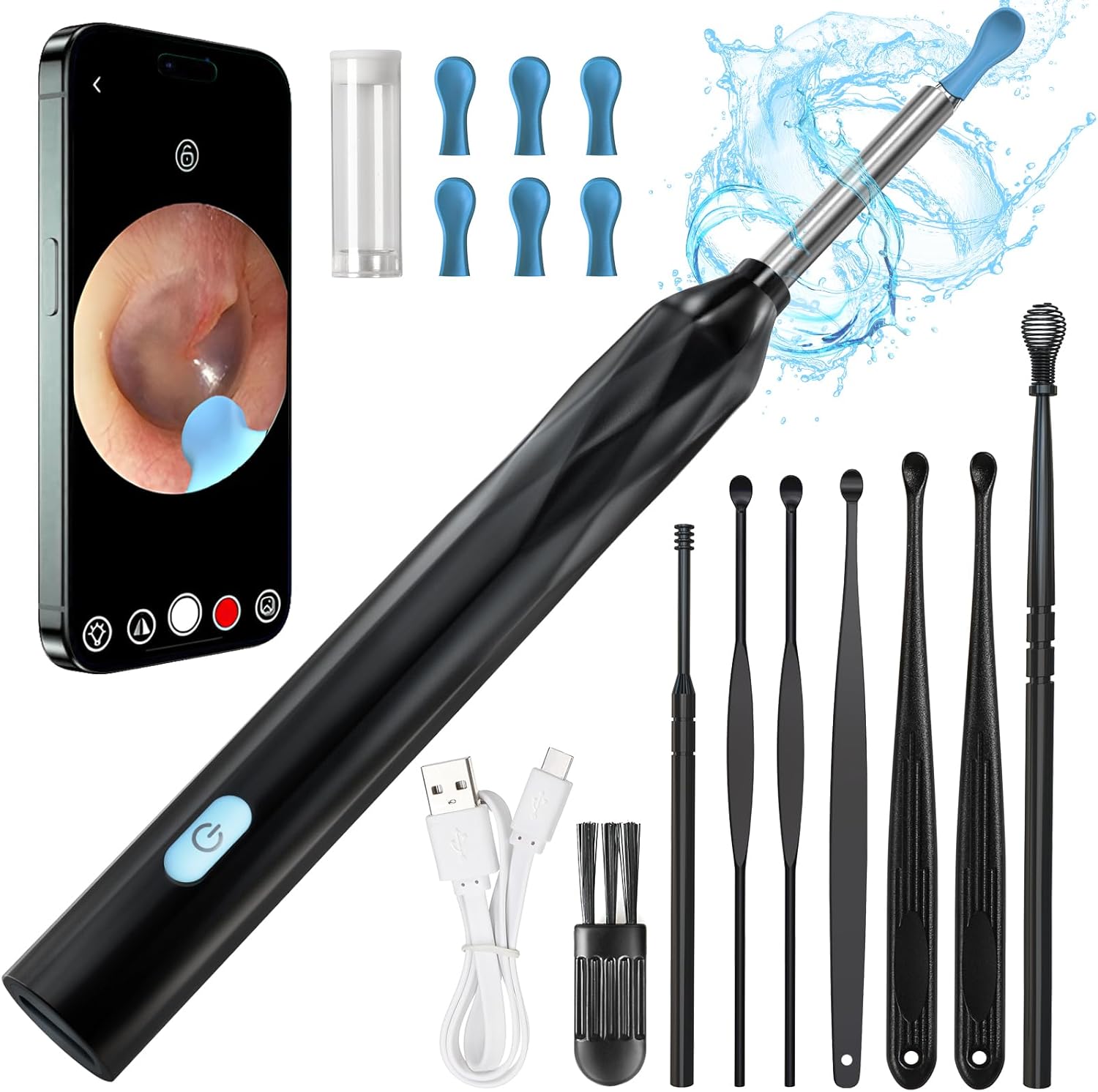
Figure 3.1: All components included in the product package.
4. Setup Guide
Follow these steps to set up your Wireless Ear Wax Removal Tool Camera:
- Charge the Device: Before first use, fully charge the main unit using the provided Type-C charging cable. The device can be charged with any USB-C compatible charger.
- Download the App: Scan the QR code provided in the physical instruction manual or search for the "JesHome" app in your device's app store (compatible with iOS and Android).
- Power On: Press and hold the power button on the main unit to turn it on.
- Connect via Wi-Fi: Go to your smartphone's Wi-Fi settings. Locate and connect to the Wi-Fi network starting with "JesHome-P3-xxxxxx" (the exact name will vary). This device creates its own Wi-Fi network for direct connection.
- Open the App: Launch the "JesHome" app. Once connected to the device's Wi-Fi, the app should automatically display the camera's real-time view. If not, tap the "Start" button within the app.

Figure 4.1: Step-by-step guide for initial device setup and app connection.

Figure 4.2: Device compatibility with iOS and Android operating systems.
5. Operating Instructions
Once the device is set up and connected to your smartphone, you can begin using it for ear inspection and cleaning:
- Attach Ear Spoon Cover: Select one of the soft silicone ear spoon covers and securely attach it to the tip of the device. Ensure it is firmly in place.
- Position the Device: Carefully insert the tip of the device into the ear canal while observing the live feed on your smartphone screen. The integrated LED lights will illuminate the ear canal for a clear view.
- Navigate and Clean: Use the ear spoon cover to gently scoop or dislodge earwax. The camera provides a magnified view, allowing for precise and safe manipulation. It may take some practice to coordinate hand movements with the on-screen image, as the perspective can be inverted.
- Monitor Progress: Continuously observe the screen to ensure you are not pushing wax deeper or causing irritation. The device is suitable for self-use, assisting others, and even for pets.
- Record/Capture (Optional): The JesHome app may offer features to capture images or record video of the ear canal for later review or consultation with a healthcare professional. Refer to the app's interface for these functions.
- Remove and Clean: After use, carefully remove the device from the ear. Proceed to the maintenance section for cleaning instructions.

Figure 5.1: Proper usage of the ear wax removal tool for safe and effective cleaning.
6. Maintenance
Proper maintenance ensures the longevity and hygiene of your device:
- Clean Ear Spoon Covers: Always clean the silicone ear spoon covers with alcohol before and after each use. This ensures hygiene for all users.
- Clean the Lens: The device features an IPX5 waterproof lens. After detaching the silicone cover, gently wipe the lens with an alcohol-soaked cotton swab or a soft, clean cloth. Do not submerge the entire device in water.
- Storage: Store the device and its accessories in a clean, dry place away from direct sunlight and extreme temperatures.
- Charging: Recharge the device when the battery is low to ensure it is ready for next use. Avoid overcharging for extended periods.

Figure 6.1: Cleaning instructions for the device, highlighting its waterproof lens.
7. Troubleshooting
If you encounter issues with your device, refer to the following common problems and solutions:
| Problem | Possible Cause | Solution |
|---|---|---|
| Device does not power on. | Low battery. | Charge the device fully using the provided Type-C cable. |
| Cannot connect to the device's Wi-Fi. | Device not powered on; Wi-Fi interference; incorrect network selected. | Ensure the device is powered on. Move closer to the device. Verify you are selecting the correct "JesHome-P3-xxxxxx" Wi-Fi network. Restart both the device and your smartphone. |
| No image or black screen in the app. | App not properly connected; camera lens obstructed; app glitch. | Ensure Wi-Fi connection is stable. Clean the camera lens. Close and reopen the JesHome app. Restart the device and phone. |
| Image is blurry or unclear. | Dirty lens; incorrect focal distance. | Clean the camera lens thoroughly. Adjust the distance of the device from the ear canal to find the optimal focal point (12-15mm focal length). |
| App is buggy or crashes. | Software issue; outdated app version. | Ensure your app is updated to the latest version. Try reinstalling the app. Use a different compatible device if possible to isolate the issue. |
8. Specifications
- Model: B0DMSXZLLW
- Brand: QIMIALOL
- Manufacturer: Jeshome(TM)
- Camera Resolution: 8 Megapixels (HD)
- Lens Diameter: 3.5mm
- Lens Depth: 10-50mm
- Lens Focal Length: 12-15mm
- LED Lights: 6 integrated LEDs
- Battery: 130mAh Lithium Ion (rechargeable)
- Charging Time: Approximately 45 minutes
- Working Time: Approximately 65 minutes
- Charging Port: Type-C
- Waterproof Rating: IPX5 (for lens)
- Compatibility: iOS & Android devices
- Product Dimensions: 6.3 x 2.56 x 0.71 inches
- Product Weight: 2.12 ounces
9. Warranty and Support
This product comes with a one-year support period from the date of purchase. If you encounter any problems or issues with your QIMIALOL Wireless Ear Wax Removal Tool Camera within this period, please contact the seller or manufacturer for assistance. We are committed to helping you resolve any concerns.


