1. Introduction
Thank you for choosing the Generic DF65 3D Face Recognition Smart Lock. This manual provides detailed instructions for the installation, operation, and maintenance of your new smart lock. Please read this manual thoroughly before installation and use to ensure proper function and safety.
The DF65 smart lock integrates advanced security features including 3D face recognition, fingerprint scanning, password entry, and remote control via a mobile application, offering a secure and convenient access solution for your home or office.

Image 1.1: Front and back view of the Generic DF65 3D Face Recognition Smart Lock.
2. Safety Information
To prevent injury, damage to the product, or property loss, please observe the following safety precautions:
- Do not expose the lock to direct sunlight, rain, or corrosive substances.
- Avoid strong impacts or dropping the lock.
- Use only the specified battery type and ensure correct polarity during installation.
- Do not attempt to disassemble or repair the lock yourself. Contact qualified service personnel for assistance.
- Keep all components, especially small parts, out of reach of children.
- Regularly check the lock for any signs of damage or malfunction.
- Ensure your face recognition and fingerprint data are registered in a secure environment to prevent unauthorized access.
3. Product Components and Features
Familiarize yourself with the various parts and functions of your DF65 smart lock.

Image 3.1: Detailed diagram of the DF65 Smart Lock components.
- Face Camera Module: Captures 3D facial data for recognition.
- Display Screen: Shows time, status, and user interface.
- Fingerprint Sensor: Scans fingerprints for unlocking.
- Password/Swipe Area: Touchpad for numeric password entry and card swiping.
- Lock/Doorbell Button: Activates doorbell function and can be used for locking.
- Quick Open Handle: For mechanical egress from inside.
- Emergency Knob: Manual override for locking/unlocking from inside.
- Anti-lock Knob: Engages privacy lock from inside.
- Mechanical Keyhole: For emergency key access.
- USB Emergency Interface: For temporary power supply in case of battery depletion.
4. Setup and Installation
This section outlines the general steps for installing your smart lock. Professional installation is recommended. Refer to the detailed installation template and hardware included with your product for precise measurements and instructions.
4.1 Mechanical Installation
- Prepare the Door: Ensure your door meets the required thickness and bore hole specifications.
- Install Mortise Lock: Insert the mortise lock into the door edge and secure it with screws.
- Install Front Panel: Connect the necessary cables from the front panel to the mortise lock. Mount the front panel onto the door.
- Install Rear Panel: Connect the cables from the rear panel to the front panel. Secure the rear panel to the door using mounting screws.
- Install Batteries: Open the battery cover on the rear panel and insert the required batteries (not included).
- Test Mechanical Operation: Verify that the handle and deadbolt operate smoothly.
4.2 Initial Setup and App Connection
The DF65 smart lock utilizes the Tuya Smart Life app for advanced features and remote control.
- Download App: Search for "Tuya Smart" or "Smart Life" in your mobile app store (iOS/Android) and download the application.
- Register Account: Create a new user account or log in if you already have one.
- Add Device: Follow the in-app instructions to add your DF65 smart lock. This typically involves putting the lock into pairing mode (refer to the lock's display for instructions) and connecting it to your Wi-Fi network.
- Administrator Setup: The first user registered (face, fingerprint, or password) will typically be designated as the administrator.

Image 4.1: Example of the Tuya Smart Life app interface for managing the smart lock.
5. Operating Instructions
5.1 Unlocking Methods
- 3D Face Recognition:
- Registration: Access the user management menu on the lock or via the app. Select "Add Face" and follow the on-screen prompts to register your face. Ensure good lighting and position your face within the camera's frame.
- Unlocking: Approach the lock. The face camera will activate. Once your face is recognized, the lock will unlock.
- Fingerprint Unlocking:
- Registration: In the user management menu, select "Add Fingerprint." Place your finger on the sensor multiple times as instructed until registration is complete.
- Unlocking: Place your registered finger on the fingerprint sensor. The lock will unlock upon successful recognition.
- Password Entry:
- Setting Password: Access the password management menu. Set a numeric password (6-10 digits recommended).
- Unlocking: Touch the keypad to activate. Enter your password followed by the '#' key.
- Anti-Peep Function: You can enter random digits before and after your actual password (e.g., 123456789012#) to prevent others from guessing your code.
- Mechanical Key:
- Unlocking: Insert the mechanical key into the keyhole and turn to unlock. This is primarily for emergency use.
- App Remote Unlock:
- Unlocking: Open the Tuya Smart Life app, select your DF65 lock, and tap the unlock icon. Ensure your phone and the lock are connected to the internet.
- Temporary Passwords: Generate time-limited or one-time passwords through the app for guests or service providers.
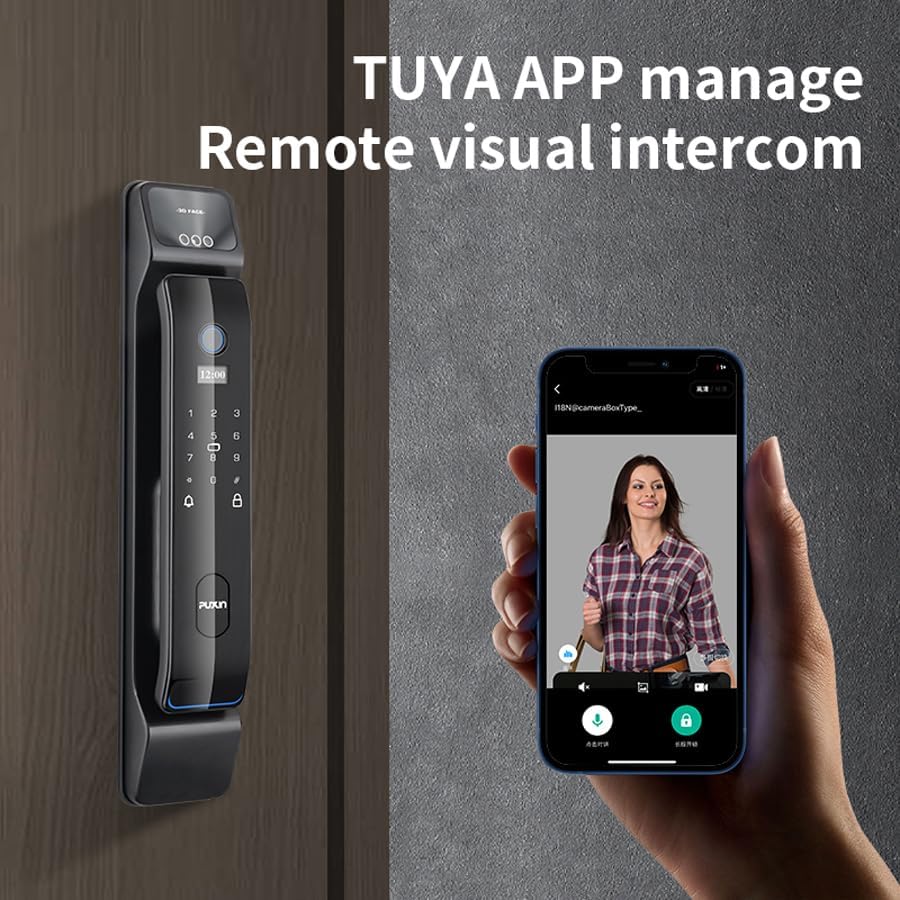
Image 5.1: The Tuya app demonstrating remote visual intercom and management features.
5.2 Locking Methods
- Automatic Locking: The lock will automatically engage after a set period (configurable in settings) once the door is closed.
- Manual Locking: Press the lock button on the keypad or lift the handle (if applicable) from the outside to manually lock the door. From the inside, turn the anti-lock knob.
5.3 User Management (via App or Lock Interface)
- Adding Users: As an administrator, you can add new users with face, fingerprint, or password access.
- Deleting Users: Remove existing users' access credentials.
- Temporary Access: Create temporary passwords or grant time-limited access via the app.
- Access Logs: View a history of lock/unlock events through the app.
6. Maintenance
- Battery Replacement: When the low battery indicator appears on the display or in the app, replace all batteries with new ones of the specified type. Do not mix old and new batteries.
- Cleaning: Wipe the lock's surface with a soft, dry cloth. Avoid using abrasive cleaners, solvents, or harsh chemicals that could damage the finish or electronic components.
- Firmware Updates: Periodically check the Tuya Smart Life app for available firmware updates to ensure optimal performance and security. Follow the in-app instructions for updating.
- Mechanical Check: Periodically check that all screws are tight and the mechanical parts operate smoothly. Lubricate if necessary with a non-greasy lubricant.
7. Troubleshooting
| Problem | Possible Cause | Solution |
|---|---|---|
| Lock does not respond. | Dead batteries. | Replace batteries. If still unresponsive, use the USB emergency power interface. |
| Face/Fingerprint recognition fails. | Improper positioning, dirty sensor/camera, unregistered data. | Ensure proper positioning. Clean the sensor/camera. Re-register face/fingerprint if necessary. |
| Password not accepted. | Incorrect password, keypad malfunction. | Verify password. Try again. If issue persists, reset password via app or mechanical key. |
| App cannot connect to lock. | Wi-Fi issue, lock offline, app not updated. | Check Wi-Fi connection. Restart router and lock. Update app to the latest version. Re-pair if necessary. |
| Lock makes unusual noises. | Mechanical obstruction, internal component issue. | Check for obstructions around the latch and deadbolt. If noises persist, contact customer support. |
8. Specifications
| Feature | Detail |
|---|---|
| Brand | Generic |
| Model Name | DF65 |
| Lock Type | Combination Lock (Smart Lock) |
| Unlocking Methods | 3D Face Recognition, Fingerprint, Password, Swipe Card, Mechanical Key, APP Remote Unlock |
| Material | Aluminum |
| Color | Gun black |
| Dimensions (L x W x H) | 16.54 x 2.83 x 2.28 inches (420mm x 72mm x 58mm approx.) |
| Item Weight | 8.82 Pounds |
| Connectivity Protocol | Wi-Fi |
| Control Method | App, Hand Control |
| Manufacturer | Puxin |
9. Warranty and Support
This product comes with a standard manufacturer's warranty. Please refer to the warranty card included in your packaging for specific terms and conditions, including warranty duration and coverage details.
For technical support, troubleshooting assistance, or warranty claims, please contact your retailer or the manufacturer directly. Contact information can typically be found on the product packaging or the manufacturer's official website.
Manufacturer: Puxin


