
Introduction
This manual provides detailed instructions for the setup, operation, and maintenance of your Bnnwa Wireless Bluetooth Keyboard with Touchpad. Please read this manual thoroughly before using the product to ensure proper functionality and to maximize your user experience. This keyboard is designed for versatile use with various devices, including TVs, Windows PCs, Android devices, Chrome OS systems, laptops, and tablets.
Package Contents
Please check the package contents upon unboxing. If any items are missing or damaged, contact customer support.
- Bnnwa Wireless Bluetooth Keyboard with Touchpad
- USB Receiver (for 2.4GHz wireless connection)
- User Manual
- 2 x AAA Batteries (pre-installed or included separately)

Figure 1: Back of the keyboard illustrating the power switch, USB receiver storage, battery compartment, and anti-slip pads.
Setup
1. Battery Installation
- Locate the battery compartment on the back of the keyboard.
- Open the battery compartment cover.
- Insert two AAA batteries, ensuring correct polarity (+/-).
- Close the battery compartment cover securely.
The keyboard is powered by 2 AAA batteries. An energy-saving feature automatically puts the keyboard into sleep mode after 30 minutes of inactivity to conserve battery life. Press any key to wake it up.
2. Powering On/Off
Locate the power switch on the back of the keyboard. Slide the switch to the "ON" position to power on the keyboard. Slide it to the "OFF" position when not in use to further conserve battery life.
3. Connecting to Devices
This keyboard supports connection to up to three devices simultaneously via 2.4GHz wireless and two Bluetooth channels. You can switch between connected devices with a single button click.
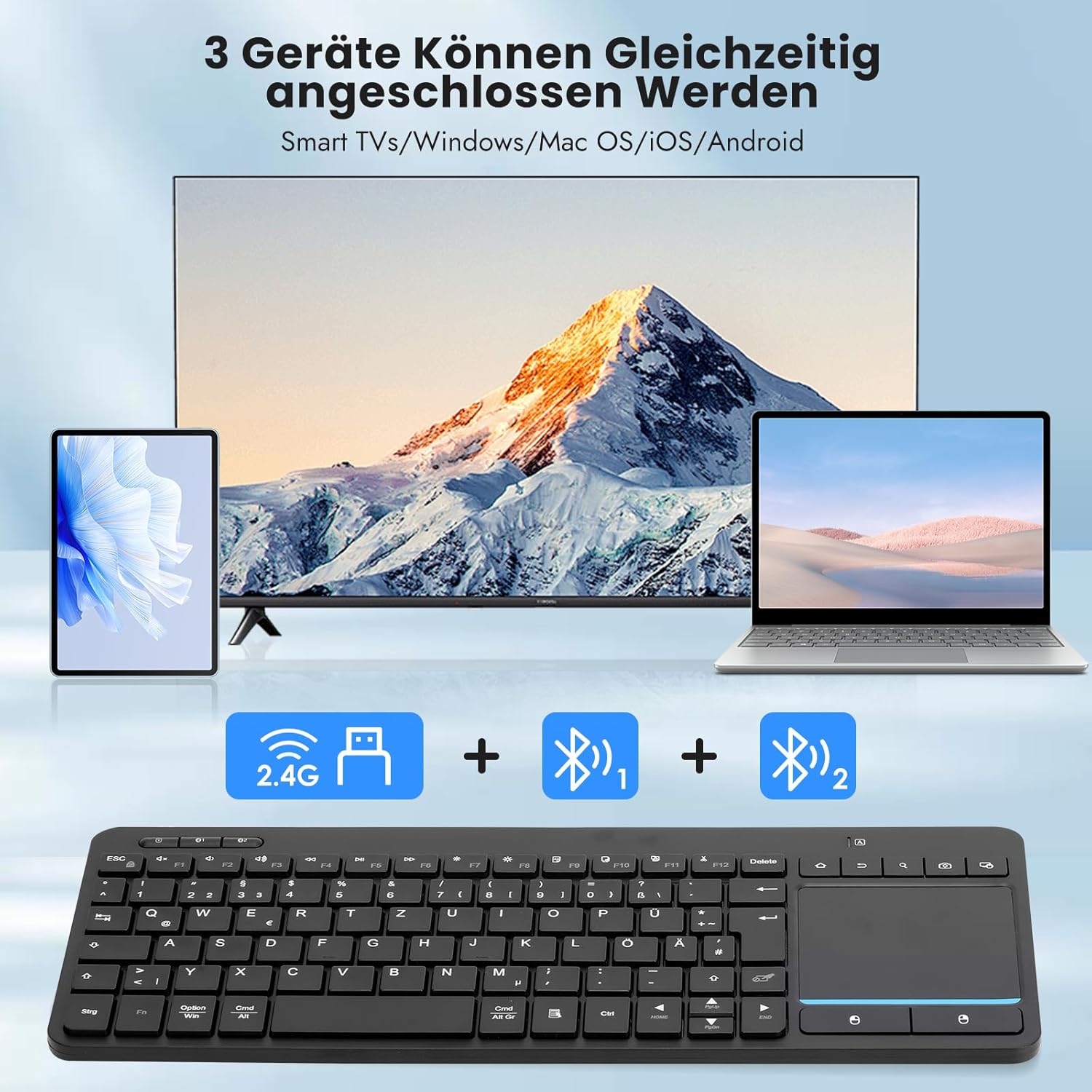
Figure 2: The keyboard's ability to connect to three devices concurrently via 2.4GHz and two Bluetooth channels.
3.1. 2.4GHz Wireless Connection
- Ensure the keyboard is powered on.
- Take the USB receiver out of its storage slot on the back of the keyboard.
- Plug the USB receiver into an available USB port on your device (e.g., TV, computer).
- The keyboard should automatically connect. If not, press the 2.4G connection key (usually indicated by a 2.4G icon) to activate the 2.4G mode.
The 2.4GHz connection offers a stable wireless range of up to 33 feet (10 meters).

Figure 3: Illustration of the keyboard's 33-foot wireless operating range.
3.2. Bluetooth Connection (BT1 & BT2)
- Ensure the keyboard is powered on.
- Press and hold the BT1 or BT2 connection key for 3-5 seconds until the indicator light flashes, indicating pairing mode.
- On your device (e.g., tablet, smartphone, laptop), go to Bluetooth settings.
- Search for available Bluetooth devices and select "Bnnwa Keyboard" (or similar name).
- Follow any on-screen prompts to complete the pairing process.
- Repeat for a second Bluetooth device using the other BT key.
The keyboard supports Android, Microsoft (Windows), iOS, and Mac OS systems.
Figure 4: System compatibility and connection indicators for 2.4G and Bluetooth modes.
Operating Instructions
1. Switching Between Devices
Once multiple devices are paired (one 2.4GHz, two Bluetooth), you can switch between them by simply pressing the corresponding connection key (2.4G, BT1, or BT2). The keyboard will connect to the selected device without re-pairing.
2. Touchpad Gestures
The integrated multi-touch trackpad allows for effortless navigation and control. Below are common gestures:

Figure 5: Common touchpad gestures for navigation and control.
- One-Finger Slide: Move the cursor.
- One-Finger Click: Left-click.
- Two-Finger Click: Right-click.
- Two-Finger Swipe (Up/Down): Scroll vertically.
- Two-Finger Swipe (Left/Right): Scroll horizontally (if supported by application).
- Pinch In/Out: Zoom in or out (if supported by application).
- Three-Finger Slide Up/Down: Specific system functions (e.g., task view on Windows, mission control on Mac OS).
Note: To lock the touchpad, press the Fn key simultaneously with the touchpad lock key (refer to keyboard layout for specific key). Press again to unlock.
3. Multimedia Shortcuts
The keyboard features 12 combinations of multimedia shortcuts for quick access to functions like volume control, media playback, and more. These are typically accessed by pressing the Fn key in combination with the corresponding function key (F1-F12).
- Fn + F1-F12: Access multimedia functions (e.g., Play/Pause, Volume Up/Down, Mute, Previous/Next Track, Home, Search, etc.). Refer to the icons on the function keys for specific actions.
Maintenance
- Cleaning: Use a soft, dry cloth to clean the keyboard surface. For stubborn dirt, slightly dampen the cloth with water or a mild cleaning solution. Avoid excessive moisture.
- Storage: When not in use for extended periods, store the keyboard in a dry, cool place. Consider removing batteries if storing for several months to prevent leakage.
- Avoid Liquids: Do not expose the keyboard to liquids. Spills can cause damage.
- Avoid Extreme Temperatures: Do not expose the keyboard to extreme heat or cold.
Troubleshooting
| Problem | Solution |
|---|---|
| Keyboard not responding. |
|
| Touchpad not working. |
|
| Connection drops frequently. |
|
Specifications
| Brand | Bnnwa |
| Model | Wireless Bluetooth Keyboard with Touchpad |
| Connectivity Technology | Bluetooth, 2.4GHz Wireless |
| Keyboard Description | Multimedia |
| Special Features | Multi-Touch Trackpad, 3-Device Connection, Multimedia Shortcuts, Auto Sleep |
| Color | Gray |
| Product Dimensions | 32.6L x 12.3W x 1.8H centimetres |
| Material | Plastic |
| Power Source | Battery Powered (2 x AAA batteries) |
| Keyboard Layout | QWERTY |
| Wireless Range | Up to 33 feet (10 meters) |

Figure 6: Physical dimensions and weight of the Bnnwa Wireless Bluetooth Keyboard.
Safety Information
Please observe the following safety guidelines to prevent damage to the product or injury:
- Do not disassemble or attempt to repair the keyboard yourself.
- Keep the keyboard away from water, moisture, and extreme temperatures.
- Avoid dropping or subjecting the keyboard to strong impacts.
- Dispose of batteries according to local regulations.
Warranty and Support
For warranty information or technical support, please refer to the documentation included with your purchase or contact Bnnwa customer service through the retailer where the product was purchased. Please have your product model and purchase date available when contacting support.