
1. Product Overview
The Camii X75 is a 4G LTE cellular security camera designed for outdoor use, offering 2K HD video resolution and 360° view capabilities. It operates independently without Wi-Fi, powered by a built-in rechargeable battery and a solar panel for continuous charging. Key features include color night vision, motion detection, two-way audio, and local storage options via SIM and SD cards.
Key Features:
- 4G LTE Connectivity: Operates in areas without Wi-Fi coverage, requiring a 4G LTE SIM card.
- Solar Powered: Equipped with a 9000mAh rechargeable battery and a 3W solar panel for sustained operation.
- 2K HD Video & Color Night Vision: Provides clear 2K resolution video with 4X digital zoom and full-color night vision when the spotlight is activated.
- 360° View: Features 355° horizontal and 90° vertical rotation for comprehensive area coverage.
- PIR Motion Detection: Sensitive Passive Infrared (PIR) sensor detects human and animal movement, sending instant notifications.
- Two-Way Audio: Allows for real-time communication through the camera via the mobile application.
- Local Storage: Supports up to 128GB SD card storage and includes a pre-installed 32GB SD card.
- Weatherproof Design: IP65 rated for outdoor use in various weather conditions.
2. What's in the Box
Upon unboxing your Camii X75 camera, please verify that all components are present:
- Camii X75 Camera Body
- Solar Panel (integrated or separate, depending on package)
- Mounting Bracket for Camera
- Mounting Bracket for Solar Panel (if separate)
- USB-C Charging Cable
- Mounting Screws and Wall Anchors
- Pre-installed SIM Card (with 30MB free data)
- Pre-installed 32GB Micro SD Card
- User Manual (this document)

Image: Contents of the Camii X75 package, including the camera, solar panel, and accessories.
3. Setup Guide
3.1 Initial Charging
Before first use, fully charge the camera's built-in battery using the provided USB-C cable and a standard 5V/2A USB power adapter (not included). The charging port is located under a protective cover on the camera body.
3.2 SIM Card and SD Card Installation
The camera comes with a pre-installed SIM card (30MB free data) and a 32GB SD card. If you need to replace them or ensure they are correctly seated:
- Locate the rubber protective cover on the camera body.
- Gently open the cover to reveal the SIM card slot and Micro SD card slot.
- Ensure the SIM card is inserted correctly with the gold contacts facing down and the notched corner aligned.
- Insert the Micro SD card with the gold contacts facing down until it clicks into place.
- Close the rubber cover firmly to maintain waterproofing.

Image: Detailed view of the SIM card and Micro SD card insertion points on the camera.
Note: The included SIM card is for use in the U.S. and supports AT&T, T-Mobile, and Verizon networks. Only use the built-in SIM card; private SIM cards are not supported. Data plans can be renewed via the Vicohome app after the trial period.
3.3 App Download and Camera Pairing
To operate the camera, download the Vicohome app on your smartphone.
- Search for "Vicohome" in your smartphone's app store (iOS App Store or Google Play Store).
- Download and install the app.
- Register for an account or log in if you already have one.
- Follow the in-app instructions to add your Camii X75 camera. This typically involves scanning a QR code on the camera or manually entering its ID.
- Ensure your phone's Bluetooth and location services are enabled during the pairing process.

Image: The Vicohome app interface showing live camera feed and controls.
3.4 Mounting the Camera and Solar Panel
The camera and solar panel can be mounted on a wall or other suitable outdoor surface. Choose a location that receives ample direct sunlight for the solar panel and provides the desired camera view.
- Select Location: Identify a mounting spot for the camera and solar panel. The solar panel should be positioned to maximize sun exposure throughout the day.
- Install Brackets: Use the provided mounting screws and wall anchors to securely attach the camera and solar panel mounting brackets to the chosen surface.
- Attach Camera and Solar Panel: Secure the camera to its bracket and the solar panel to its bracket. Adjust the angles to achieve optimal coverage for the camera and maximum sunlight for the solar panel.
- Connect Solar Panel: Connect the solar panel's USB-C cable to the camera's charging port. Ensure the connection is secure and the protective cover is properly sealed.
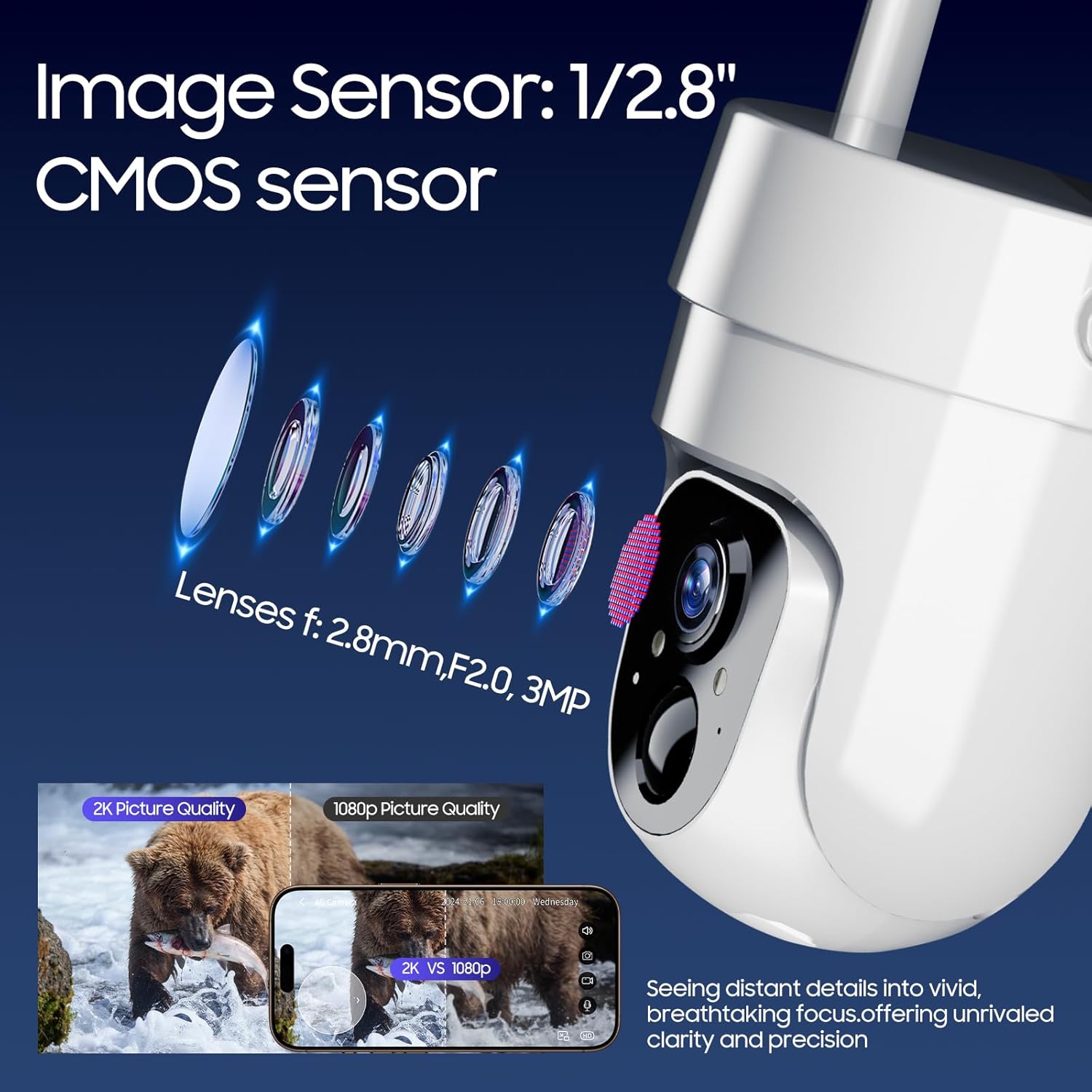
Image: Camii X75 camera and solar panel mounted on an exterior wall.
Tip: For best solar charging performance, ensure the solar panel is angled directly towards the sun's path and free from obstructions.
4. Operating Instructions
4.1 Live View and PTZ Control
Open the Vicohome app and select your camera to access the live view. From here, you can:
- View Live Feed: See real-time video from your camera.
- Pan and Tilt: Use the on-screen controls to rotate the camera 355° horizontally and 90° vertically to adjust the viewing angle.
- Digital Zoom: Pinch to zoom in on specific areas of the live feed.

Image: Illustrates the camera's 360° pan and tilt functionality via the app.
4.2 Motion Detection and Alerts
The Camii X75 uses a PIR sensor for accurate motion detection. When motion is detected, the camera can record and send notifications to your phone.
- Enable/Disable: Access camera settings in the Vicohome app to turn motion detection on or off.
- Adjust Sensitivity: Customize the PIR sensor's sensitivity level to reduce false alarms.
- Notification Settings: Configure how you receive alerts (e.g., push notifications, siren activation).
- Custom Detection Area: Define specific zones within the camera's view for motion detection to focus on critical areas.

Image: Motion detection alert displayed on a smartphone, indicating activity.
4.3 Color Night Vision
The camera offers 2K HD color night vision. To activate full-color night vision, the spotlight feature must be enabled in the Vicohome app settings. Otherwise, the camera will use infrared night vision, providing a black and white image.

Image: Demonstrates the difference between color night vision (spotlight on) and standard night vision (spotlight off).
4.4 Two-Way Audio
Utilize the two-way audio feature to communicate with visitors or deter intruders. In the live view interface of the Vicohome app, press and hold the microphone icon to speak, and release to listen.
5. Maintenance
5.1 Battery and Solar Panel Care
- Solar Panel Cleaning: Regularly clean the surface of the solar panel with a soft, damp cloth to ensure maximum sunlight absorption. Dust, dirt, or debris can reduce charging efficiency.
- Battery Monitoring: Monitor the battery level through the Vicohome app. If the camera is in a shaded area or experiences prolonged cloudy weather, occasional manual charging via USB-C may be necessary.
- Temperature: Avoid exposing the camera to extreme temperatures outside its operating range (-4°F to 131°F) for extended periods.

Image: The camera's weatherproof design, suitable for various outdoor conditions.
5.2 Camera Lens Cleaning
To maintain optimal image quality, gently clean the camera lens with a microfiber cloth. Avoid abrasive materials or harsh chemicals that could scratch the lens.
5.3 Firmware Updates
Periodically check the Vicohome app for available firmware updates. Keeping your camera's firmware up-to-date ensures optimal performance, security, and access to new features.
6. Troubleshooting
| Problem | Possible Cause | Solution |
|---|---|---|
| Camera not connecting to 4G LTE network. | No 4G LTE coverage; SIM card not properly inserted; SIM card data depleted. |
|
| Battery not charging or draining quickly. | Insufficient sunlight on solar panel; dirty solar panel; extreme temperatures; high motion detection activity. |
|
| Motion detection not working or too many false alarms. | Incorrect sensitivity settings; obstructions in detection zone; camera angle. |
|
| Poor image quality at night. | Spotlight not activated for color night vision; dirty lens. |
|
| Cannot hear audio or speak through the camera. | Microphone/speaker muted in app; low volume on phone; network issues. |
|
7. Specifications
| Feature | Detail |
|---|---|
| Model Name | X75 |
| Indoor/Outdoor Usage | Outdoor |
| Power Source | Solar Powered (with 9000mAh built-in battery) |
| Connectivity Protocol | Cellular (4G LTE) |
| Controller Type | Vicohome App |
| Mounting Type | Wall Mount |
| Video Capture Resolution | 2K (1440p) |
| Viewing Angle | 138 Degrees |
| Pan/Tilt Range | 355° Horizontal, 90° Vertical |
| Storage | Micro SD Card (up to 128GB, 32GB included) |
| Item Dimensions (L x W x H) | 7.2 x 5 x 8.2 inches |
| Item Weight | 2.25 pounds |
| Weather Resistance | IP65 Waterproof |
| Operating Temperature | -4°F to 131°F |
8. Warranty and Support
8.1 Return Policy
This product is subject to a 30-day return/replacement policy from the date of purchase. Please refer to your retailer's specific return guidelines for detailed information.
8.2 Customer Support
For technical assistance, troubleshooting, or product inquiries, please contact Camii customer support. Contact information can typically be found on the product packaging or the official Camii website.
For app-related issues or data plan renewals, please refer to the Vicohome app's support section.