
1. Introduction
Thank you for choosing the SANWA Bluetooth Trackball Mouse GMABTTB169. This manual provides detailed instructions for setting up, operating, and maintaining your new trackball mouse. This product is designed for ergonomic comfort and includes a 34mm replacement trackball for extended use. Please read this manual thoroughly to ensure proper usage and to maximize your product experience.
2. Product Overview
2.1 Package Contents
- SANWA Bluetooth Trackball Mouse (GMABTTB169)
- 34mm Replacement Trackball
- USB Charging Cable (4.9 ft)
- User Manual
2.2 Key Features
- Ergonomic Design: Features a 15° natural tilt to reduce wrist fatigue.
- Adjustable DPI: Four levels of cursor speed (600/800/1200/1600 DPI).
- Silent Buttons: Left and right clicks are designed for quiet operation.
- Programmable Buttons: Customize functions using dedicated software (Windows only).
- Rechargeable Battery: Built-in battery provides approximately 20 hours of constant use on a 1-hour charge.
- Dual Device Connectivity: Connects to and switches between two Bluetooth devices simultaneously.
- Wide Compatibility: Supports Windows, Mac OS, and Chrome OS.
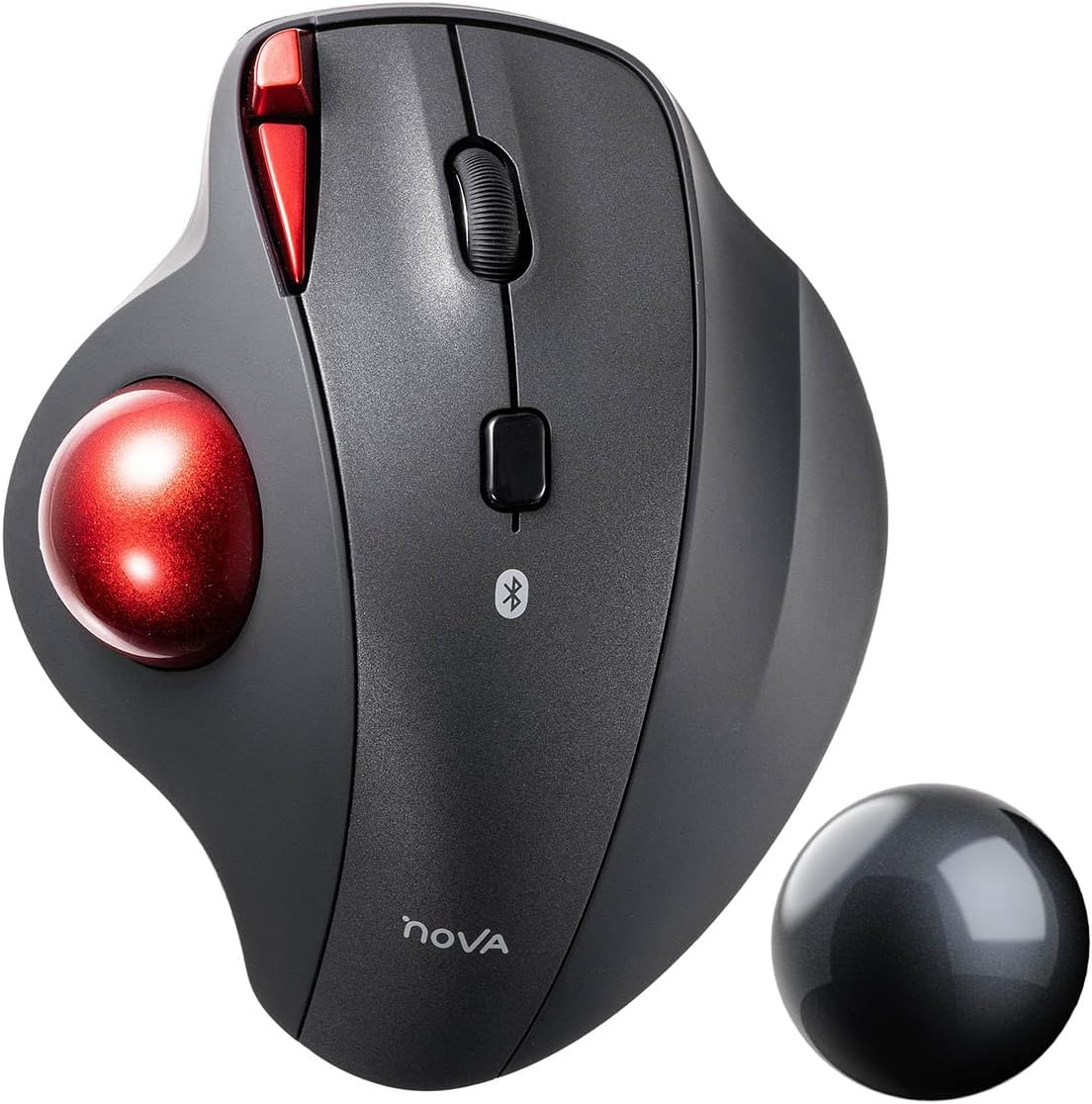
This image displays the SANWA Bluetooth Trackball Mouse GMABTTB169, featuring an ergonomic design with a prominent red trackball for thumb control. Alongside the mouse, a black 34mm replacement trackball is shown, indicating its inclusion in the product set.
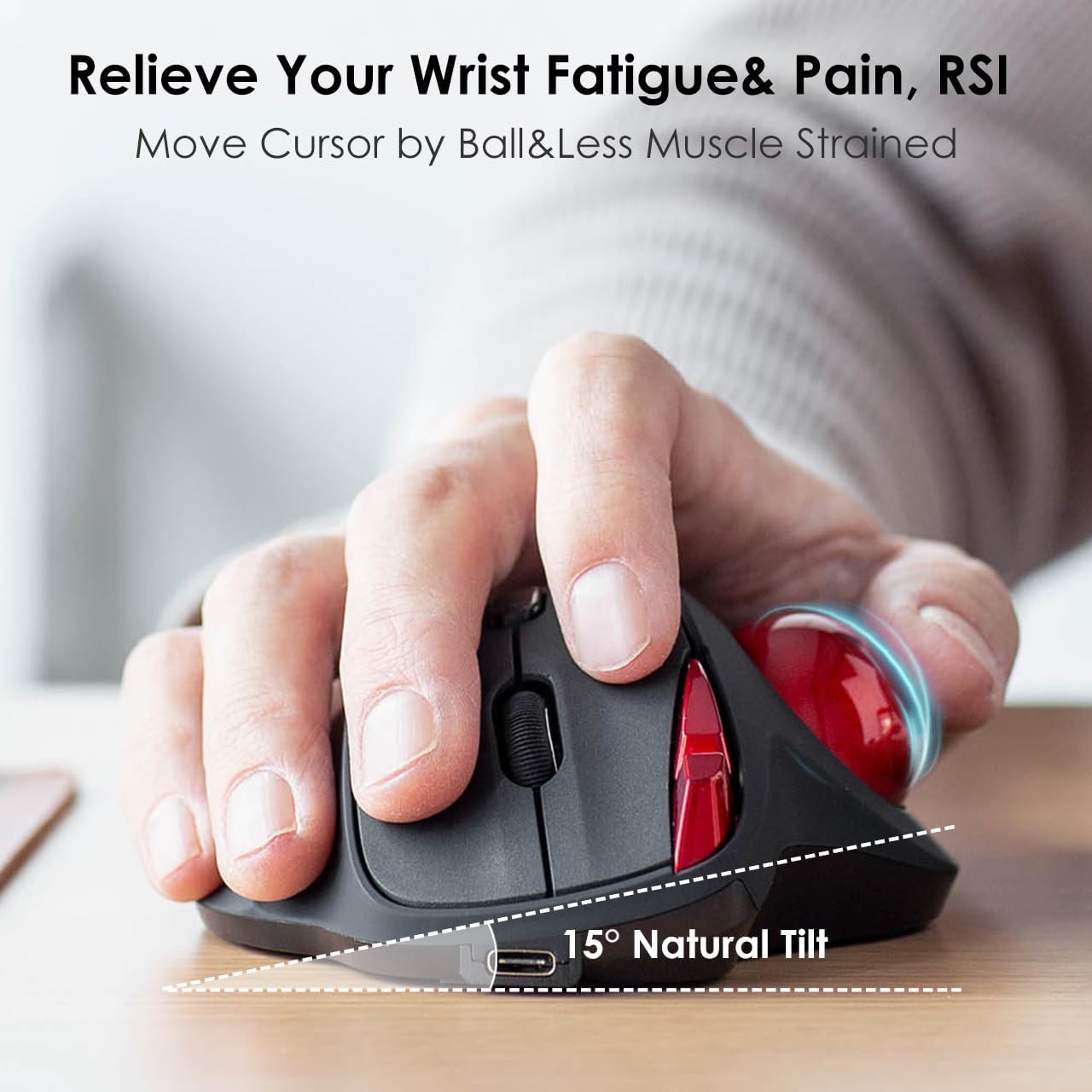
This image demonstrates the ergonomic design of the trackball mouse, highlighting its 15-degree natural tilt. A user's hand is positioned comfortably on the mouse, indicating how the design helps reduce wrist fatigue and promotes a natural posture during use.
3. Setup
3.1 Charging the Mouse
Before first use, fully charge the trackball mouse. Connect the provided USB charging cable to the charging port on the mouse and to a USB power source (e.g., computer USB port, USB wall adapter). The charging indicator light will show the charging status.
3.2 Bluetooth Pairing
The mouse supports simultaneous connection to two Bluetooth devices.
- Pairing with Device 1 (BT1):
- Turn on the mouse.
- Press and hold the BT1 pairing button on the bottom of the mouse until the indicator light flashes rapidly.
- On your device (PC, Mac, Laptop), go to Bluetooth settings and search for new devices.
- Select "SANWA GMABTTB169" from the list of available devices to complete pairing.
- Pairing with Device 2 (BT2):
- Press and hold the BT2 pairing button on the bottom of the mouse until the indicator light flashes rapidly.
- On your second device, go to Bluetooth settings and search for new devices.
- Select "SANWA GMABTTB169" from the list to complete pairing.
- Switching Between Devices:
- To switch between connected devices, simply press the BT1 or BT2 button once. The corresponding indicator light will illuminate to show which device is currently active.

This illustration details the bottom of the SANWA trackball mouse, showcasing the dedicated Bluetooth pairing buttons (BT1 and BT2). A diagram explains how the mouse can simultaneously connect to and switch between two separate devices, such as a laptop and a desktop computer, via Bluetooth 5.1.
4. Operation
4.1 DPI Adjustment
The mouse offers four levels of cursor speed (DPI) to suit different tasks and preferences. Press the DPI button, usually located near the scroll wheel, to cycle through the settings:
- 600 DPI: For precise, slow movements.
- 800 DPI: Standard speed for general use.
- 1200 DPI: Faster cursor movement.
- 1600 DPI: Highest speed for rapid navigation.
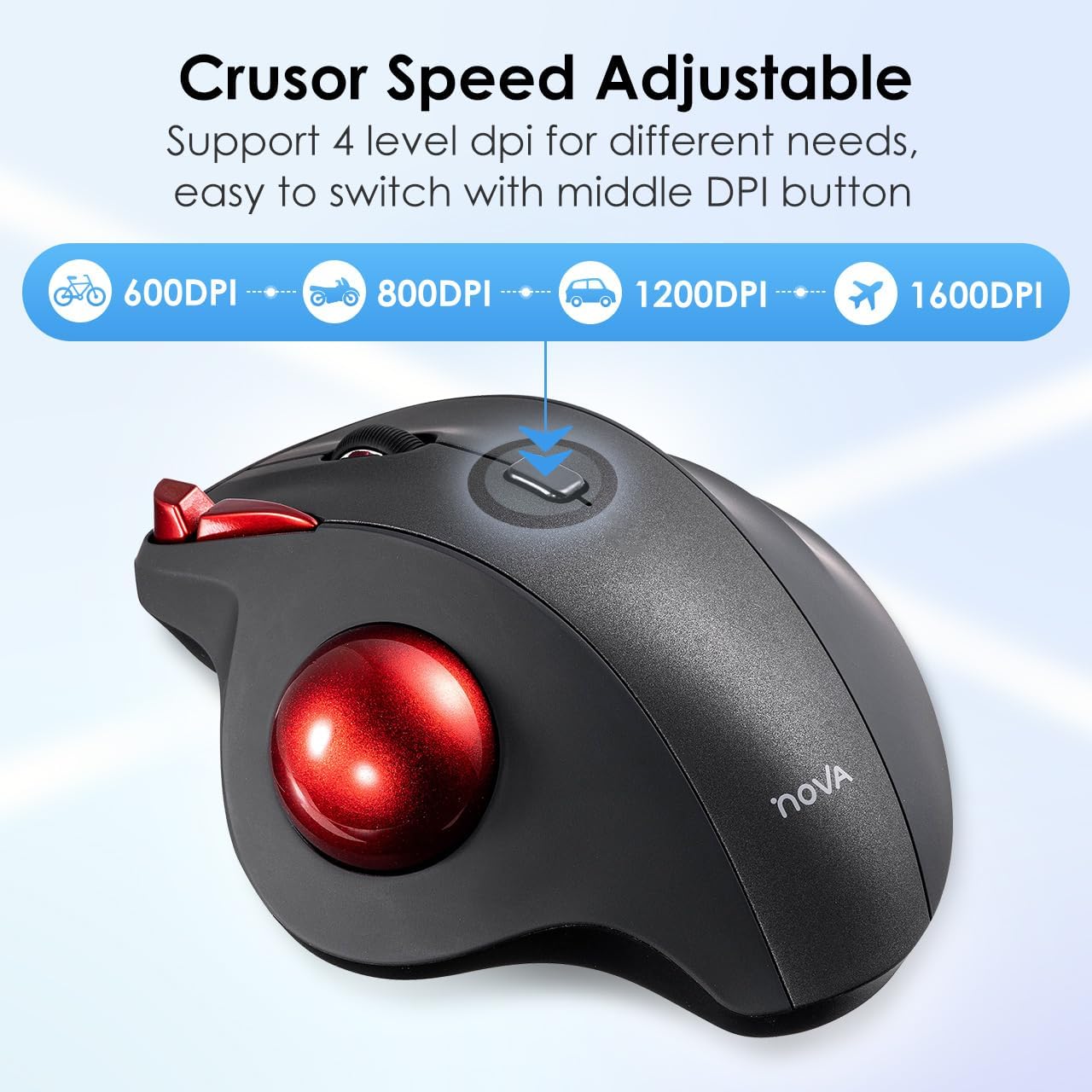
This image focuses on the DPI adjustment button located on the SANWA trackball mouse. It visually indicates the four available cursor speed settings: 600 DPI (bicycle icon), 800 DPI (motorcycle icon), 1200 DPI (car icon), and 1600 DPI (airplane icon), allowing users to easily switch sensitivity for different tasks.
4.2 Programmable Buttons
The SANWA trackball mouse features programmable buttons that can be customized for various functions. To utilize this feature, download the official SANWA Trackball mouse software from the manufacturer's website. Please note that the programming software is compatible with Windows operating systems only.

This screenshot displays the user interface of the SANWA Trackball mouse software, which allows for the customization of the mouse's programmable buttons. Users can assign various functions such as left click, right click, forward, backward, middle click, and other system or media controls, though this feature is noted as 'Windows only'.
4.3 Silent Click Function
The left and right click buttons are engineered for noiseless operation, making the mouse suitable for environments where quietness is preferred, such as libraries, offices, or during late-night use.
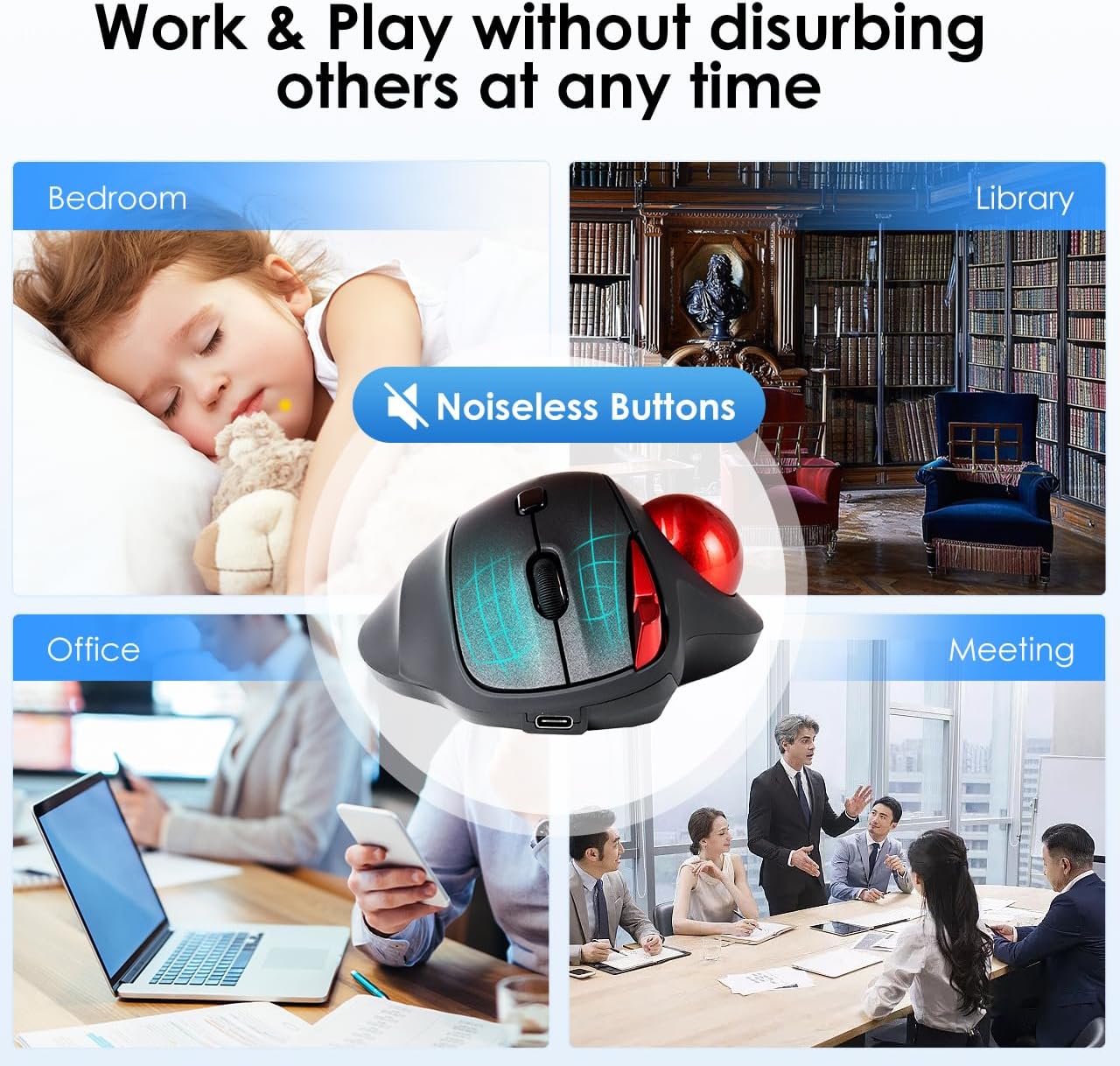
This image highlights the noiseless button feature of the SANWA trackball mouse, demonstrating its suitability for various environments where quiet operation is essential. Scenarios include a sleeping child in a bedroom, a quiet library, a busy office, and a professional meeting, emphasizing the mouse's ability to prevent disturbance.
5. Maintenance
5.1 Cleaning the Trackball
Over time, dust and debris can accumulate around the trackball, affecting its smooth movement. To clean:
- Gently remove the trackball from its housing.
- Use a soft, lint-free cloth to wipe the trackball clean.
- Clean the inside of the trackball housing, paying attention to the small sensor points, using a cotton swab or compressed air.
- Reinsert the trackball into its housing.
5.2 Replacing the Trackball
The included 34mm replacement trackball can be used if the original trackball is damaged or if you prefer a different aesthetic. To replace:
- Remove the existing trackball as described in the cleaning section.
- Place the new 34mm replacement trackball into the housing.
- Ensure it sits securely and moves freely.
The 34mm replacement ball is compatible with various trackball mouse models, including:
- SANWA: GMATB128BK, GMAWTB129BK, GMABTTB130BK, GMATB167, GMAWTB168, GMABTTB169, GMATB155, GMATB44BKN/RN, GMABTTB1BK
- Logitech: MX Ergo, M570, M575, MX Ergo Plus
- Kensington: TB450, TB550, Pro Fit Ergo (K75326WW)
- Perixx: PERIPRO-801, Perimice-517, Perimice-717, Perimice-520, Perimice-720
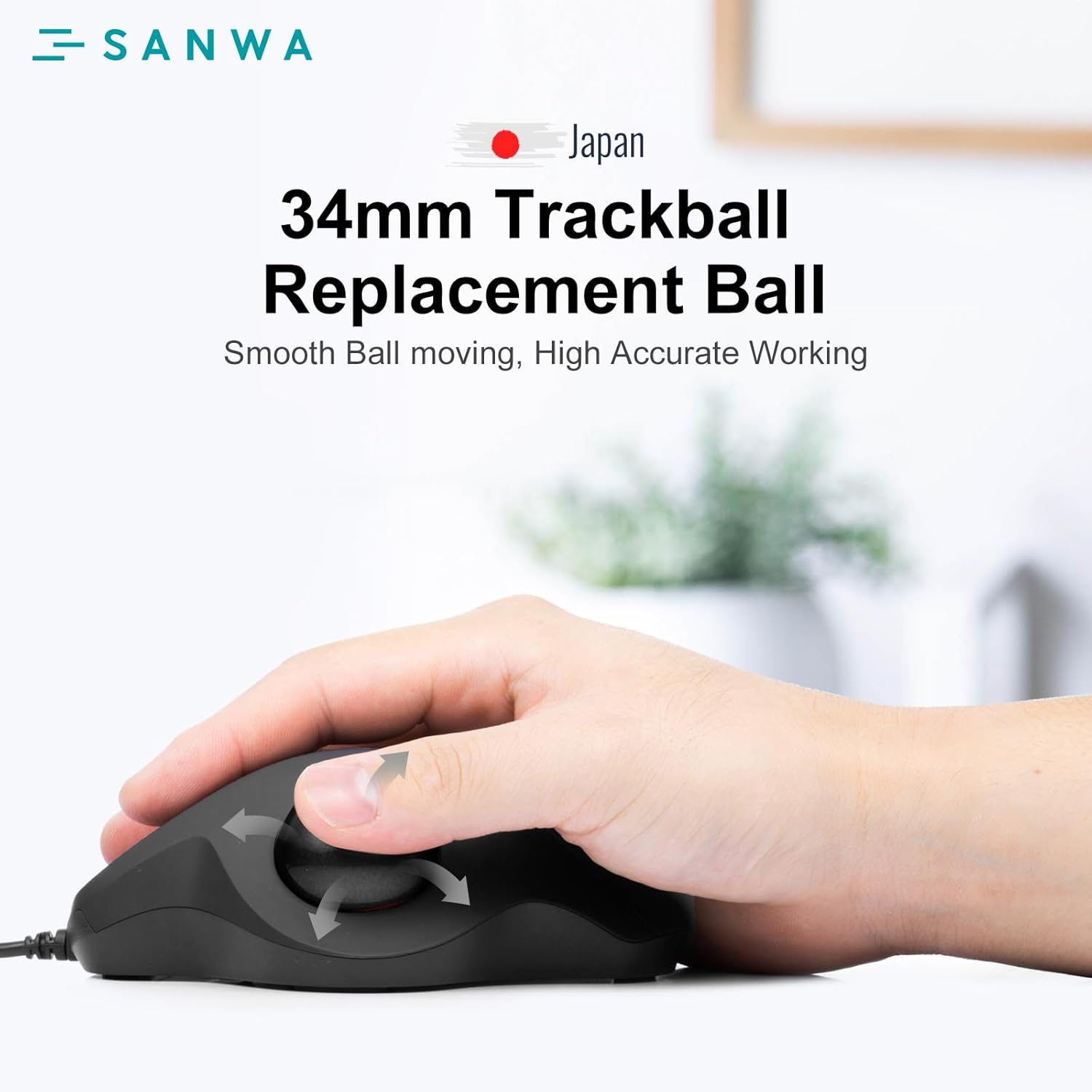
This image shows a hand interacting with the 34mm trackball, highlighting its smooth movement and high accuracy. The text '34mm Trackball Replacement Ball' reinforces the product's feature of providing a precise and responsive tracking experience.
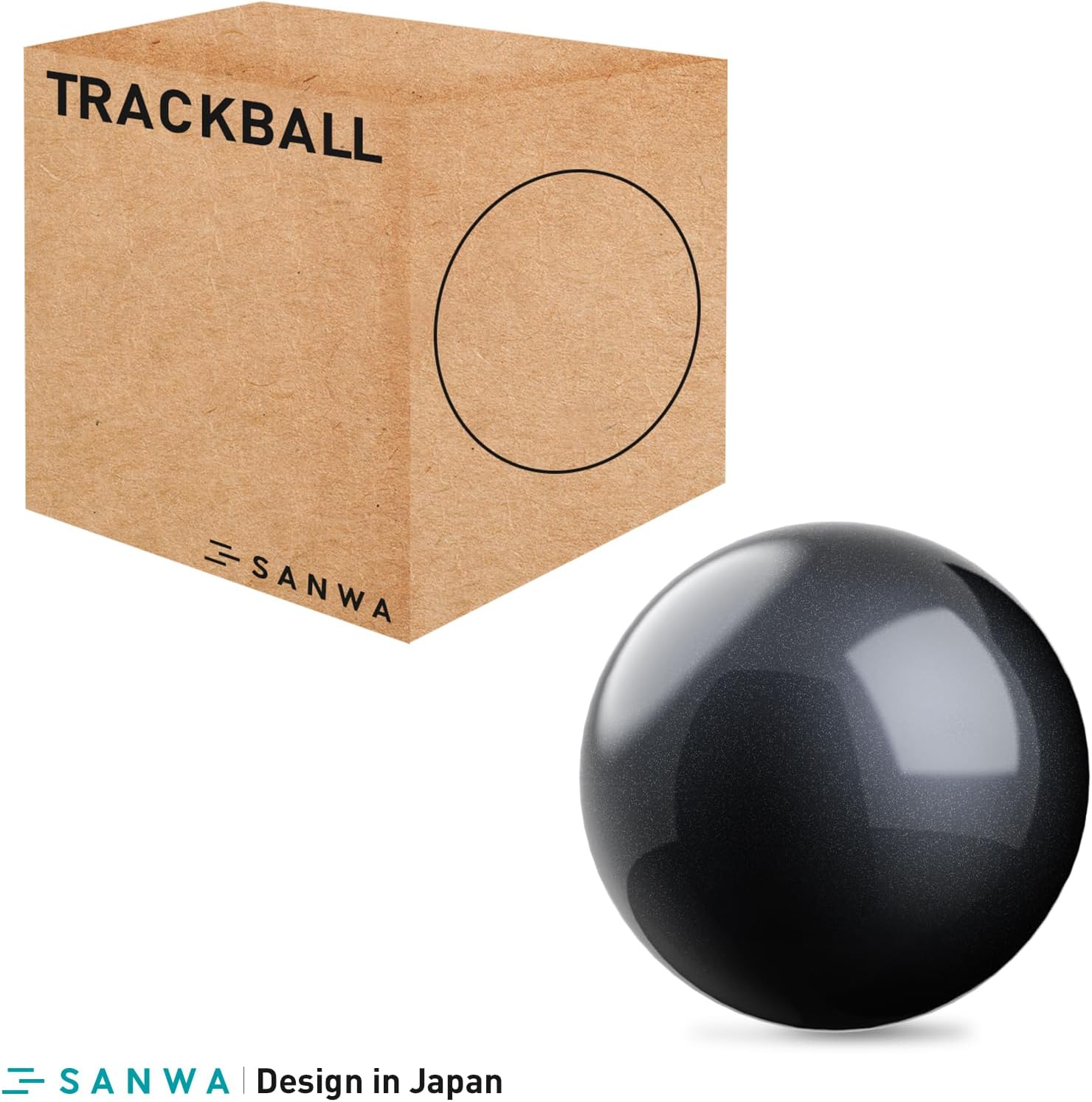
This image presents the 34mm black replacement trackball, packaged in a simple brown cardboard box. The box is labeled 'TRACKBALL' and features the 'SANWA' brand logo, indicating it is an official replacement component.

This image illustrates a 34mm replacement trackball alongside a generic trackball mouse, emphasizing its compatibility. A comprehensive list of compatible models is provided, including various SANWA trackball mice (e.g., GMATB128BK, GMABTTB169) and models from other brands like Logitech (MX Ergo, M570), Kensington, and Perixx.
6. Troubleshooting
- Mouse not connecting via Bluetooth:
- Ensure the mouse is charged and powered on.
- Verify Bluetooth is enabled on your device.
- Repeat the pairing process (Section 3.2).
- Try removing previous pairings from your device's Bluetooth list and re-pairing.
- Cursor movement is erratic or unresponsive:
- Clean the trackball and its housing (Section 5.1). Dust or debris can interfere with tracking.
- Check the DPI setting and adjust if necessary (Section 4.1).
- Mouse not charging:
- Ensure the USB charging cable is securely connected to both the mouse and the power source.
- Try a different USB port or charging cable.
- Programmable buttons not working:
- Ensure you have downloaded and installed the SANWA Trackball mouse software.
- Verify your operating system is Windows, as the software is Windows-only.
- Check the software settings to ensure buttons are correctly assigned.
7. Specifications
| Feature | Description |
|---|---|
| Model Number | GMABTTB169 |
| Brand | SANWA |
| Connectivity Technology | Bluetooth 5.1 |
| Movement Detection | Trackball |
| DPI Levels | 600 / 800 / 1200 / 1600 |
| Special Features | Ergonomic Design (15° tilt), Silent Buttons, Programmable Buttons, Rechargeable, 2-Device Connection |
| Compatibility | Windows 11/10/8.1/8, Mac OS 12/11/10.13~10.15, Chrome OS |
| Trackball Size | 34mm |
| Color | Black |
8. Warranty and Support
SANWA products are designed for reliability and performance. For information regarding warranty coverage, technical support, or to download the latest software and drivers, please visit the official SANWA website or contact SANWA customer service. Keep your purchase receipt as proof of purchase for warranty claims.