
V521
V521 Universal OBDII Scanner User Manual
Professional Car Code Reader Data Print OBDII/EOBD/CAN Scan Tool
1. Introduction
The V521 Universal OBDII Scanner is a professional diagnostic tool designed for all OBDII/EOBD compliant vehicles manufactured after 1996. This device provides comprehensive vehicle diagnostics, including engine fault reading, performance testing, data stream analysis, and cloud printing capabilities. Its plug-and-play design and multi-language support make it accessible for a wide range of users.

Figure 1: Front view of the V521 Universal OBDII Scanner, showing the display screen and control buttons.
2. Setup
The V521 OBDII Scanner is designed for immediate use without the need for external power or charging. It is powered directly by the vehicle's OBDII port.
2.1 Initial Connection
- Locate the OBDII port in your vehicle. This port is typically found under the dashboard on the driver's side. Refer to your vehicle's owner's manual if you cannot locate it.
- Ensure the vehicle's ignition is in the "ON" position (engine can be off or running, depending on the diagnostic task).
- Plug the V521 scanner's OBDII connector firmly into the vehicle's OBDII port. The device will power on automatically.
- The scanner's display will illuminate, indicating it is ready for operation.

Figure 2: The V521 scanner with its OBDII connector, ready for connection to a vehicle's diagnostic port.
3. Operating Instructions
The V521 scanner offers various diagnostic functions accessible through its intuitive menu system.
3.1 Main Menu Functions
Upon successful connection, the main menu will display several options:
- OBD/EOBD: Access standard OBDII diagnostic functions, including reading and clearing Diagnostic Trouble Codes (DTCs), I/M Readiness status, Live Data Stream, Freeze Frame data, O2 Sensor Test, On-Board Monitor Test, EVAP System Test, and Vehicle Information.
- Data Stream: View real-time operational parameters of the vehicle's engine and other systems. This allows for monitoring various sensor readings and system statuses.
- LOOKUP (DTC Lookup): Provides definitions for generic and manufacturer-specific Diagnostic Trouble Codes (DTCs). The device supports over 40,000 fault code queries and manufacturer-specific codes for 55 brands.
- Cloud Print: Generate a QR code for diagnostic data, allowing you to scan and save the data on a mobile phone or print it.
- Voltage: Display the current battery voltage of the vehicle.
- Setup: Configure device settings such as language, unit of measurement, and display brightness.
3.2 Reading and Clearing Fault Codes
- From the main menu, select "OBD/EOBD" and press the OK button.
- Choose "Read Codes" to display current, pending, and permanent Diagnostic Trouble Codes.
- To clear codes, select "Erase Codes" from the OBD/EOBD menu. Confirm the action when prompted. Clearing codes will turn off the Malfunction Indicator Lamp (MIL) if the fault is no longer present.

Figure 3: Illustration of the one-click engine fault light clearing function.
3.3 Performance Testing
The V521 scanner can perform various performance tests to monitor vehicle dynamics.
- Acceleration Test: Measures the time taken to accelerate from 0 to 100 km/h.
- Braking Performance: Evaluates braking distance from a specified speed.
- Distance Testing: Measures the time required to travel a specific distance, such as 500 meters.
- Instrument Panel Data: Displays real-time data typically found on the vehicle's instrument cluster, such as load value, coolant temperature, total mileage, and instantaneous fuel consumption.

Figure 4: Overview of performance testing capabilities, including acceleration, braking, distance, and instrument panel data display.
3.4 Data Stream Analysis
The Data Stream function allows users to view live sensor data, providing insights into the vehicle's operational status. This can be crucial for diagnosing intermittent issues or verifying repairs.
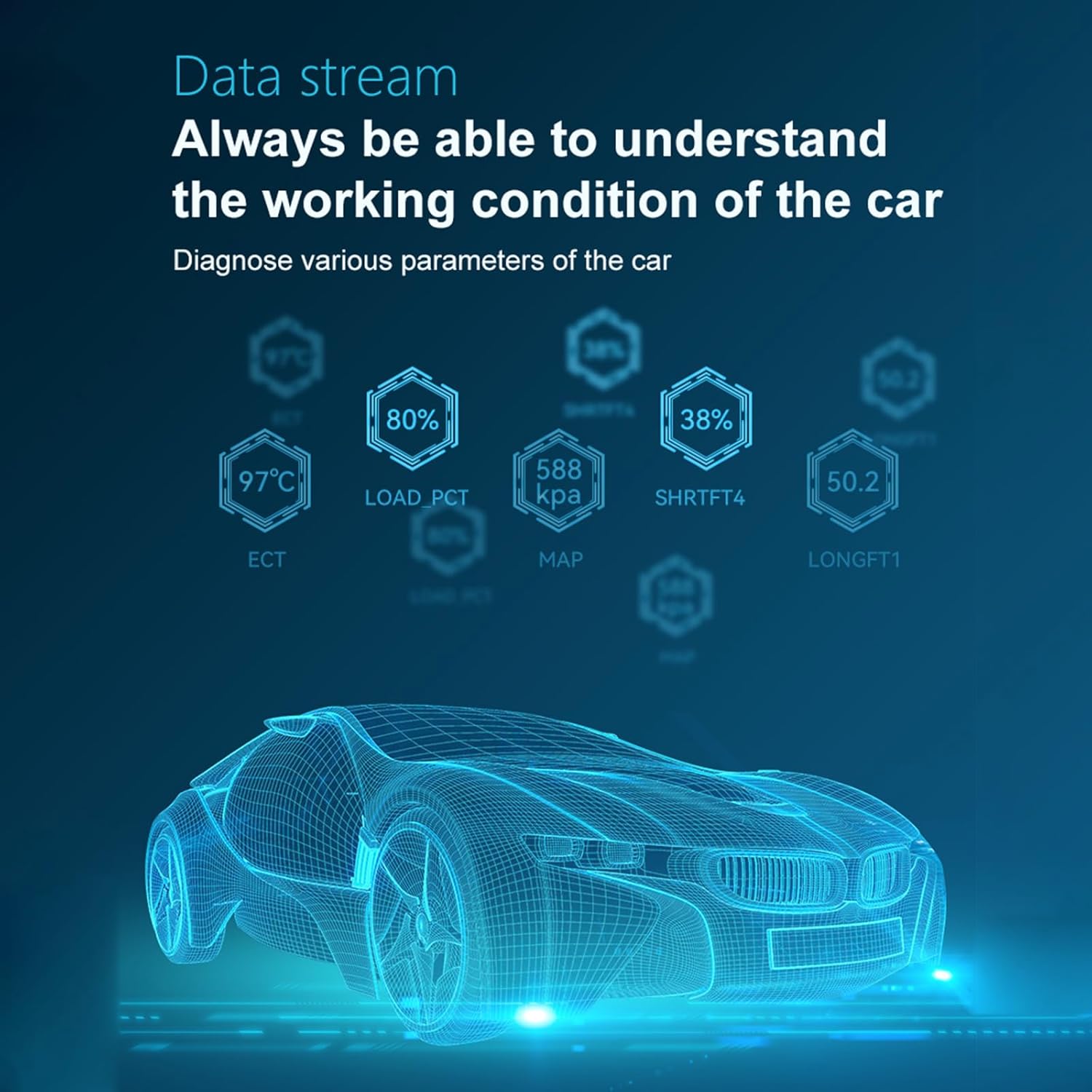
Figure 5: Visual representation of real-time data stream parameters, such as engine coolant temperature (ECT), load percentage (LOAD_PCT), manifold absolute pressure (MAP), and short-term fuel trim (SHRTFT4).
3.5 Cloud Print Functionality
The Cloud Print feature enables easy sharing and archiving of diagnostic reports. After a diagnostic session, the device can generate a QR code containing the report data. This QR code can then be scanned by a mobile phone to view, save, or print the report.

Figure 6: The Cloud Print feature, demonstrating how a QR code generated by the scanner can be used to transfer diagnostic data to a mobile device.
3.6 Multi-language Support
The V521 scanner supports 11 languages, ensuring broad usability. These languages include English, German, French, Italian, Spanish, Portuguese, Dutch, Russian, Polish, Japanese, and Chinese. The language setting can be changed in the "Setup" menu.

Figure 7: The V521 scanner highlighting its multi-language support, including English, German, French, Italian, Spanish, Portuguese, Dutch, Russian, Polish, Japanese, and Chinese.
4. Maintenance
To ensure the longevity and optimal performance of your V521 OBDII Scanner, follow these maintenance guidelines:
- Cleaning: Use a soft, dry cloth to clean the device. Do not use abrasive cleaners or solvents.
- Storage: Store the scanner in a cool, dry place, away from direct sunlight and extreme temperatures. The included flannel storage bag is recommended for protection.
- Handling: Avoid dropping the device or subjecting it to strong impacts. Do not attempt to disassemble the unit.
- Cable Care: Inspect the OBDII cable regularly for any signs of damage. Do not bend the cable excessively.
5. Troubleshooting
If you encounter issues with your V521 OBDII Scanner, refer to the following common troubleshooting steps:
- Device does not power on:
- Ensure the OBDII connector is fully seated in the vehicle's port.
- Verify the vehicle's ignition is in the "ON" position.
- Check the vehicle's fuse for the OBDII port (consult your vehicle's manual).
- "Link Error" or "Communication Error" message:
- Confirm the vehicle is OBDII compliant (generally 1996 and newer for gasoline vehicles in the US).
- Ensure the ignition is "ON" and the engine is off or running as required by the test.
- Check for any loose connections at the OBDII port.
- Try the scanner on a different OBDII compliant vehicle to rule out a vehicle-specific issue.
- Codes cannot be cleared:
- Ensure the ignition is "ON" and the engine is off.
- If the underlying fault is still present, the codes will reappear immediately after clearing. Address the vehicle fault first.
6. Specifications
Detailed technical specifications for the V521 Universal OBDII Scanner:
| Feature | Description |
|---|---|
| Model | V521 |
| Operating Voltage | 9~16V |
| Operating Environment | -20~60°C (-4~140°F) |
| Storage Temperature | -20~60°C (-4~140°F) |
| Product Size | 173 x 91.7 x 25 mm (6.81 x 3.61 x 0.98 inches) |
| Product Weight | 309g (0.68lb) |
| Product Color | Orange |
| Supported Languages | English, German, French, Italian, Spanish, Portuguese, Dutch, Russian, Polish, Japanese, Chinese |
| Supported Protocols | SAE J1850 PWM, SAE J1850 VPW, ISO9141-2, ISO14230-4 KWP (5 baud init), ISO14230-4 KWP (fast init), ISO15765-4 CAN (11bit ID, 500Kbaud), ISO15765-4 CAN (29bit ID, 500 Kbaud), ISO15765-4 CAN (11bit ID, 250 Kbaud), ISO15765-4 CAN (29bit ID, 250 Kbaud) |

Figure 8: Back view of the V521 scanner, displaying model number, working voltage, and current specifications.
7. Warranty and Support
For warranty information and technical support, please refer to the documentation provided with your purchase or contact the manufacturer directly. Keep your purchase receipt as proof of purchase for warranty claims.