
DOBE FOMIS ELECTRONICS TYX-3618B
DOBE TYX-3618B Wireless Gaming Controller User Manual
Model: TYX-3618B
1. Introduction
This manual provides detailed instructions for the setup, operation, and maintenance of your DOBE TYX-3618B Wireless Gaming Controller. Please read this manual thoroughly before using the product to ensure optimal performance and longevity.
The DOBE TYX-3618B is a versatile gaming controller compatible with multiple platforms, including PC, N-Switch, PS3, and Steam gaming systems. It features advanced control options such as dual-motor vibration, macro programming, TURBO burst functionality, linear Hall triggers, and Hall joysticks for an enhanced gaming experience.
2. Package Contents
Please verify that all items are present in the package:
- DOBE TYX-3618B Wireless Gaming Controller
- 2.4G USB Receiver
- USB Charging Cable
- User Manual (this document)
- Optional: Replaceable Joystick Caps (if included in your specific package)

Image: Front view of the DOBE TYX-3618B controller with its 2.4G USB receiver and USB charging cable, illustrating the complete package contents, including optional interchangeable joystick caps.
3. Controller Layout
Familiarize yourself with the buttons and features of your controller.
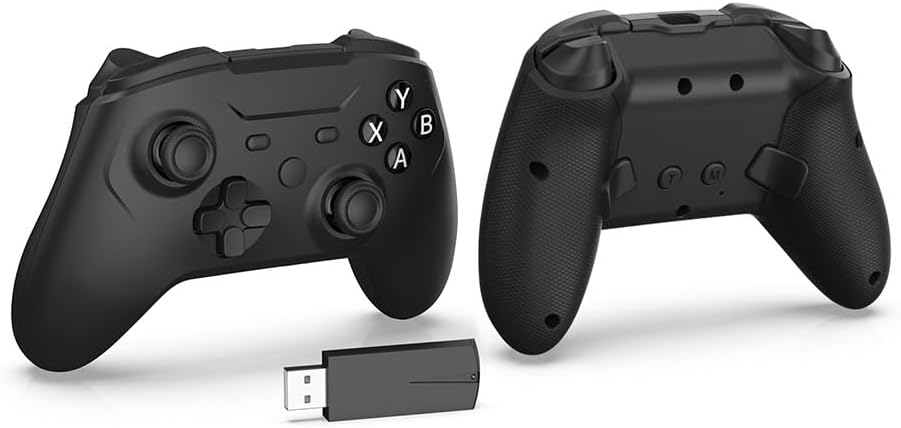
Image: Front view of the DOBE TYX-3618B Wireless Gaming Controller, showing the joysticks, D-pad, action buttons (A, B, X, Y), and central function buttons.

Image: Back view of the DOBE TYX-3618B Wireless Gaming Controller, highlighting the textured grips and additional buttons.

Image: Side view of the DOBE TYX-3618B Wireless Gaming Controller, showing the shoulder buttons and triggers.
4. Setup and Connection
4.1 Charging the Controller
Before first use, fully charge the controller. Connect the supplied USB charging cable to the controller's charging port and the other end to a USB power source (e.g., PC, USB wall adapter). The charging indicator light will show the charging status and turn off when fully charged.
4.2 Connecting via 2.4G Wireless (PC, Steam Deck)
- Insert the 2.4G USB receiver into an available USB port on your PC or Steam Deck.
- Press and hold the Home button on the controller to power it on.
- The controller will automatically attempt to pair with the receiver. The indicator lights on the controller will stabilize once connected.
- If connection fails, ensure the receiver is properly inserted and the controller is sufficiently charged.

Image: The DOBE TYX-3618B controller being used wirelessly with a Steam Deck, illustrating the 2.4G direct connection via the USB receiver.
4.3 Connecting via Bluetooth (N-Switch, Android)
- On your N-Switch or Android device, navigate to the Bluetooth settings and enable Bluetooth.
- On the DOBE TYX-3618B controller, press and hold the Bluetooth pairing button (refer to Controller Layout section for location) until the indicator lights flash rapidly, indicating pairing mode.
- On your device, select "DOBE TYX-3618B" from the list of available Bluetooth devices.
- Once paired, the indicator lights on the controller will stabilize.
4.4 Connecting via USB Wired (PC, PS3)
- Connect the USB charging cable to the controller's charging port.
- Connect the other end of the USB cable directly to a USB port on your PC or PS3 console.
- The controller will be recognized automatically as a wired gamepad.
5. Operation
5.1 Power On/Off and Sleep Mode
- Power On: Press the Home button to turn on the controller.
- Power Off: Press and hold the Home button for approximately 5 seconds to turn off the controller.
- Sleep Mode: The controller will automatically enter sleep mode after a period of inactivity to conserve battery. Press the Home button to wake it up.
5.2 Dual Motor Vibration
The controller features adjustable dual-motor vibration for immersive feedback during gameplay. Vibration intensity can often be adjusted within game settings or through specific controller software on PC.

Image: The DOBE TYX-3618B controller with an overlay illustrating the dual motor vibration feature, showing concentric circles emanating from the grips.
5.3 TURBO Function
The TURBO function allows for rapid, repeated input of a button press. To activate:
- Press and hold the desired action button (e.g., A, B, X, Y, L1, R1).
- While holding the action button, press the TURBO button once. The action button will now continuously repeat its input as long as it is held down.
- To deactivate, repeat the process: hold the action button and press the TURBO button again.
Image: Back view of the DOBE TYX-3618B controller, highlighting the TURBO and Macro programming buttons, with text indicating their functions.
5.4 Macro Programming
The controller supports macro programming, allowing you to record a sequence of button presses and assign them to a single macro button. Refer to the specific instructions for macro programming, typically involving a dedicated macro record button and assignable back buttons.
Note: Detailed macro programming steps may vary. Consult the manufacturer's website or advanced user guide for specific sequences.
5.5 Hall Effect Triggers and Joysticks
The controller is equipped with linear Hall effect triggers and Hall effect joysticks, providing precise and durable input. Hall effect sensors use magnetic fields for input detection, reducing wear and tear compared to traditional potentiometers.
Image: Side view of the DOBE TYX-3618B controller, with an overlay indicating the Hall trigger mechanism and its linear response.
6. Maintenance
- Cleaning: Use a soft, dry cloth to clean the controller. Do not use harsh chemicals or abrasive materials.
- Storage: Store the controller in a cool, dry place away from direct sunlight and extreme temperatures.
- Battery Care: To prolong battery life, avoid fully discharging the controller frequently. Charge it regularly, even if not in use for extended periods.
- Avoid Drops: Protect the controller from drops and impacts, which can damage internal components.
7. Troubleshooting
| Problem | Possible Cause | Solution |
|---|---|---|
| Controller does not power on. | Low battery. | Charge the controller using the supplied USB cable. |
| Controller does not connect wirelessly. | 2.4G receiver not properly inserted or Bluetooth not enabled/paired. | Ensure 2.4G receiver is fully inserted. For Bluetooth, enable Bluetooth on your device and re-enter pairing mode on the controller. |
| Input lag or disconnection. | Interference, low battery, or distance from receiver/device. | Move closer to the receiver/device. Ensure no strong wireless interference sources are nearby. Charge the controller. |
| Vibration not working. | Vibration disabled in game settings or controller software. | Check in-game settings or controller configuration software to ensure vibration is enabled. |
| Buttons or joysticks unresponsive. | Software glitch, physical damage, or calibration issue. | Restart the controller and the connected device. If issues persist, try recalibrating the controller (if supported by your system) or contact support. |
8. Specifications
- Model: TYX-3618B
- Connectivity: 2.4G Wireless, Bluetooth, USB Wired
- Compatible Platforms: PC, N-Switch, PS3, Steam, Steam Deck, Android
- Special Features: Dual-Motor Vibration, Macro Programming, TURBO Function, Linear Hall Triggers, Hall Joysticks
- Power Source: Rechargeable Battery (internal)
- Dimensions: Approximately 7.68 x 5.24 x 2.99 inches (Package Dimensions)
- Weight: Approximately 14.5 ounces (Item Weight)
- Manufacturer: Shenzhen Yuyuanxin Electronic Technology Co.,Ltd
9. Warranty and Support
For warranty information and technical support, please refer to the documentation provided with your purchase or visit the official DOBE FOMIS ELECTRONICS website. Keep your proof of purchase for warranty claims.
Contact Information: Please refer to the retailer or manufacturer's official website for the most up-to-date support contact details.