
1. Introduction
Thank you for choosing the MHCOZY Zigbee Smart Switch. This device is designed to provide intelligent control over high-power electrical appliances, integrating seamlessly into your smart home ecosystem. With a robust 30A capacity, it is suitable for various applications, including lighting, motors, pumps, and industrial control systems. This manual provides detailed instructions for safe installation, configuration, and operation of your smart switch.

Figure 1.1: The MHCOZY Zigbee Smart Switch, highlighting its compatibility with Zigbee, Tuya, Amazon Alexa, and Google Assistant platforms.
2. Safety Information
Please read and understand all safety instructions before installation and operation. Failure to follow these instructions may result in electric shock, fire, or property damage.
- Professional Installation Recommended: Installation should be performed by a qualified electrician.
- Power Disconnection: Always disconnect power at the circuit breaker before installing or servicing the switch.
- Voltage and Current Ratings: Do not exceed the maximum load of 30A (AC90V-AC240V).
- Indoor Use Only: This device is designed for indoor use in dry environments.
- Wiring: Ensure all wire connections are secure and comply with local electrical codes.
- Keep Away from Water: Do not expose the device to water or moisture.
3. Product Features
The MHCOZY Zigbee Smart Switch offers a range of features for enhanced home automation:
- High Power Capacity: Supports up to 30A, suitable for heavy-duty appliances.
- Remote Control: Control devices from anywhere using the Tuya App.
- Voice Control: Compatible with Amazon Alexa and Google Assistant for hands-free operation.
- Scheduling & Timers: Set automatic ON/OFF schedules, countdowns, and loop timings.
- Smart Scene Integration: Create automated routines with other Tuya-compatible devices.
- Energy Monitoring: Features a power meter function to track energy consumption.
- Zigbee 3.0 Connectivity: Ensures reliable and efficient communication within your smart home network (requires a Zigbee hub).
- Status Synchronization: Real-time device status updates available in the app.
- Share Control: Easily share control of the device with family members.
4. Package Contents
Verify that all items are present in the package:
- 1 x MHCOZY Zigbee Smart Switch (Model WLSW01)
- 1 x User Manual
5. Specifications
| Parameter | Value |
|---|---|
| Model Number | WLSW01 |
| Voltage | AC90V-AC240V (Single Phase) |
| Max Load Current | 30A |
| Max Wattage | 3300W (at 110V) / 7200W (at 240V) |
| Wireless Protocol | Zigbee 3.0 |
| Operating Mode | ON-OFF |
| Material | Plastic |
| Product Dimensions (L x W x H) | 10.92 x 5.51 x 3.91 cm (4.3 x 2.17 x 1.54 inches) |
| Item Weight | 118 g (3.53 ounces) |
| Certifications | CE |

Figure 5.1: Detailed dimensions of the MHCOZY Zigbee Smart Switch, showing length, width, and height in both inches and centimeters.
6. Setup and Installation
Follow these steps to install and set up your MHCOZY Zigbee Smart Switch.
6.1 Wiring Diagram
- Disconnect Power: Before starting, turn off the main power supply at your circuit breaker to prevent electric shock.
- Identify Wires: Locate the Live (L) and Neutral (N) wires for both the input power supply and the appliance you wish to control.
- Connect Input: Connect the incoming Live wire to the 'IN L' terminal and the incoming Neutral wire to the 'IN N' terminal on the smart switch.
- Connect Output: Connect the appliance's Live wire to the 'OUT L' terminal and the appliance's Neutral wire to the 'OUT N' terminal on the smart switch.
- Secure Connections: Ensure all wires are securely fastened in their respective screw terminals.
- Restore Power: Once all connections are secure, restore power at the circuit breaker.
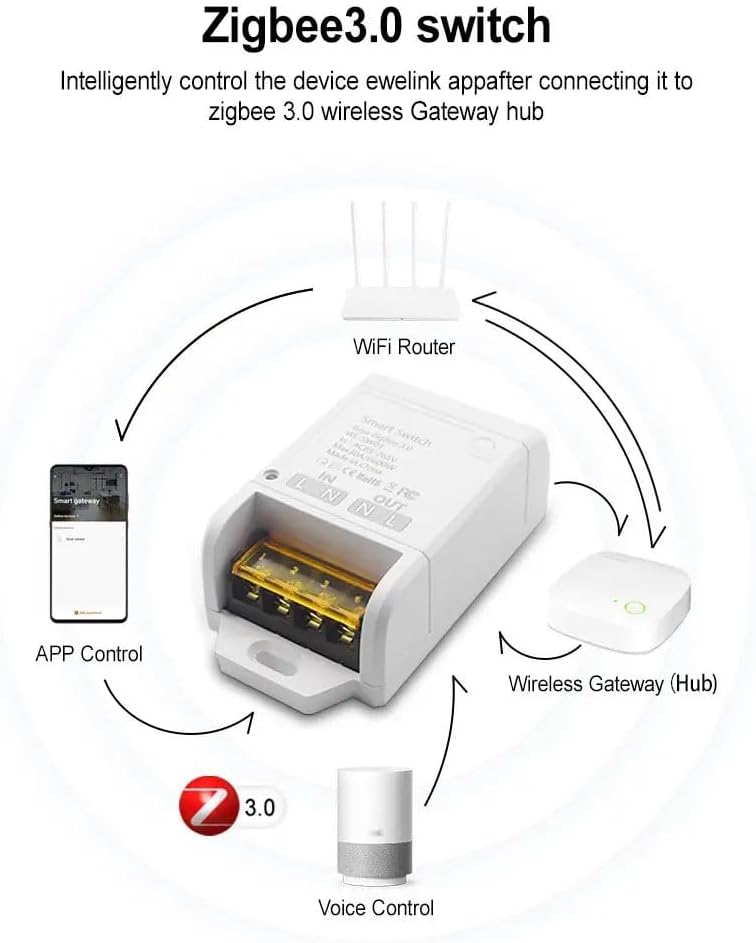
Figure 6.1: Illustration of the MHCOZY Zigbee Smart Switch's wiring terminals (IN L, IN N, OUT N, OUT L) and its connection to a Zigbee gateway for app and voice control.
6.2 Pairing with Tuya App and Zigbee Hub
A Zigbee hub (e.g., Tuya Zigbee Hub) is required for the smart switch to function with the Tuya App and voice assistants.
- Download Tuya App: Download the "Tuya Smart" or "Smart Life" app from your smartphone's app store (iOS or Android).
- Register/Login: Create an account or log in to your existing Tuya account.
- Add Zigbee Hub: If you haven't already, add your Zigbee hub to the Tuya App. Follow the hub's specific instructions for pairing.
- Enter Pairing Mode: Power on the MHCOZY Zigbee Smart Switch. The device should automatically enter pairing mode (indicated by a blinking LED, refer to device for specific indicator).
- Add Device in App: In the Tuya App, navigate to your Zigbee hub, then select "Add sub-device" or "Search for new devices." The app should automatically discover the smart switch.
- Confirm Pairing: Once discovered, confirm the pairing in the app. You can rename the device for easier identification (e.g., "Living Room Lights").
7. Operating Instructions
Control your MHCOZY Zigbee Smart Switch using the Tuya App or voice commands.
7.1 App Remote Control
After successful pairing, you can control the switch from anywhere with an internet connection:
- Open the Tuya Smart or Smart Life App.
- Select your smart switch from the device list.
- Tap the ON/OFF button to toggle the connected appliance's power.
- The app will display the real-time status of the switch (ON/OFF).
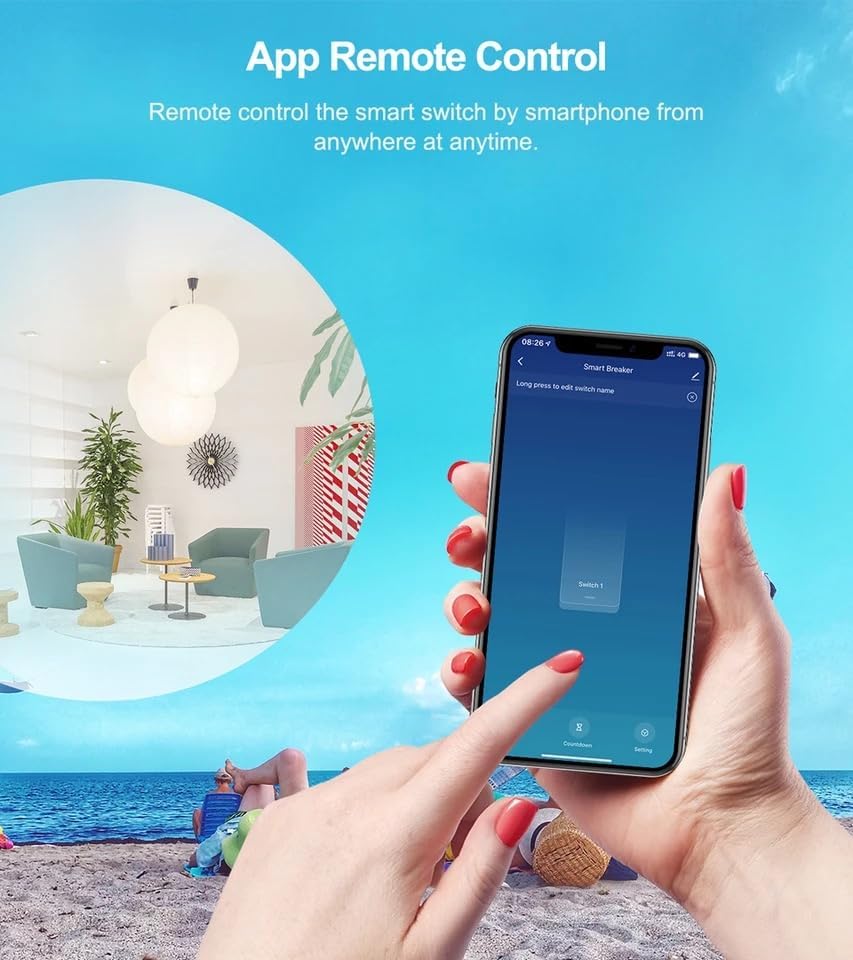
Figure 7.1: A smartphone screen showing the Tuya app interface, demonstrating remote control functionality for the smart switch from any location.
7.2 Scheduling and Timers
Automate your appliances with various timing options:
- Scheduled Timing: Set specific times for the switch to turn ON or OFF daily or on selected days.
- Countdown Timer: Set a timer for the switch to turn ON or OFF after a specified duration.
- Loop Timing: Configure the switch to cycle ON and OFF repeatedly at set intervals.

Figure 7.2: Visual representation of the timing features, including scheduled ON/OFF, cycle timing, and countdown, applicable to various uses like lighting, irrigation, and machinery.
7.3 Voice Control
Integrate your smart switch with Amazon Alexa or Google Assistant for voice commands:
- Link Accounts: In the Alexa or Google Home app, link your Tuya Smart/Smart Life account.
- Discover Devices: Ask your voice assistant to "Discover devices" or manually add the switch.
- Voice Commands: Use commands like:
- "Alexa, turn on [Device Name]"
- "Hey Google, turn off [Device Name]"
7.4 Smart Scenes and Group Control
Create custom automation scenarios and control multiple devices simultaneously:
- Smart Scenes: In the Tuya App, create scenes that trigger the switch based on conditions like time of day, weather, or other smart device statuses.
- Group Control: Group multiple smart switches or other Tuya devices together to control them with a single command.
8. Maintenance
The MHCOZY Zigbee Smart Switch requires minimal maintenance.
- Cleaning: Wipe the device with a soft, dry cloth. Do not use liquid cleaners or solvents.
- Firmware Updates: Periodically check the Tuya App for available firmware updates to ensure optimal performance and security.
- Environmental Conditions: Ensure the device is kept within its specified operating temperature and humidity ranges.
9. Troubleshooting
If you encounter issues with your smart switch, refer to the following common problems and solutions:
| Problem | Possible Cause | Solution |
|---|---|---|
| Device not powering on. | No power supply; incorrect wiring. | Check circuit breaker. Verify wiring connections (Live and Neutral) are correct and secure. |
| Cannot pair with Tuya App. | No Zigbee hub; hub not in pairing mode; switch not in pairing mode; weak Zigbee signal. | Ensure a Zigbee hub is connected and in pairing mode. Confirm the smart switch is powered on and its indicator light shows pairing mode. Move the switch closer to the hub. |
| App shows "Offline". | Zigbee hub offline; poor Zigbee signal; power outage. | Check if your Zigbee hub is online and connected to the internet. Ensure the smart switch has power. Improve Zigbee signal strength. |
| Voice control not working. | Tuya account not linked to Alexa/Google Assistant; device not discovered; incorrect voice command. | Verify Tuya account is linked in Alexa/Google Home app. Ask assistant to "Discover devices." Use the exact device name configured in the Tuya App. |
| Switch randomly turns ON/OFF. | Conflicting schedules/scenes; interference. | Check the Tuya App for any conflicting schedules, timers, or smart scenes. Reset the device and re-pair if necessary. |
10. Warranty and Support
MHCOZY products are designed for reliability and performance. For specific warranty details, please refer to the warranty card included with your purchase or contact your retailer.
For technical support, troubleshooting assistance, or further inquiries, please contact MHCOZY customer service through the contact information provided on the product packaging or the official MHCOZY website.