
1. Product Overview
The Generic A19 is a compact and portable 1080P recording camera designed for various applications, including conference recording, outdoor sports, and general surveillance. Featuring a magnetic back clip and a 90-degree rotatable lens, it offers versatile mounting and recording angles. This device is equipped with a built-in microphone for audio capture and supports external memory cards for storage.

Image 1.1: The A19 camera's compact size, shown held in a hand, highlighting its portability.
2. Package Contents
Please check the package contents upon unboxing. If any items are missing or damaged, contact customer support.
- Generic A19 Portable Recording Camera
- USB Charging Cable
- User Manual
Note: A memory card is not included and must be purchased separately.

Image 2.1: Contents of the product package, showing the camera, user manual, and USB cable.
3. Product Features
- High-Definition Recording: Captures video in 1080P resolution (1920x1080) for clear visuals.
- Wide-Angle Rotatable Lens: Features a GC1054 100° wide-angle lens that can rotate 90° for flexible recording perspectives.
- Built-in Microphone: Omnidirectional capacitor MIC for clear audio recording (WAV format, 512KBPS).
- Magnetic Back Clip: Allows for easy attachment to clothing or metallic surfaces.
- Portable Design: Compact and lightweight for discreet and convenient use.
- Extended Storage Support: Supports TF (MicroSD) cards up to 128GB (not included).
- Long Battery Life: Equipped with a 400mAh battery, providing approximately 150 minutes of continuous video recording.
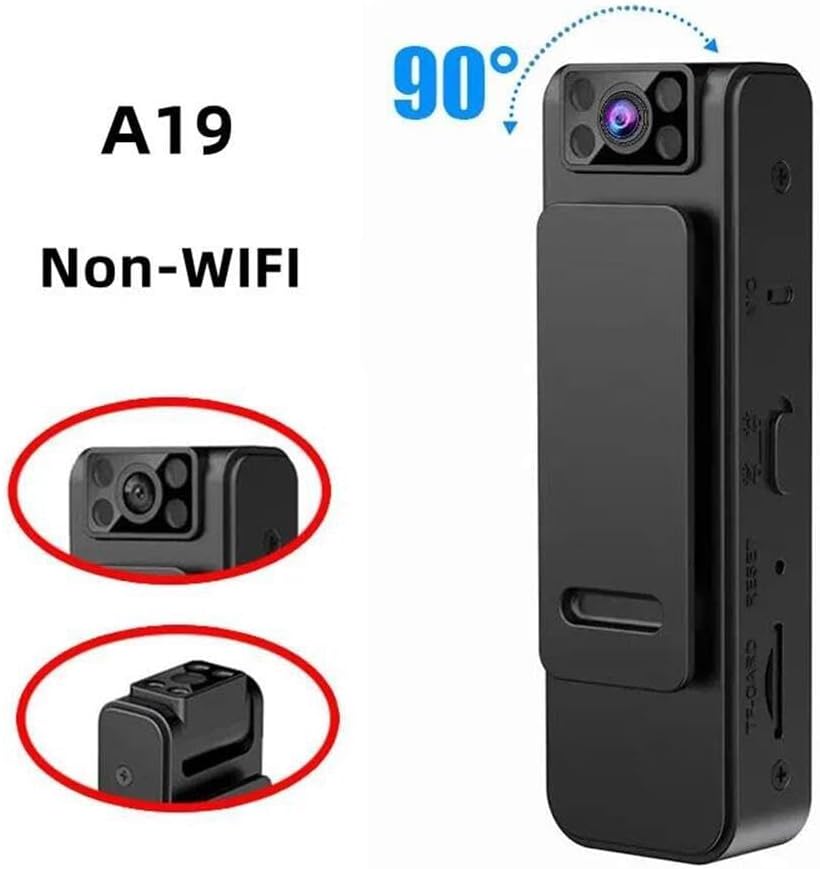
Image 3.1: The A19 camera demonstrating its 90-degree rotatable lens feature.
4. Parts Identification
Familiarize yourself with the various parts and controls of your A19 recording camera:

Image 4.1: Multiple views of the A19 camera, highlighting its various buttons, ports, and features.
- Lens: The camera's recording lens, capable of 90-degree rotation.
- Indicator Light: Displays device status (e.g., charging, recording, standby).
- Power/Mode Button: Used to power the device on/off and switch between recording modes.
- Recording Button: Initiates and stops video or audio recording.
- TF-CARD Slot: Insert your MicroSD memory card here.
- USB Port (Micro USB): For charging the device and connecting to a computer.
- MIC: Built-in microphone for audio capture.
- Reset Button: Used to reset the device in case of malfunction.
- Back Clip: Magnetic clip for attaching the camera to various surfaces.
5. Setup
5.1 Inserting the Memory Card
- Ensure the camera is powered off.
- Locate the TF-CARD slot on the side of the device.
- Gently insert a MicroSD (TF) card (up to 128GB, Class 10 or higher recommended) into the slot with the gold contacts facing down until it clicks into place.
- To remove, push the card in slightly until it springs out.
5.2 Charging the Device
- Connect the provided USB cable to the camera's Micro USB port.
- Connect the other end of the USB cable to a USB power adapter (DC5V-1A recommended) or a computer's USB port.
- The indicator light will illuminate during charging and typically change color or turn off when fully charged.
- A full charge takes approximately 2-3 hours.
6. Operating Instructions
6.1 Powering On/Off
- Power On: Press and hold the Power/Mode button for approximately 3 seconds until the indicator light turns on.
- Power Off: Press and hold the Power/Mode button for approximately 3 seconds until the indicator light turns off.
6.2 Video Recording
- Ensure the camera is powered on and in video recording mode (check indicator light status, refer to specific light patterns in a full manual if available).
- Press the Recording button once to start video recording. The indicator light will typically flash slowly to indicate recording is in progress.
- To stop recording, press the Recording button again. The indicator light will return to standby mode.
- Videos are saved as AVI files (1920x1080) on the inserted memory card.
6.3 Audio Recording (Voice Recorder Mode)
If your device supports a dedicated audio recording mode:
- With the camera powered on, press the Power/Mode button briefly to switch to audio recording mode (indicator light pattern will change).
- Press the Recording button once to start audio recording.
- Press the Recording button again to stop audio recording.
- Audio files are saved as WAV files (512KBPS).
6.4 Connecting to a Computer
- Ensure the camera is powered off.
- Connect the camera to your computer using the USB cable.
- The camera will be recognized as a removable disk. You can then access the recorded video and audio files.
6.5 Rotating the Lens
The camera lens can be manually rotated up to 90 degrees to adjust your recording angle. Gently pivot the lens assembly to the desired position.
7. Maintenance
- Cleaning: Use a soft, dry cloth to clean the camera body. For the lens, use a specialized lens cleaning cloth and solution if necessary. Avoid harsh chemicals.
- Storage: Store the camera in a cool, dry place away from direct sunlight, extreme temperatures, and high humidity.
- Battery Care: To prolong battery life, avoid fully discharging the battery frequently. Charge the device regularly, even if not in use for extended periods.
- Memory Card: Periodically format the memory card to maintain optimal performance and prevent data corruption. Back up important files before formatting.
8. Troubleshooting
- Device not turning on: Ensure the battery is charged. If fully charged, try pressing the Reset button with a small pin.
- Cannot record: Check if a memory card is inserted correctly and if it has sufficient free space. Ensure the card is not corrupted; try formatting it (after backing up data).
- Computer does not recognize the device: Ensure the USB cable is properly connected. Try a different USB port or cable. Ensure the camera is powered off before connecting.
- Poor video/audio quality: Ensure the lens is clean. Check recording settings if adjustable. Ensure the microphone is not obstructed.
- Short battery life: Ensure the device is fully charged. Battery performance can degrade over time. Avoid operating in extreme temperatures.
9. Specifications

Image 9.1: Dimensions of the A19 portable recording camera.
| Feature | Specification |
|---|---|
| Model Name | KLIW002 |
| Lens | GC1054, 100° Wide-angle, 90° Rotation |
| Video Capture Resolution | 1080P (1920 x 1080) |
| Video Format | AVI |
| Audio Format | WAV (512KBPS) |
| Built-in MIC | Omnidirectional Capacitor MIC |
| Battery | 402050 / 400mAh |
| Video Recording Time | Approx. 150 minutes |
| USB Interface | Micro USB / DC5V-1A |
| Memory Card Support | Up to 128GB TF (MicroSD) card |
| Working Temperature | -20°C to 50°C |
| Item Dimensions | Approx. 8.2cm x 2.6cm x 1.9cm (3.2in x 1.0in x 0.5in) |
10. Warranty and Support
This product comes with a standard manufacturer's warranty. For specific warranty terms and conditions, please refer to the documentation provided at the time of purchase or contact your retailer.
For technical support, troubleshooting assistance, or inquiries about replacement parts, please contact the seller or manufacturer directly through the platform where the product was purchased.