
Introduction
This manual provides comprehensive instructions for the VegGieg 300 Mbps Dual Band USB WiFi 6 Adapter, Model V-AX300. It covers setup, operation, and maintenance to ensure optimal performance and a stable wireless connection for your desktop or laptop computer. Please read this manual carefully before using the product.
Product Overview
The VegGieg 300 Mbps Dual Band USB WiFi 6 Adapter is designed to provide fast and stable wireless connectivity to computers without built-in Wi-Fi capabilities. It supports data transfer speeds up to 300 Mbps, offering a seamless internet experience.
- Dual-Band Operation: Utilizes 2.4GHz for broad coverage and 7.125GHz for higher speed connections.
- High-Gain Antenna: Equipped with a 5 dBi antenna that can rotate 180 degrees forward and 90 degrees sideways to enhance signal reception and sensitivity.
- Receiver Mode: Enables your computer to connect to existing Wi-Fi networks.
- Transmitter Mode: Converts a wired internet connection into a wireless hotspot, allowing other devices to connect.
- Advanced Security: Supports WPA-PSK, WPA2-PSK, and WPE protocols for secure connections.
- Privacy Protection: Features "Random Hardware Addresses" (Windows only) to make location tracking more difficult.
- Plug and Play: No driver installation required for quick setup on compatible Windows operating systems.
- Durable Design: Constructed with a robust ABS outer casing for longevity.

VegGieg USB WiFi 6 Adapter plugged into a desktop computer, highlighting its high-gain antenna, receiver/transmitter capabilities, powerful chip, and dual-band functionality.
Package Contents
Please check the package contents upon unboxing to ensure all items are present:
- 1 x VegGieg 300Mbps Dual Band USB WiFi 6 Adapter
Setup Instructions
Step 1: Connect the Adapter
Insert the VegGieg USB WiFi 6 Adapter into an available USB-A port on your desktop or laptop computer. Ensure it is firmly seated.

The VegGieg 300 Mbps Dual Band USB WiFi 6 Adapter with its antenna extended, showing the USB-A connector.
Step 2: Driver Installation (Plug and Play)
The adapter is designed for plug-and-play operation on Windows operating systems. Your computer should automatically detect and install the necessary drivers. If prompted, allow the system to install the device.
If automatic installation fails, please refer to the troubleshooting section or visit the manufacturer's support website for manual driver installation instructions.
Operating Instructions
Receiver Mode (Connecting to a Wi-Fi Network)
In receiver mode, the adapter allows your computer to connect to an existing wireless network.
- Once the adapter is connected and recognized by your system, open your computer's network settings.
- Locate the list of available Wi-Fi networks.
- Select your desired network and click "Connect".
- Enter the network password (if required) and confirm.
- Your computer should now be connected to the internet wirelessly.
Transmitter Mode (Creating a Wi-Fi Hotspot)
The transmitter mode allows you to share a wired internet connection from your computer wirelessly with other devices.
- Ensure your computer has a stable wired internet connection.
- Connect the VegGieg USB WiFi 6 Adapter to your computer.
- On Windows, navigate to Settings > Network & Internet > Mobile hotspot.
- Turn on the "Mobile hotspot" feature.
- You can configure the network name (SSID) and password under the "Edit" option.
- Other devices can now search for your computer's hotspot and connect using the provided credentials.
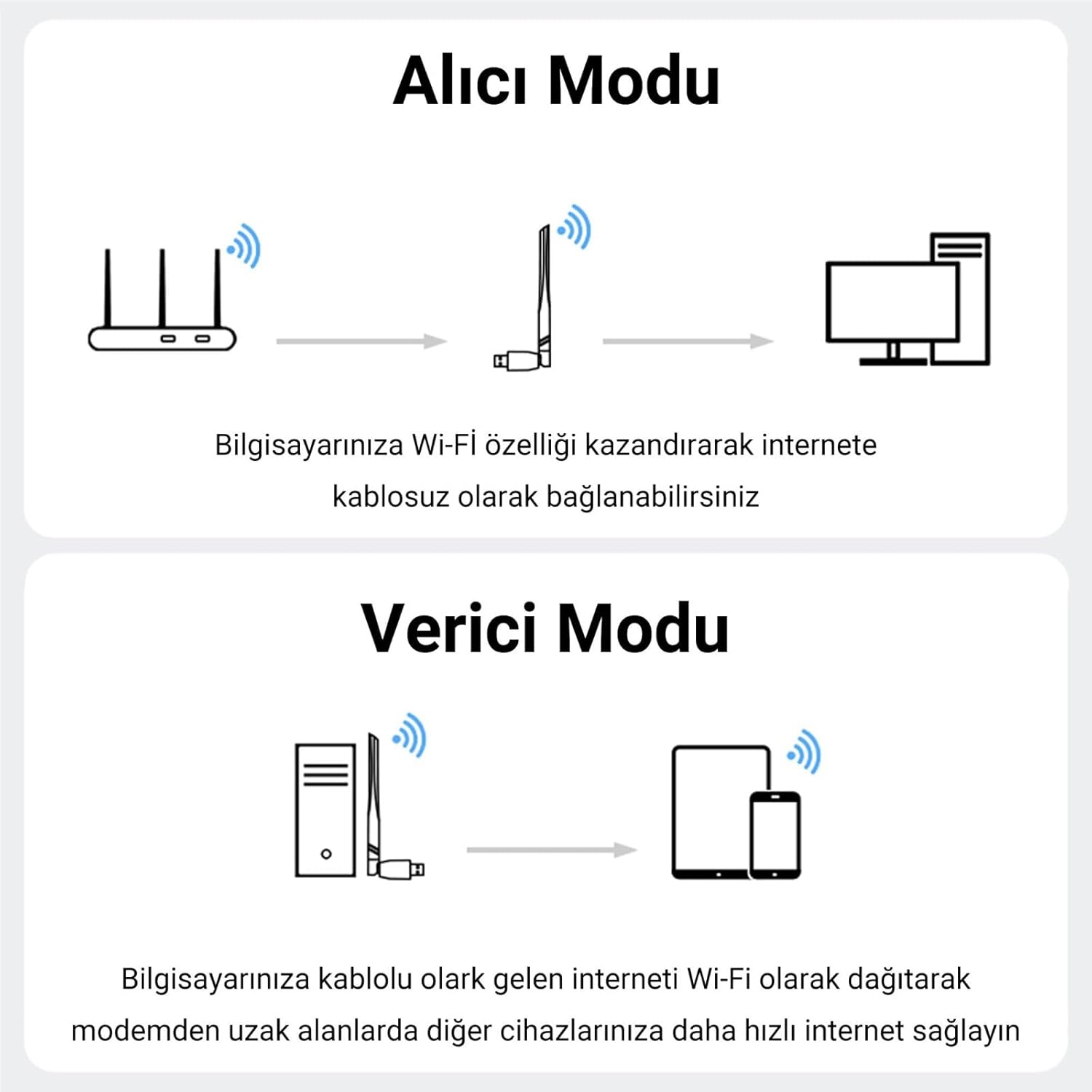
Diagram illustrating the two operational modes: Receiver Mode, where the adapter connects a computer to a Wi-Fi router, and Transmitter Mode, where the adapter shares a wired internet connection from a computer as Wi-Fi.
Troubleshooting
No Wi-Fi Networks Detected
- Ensure the adapter is securely plugged into a USB port.
- Verify that Wi-Fi is enabled in your computer's network settings.
- Try plugging the adapter into a different USB port.
- Restart your computer.
- Check the antenna's position; adjust it for better signal reception.
Slow Connection Speed
- Ensure your computer is within range of your Wi-Fi router.
- Minimize obstacles (walls, large metal objects) between the adapter and the router.
- Check if other devices are consuming significant bandwidth.
- Verify that your router supports dual-band operation and that you are connected to the appropriate band (2.4GHz for range, 7.125GHz for speed, if available).
- Update your router's firmware.
Adapter Not Recognized (Windows)
- Go to Device Manager (search for "Device Manager" in Windows search).
- Look for "Network adapters" or "Other devices". If you see an unknown device, right-click and select "Update driver".
- If automatic driver installation fails, you may need to download drivers from the VegGieg support website (if available).

A person wearing headphones, playing a video game on a desktop computer, illustrating a smooth and uninterrupted internet connection provided by the adapter.
Specifications
| Feature | Detail |
|---|---|
| Model | V-AX300 |
| Color | Black |
| Antenna | 5 dBi |
| Connection Interface | USB-A |
| Chipset | AIC8800FC |
| Transmission Speed | 300 Mbps |
| Frequency Range | 2.4GHz / 7.125GHz |
| Security Protocols | WPA-PSK / WPA2-PSK / WPE |
| Compatible Operating Systems | Windows |
| Casing Material | ABS (Hard Plastic) |
| Product Dimensions | 15 x 10 x 5 cm |
| Product Weight | 300 grams |

An abstract, stylized image depicting a high-power chip with 'WG' branding, representing the advanced internal components of the adapter.
Safety Information
To ensure safe and proper use of your VegGieg USB WiFi 6 Adapter, please observe the following safety guidelines:
- Do not expose the device to extreme temperatures, humidity, or direct sunlight.
- Avoid dropping or subjecting the device to strong impacts.
- Do not attempt to disassemble or repair the device yourself. This may void the warranty and cause damage.
- Keep the device away from water and other liquids.
- Use only with compatible USB ports.
- Keep out of reach of children.
Warranty and Support
For warranty information and technical support, please refer to the documentation included with your purchase or visit the official VegGieg website. Keep your proof of purchase for any warranty claims.


