
podofo 4Core 2G+64G with Knob
PODOFO Car Stereo User Manual
Model: 4Core 2G+64G with Knob
1. Introduction
This manual provides comprehensive instructions for the installation, operation, and maintenance of your PODOFO 2G 64G Car Stereo. This advanced car stereo system is designed for select Ford models, offering a 7-inch IPS touchscreen with Wireless CarPlay, Android Auto, Bluetooth, DAB+, OBD2, WiFi, FM/RDS, GPS, SWC, and backup camera support. Please read this manual thoroughly before use to ensure proper installation and optimal performance.

Figure 1.1: PODOFO 7-inch Car Stereo (4Core 2G+64G with Knob) with included accessories and smartphone integration icons.
2. Vehicle Compatibility
This car stereo is compatible with various Ford models. Please verify your vehicle's make, model, and year against the list below to ensure proper fitment.

Figure 2.1: Visual comparison of a Ford dashboard before and after the installation of the PODOFO car stereo, demonstrating seamless integration.
2.1 Compatible Ford Models:
- Ford F150 (2004-2008)
- Ford F250/F350 (2006-2014)
- Ford E250/E350 (2009-2014)
- Ford Edge (2007-2010)
- Ford Taurus/Sable (2008-2009)
- Ford Fusion/Milan (2006-2009)
- Ford Focus/Montego/Freestyle (2005-2007)
- Ford Explorer (U251) (2006-2010)
- Ford Escape (2008-2012)
- Ford Expedition (2007-2014)
- Lincoln MKX (2007-2009)
- Lincoln Mark LT (2006-2008)
- Ford Mustang (2005-2009)

Figure 2.2: Comprehensive list of compatible Ford models and years, alongside visual examples of various Ford dashboards.

Figure 2.3: Visual guide indicating which Ford dashboard configurations are suitable for installation and which are not.
3. What's in the Box
Upon opening the package, please ensure all the following components are present and in good condition:
- PODOFO Car Stereo Unit
- Power Cable
- RCA Cable
- 3.8Pin Canbus Plug
- USB Cable
- Rear Camera Input Cable
- Radio Antenna
- GPS Antenna
- Canbus Decoder
- External Microphone
- Backup Camera (if included in package variant)
- User Manual
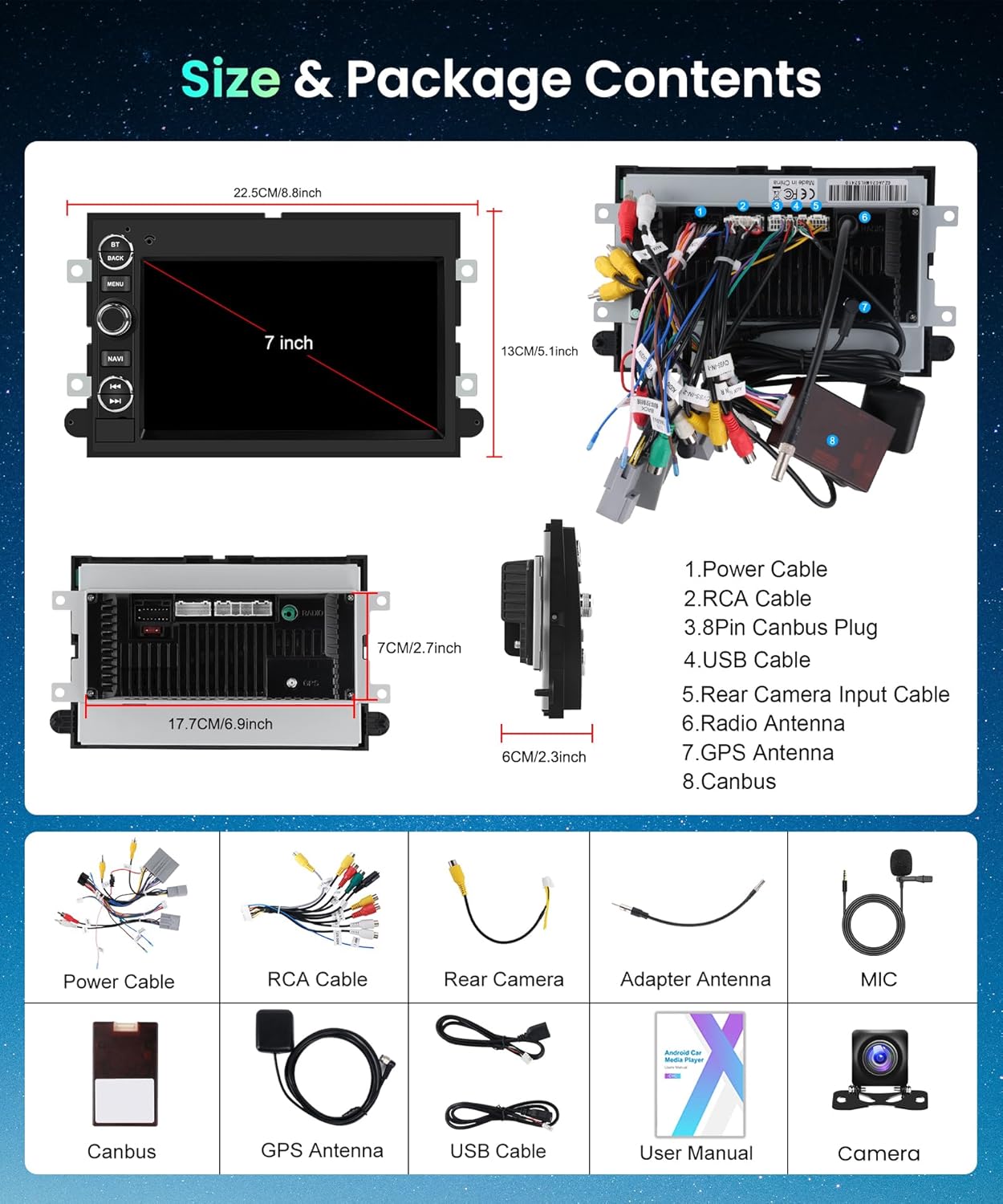
Figure 3.1: Overview of the PODOFO car stereo's dimensions and a visual representation of all components included in the package.
4. Setup and Installation
Proper installation is crucial for the optimal performance of your car stereo. It is recommended that installation be performed by a qualified professional. Always disconnect the vehicle's battery before beginning any electrical work.
4.1 Wiring Diagram
Refer to the following diagrams for correct wiring connections. Ensure all connections are secure to prevent malfunctions.

Figure 4.1: Comprehensive wiring diagrams illustrating connections for power, RCA cables, and other peripheral inputs for the car stereo system.
4.2 Backup Camera Installation (If Applicable)
If your package includes a backup camera, follow these steps for installation and wiring. The camera provides a 170-degree ultra-angle view with 1280 x 720 resolution and IP67 waterproof rating.

Figure 4.2: Close-up view of the AHD reverse camera, highlighting its HD image quality, night vision capabilities, wide-angle lens, and waterproof design.

Figure 4.3: Step-by-step wiring guide for connecting the backup camera to the car stereo system, showing cable routing and connections.
- Mount the backup camera securely at the rear of your vehicle.
- Connect the camera's video output cable to the "Rear Camera Input" on the stereo unit.
- Connect the camera's power wire to your vehicle's reverse light circuit (typically the positive wire of the reverse light) to enable automatic display when shifting into reverse.
- Route all cables safely and discreetly to avoid interference or damage.
5. Operating Instructions
Your PODOFO car stereo offers a wide range of features for an enhanced driving experience. This section covers the basic operation of key functions.
5.1 Wireless CarPlay & Android Auto
Connect your smartphone wirelessly or via USB to access navigation, music, calls, and more directly on the 7-inch IPS touchscreen.

Figure 5.1: Display of the car stereo interface showing various CarPlay and Android Auto applications, demonstrating both wireless and wired connectivity options.
- Ensure Bluetooth is enabled on your smartphone.
- On the stereo, navigate to the CarPlay/Android Auto icon and select it.
- Follow the on-screen prompts to pair your device. For wired connection, simply connect your phone via a USB cable.
5.2 Mirror Link & Split Screen
Mirror your phone's screen onto the stereo display or use the split-screen function to run two applications simultaneously, such as navigation and music.

Figure 5.2: Illustration of the car stereo's capabilities including CarPlay, Android Auto, Mirror Link, and Split Screen, with an emphasis on voice control functionality.

Figure 5.3: Demonstration of Mirror Link and Split Screen features, displaying a video playing on one side and a navigation map on the other.

Figure 5.4: Example of the Split Screen mode, showing three different applications (FM radio, music player, and another app) running concurrently on the display.
5.3 Bluetooth Connectivity
Enjoy hands-free calling and wireless audio streaming via Bluetooth 5.0. An external microphone ensures clear call quality.

Figure 5.5: The car stereo's Bluetooth interface, showing options for making calls and streaming music wirelessly from a connected smartphone.
- Go to the Bluetooth menu on the stereo.
- Enable Bluetooth on your phone and search for available devices.
- Select "PODOFO Car Stereo" from the list and confirm pairing.
5.4 FM/RDS Radio
Tune into your favorite radio stations with FM/RDS functionality, providing station information and enhanced signal reception.

Figure 5.6: The car stereo's interface for Bluetooth and FM Radio, showing frequency tuning and station presets.
- Select the "Radio" application from the main menu.
- Use the tuning controls to find desired stations or use the auto-scan function.
- Save frequently listened stations to presets for quick access.
5.5 GPS Navigation & WiFi
Utilize offline maps with the included GPS antenna or connect to WiFi for online navigation apps like Google Maps and Waze. Stay updated with global weather information.

Figure 5.7: The car stereo's GPS navigation display, showing a map with route guidance and various navigation app icons.

Figure 5.8: The car stereo's WiFi/Hotspot interface, displaying available networks and various application icons that can be downloaded and used with internet access.
- For offline maps, ensure the GPS antenna is properly connected and maps are downloaded.
- To use online features, connect to a WiFi network via your phone's hotspot or a dedicated WiFi source.
- Access navigation apps from the main menu.
5.6 Steering Wheel Control (SWC)
Program your vehicle's steering wheel controls to manage stereo functions for safe and convenient operation.

Figure 5.9: The car stereo's interface for learning and configuring steering wheel controls, showing various assignable functions.
- Navigate to the "Steering Wheel Control" settings in the stereo menu.
- Follow the on-screen instructions to assign functions to your vehicle's steering wheel buttons.
6. Specifications
| Feature | Specification |
|---|---|
| Operating System | Android |
| RAM | 2GB |
| ROM | 64GB |
| Display Size | 7 Inches |
| Display Resolution | 1080P (for video playback) |
| Connectivity | Bluetooth 5.0, USB, Wi-Fi |
| Special Features | Wireless CarPlay, Android Auto, DAB+, OBD2, GPS, SWC, Backup Camera Support |
| Audio Output Mode | APE/FLAC/WAV/MP3/WMA etc. |
| Mounting Type | Dashboard Mount |
| Item Weight | 1.76 pounds |
| Package Dimensions | 9.84 x 5.91 x 3.94 inches |
7. Troubleshooting
This section provides solutions to common issues you might encounter. If the problem persists, please contact customer support.
| Problem | Possible Cause | Solution |
|---|---|---|
| No Power | Loose power connection, blown fuse, vehicle battery issue. | Check all power cables and connections. Inspect vehicle fuses. Ensure vehicle battery is charged. |
| No Sound | Speaker wires disconnected, volume too low, incorrect audio source selected. | Verify speaker wire connections. Increase volume. Select the correct audio input source (e.g., FM, Bluetooth, CarPlay). |
| CarPlay/Android Auto Not Connecting | Bluetooth/USB connection issue, phone settings, incompatible phone. | Ensure Bluetooth is on and paired. Try a different USB cable. Restart phone and stereo. Check phone's CarPlay/Android Auto settings. |
| Backup Camera Not Displaying | Camera wiring issue, incorrect input selected, camera malfunction. | Check camera power and video signal connections. Ensure vehicle is in reverse. Verify camera is functional. |
| GPS Signal Weak/Lost | GPS antenna placement, environmental interference. | Ensure GPS antenna has a clear view of the sky. Avoid placing near metal objects. |
8. Maintenance
To ensure the longevity and optimal performance of your PODOFO car stereo, follow these simple maintenance guidelines:
- Cleaning the Screen: Use a soft, lint-free cloth specifically designed for electronic screens. Do not use abrasive cleaners or solvents. Gently wipe the screen to remove dust and fingerprints.
- General Cleaning: Wipe the exterior of the unit with a soft, dry cloth. Avoid spraying liquids directly onto the unit.
- Software Updates: Periodically check for software updates from the manufacturer (if available) to ensure the system runs efficiently and has the latest features. Updates can typically be performed via WiFi.
- Environmental Conditions: Avoid exposing the unit to extreme temperatures, direct sunlight for prolonged periods, or excessive moisture.
- Cable Connections: Periodically check all cable connections to ensure they are secure and free from corrosion or damage.
9. Warranty and Support
PODOFO is committed to providing high-quality products and excellent customer service. Your car stereo comes with the following support:
- Warranty: 2-Year Replacement Warranty.
- Money-Back Guarantee: 30-day Money-Back Guarantee.
- Technical Support: Lifetime Technical Support.
- Customer Service: Professional technical support and customer service are available. For questions regarding installation or use, please contact Podofo Tech directly.
To contact support, you can typically find contact information on the seller's page or through the official Podofo website. Please have your product model and purchase details ready when contacting support.

Figure 9.1: Overview of Podofo's customer service commitments, including quick reply times, return policy, replacement period, and lifetime technical support.
Ask a question about this manual
Ask about setup, troubleshooting, compatibility, parts, safety, or missing instructions. Manuals+ will review the question and use this page’s manual context to help answer it.