1. Introduction
This manual provides detailed instructions for the setup, operation, and maintenance of your Wiby TV-268-3MP Indoor Wi-Fi Camera. Please read this manual thoroughly before using the product to ensure correct usage and optimal performance. Keep this manual for future reference.
2. Product Overview
2.1. Package Contents
- Wiby TV-268-3MP Indoor Wi-Fi Camera
- Power Cable
- Wall Mount Bracket
- Mounting Screws and Wall Plugs
- User Manual (this document)
2.2. Camera Features
- 1080P High Definition Video: Provides clear and detailed video surveillance.
- Dual-Band Wi-Fi Connectivity: Supports both 2.4 GHz and 5 GHz Wi-Fi networks for stable connection.
- Pan and Tilt Functionality: Offers 355° horizontal rotation and 80° vertical tilt to cover a wide area.
- IR Night Vision: Enables monitoring in low-light or complete darkness.
- Motion Detection and Tracking: Detects movement and can automatically track subjects, sending instant notifications.
- Two-Way Audio: Allows for real-time communication through the camera.
- Local Storage: Supports Micro SD card storage up to 128GB (card not included).
- Cloud Storage: Optional cloud storage service available (subscription may be required).
- Smart Home Integration: Compatible with Amazon Alexa and Google Home for voice control.
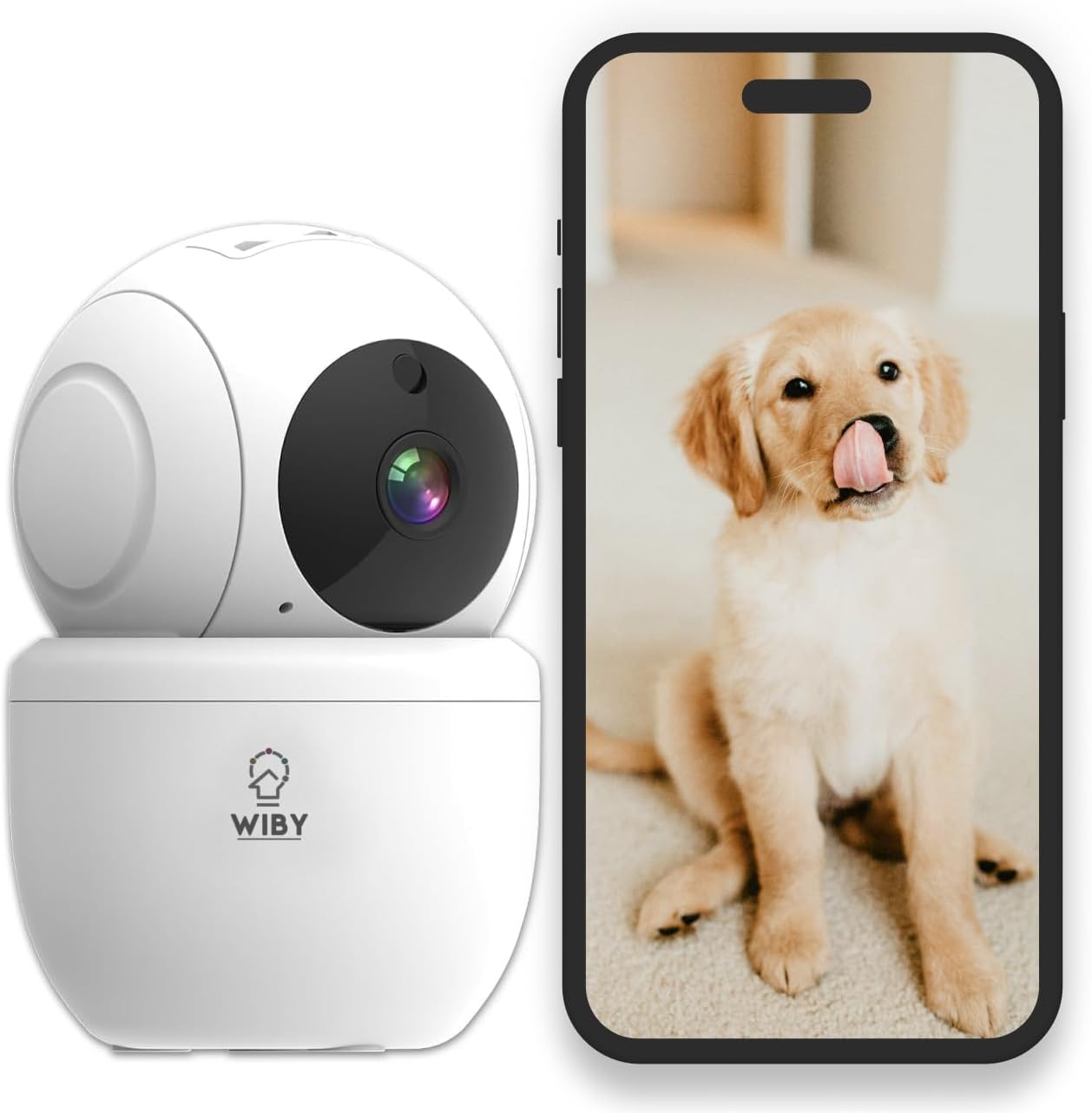
Image 1: The Wiby TV-268-3MP Indoor Wi-Fi Camera shown next to a smartphone displaying its live video feed. The camera is white with a spherical top section that houses the lens, and a cylindrical base with the Wiby logo. The smartphone screen shows a golden retriever puppy, illustrating the camera's monitoring capability.
3. Setup Instructions
3.1. Unboxing and Initial Placement
- Carefully remove all components from the packaging.
- Place the camera on a flat, stable surface or mount it using the provided bracket in a location with a clear view of the area you wish to monitor. Ensure it is within range of your Wi-Fi router.
3.2. Powering On the Camera
- Connect the power cable to the camera's power input port.
- Plug the other end of the power cable into a standard electrical outlet.
- The camera will power on, and an indicator light will illuminate, typically blinking to indicate it is ready for setup.
3.3. App Installation and Pairing
- Download the recommended mobile application (e.g., Smart Life or Tuya Smart) from your smartphone's app store (iOS App Store or Google Play Store).
- Register for a new account or log in if you already have one.
- Follow the in-app instructions to add a new device. Select "Security Camera" or a similar category.
- Ensure your smartphone is connected to a 2.4 GHz Wi-Fi network during the pairing process. The camera supports both 2.4 GHz and 5 GHz, but initial setup often requires 2.4 GHz.
- The app will guide you through connecting the camera to your Wi-Fi network, often involving scanning a QR code displayed on your phone with the camera's lens or using an audio pairing method.
- Once successfully paired, the camera's indicator light will typically turn solid, and you will see the live feed in the app.
4. Operating Instructions
4.1. Live View and Pan/Tilt Control
- Open the mobile application and select your camera to view the live feed.
- Use the on-screen controls to pan (rotate horizontally up to 355°) and tilt (rotate vertically up to 80°) the camera lens to adjust the viewing angle.
4.2. Two-Way Audio
- In the live view interface, tap the microphone icon to speak through the camera's speaker.
- Tap the speaker icon to listen to audio from the camera's surroundings.
4.3. Motion Detection and Alerts
- Access the camera settings in the app to enable motion detection.
- Adjust sensitivity levels and set detection zones as needed.
- When motion is detected, the camera will send an instant notification to your smartphone.
- The camera can also be configured to automatically track detected movement.

Image 2: A smartphone screen showing a notification for motion detection from the Wiby camera. The notification indicates that the camera has detected movement, illustrating the alert feature. An overlay on the image shows a person with a target graphic, representing the camera's detection capabilities.
4.4. Night Vision
- The camera automatically switches to infrared (IR) night vision mode in low-light conditions.
- This provides clear black-and-white video footage even in complete darkness.
4.5. Video Recording and Storage
- Micro SD Card: Insert a Micro SD card (up to 128GB, Class 10 or higher recommended) into the camera's designated slot for local continuous or event-based recording. Format the card via the app if prompted.
- Cloud Storage: The camera supports cloud storage services. Refer to the app for subscription options and details.
- Recorded footage can be accessed and reviewed through the mobile application.
4.6. Smart Home Integration
- To integrate with Amazon Alexa or Google Home, ensure your camera is successfully set up in its primary mobile application.
- Open the Alexa or Google Home app, navigate to "Skills" or "Works with Google," and search for the camera's app (e.g., Smart Life or Tuya Smart).
- Enable the skill/service and link your account.
- Discover devices, and your Wiby camera should appear. You can then use voice commands to view the camera feed on compatible smart displays (e.g., "Alexa, show me the living room camera").
5. Maintenance
5.1. Cleaning
- Ensure the camera is powered off before cleaning.
- Use a soft, dry cloth to gently wipe the camera body.
- For the lens, use a lens cleaning cloth specifically designed for optics to avoid scratches. Do not use harsh chemicals or abrasive cleaners.
5.2. Firmware Updates
- Periodically check the mobile application for available firmware updates.
- Firmware updates can improve performance, add new features, and enhance security.
- Follow the in-app instructions carefully when performing an update. Ensure the camera remains powered on and connected to Wi-Fi during the entire process.
6. Troubleshooting
- Camera not connecting to Wi-Fi:
- Ensure your Wi-Fi network is 2.4 GHz or 5 GHz and your phone is connected to the correct band during setup.
- Verify the Wi-Fi password is entered correctly.
- Move the camera closer to the router.
- Reset the camera (refer to the app or camera's physical button for reset instructions) and try pairing again.
- No live feed:
- Check if the camera is powered on and connected to Wi-Fi.
- Ensure your smartphone has a stable internet connection.
- Restart the camera and the mobile application.
- Motion detection alerts not received:
- Verify motion detection is enabled in the app settings.
- Check your phone's notification settings to ensure the app is allowed to send notifications.
- Adjust motion detection sensitivity.
- Two-way audio not working:
- Ensure microphone and speaker permissions are granted to the app on your smartphone.
- Check the volume settings on both your phone and within the app.
- SD card not recording:
- Ensure the SD card is inserted correctly.
- Format the SD card through the camera settings in the app.
- Check if the SD card is faulty or full. Replace if necessary.
7. Specifications
| Model Number | TV-268-3MP |
| Video Resolution | 1080p |
| Connectivity | Wi-Fi (2.4 GHz / 5 GHz) |
| Pan Angle | 355° |
| Tilt Angle | 80° |
| Night Vision | Infrared (IR) |
| Two-Way Audio | Supported |
| Storage Options | Micro SD Card (up to 128GB), Cloud Storage |
| Smart Home Compatibility | Amazon Alexa, Google Home |
| Dimensions (L x W x H) | 6.9 x 6.9 x 10.6 cm |
| Weight | 290 grams |
| Power Input | 5V/1A |
| Usage Environment | Indoor |
Note: Specifications are subject to change without prior notice.
8. Warranty and Support
Wiby products are designed for reliability and performance. For warranty information, please refer to the warranty card included with your purchase or visit the official Wiby website. For technical support, troubleshooting assistance, or further inquiries, please contact Wiby customer service through the contact information provided on the product packaging or the official website.
Please retain your proof of purchase for warranty claims.