
Product Overview
The Quanlex 2-in-1 Wireless CarPlay & Android Auto Adapter seamlessly converts your vehicle's existing wired CarPlay or Android Auto system into a wireless one. This device eliminates the need for constant cable connections, providing a more convenient and streamlined in-car experience. It supports both Apple CarPlay (iOS 10 and above) and Android Auto (Android 11.0 or higher), ensuring broad compatibility with modern smartphones and vehicles manufactured from 2016 onwards that feature factory-installed wired CarPlay or Android Auto.
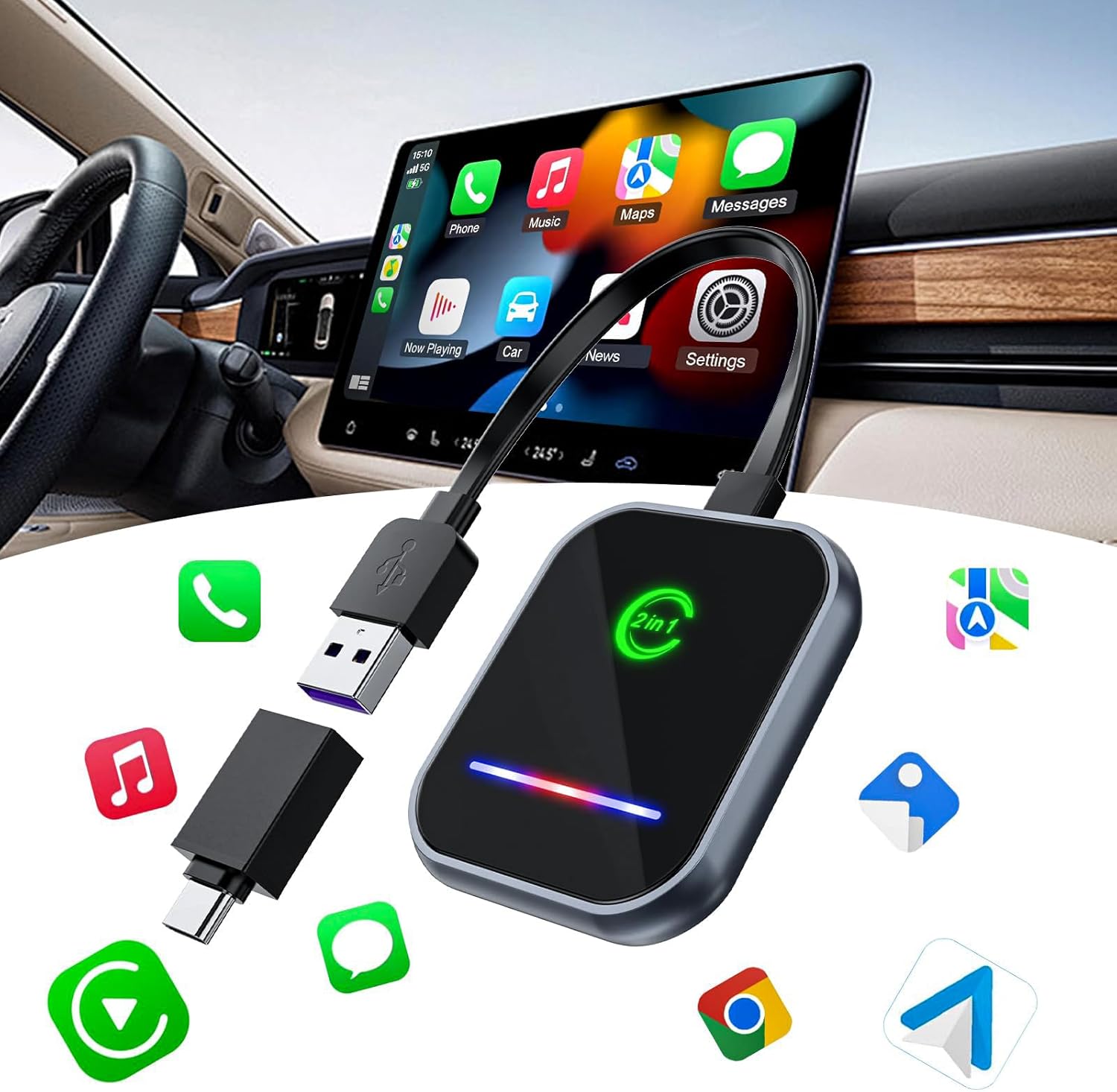
Image: The Quanlex 2-in-1 Wireless CarPlay and Android Auto Adapter, shown connected in a vehicle, enabling the wireless display of the CarPlay interface on the car's infotainment screen.
Setup Instructions
The Quanlex 2-in-1 Wireless CarPlay & Android Auto Adapter is designed for a simple, three-step plug-and-play installation process.
- Connect the Adapter: Insert the adapter into your car's USB or USB-C port. The adapter includes a USB-A to USB-C adapter connector for versatile compatibility. Ensure your vehicle has factory-installed wired CarPlay or Android Auto.
- Pair via Bluetooth: On your smartphone, enable Bluetooth and search for the adapter's Bluetooth signal. Select the adapter from the list of available devices to initiate pairing.
- Activate CarPlay/Android Auto: Once paired, a prompt will appear on your car's infotainment screen. Click "Use CarPlay" or "Use Android Auto" to complete the connection. You may be asked to allow contacts and favorites sync.
After the initial setup, the adapter will automatically reconnect to your smartphone every time you start your car, providing seamless access to wireless CarPlay or Android Auto.

Image: A visual guide illustrating the three simple steps for installing the adapter: plugging it into the car's USB port, pairing a smartphone via Bluetooth and Wi-Fi, and then accessing the CarPlay or Android Auto interface.
Video: An official product video demonstrating the quick and easy setup process of the Wireless CarPlay Adapter, including plugging it in, connecting via Bluetooth, and showing the seamless integration with the car's display.
Operating Instructions
The adapter provides a stable and responsive wireless connection, allowing you to utilize all features of CarPlay and Android Auto without cables.
- Automatic Reconnection: Once initially paired, the adapter will automatically connect to your smartphone when you start your vehicle, typically within 5 to 10 seconds.
- Enhanced Stability: Featuring built-in 2.5GHz + 5.0GHz WiFi and Bluetooth 5.2, the adapter ensures real-time synchronization and responsiveness, minimizing latency and lag for a smooth user experience.
- Full Functionality: Access all standard CarPlay and Android Auto features, including navigation (supporting mainstream map applications), music playback, hands-free calling, and messaging.
- Voice Assistant: Utilize your device's voice assistant (e.g., Siri, Google Assistant) for hands-free control of navigation, calls, and music.
- Original Car Controls: The adapter maintains compatibility with your car's original control methods, including steering wheel controls, touch screen input, and physical buttons/knobs, for a familiar and intuitive user experience.

Image: The wireless CarPlay and Android Auto interfaces are shown on a car's display, highlighting the comfortable and feature-rich wireless experience.

Image: Demonstrates how the wireless adapter allows for a smarter and safer drive by supporting voice assistant, button control, wheel control, and touch screen interaction with the car's system.
Maintenance
The Quanlex 2-in-1 Wireless CarPlay & Android Auto Adapter is constructed with durable materials designed for efficient heat dissipation, ensuring stable performance and longevity.
- Cleaning: Use a soft, dry cloth to gently wipe the adapter's exterior. Avoid using liquid cleaners or abrasive materials, as they may damage the device.
- Storage: When not in use for extended periods, store the adapter in a cool, dry place away from direct sunlight and extreme temperatures.
- Heat Management: The adapter features a zinc alloy bottom shell and tempered glass to quickly export internal heat. Ensure the adapter is not obstructed or covered during operation to allow for proper ventilation.
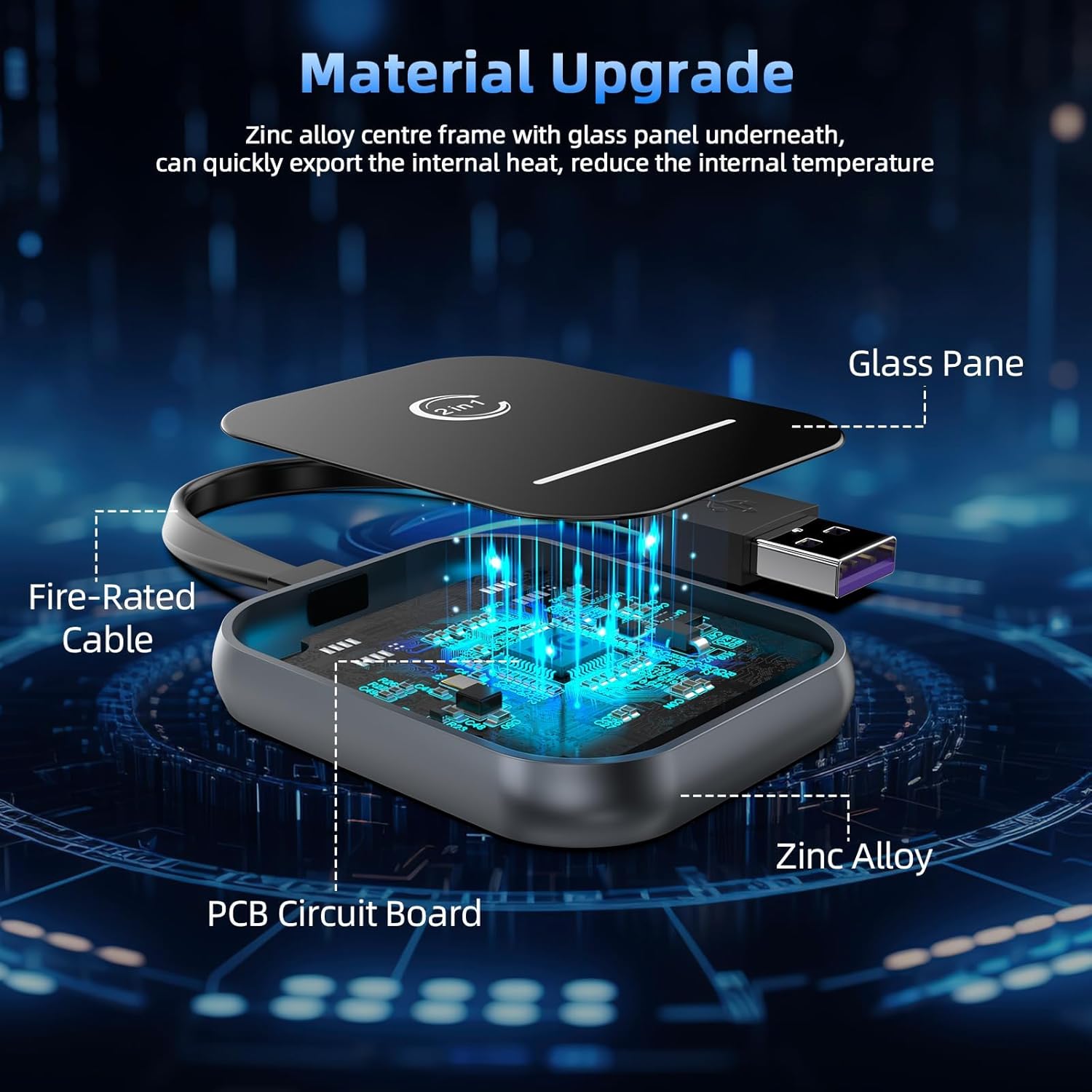
Image: An exploded view illustrating the internal construction of the adapter, highlighting its zinc alloy and tempered glass components designed for efficient heat dissipation.
Troubleshooting
If you encounter issues with your Quanlex 2-in-1 Wireless CarPlay & Android Auto Adapter, please refer to the following common solutions:
| Problem | Possible Cause | Solution |
|---|---|---|
| Adapter not connecting | Incorrect USB port, Bluetooth not enabled, phone not paired, car not compatible. | Ensure the adapter is plugged into the correct USB/USB-C port that supports wired CarPlay/Android Auto. Verify Bluetooth is on and the adapter is paired. Check your car's manual for wired CarPlay/Android Auto compatibility. |
| Intermittent connection or lag | Weak signal, interference, outdated phone OS. | Ensure your phone is close to the adapter. Minimize other wireless devices nearby. Update your phone's operating system to the latest version (iOS 10+ or Android 11.0+). |
| No audio output | Volume settings, incorrect audio source. | Check the volume levels on both your car's infotainment system and your smartphone. Ensure the car's audio source is set to CarPlay or Android Auto. |
| CarPlay/Android Auto not launching | Software glitch, phone settings. | Restart your smartphone and the car's infotainment system. Disconnect and reconnect the adapter. On your phone, check CarPlay/Android Auto settings to ensure it's enabled. |
If the issue persists after attempting these solutions, please contact customer support for further assistance.
Product Specifications
- Model Number: SUNLINK S1FT
- Product Dimensions: 1 x 1 x 1 inches
- Item Weight: 2.39 ounces
- Color: Black
- Connector Type: USB Type A (includes USB A-C adapter)
- Compatible Devices: Smartphones (iOS 10+ for CarPlay, Android 11.0+ for Android Auto)
- Specific Uses: Car, Cell Phone
- Wireless Connectivity: Built-in 2.5GHz + 5.0GHz WiFi, Bluetooth 5.2
- Manufacturer: Dongguan Lijie Electronic Technology Co., Ltd.
Warranty Information
This product is covered by a manufacturer's warranty. For specific details regarding the warranty period and terms, please refer to the product packaging or contact Quanlex customer support. The warranty typically covers defects in materials and workmanship under normal use.
Customer Support
For any questions, technical assistance, or support regarding your Quanlex 2-in-1 Wireless CarPlay & Android Auto Adapter, please utilize the dedicated 24/7 professional technical support provided by the manufacturer.
Please refer to the contact information provided on the product packaging or the official Quanlex website for the most up-to-date support channels.