
Introduction
Thank you for choosing the QDVOPHZA 8Ch 4K 8MP CCTV Security Camera System. This system is designed to provide comprehensive surveillance for your home or business, featuring 4K resolution, intelligent humanoid detection, PTZ (Pan/Tilt/Zoom) capabilities, and efficient night vision. This manual will guide you through the installation, operation, and maintenance of your security system to ensure optimal performance and security.

Image: Overview of the QDVOPHZA 8Ch 4K 8MP CCTV Security Camera System, showing the NVR unit, multiple PTZ cameras, and network cables.
Package Contents
Please verify that all items listed below are included in your package. If any items are missing or damaged, please contact customer support.
- 8-Channel 4K PoE NVR (Network Video Recorder)
- PTZ Cameras (Quantity varies by package: 4, 6, or 8)
- NVR Power Adapter
- Remote Control
- USB Mouse
- Quick Start Guide
- Surveillance Sticker
- 18M Network Cables (Quantity matches cameras)
- Weatherproof Lids
- Pack of Screws
- Optional Hard Disk (Pre-installed or separate, depending on model)
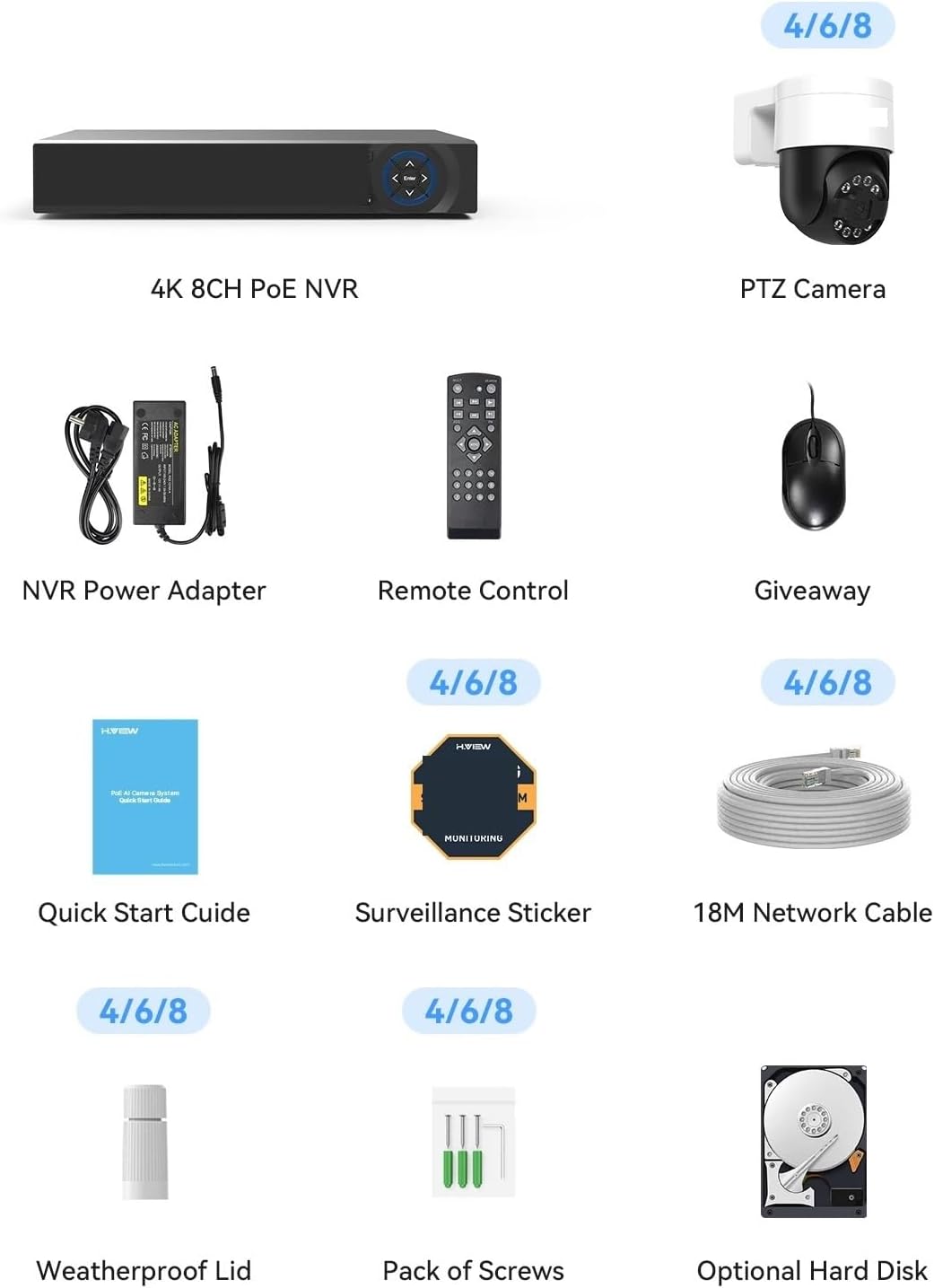
Image: A visual representation of the QDVOPHZA security system's package contents, including the NVR, PTZ cameras, power adapter, remote, mouse, quick start guide, surveillance sticker, network cables, weatherproof lids, and screw pack.
Setup Instructions
Follow these steps to set up your QDVOPHZA security camera system.
1. NVR Connection
- Connect the NVR to a power source using the provided NVR Power Adapter.
- Connect the NVR to a monitor or TV via the HDMI or VGA port for initial setup.
- Connect the USB mouse to the NVR's USB port for navigation.
- If you plan to use remote access, connect the NVR to your router using an Ethernet cable.
2. Camera Installation and Connection
- Mount the PTZ cameras in desired outdoor or indoor locations, ensuring a clear field of view. Use the provided screws and weatherproof lids for secure installation.
- Connect each camera to the NVR's PoE (Power over Ethernet) ports using the 18M network cables. The NVR will automatically power the cameras and establish a video connection.
- Ensure all connections are secure and weatherproofed, especially for outdoor installations.
3. Initial System Configuration
- Upon first boot, the NVR will guide you through a setup wizard. Follow the on-screen prompts to set up language, date/time, network settings, and hard disk initialization.
- Create a strong password for your NVR to prevent unauthorized access.
- Verify that all connected cameras are displaying video feeds on the monitor.

Image: Diagram illustrating the QDVOPHZA 8Ch PoE NVR with its various ports for camera connections, power, and display output, alongside icons representing key features like 4K Ultra HD, Smart Detection, PTZ, Two-Way Audio, H.265 Compression, IP66 Weatherproof, 24/7 Recording, and Remote Access.
Operating Instructions
This section details the primary functions and operations of your security system.
1. Live View and Playback
- Live View: Access the NVR interface via a connected monitor or the mobile app/PC software to view real-time footage from all cameras.
- Playback: Use the NVR interface or remote access platforms to review recorded footage. Navigate through the timeline to find specific events.
2. PTZ Control
The PTZ cameras allow for flexible monitoring.
- From the NVR interface or the remote access app/software, select the desired PTZ camera.
- Use the on-screen controls or joystick on the remote control to pan (rotate horizontally 360°), tilt (rotate vertically), and zoom in/out.
- You can set preset positions for quick camera adjustments.
3. Humanoid Detection and Alarms
The system features intelligent humanoid detection to minimize false alarms.
- When a human figure is detected, the system can trigger various alarms: email alerts, app push notifications, and a sound and light alarm from the camera itself.
- Configure detection zones and sensitivity settings in the NVR menu to optimize performance.

Image: A screenshot of the QDVOPHZA security system's interface demonstrating face detection and playback capabilities, showing a person detected and a timeline for reviewing recorded events.

Image: An illustration showing a QDVOPHZA camera detecting a person and triggering a sound and light alarm, with a speech bubble indicating an alert message.
4. Remote Access
Access your security system from anywhere using the dedicated mobile app or PC software.
- Download the official QDVOPHZA app from your smartphone's app store or the PC software from the manufacturer's website.
- Register an account and add your NVR by scanning the QR code or entering its serial number.
- Once connected, you can view live feeds, play back recordings, receive alerts, and control PTZ functions remotely.
Maintenance
Regular maintenance ensures the longevity and optimal performance of your security system.
- Clean Cameras: Periodically clean the camera lenses with a soft, damp cloth to remove dust, dirt, or water spots that may obstruct the view.
- Check Connections: Ensure all cable connections (power, network) are secure and free from damage, especially for outdoor cameras.
- Firmware Updates: Check the manufacturer's website or the NVR system settings for available firmware updates. Keeping your system updated can improve performance and security.
- Hard Drive Health: Monitor the health of your NVR's hard drive through the system settings. Replace the hard drive if any issues are detected to prevent data loss.
- Power Supply: Ensure the NVR and cameras receive stable power. Avoid connecting to overloaded power strips.
Troubleshooting
If you encounter issues with your system, refer to the following common troubleshooting steps.
- No Video Display:
- Check if the NVR is powered on and the power adapter is securely connected.
- Ensure the monitor/TV is correctly connected to the NVR via HDMI/VGA and set to the correct input source.
- Verify that individual cameras are powered and connected to the NVR's PoE ports.
- No Remote Access:
- Confirm the NVR is connected to your router and has internet access. Check network cable and router status.
- Ensure the mobile app/PC software is updated to the latest version.
- Verify your NVR's network settings (IP address, DNS) are correct.
- Poor Image Quality:
- Clean the camera lens.
- Check for obstructions in the camera's field of view.
- Ensure the camera resolution settings are configured for 4K (if applicable).
- False Alarms:
- Adjust the humanoid detection sensitivity in the NVR settings.
- Refine detection zones to exclude areas with frequent non-human movement (e.g., trees, pets).
Specifications
| Feature | Specification |
|---|---|
| Brand | QDVOPHZA |
| Model Number | w0u5903wei |
| Connectivity Technology | Wired, Wireless |
| Video Capture Resolution | 4K (3840x2160) |
| Number of Channels | 8 |
| Compatible Devices | Smartphones, Personal Computers |
| Camera Features | 8MP Cameras with Night Vision up to 25M, Metal Housing, IP66 Waterproof, 3.6mm Lens |
| Frame Rate | 30 fps |
| Recording Mode | Motion Detection Event |
| Hardware Interface | 802.11 ac/b/g/n (for wireless connectivity) |
| Video Input | RJ45 (for PoE cameras) |
| Viewing Angle | 90 Degrees |
| Item Weight | 1.76 ounces (per camera, approximate) |
| AI Functions | Face Detection, Human Motion Detection |
Warranty and Support
For warranty information, technical support, or any inquiries regarding your QDVOPHZA security camera system, please refer to the contact information provided in your product packaging or visit the official QDVOPHZA website. Keep your purchase receipt as proof of purchase for warranty claims.