1. Introduction
This manual provides comprehensive instructions for the installation, operation, and maintenance of your Jingelsye 9-inch Car Radio Stereo. Designed specifically for Ford F150 models from 2009 to 2014, this unit enhances your driving experience with advanced features such as wireless CarPlay, Android Auto, GPS navigation, Bluetooth 5G WiFi, mirror link, and support for a backup camera. Please read this manual thoroughly before installation and use to ensure proper functionality and safety.

Figure 1: Jingelsye 9-inch Car Radio Stereo installed in a Ford F150 dashboard.
2. What's in the Box
Verify that all components are present before beginning installation:
- 1x Head Unit (Main Stereo Display)
- 1x Backup Camera
- 1x Reversing Cable
- 1x CanBus Decoder
- 1x Crowbar (for trim removal)
- 1x Power Cord
- 1x RCA Cable Set
- 2x USB Cables (4-pin and 6-pin)
- 1x GPS Antenna
- 1x 4G Antenna (for 4G RAM models only)
- 1x Radio Antenna Adapter
3. Setup & Installation
The installation process involves removing your factory radio and connecting the new head unit with the provided wiring harnesses and accessories. Professional installation is recommended if you are unfamiliar with car audio systems.
3.1. Compatibility Check

Figure 2: Compatibility chart for Ford F150 dashboards (2009-2014). Ensure your vehicle's dashboard matches a 'Fit' configuration.
3.2. Wiring Connections
Follow the steps below to connect the various components to the head unit. Refer to the wiring video for a visual guide.
Video 1: Detailed wiring instructions for the Jingelsye car radio stereo. This video demonstrates how to connect the various cables and antennas to the head unit.
- Connect Antennas: Attach the 4G Antenna (if applicable) and GPS Antenna to their respective ports on the back of the head unit.
- Rear Camera Connection: Connect the Rear Camera Signal Wire to the head unit. Use the Camera Extension Cables to route the signal from the backup camera to the head unit. Ensure the AHD 1080P Rear Camera is securely connected.
- Power Cable & Canbus: Connect the main Power Cable harness to the head unit. Integrate the Canbus decoder into the power harness as instructed.
- Radio Antenna: Connect the Radio Antenna adapter to the head unit's antenna input.
- USB Cables: Connect both the 4-pin and 6-pin USB Cables to the designated USB ports on the head unit. These will be used for data transfer and charging.
- RCA Cables: Connect the RCA Cable set for audio/video input/output as needed for external amplifiers, subwoofers, or additional displays.

Figure 3: Visual comparison of the Ford F150 dashboard before and after installing the Jingelsye car radio stereo, showcasing the integrated features.
4. Operating Instructions
Your Jingelsye car radio stereo runs on Android 12 and offers a variety of features for an enhanced in-car experience.
Video 2: Overview of the 4-core car radio's user interface and key features, including DSP sound settings, Bluetooth connectivity, CarPlay, GPS navigation, WiFi, FM radio, and UI theme customization.
4.1. Wireless CarPlay & Android Auto
Connect your smartphone wirelessly or via USB to access CarPlay (for iPhone) or Android Auto (for Android phones). This allows you to use navigation, make calls, send messages, and play music directly from your phone's interface on the stereo display.

Figure 4: Wireless CarPlay and Android Auto in operation, providing seamless smartphone integration.

Figure 5: Wired and wireless connectivity options for CarPlay and Android Auto.
4.2. GPS Navigation
The unit features built-in offline maps for North America and supports online navigation applications via 5G WiFi. Access real-time traffic updates and turn-by-turn directions.
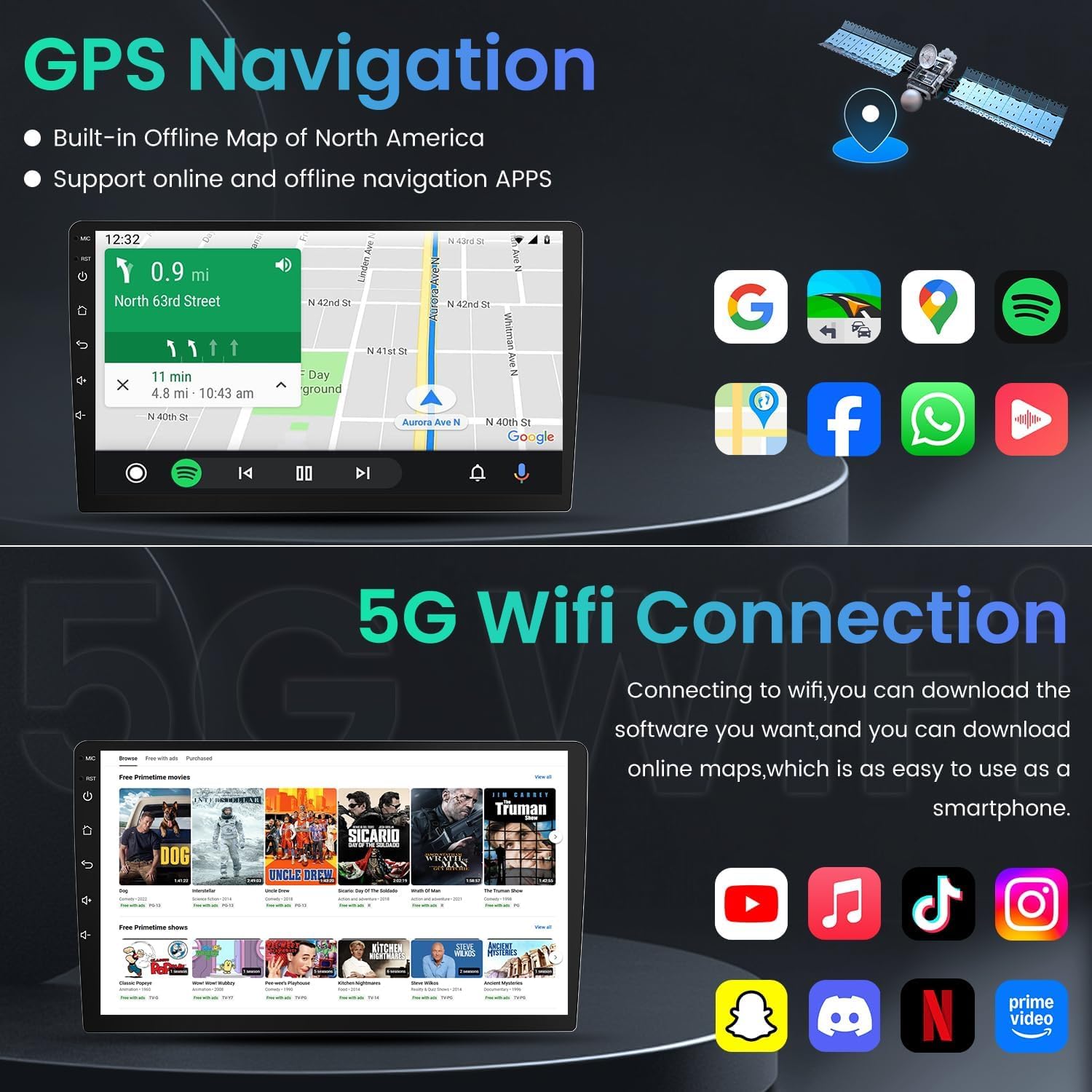
Figure 6: GPS Navigation interface with map display and app shortcuts.
4.3. 5G WiFi Connectivity
Connect to a WiFi hotspot to download apps, stream media, and update maps. The 5G WiFi ensures a fast and stable internet connection.
4.4. Bluetooth 5.0
Pair your phone via Bluetooth 5.0 for hands-free calling and audio streaming. The stable connection ensures clear calls and uninterrupted music playback.
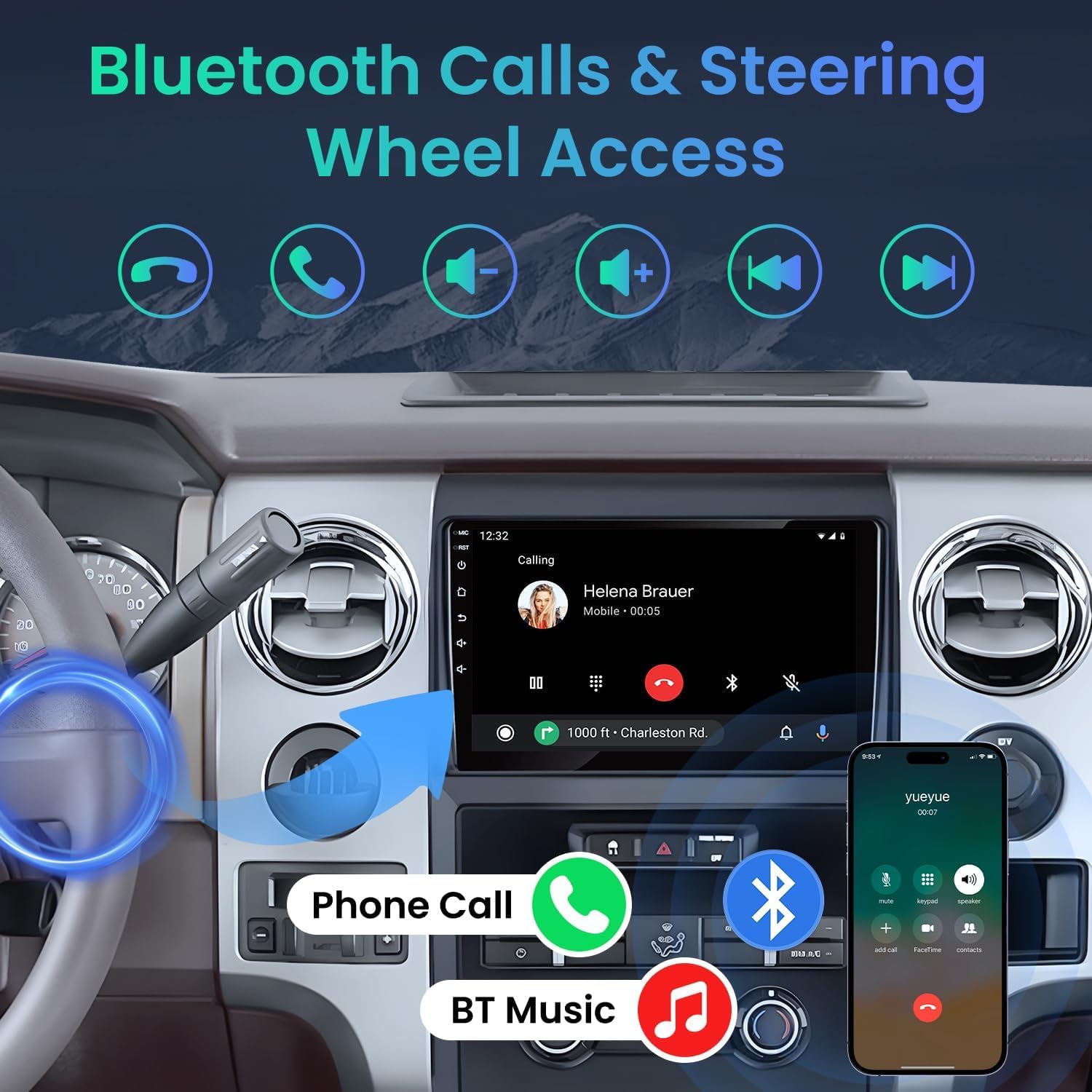
Figure 7: Bluetooth Calls and Steering Wheel Control integration.

Figure 8: Overview of Bluetooth 5.0 capabilities for stable and fast connections.
4.5. FM/RDS Radio
Enjoy your favorite radio stations with FM and RDS (Radio Data System) support, which provides additional information like station name and song title.
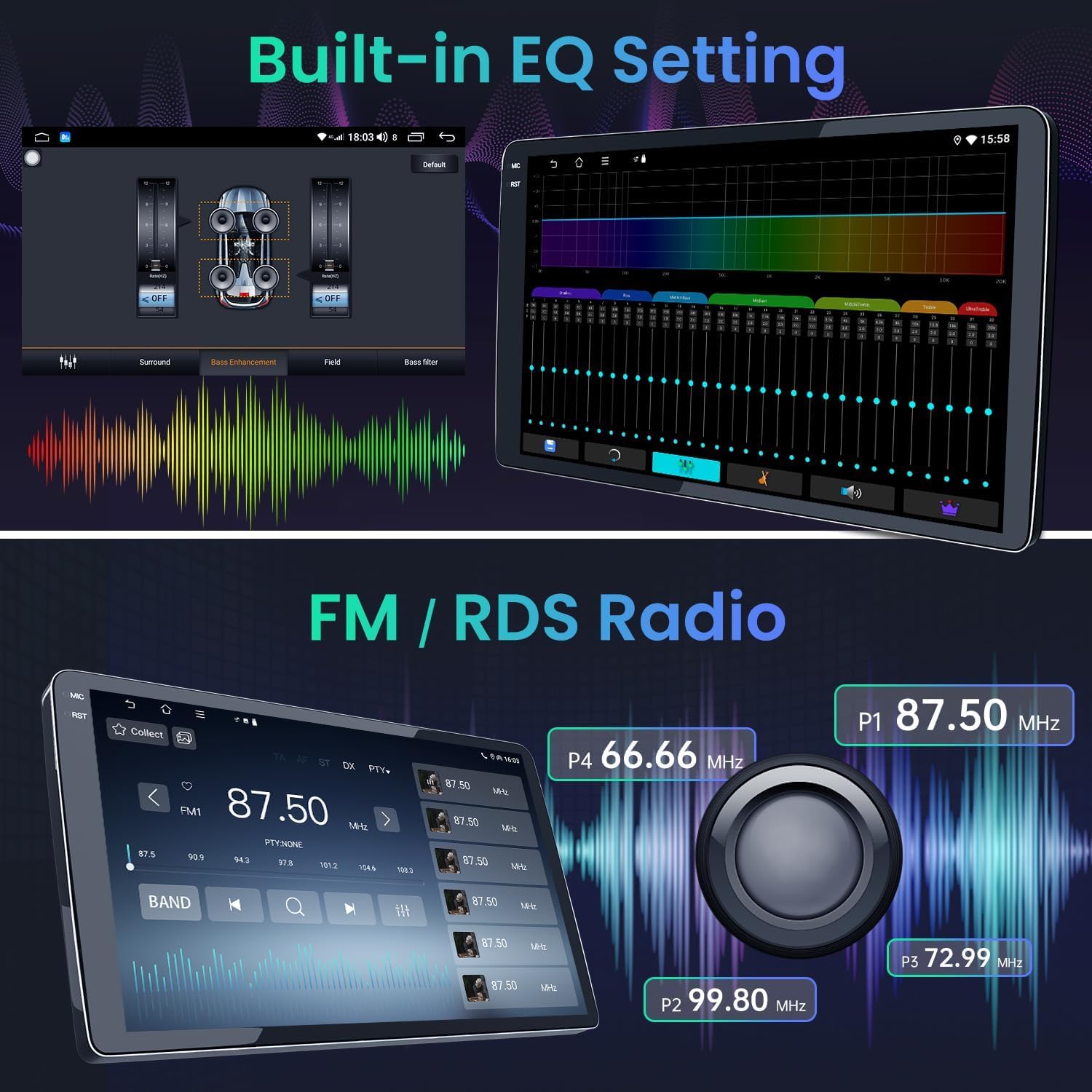
Figure 9: FM/RDS Radio interface and built-in EQ settings.
Figure 10: FM RDS radio interface with various modes for enhanced listening pleasure.
4.6. DSP Sound & Equalizer
Customize your audio experience with the built-in Digital Sound Processor (DSP) and equalizer settings. Adjust bass, treble, and other audio parameters to your preference.
4.7. Mirror Link
Mirror your smartphone screen directly onto the head unit display, allowing you to view content from your phone on the larger screen.

Figure 11: Mirror Link functionality displaying smartphone content on the stereo.
4.8. HD Reverse Camera
The included 1080P AHD reverse camera automatically activates when shifting into reverse, providing a wide 170° view with precise assisted reversing lines for safer parking.

Figure 12: HD Reverse Camera view with 170° wide angle and parking assistance lines.
4.9. Voice Control
Utilize Siri or Google Voice Control for hands-free operation of navigation, calls, and media playback, enhancing safety while driving.

Figure 13: Siri/Google Voice Control in action for hands-free commands.
4.10. UI Theme Customization
Personalize the look and feel of your stereo's interface by selecting from various UI themes available in the settings menu.
5. Specifications
| Feature | Detail |
|---|---|
| Model Number | B0DMJXQ2Z1 |
| Operating System | Android 12 |
| RAM | 4GB |
| ROM | 64GB |
| Display Size | 9 Inches |
| Resolution | 1280*800 HD Touchscreen |
| Connectivity | Bluetooth 5.0, 5G Wi-Fi, USB |
| Navigation | Built-in GPS, Worldwide Map Type |
| Radio | FM / RDS / SWC |
| Special Features | Wireless/Wired CarPlay & Android Auto, Mirror Link, 1080P AHD Rear View Camera Support, Built-in EQ Setting |
| Audio Output Mode | Stereo |
| Mounting Type | Dashboard Mount |
| Item Weight | 4.65 pounds |
| Product Dimensions | 11.61 x 5.43 x 16.81 inches |
6. Troubleshooting
If you encounter issues with your car radio stereo, refer to the following common problems and solutions:
- No Power:
- Check all power cable connections to ensure they are secure.
- Verify the vehicle's fuse for the radio is not blown.
- Ensure the ignition is on or the vehicle is running.
- No Sound:
- Check speaker wire connections.
- Ensure the volume is not muted or set too low.
- Verify amplifier connections if an external amplifier is used.
- Check DSP/Equalizer settings for any misconfigurations.
- CarPlay/Android Auto Disconnects:
- Ensure a strong and stable WiFi or USB connection.
- Update your smartphone's operating system and the stereo's firmware.
- Try restarting both the phone and the stereo.
- Check for interference from other wireless devices.
- GPS Signal Issues:
- Ensure the GPS antenna is properly installed and has a clear view of the sky.
- Check the GPS antenna connection to the head unit.
- Update map data if necessary.
- Backup Camera Not Displaying:
- Verify the reversing cable and camera signal wire connections.
- Ensure the camera is receiving power.
- Check the camera settings in the stereo's menu.
- Bluetooth Connection Problems:
- Ensure Bluetooth is enabled on both the stereo and your device.
- Unpair and re-pair the device.
- Clear previous Bluetooth connections on both devices.
7. Warranty & Support
Your Jingelsye car radio stereo is backed by a 30-day return policy. For any technical assistance or inquiries, Jingelsye-US offers 24-hour technical support.
7.1. Contacting Support
To contact technical support, please visit the Jingelsye-US storefront on Amazon and use the "Ask a question" feature. Provide your product details and a clear description of the issue for prompt assistance.

Figure 14: Steps to access 24-hour technical support from Jingelsye-US.