
1. Introduction
This instruction manual provides important information regarding the safe and efficient use of your Orestree 90W USB-C Charger. Please read this manual thoroughly before using the product and retain it for future reference. This charger is designed to provide reliable power to compatible Dell Latitude laptops and other USB-C devices.
2. Product Overview
The Orestree 90W USB-C Charger consists of the main power adapter unit and a detachable power cord. It features a USB-C connector for compatibility with modern laptops.

Figure 2.1: The Orestree 90W USB-C Charger, showing the main adapter unit and the detachable power cord with a standard 3-prong plug and a USB-C connector on the output cable.

Figure 2.2: Detailed view of the USB-C connector, highlighting its reversible design and the internal pure copper wire construction for durability and efficient power transfer. The image also indicates a lifespan of over 50,000 bends for the cable.
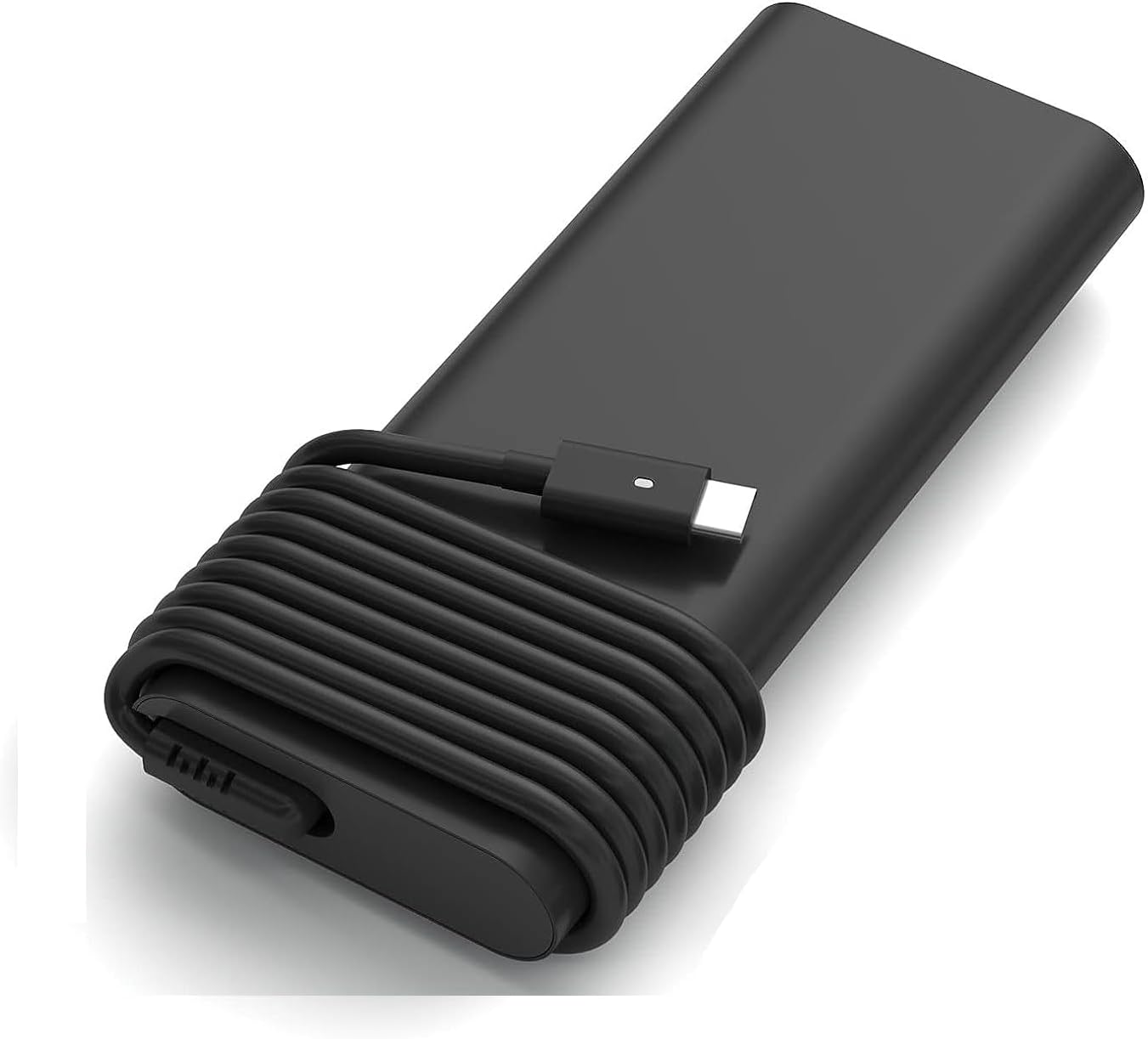
Figure 2.3: The Orestree 90W USB-C Charger with its integrated USB-C cable neatly wrapped around the adapter body, demonstrating its compact design for storage and portability.
3. Specifications
| Feature | Detail |
|---|---|
| Input Voltage | 100-240V ~ 50-60Hz 4.8A |
| Output Voltage/Current | 20.0V 4.5A |
| Output Wattage | 90W |
| Connector Type | USB-C |
| Compatible Devices | Dell Latitude 5320 2in1 P139G001 Laptop and other compatible USB-C laptops |
| Color | Black |
| Item Weight | 8 ounces (approx. 227 grams) |
| Special Features | Automatic Off, Fast Charging, Multi-protection (Over-current, Over-voltage, Short circuit, Resistant to burning, Over-temperature, Over-charge) |
4. Setup
- Unpack the Charger: Carefully remove the charger and power cord from its packaging.
- Connect the Power Cord: Insert the 3-prong end of the detachable power cord into the corresponding port on the main charger adapter unit. Ensure it is firmly seated.
- Connect to Power Outlet: Plug the 3-prong plug of the power cord into a standard wall power outlet (100-240V AC).
- Connect to Device: Insert the USB-C connector of the charger into the USB-C charging port on your Dell Latitude laptop or other compatible device.

Figure 4.1: Proper setup of the Orestree 90W USB-C Charger, showing the power adapter connected to a wall outlet via its power cord and the USB-C cable connected to a laptop's charging port.
5. Operating Instructions
Once properly connected, the charger will automatically begin supplying power to your device. The charger is designed for continuous use during device operation or for charging the device's internal battery.
- Ensure the charger is placed in a well-ventilated area to prevent overheating.
- The charger features automatic off and fast charging capabilities, optimizing power delivery to your device.
- Disconnect the charger from the wall outlet when not in use for extended periods.

Figure 5.1: Diagram illustrating the comprehensive safety protections integrated into the charger, including Over-current protection, Over-voltage protection, Short circuit protection, Resistance to burning, and Over-temperature protection. These features ensure safe and reliable operation.

Figure 5.2: An internal view highlighting the "POWER DELIVERY CHIP" responsible for managing the charger's multi-protection features, including Short-Circuit Protection, Over-Temp Protection, Over-Voltage Protection, Over-Charge Protection, and Over-Current Protection.
6. Safety Information
To ensure safe operation and prevent damage, please observe the following precautions:
- Do not expose the charger to water, moisture, or extreme temperatures.
- Do not disassemble, modify, or attempt to repair the charger. Refer servicing to qualified personnel.
- Avoid dropping or subjecting the charger to strong impacts.
- Ensure the power outlet used is easily accessible and properly grounded.
- Do not use the charger if the cables are damaged or frayed.
- Keep the charger away from children and pets.
- Unplug the charger during lightning storms or when unused for long periods.
7. Maintenance
Proper maintenance ensures the longevity and performance of your charger:
- Cleaning: Disconnect the charger from all power sources before cleaning. Use a soft, dry cloth to wipe the surface. Do not use liquid cleaners or aerosols.
- Storage: When not in use, store the charger in a cool, dry place, away from direct sunlight and extreme temperatures. Avoid tightly coiling the cables to prevent damage.
- Inspection: Periodically inspect the charger and cables for any signs of damage, such as cuts, fraying, or discoloration. If damage is found, discontinue use and replace the charger.
8. Troubleshooting
| Problem | Possible Cause | Solution |
|---|---|---|
| Charger not supplying power. |
|
|
| Device charging slowly. |
|
|
| Charger feels hot. |
|
|
9. Warranty and Support
Orestree provides a 30-day money-back guarantee and a 1-year warranty for this product. This warranty covers manufacturing defects and issues arising from normal use.
For support, warranty claims, or any questions regarding your Orestree 90W USB-C Charger, please contact the seller directly through the platform where you made your purchase. You can typically find a "Contact Seller" or "Ask a question" option on the product page or within your order details.